

Android battery issues often come from a few apps and settings that use a lot of power. A few simple changes can add hours to your battery life.
Understanding Battery Use On Android
Watching your phone’s battery use is like shining a light in dark corners—you see what’s using power. In my tests, changing just a couple of settings helped someone double their standby time in a day.
Here’s where most of the power goes:
- Apps can use 15–30% of your battery when they run or sync in the background.
- Wi-Fi and mobile data can drain power when they keep searching for a signal.
- The screen can eat up 25–40% of your battery, especially with high brightness or a fast refresh rate.
Cutting screen brightness by 20% or checking for new data less often can boost video play time by up to 30%. One friend turned on adaptive brightness and got two extra hours of use in the evening.
Reducing background sync from every 15 minutes to every hour gained nearly 50% more standby time for one commuter.
Fix one big battery drain at a time—that way you see results without feeling overwhelmed.
Real World Scenarios
People who travel a lot and tech fans say routine battery checks cut down on “will it last?” worries.
You might also like our guide on factors that influence phone battery life to see what else affects your Android battery.
Stack these tweaks and you could see:
- 20–30% longer video sessions after dimming the screen and slowing background sync
- Up to twice the standby time by turning off unused radios and checking less often
- An extra 10–15% saved with adaptive brightness in mixed light
Results vary by device and habits. Start with the biggest power user in your battery stats and watch your Android last longer.
Checking And Interpreting Battery Usage
Before you change settings, look at real data. Without that, you’re guessing which apps use the most power.
Go to Settings > Battery > Battery Usage to see which apps and services are draining your phone.
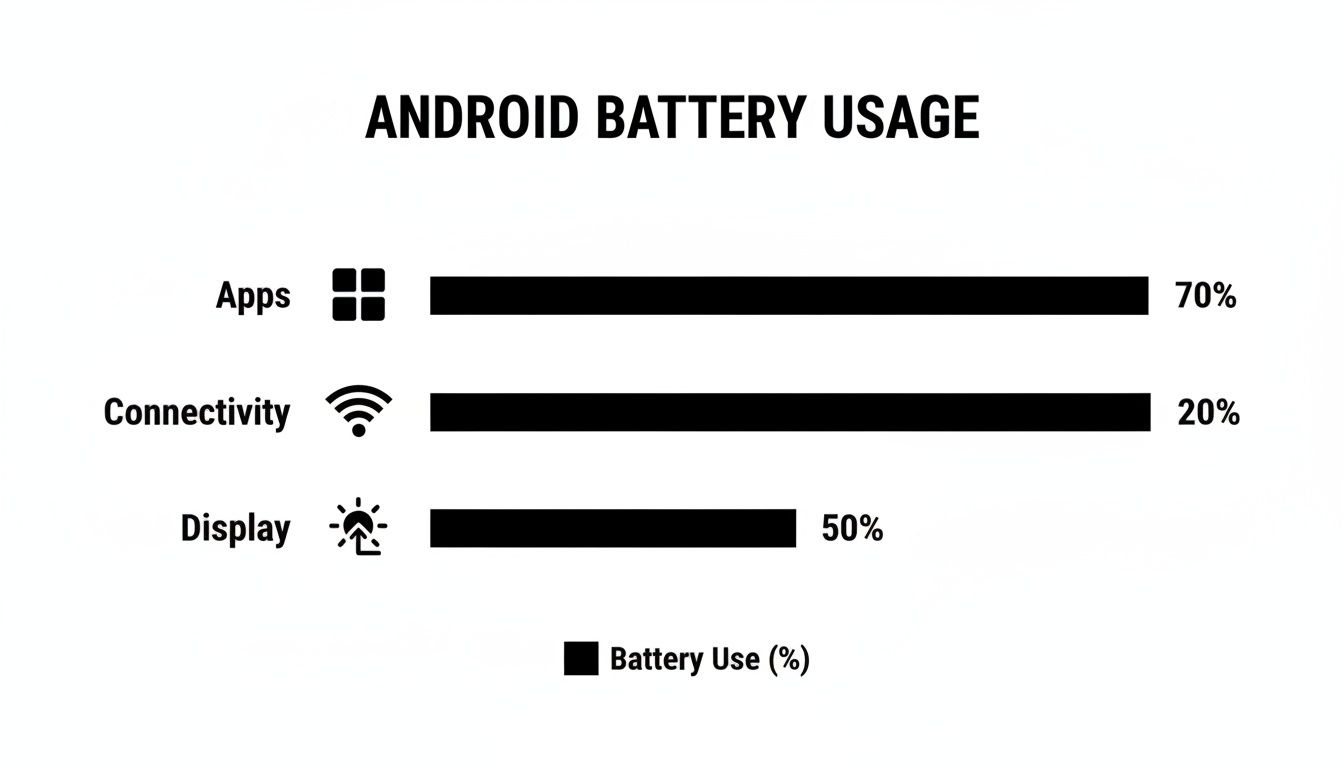
This chart shows power use over the last 24 hours and highlights your top power users.
Reading Battery Graphs
The timeline view shows your battery level against time. It helps you match app use to battery drops.
Key parts of the chart:
- Foreground Usage: Activities when the screen is on (like videos or games)
- Background Drain: Apps running while the screen is off
- Idle Behavior: How well your phone sleeps when you’re not using it
I once saw my messaging app lose 15% overnight. Turning off its background activity fixed it.
Analyzing Idle Behavior
Your phone should rest when the screen is off. If it still uses power, an app is keeping it awake.
One user found a sync service using 5% battery every hour while idle. Turning off that service cut the idle drain by half.
Interpreting Usage Patterns
Your daily routine sets real battery goals. Focus on your biggest power users to make those goals happen.
- Lower screen brightness a bit
- Turn off Wi-Fi or Bluetooth when not needed
- Use Airplane Mode in areas with poor signal
In one test, these steps cut total use by nearly 30%. Small changes add up fast.
For a look at phone battery trends over time, see insights on smartphone battery trends from SQ Magazine.
Learn how to check your battery’s overall health in our guide on battery health.
Best Practices For Routine Checks
Quick battery checks every few days help you spot new power hogs.
Keep this list handy:
- Restart your phone or clear app caches weekly
- Compare this week’s battery use with last week’s
- Watch for spikes after installing new apps and adjust permissions
Regular checks catch battery issues before they ruin your day.
Android Battery Life Trends
Here’s a quick look at recent battery improvements. Use it to track your own phone’s progress.
| Year | Runtime Increase (%) | Efficiency Gain (%) |
|---|---|---|
| 2023 | 0% | 0% |
| 2024 | 12% | 9% |
| 2025 | 23% | 19% |
These numbers help you see how much better phones get each year.
Identifying And Fixing Common Battery Drains
Not all apps use power the same way. Some keep the phone awake, while others sync data too often.
Turning off location for apps you rarely use freed over an hour of battery for one commuter. Another friend lowered his screen refresh rate and cut his use by 10%.
A fitness app kept the camera on all night. Turning off its background camera access stopped a 12% overnight drain.
Rogue Apps Holding Wake Locks
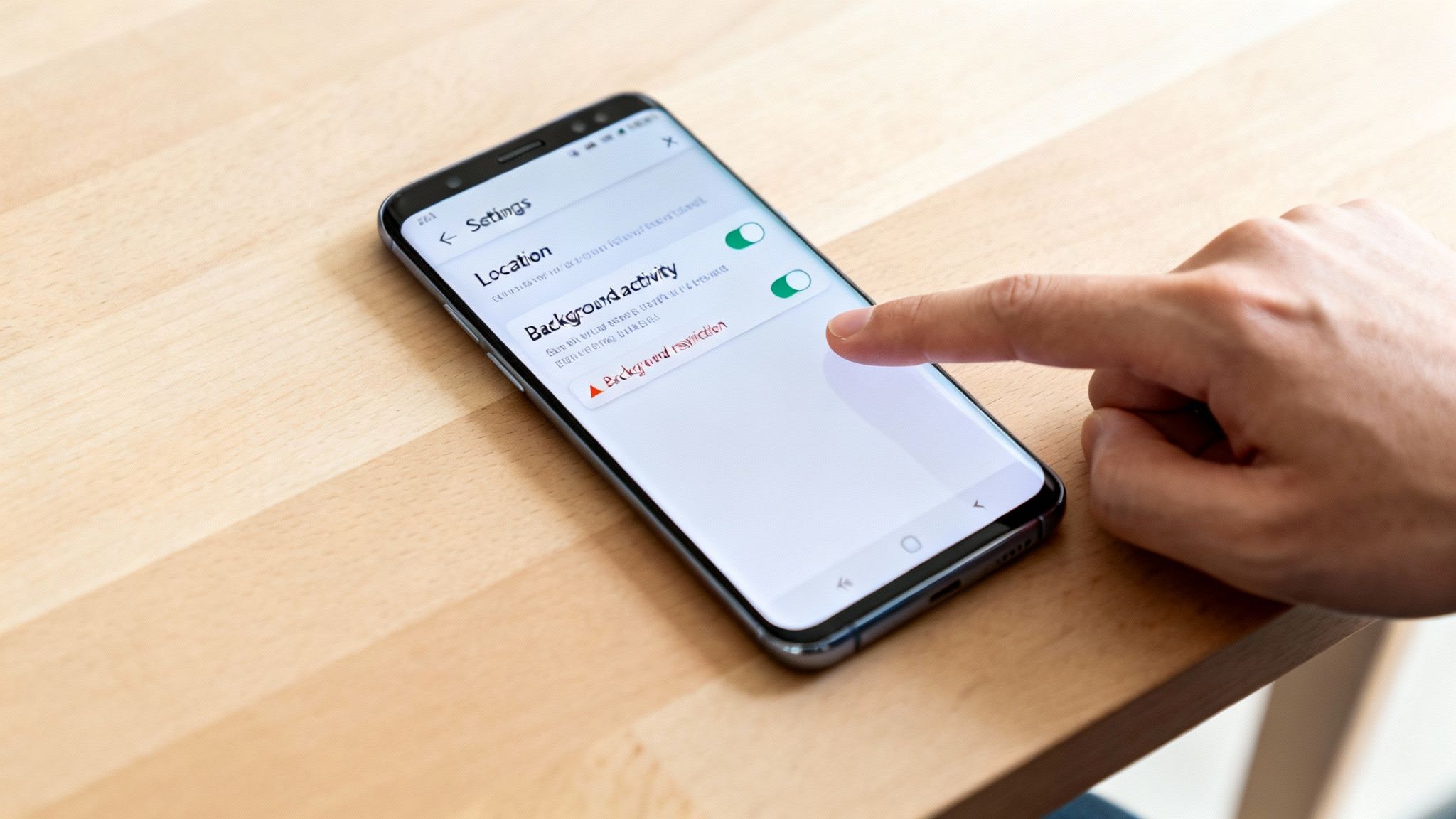
Some apps stop your phone from going to sleep. In Settings > Battery > Battery Usage, look for apps using a lot of power in the background. If one stands out, force-stop or uninstall it.
Android now warns you when apps keep your phone awake too long.
Curbing Aggressive Sync Operations
Apps that check for new data too often can drain 10% or more per hour. Here’s a better balance:
- Set sync intervals to 30 or 60 minutes in app settings
- Turn off push sync for less important accounts
- Do big uploads or downloads only when on Wi-Fi
You stay up to date without waking your phone constantly.
Handling Power Hungry Sensors
GPS and Bluetooth are handy, but they use power in the background. One user turned off GPS in a navigation app and cut idle drain by 50%. Another saves 5–8% overnight by turning off Bluetooth.
Try this:
- Turn off GPS when you’re not using maps
- Use Bluetooth only for things like speakers or headphones
- Let apps use location only while you’re using them
When To Update Or Uninstall Misbehaving Apps
Old apps can have bugs that drain power. Look for updates in the Play Store that say “performance improvements” or “bug fixes.” If that doesn’t help, delete the app or switch to a lighter one.
High memory use can cause extra work for your phone. In your battery report, watch for apps using lots of memory and take action.
| App Name | Version | Background Drain | Action Required |
|---|---|---|---|
| ChatPlus | 2.3.1 | 15% per hour | Update to 2.4.0 or uninstall |
| MapExplorer | 4.1.0 | 8% per hour | Lower GPS use or disable BG |
| MusicStream | 5.2.2 | 10% per hour | Stop it when not playing music |
Fix these drains now to get real extra battery time. Next, let’s look at power settings and safe charging.
Configuring Power And Background Settings
Android gives you simple controls to get more from your battery. Below we cover power saver, screen tweaks, background data limits, and habits that make a difference for battery use android.
Adjust Battery Saver And Brightness
The biggest power users are the processor and screen. Turning on Battery Saver slows your phone and stops some tasks. Adaptive Brightness learns your lighting and lowers the screen when you don’t need full brightness.
- Go to Settings > Battery > Battery Saver
- Turn on Battery Saver at 50% or lower
- In Display settings, enable Adaptive Brightness
- Try different brightness levels in bright and dim light
One user saw 25% more runtime on a long flight by using these settings.
Throttle Background Data Per App
Apps that sync in the background all the time can drain your battery. Turning off background data for apps you rarely open can save hours.
- Open Settings > Apps
- Pick an app and tap Mobile data & Wi-Fi
- Turn off Background data
- Do this for low-priority apps
“Turning off background sync on my second email account added two hours of standby,” says a traveler.
Manage Always On Display And Power Profiles
Always On Display is useful for quick checks but uses extra power. Turning it off saved another user 10% battery in a day. Android’s power profiles let you switch between Performance, Balanced, and Ultra-Battery modes.
- In Lock screen settings, turn off Always On Display
- Swipe down and choose a Power Profile
- Use Ultra-Battery when you need your phone to last
Profiles change how fast your phone runs, how often it checks for data, and how bright the screen is.
Must-Have Settings Checklist
| Setting | Recommended Option | Benefit |
|---|---|---|
| Battery Saver | On at 50% or lower | Up to 30% extra runtime |
| Adaptive Brightness | Enabled | Screen adjusts itself |
| Background Data | Restricted selectively | Cuts idle drain by 10–15% |
| Always On Display | Off | Saves 5–10% per hour |
| Power Profile | Balanced/Ultra-Battery | Adjusts CPU and data checks |
Try each tweak in your daily life to see what works best.
Quick Tips And Best Practices
- Check sync settings whenever you add a new app
- Use Wi-Fi when you have a good signal
- Do big uploads or downloads on Wi-Fi only
“I recharge half as often after adopting these habits,” says a delivery driver.
Try these tips and watch your phone last longer between charges.
Safe Charging Practices And Hardware Integration
Notice how your battery seems weaker after a year? It often comes from how you charge. Charging to 100% and letting it drop too low wears out the battery faster. Small changes can help a lot.
One friend stops charging at 80% each morning. Another sets their phone to top off at 70% before the alarm goes off.
- Part charging eases stress and slows capacity loss
- Slow charging overnight keeps temperatures low
- Staying between 20% and 80% can extend battery life by up to 30%
Understanding Partial Charging Benefits
Batteries don’t like being full or empty. Charging only to 80% and not letting it drop below 20% keeps cells in a healthy range.
If you have a short flight, a 30% quick charge at a moderate speed can avoid the rush to find an outlet. Over time, your battery stays more reliable and lasts longer.
Check global battery capacity trends here: Next-Gen Battery Capacity by Country in 2025
Integrating Chargie For Smart Charging
Meet Chargie, a smart USB-C adapter and app that automates your charge limits. Plug it in, pair with the Android app, and set your lower and upper limits (like 20% to 80%).
- Plug Chargie into your charger
- Open the Chargie app on your Android device
- Pair via Bluetooth and set your charge range
- Turn on the scheduler for overnight charging
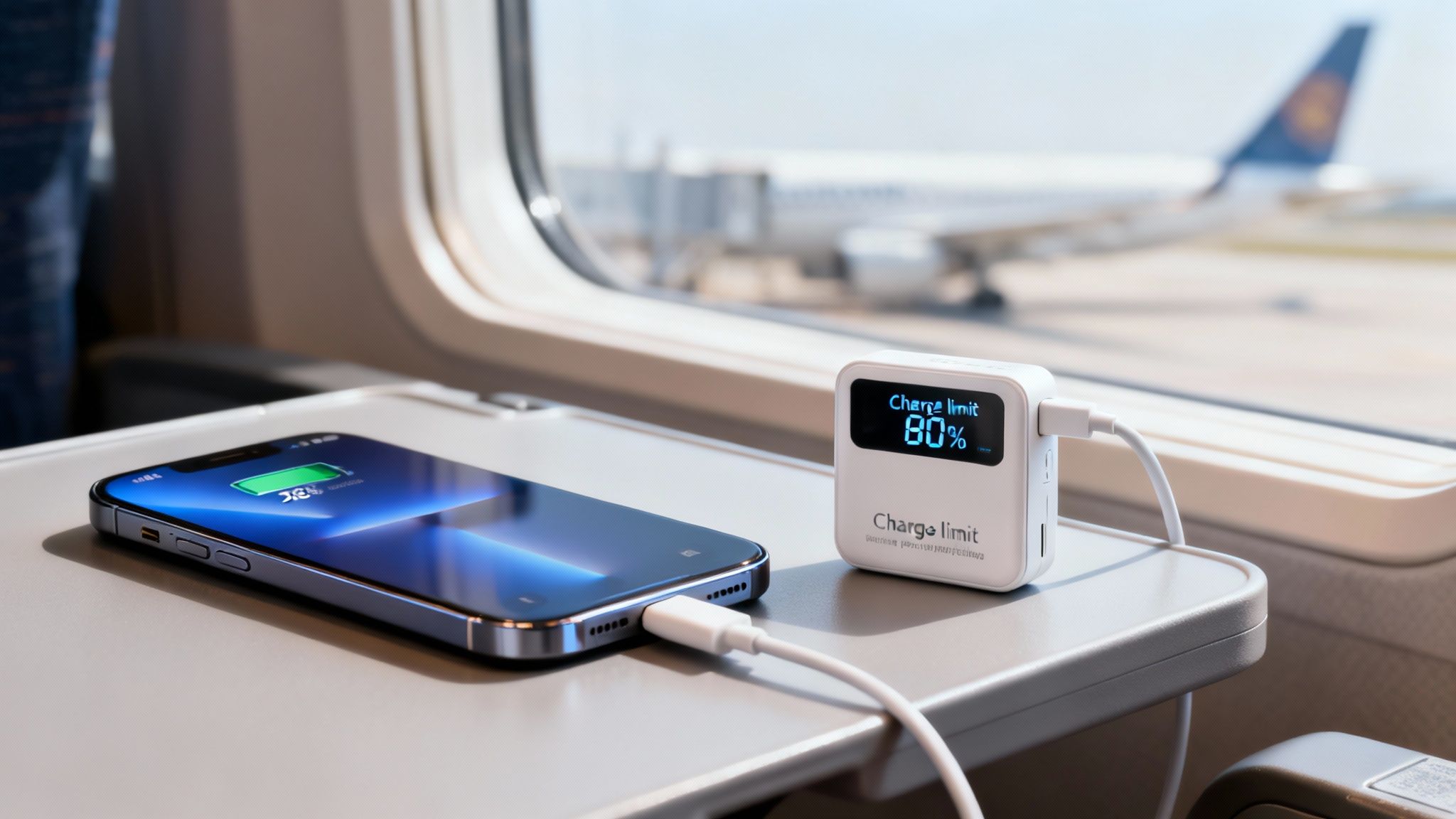
The dashboard shows charge cycles, battery levels, and schedule. You get clear info, no guessing.
Comparing Charging Approaches
| Method | Charge Range | Key Benefit |
|---|---|---|
| Standard Charger | 0–100% | Convenient but stresses battery |
| Manual Partial | 20–80% | Slows down battery wear |
| Chargie Hardware | 20–80% | Auto cutoff and timed charging |
Chargie combines easy partial charging with automation to stop overcharging.
For more tips on charging, see how to charge your lithium-ion battery for a longer life.
Smart charging routines and tools like Chargie can extend your battery’s life and cut e-waste.
Additional Safe Charging Tips
Heat speeds up battery wear. Don’t charge on hot surfaces or under pillows.
- Use your phone’s original cable for a steady charge
- Unplug when your set limit is reached to avoid trickle charge
- Use a charger with an overheat cut-off if possible
- Combine partial charging with Android power-saving modes
Real World Charging Scenarios
Rachel, an eco blogger, went from replacing her phone battery every year to every four years by capping at 80%.
Raj, a taxi driver, used Battery Saver and Chargie to only charge twice in five days instead of every day.
“With Chargie’s scheduler, I wake up to 85%, not 100%, and my Pixel stays healthy.” —Long-haul driver
Little changes like these add up. Follow safe charging practices, try Chargie, and your Android will outlast the rest.
- Keep your charger in a place with good airflow—no pillows or clothing covering it
Implement these safe charging steps and see how your battery use improves.
Frequently Asked Questions
Running out of battery too fast? Here are simple answers from real users.
How Do I Stop Apps Running In The Background From Draining My Battery?
Go to Settings > Battery > Battery Usage, pick the app, then:
- Turn off Background Data
- Restrict Background Activity
- Force-stop or uninstall if it still drains power
Last week, my weather app used 15% overnight. Turning off its background data gave me 15% more charge by morning.
Does Adaptive Battery Really Improve Runtime?
Yes. Over time, Adaptive Battery learns which apps you barely use and slows them down. You won’t notice, but your battery will.
“Adaptive Battery cut my background drain by 25%,” says a commuter.
What’s The Best Way To Charge My Android Device For Long-Term Health?
Keeping your battery between 20% and 80% makes a big difference. Avoid full 100% charges and rapid chargers when you can.
- Use a slow or smart charger
- Set reminders to unplug at your target limit
This keeps your battery healthy over months and years.
Are Third-Party Battery Management Tools Worth It?
Android’s built-in features cover most needs. But if you want precise charge scheduling or your phone has no limit, reliable hardware-and-app combos can help. Always check reviews first.
Cutting background activity often recovers 20–30% of standby time.
Charging Best Practices
- Use reminders or adapters to stop charging at 80%
- Top up before you wake up with timers or apps
- Keep your phone cool—high heat speeds up battery wear
For hands-off control, try a tool like Chargie. It automates charging so you focus on your day, not your phone.
A hardware charger can boost cycle life and cut replacement costs by up to 85%.
Follow these tips to keep your Android powered longer.
Ready to take control of your battery on Android? Protect your battery health and schedule smart charges with Chargie battery health protection.