Supported Platforms
Windows 11
Full Windows 11 support
Native Fluent Design UI
Modern WinUI 3 interface
Windows 10
Windows 10 (64-bit)
Version 1903 or later
Full feature support
Explore Chargie for Windows
Optimal Charging at 80%
Windows-Specific Features
System Tray
Quick access from notification area. Runs quietly in background.
100W PD Support
Full Power Delivery for fast laptop charging.
Battery Health
Track capacity degradation and wear level.
Start with Windows
Auto-launch on boot for seamless protection.
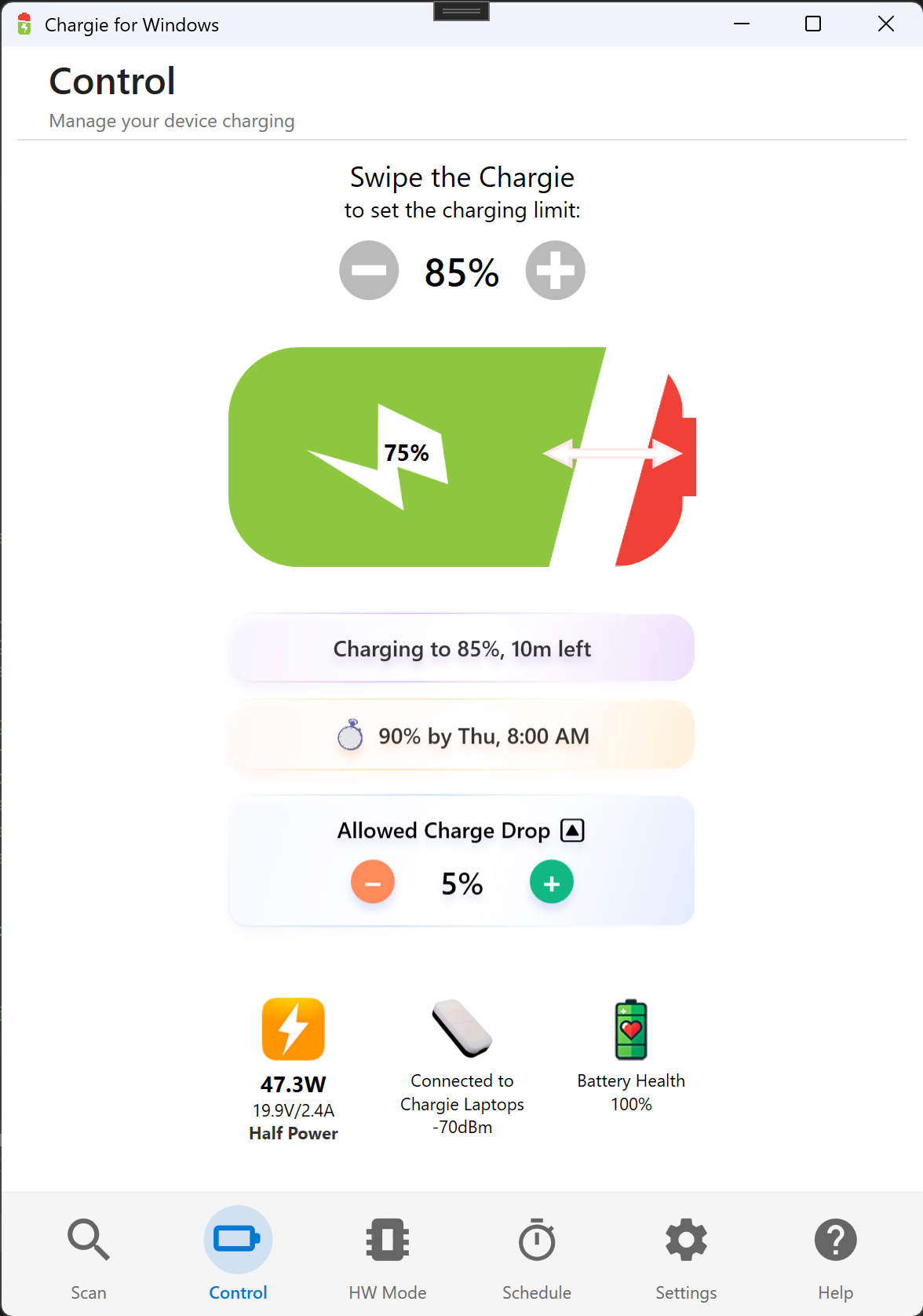
🎛️ Main Control Screen
The central hub for managing your Chargie device on Windows. View real-time power statistics, adjust charge limits, and monitor your laptop's battery status with an intuitive swipe-style interface.
- Intuitive charge limit slider (0-100%)
- Real-time power monitoring: Watts, Volts, Amps
- Battery health indicator at a glance
- Scheduler status and ETA display
- Allowed Charge Drop hysteresis control
Charge Limit
Set your target with +/- buttons (85% shown)
Battery Visual
Shows current 75% charge with lightning bolt
Power Stats
47.3W at Half Power (19.9V / 2.4A)
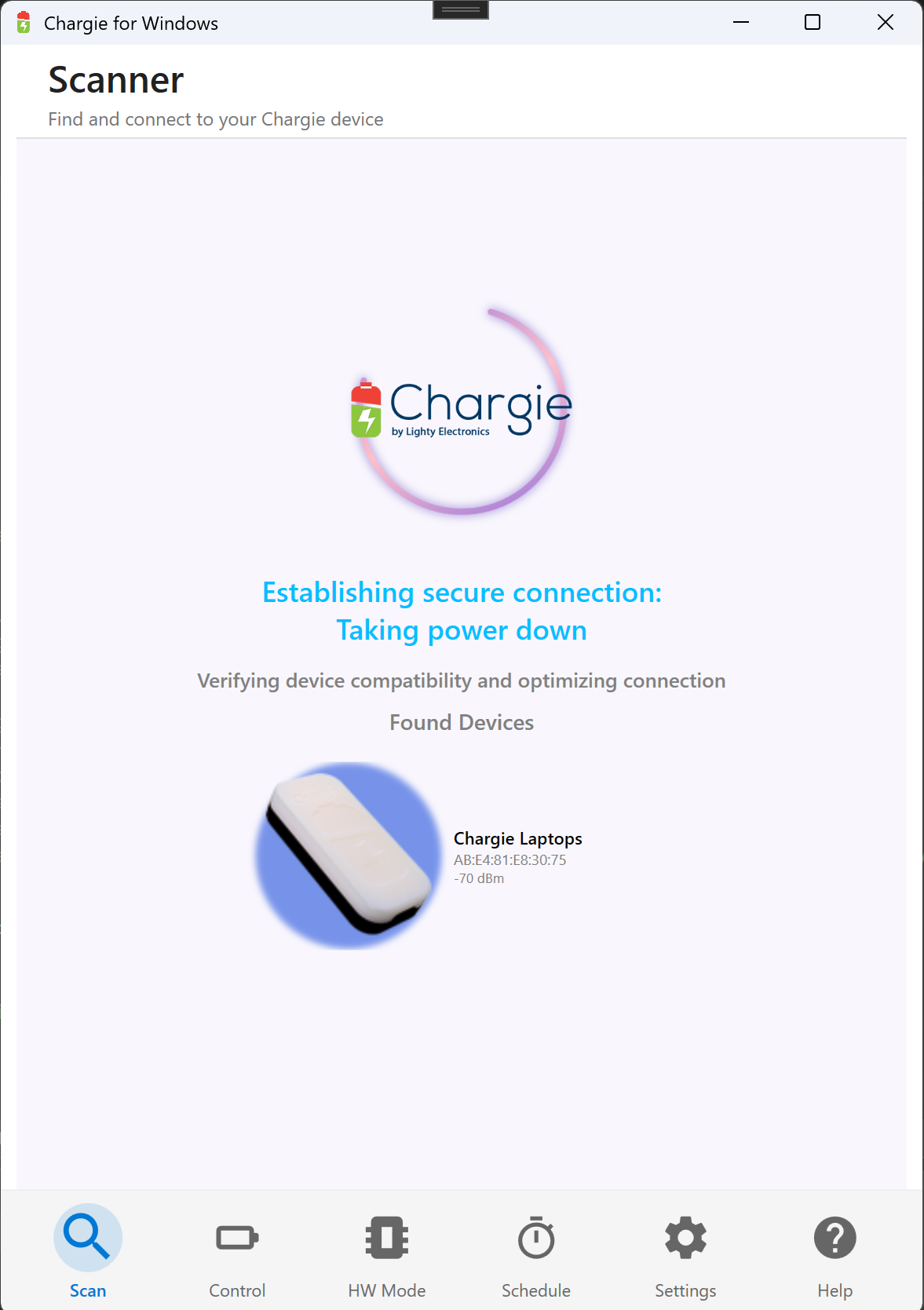
Found Devices
Chargie Laptops detected at -70 dBm
Secure Connection
Verifying device compatibility
🔍 Device Scanner
Automatically discover and connect to your Chargie C for Laptops device via Bluetooth Low Energy. The scanner verifies device compatibility and establishes a secure connection.
- Automatic device discovery on power plug-in
- Signal strength indicator (dBm)
- Secure connection verification
- Device compatibility check
- MAC address display for identification
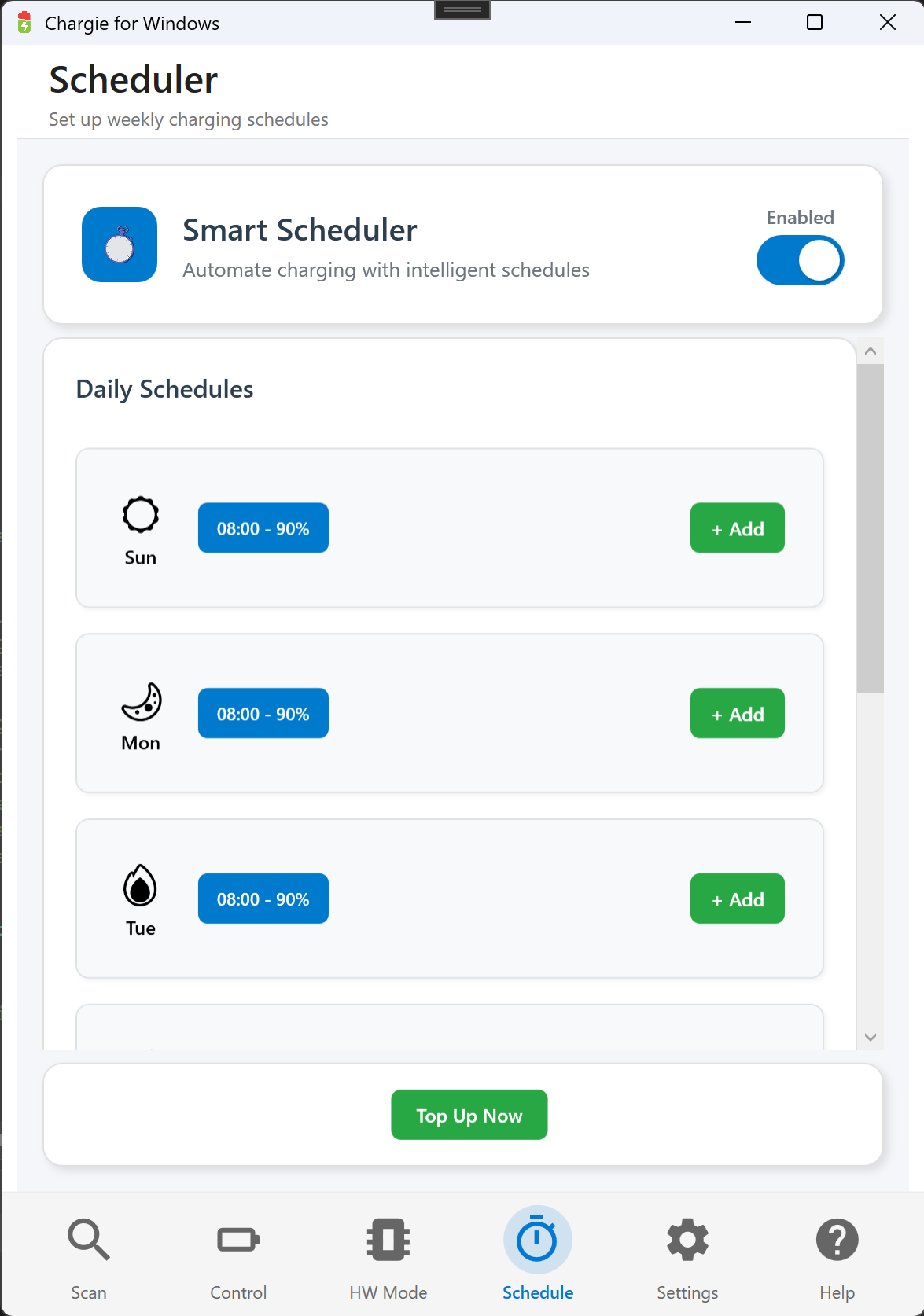
📅 Smart Scheduler
Schedule your charging for each day of the week. Set target times and battery levels, and Chargie will automatically start charging to meet your schedule with intelligent top-up management.
- Weekly schedule with per-day settings
- Target time and percentage configuration
- "Top Up Now" for instant charging
- Enable/disable with single toggle
- Visual schedule cards for each day
Enable Toggle
Turn Smart Scheduler on/off
Daily Schedules
08:00 - 90% for each weekday
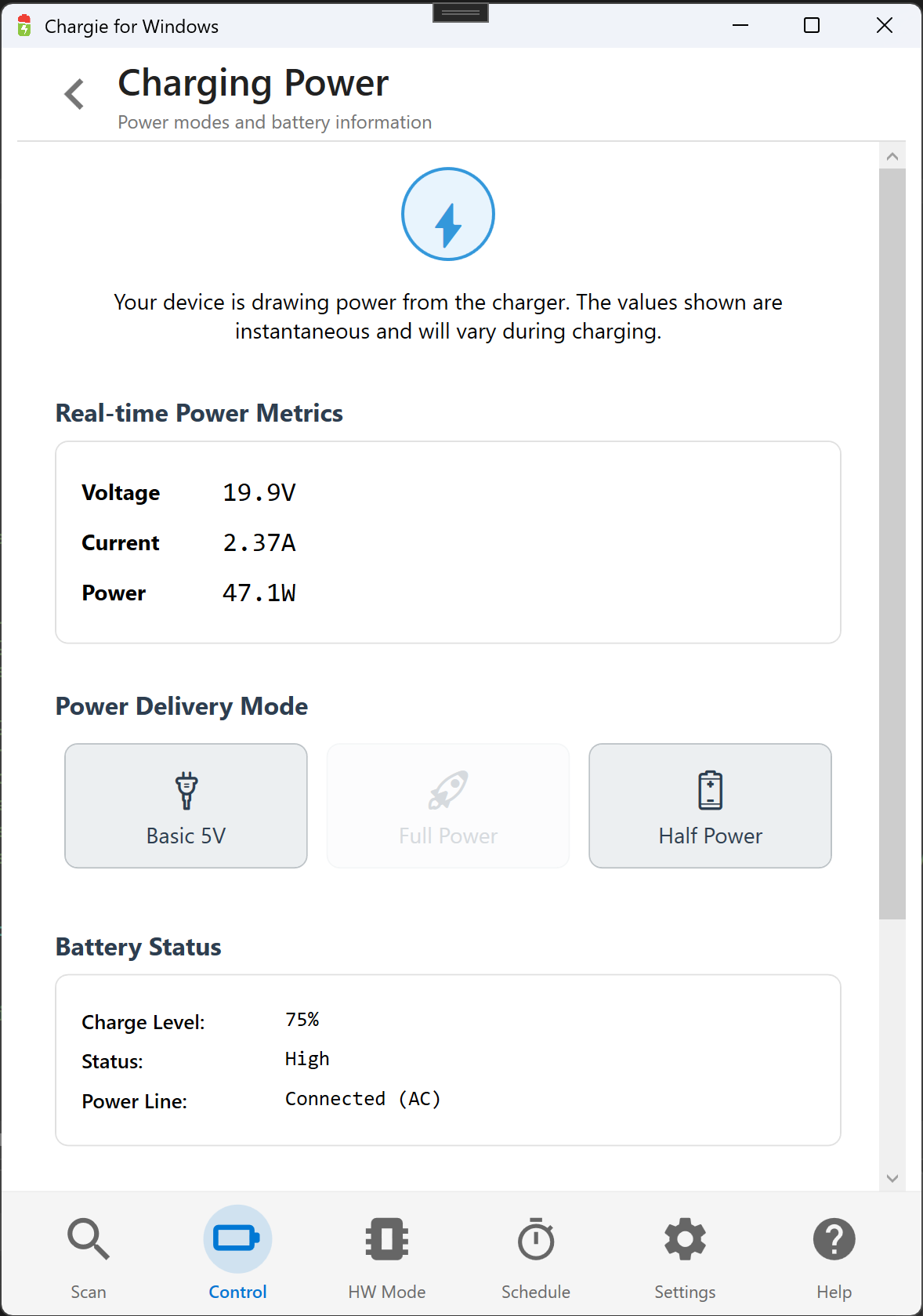
Power Modes
Basic 5V, Full Power, Half Power
Live Metrics
19.9V × 2.37A = 47.1W real-time
⚡ Power Delivery Modes
Chargie C for Laptops supports USB Power Delivery up to 100W. Choose between Full Power for maximum charging speed or Half Power for gentler, cooler charging.
- Full Power: Up to 100W for fast charging
- Half Power: ~50% wattage for battery longevity (47W)
- Basic 5V: Standard USB charging mode
- Real-time monitoring: Voltage, Current, Power
- Battery status: Charge level and power line state
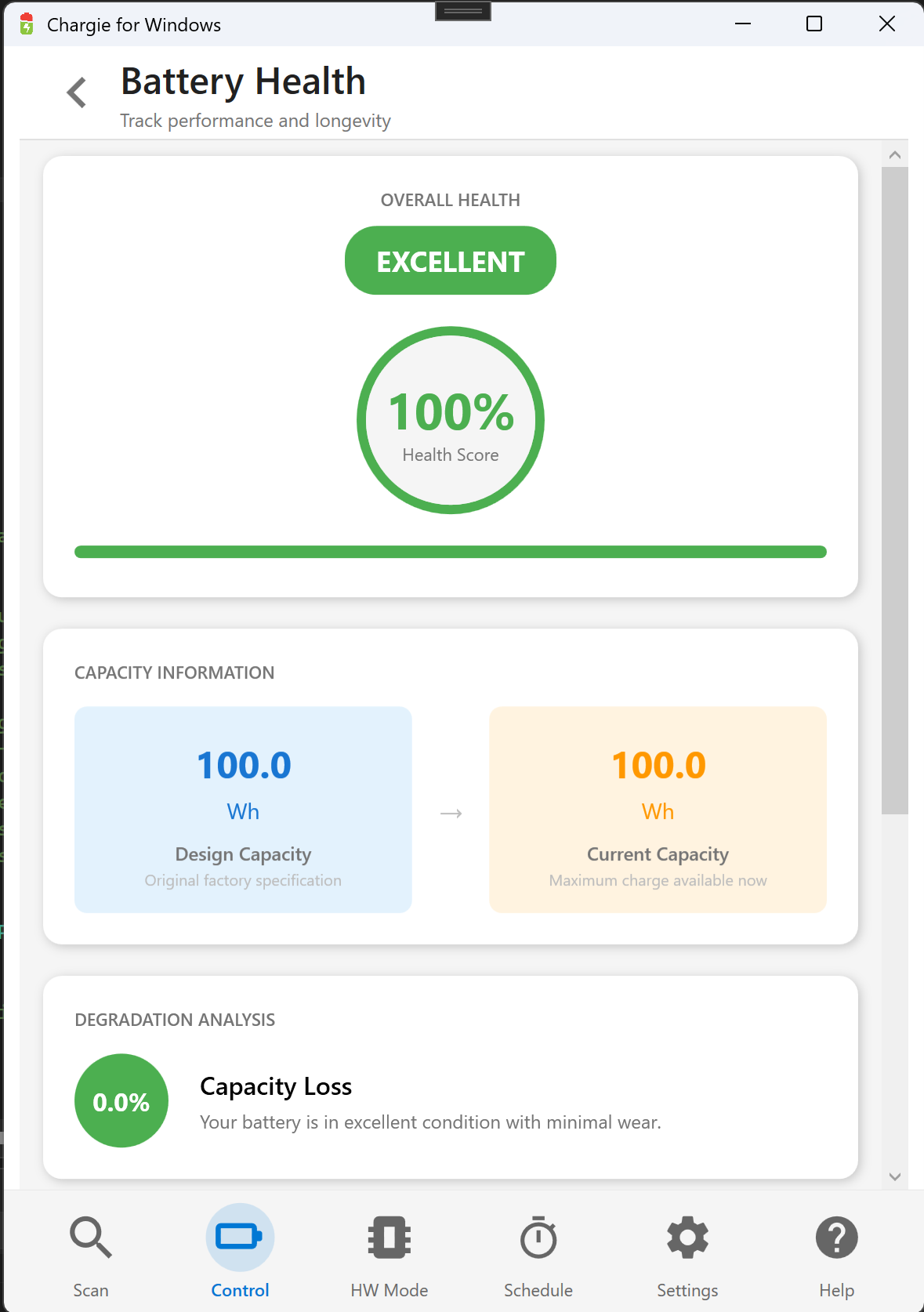
💚 Battery Health Monitor
Track your laptop battery's health over time with detailed capacity information. See design capacity vs current capacity and monitor degradation to make informed charging decisions.
- Health Score: Overall battery condition (100% = Excellent)
- Design Capacity: Original factory specification
- Current Capacity: Maximum charge available now
- Capacity Loss: Percentage of wear over time
- Visual health indicator with color coding
Health Score
100% indicates excellent battery condition
Capacity Info
100Wh design vs 100Wh current = 0% loss
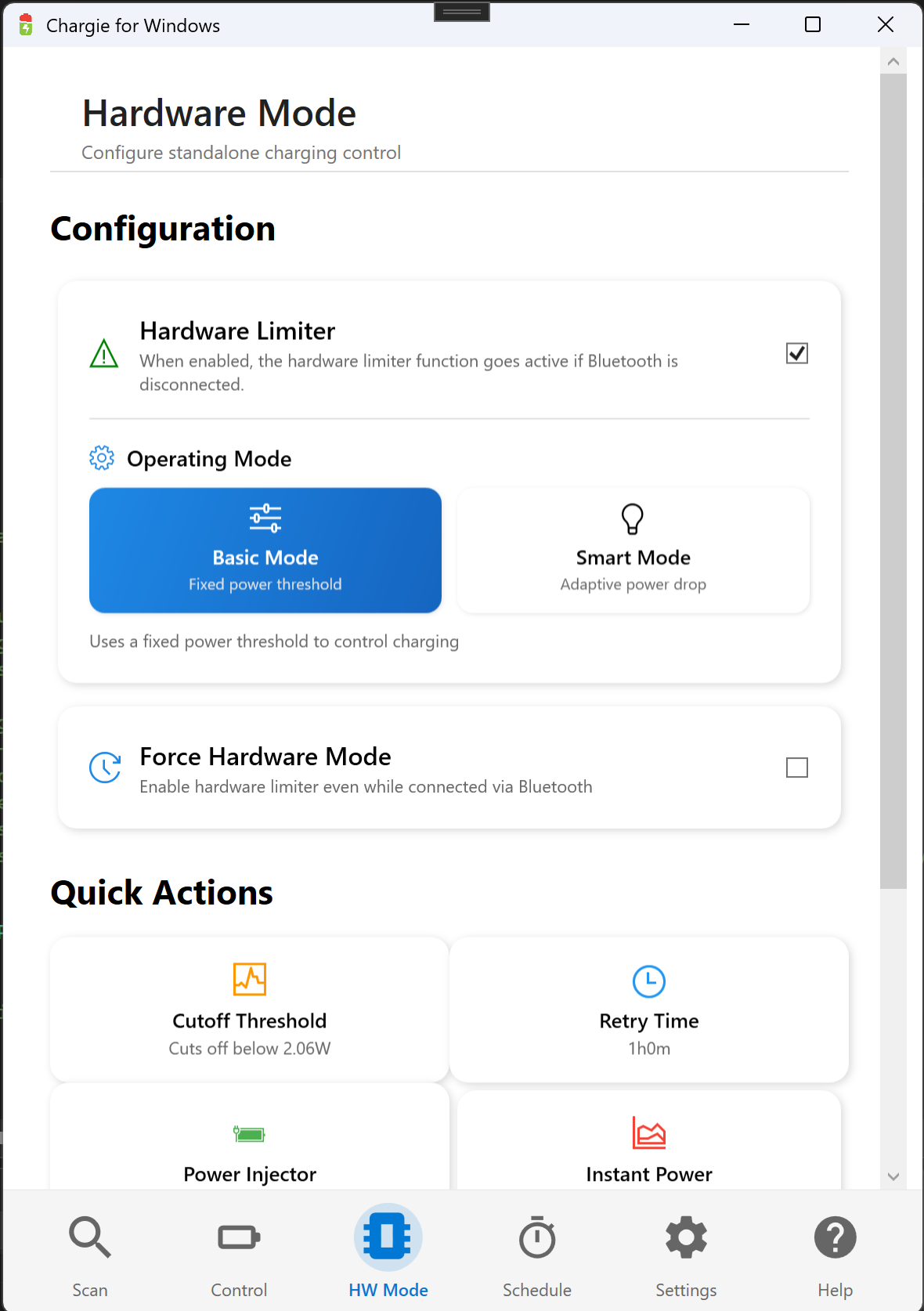
Hardware Limiter
Enable standalone protection
Operating Mode
Choose Basic or Smart detection
🔧 Hardware Limiter Mode
Configure the hardware limiter to protect your battery even when the app is disconnected or Windows is shut down. Works independently of Bluetooth connection.
- Basic Mode: Fixed power threshold (2.06W cutoff)
- Smart Mode: Adaptive power drop detection
- Force Hardware Mode: Enable even while connected
- Configurable retry time and cutoff threshold
- Power Injector support for USB accessories
⚙️ Advanced Settings
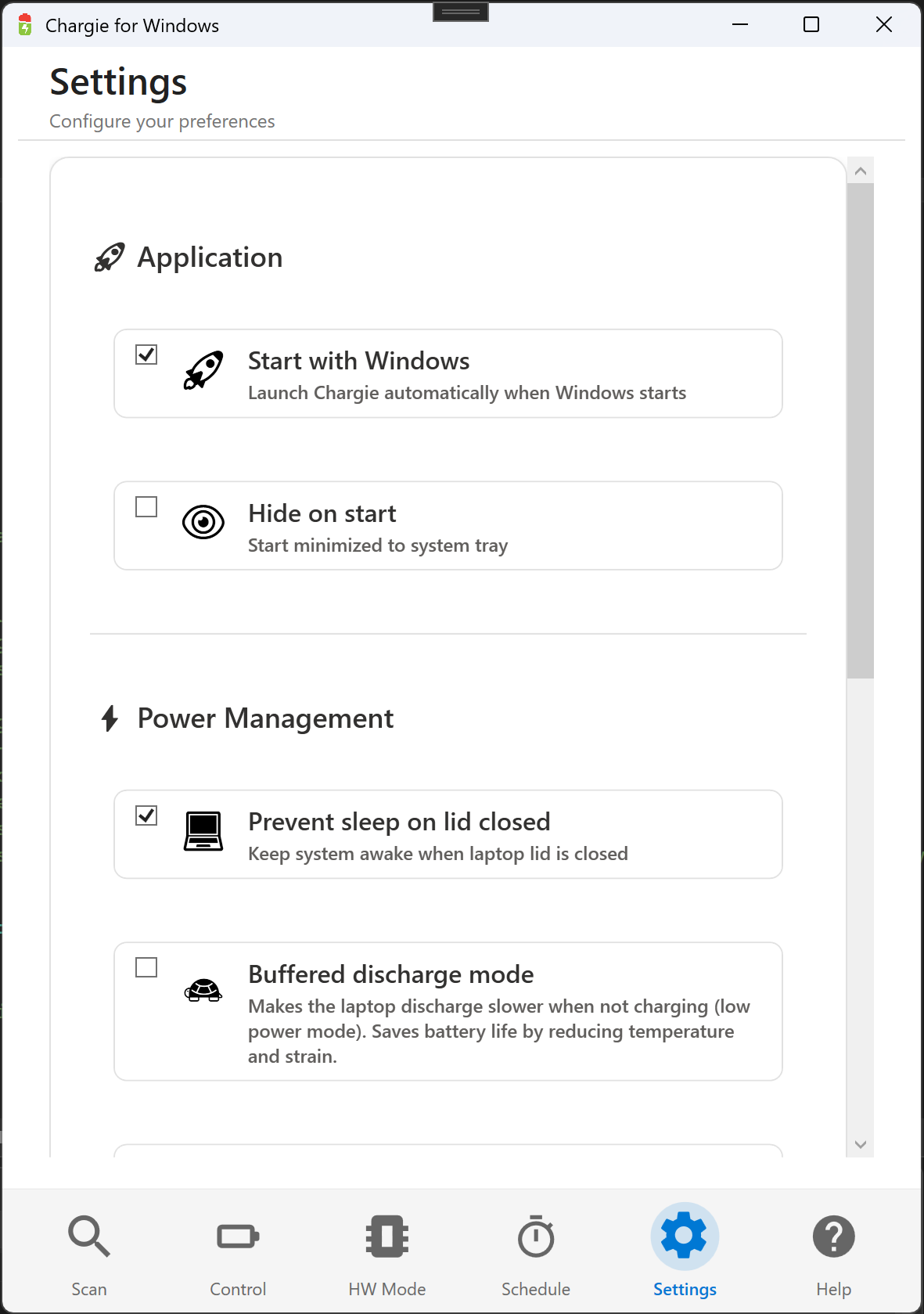
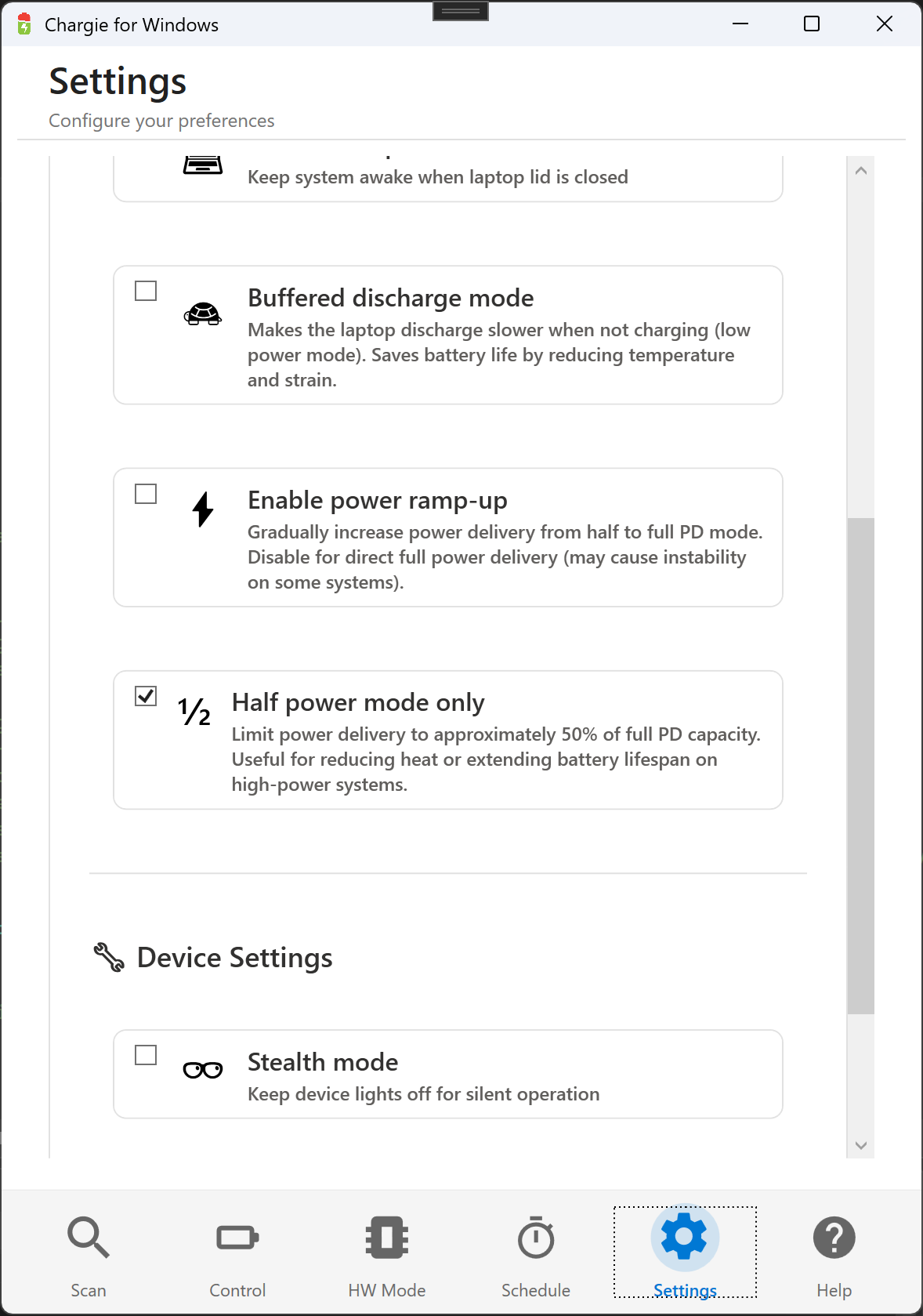
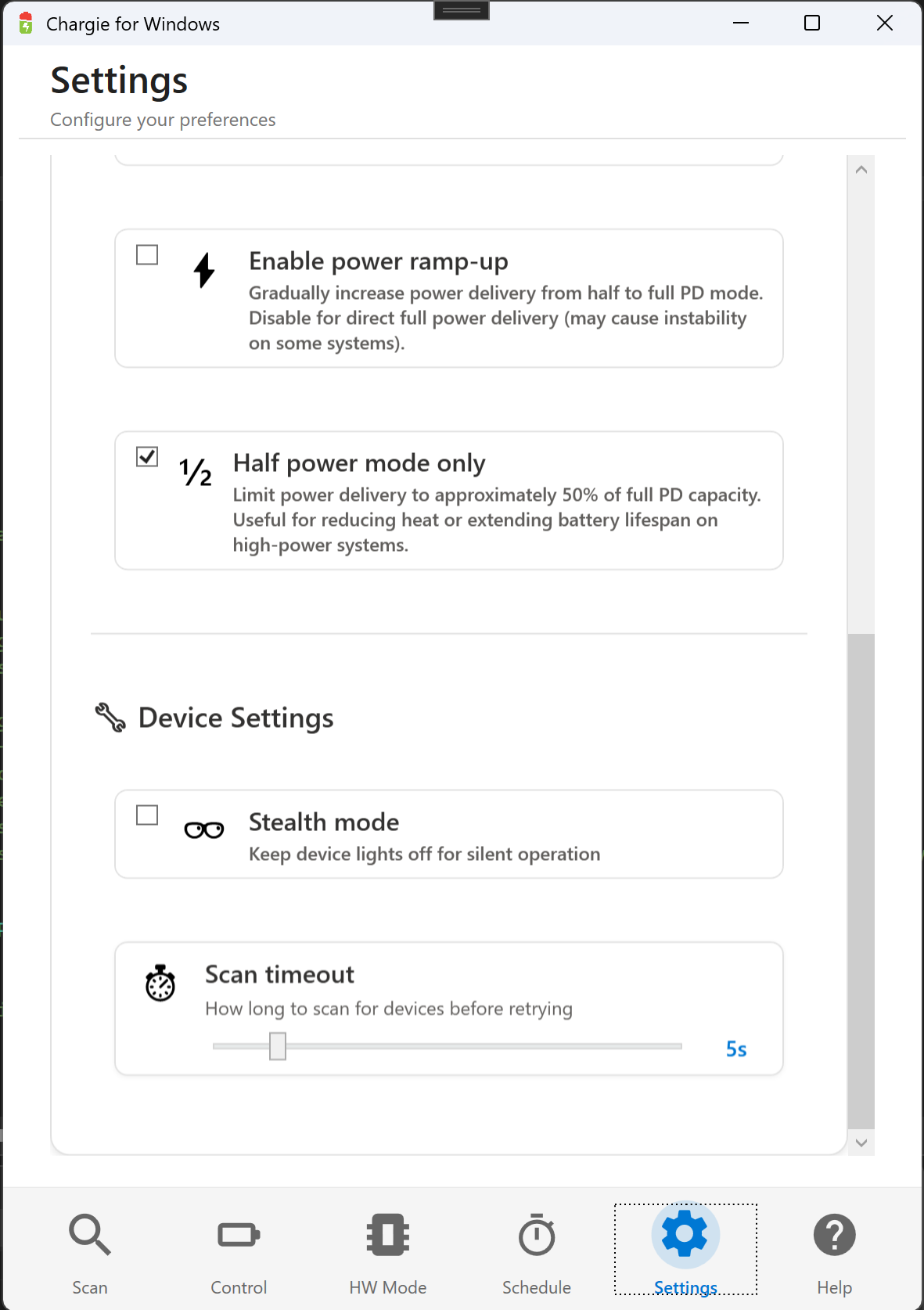
Fine-tune Chargie's behavior with comprehensive settings for application startup, power management, and device configuration.
- Start with Windows: Auto-launch on boot
- Hide on Start: Minimize to system tray
- Prevent Sleep on Lid Closed: Keep laptop awake
- Buffered Discharge: Gentle power for battery longevity
- Half Power Only: Force reduced wattage mode
- Stealth Mode: Disable device LED lights
Start with Windows
Launch automatically on boot
Power Management
Lid closed behavior and discharge mode
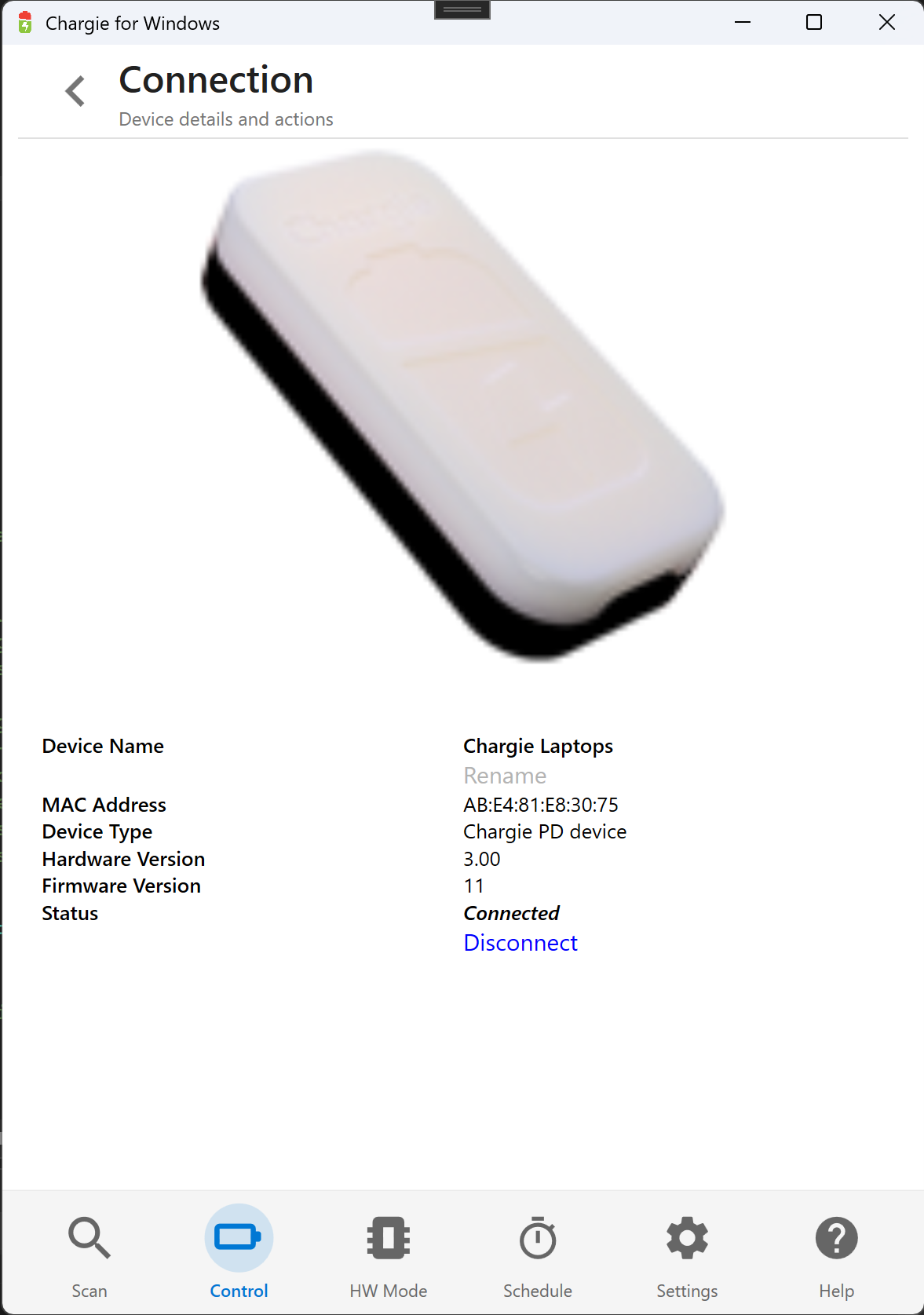
Device Info
Chargie PD device, HW 3.00, FW 11
Actions
Rename or disconnect device
📡 Connection Management
View detailed information about your connected Chargie device including hardware and firmware versions, MAC address, and connection status.
- Device name with rename option
- MAC address for identification
- Device type (Chargie PD device)
- Hardware and firmware versions
- Connection status and disconnect option
App Features
Quick Setup
Hardware Connection
Enable Bluetooth
Ensure Bluetooth is enabled in Windows Settings → Bluetooth & devices. Chargie uses Bluetooth Low Energy (BLE) to communicate with the hardware device. Pair request may appear on first connection.
Set Charge Limit
Adjust the charge limit using +/- buttons to your desired level. 80% recommended for maximum battery longevity on laptops that stay plugged in often.
Hardware Setup
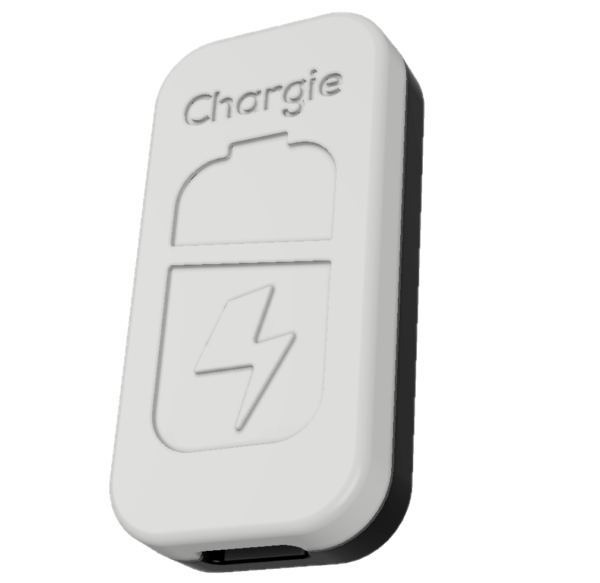
Chargie C for Laptops
INPUT → USB-C Power Adapter | OUTPUT → Windows Laptop
Power Requirements
- USB-C Power Adapter: 60W minimum (96W+ for high-performance laptops)
- Supports USB Power Delivery (PD) up to 100W
- Works with any USB-C PD adapter (OEM or third-party)
- LED indicator shows power state (green = active)
Windows-Specific Notes
Battery Health Access
Chargie uses Windows WMI (Windows Management Instrumentation) to read detailed battery information including design capacity, current capacity, and wear level for accurate health tracking.
Windows Security
Chargie is a standard Windows application. Windows SmartScreen may show a warning on first launch. Click "More info" → "Run anyway" to proceed. The app is safe and does not require admin privileges.
Privacy & Security
- No data collection - Your data stays on device
- Local Bluetooth only - No cloud, no internet required
- No tracking - Zero analytics or telemetry
- No account needed - Just install and use
Troubleshooting
1. Ensure Bluetooth is enabled in Windows Settings → Bluetooth & devices
2. Check Chargie is plugged into power (LED should be lit)
3. Try unplugging and re-plugging the Chargie device
4. Close and reopen the Chargie app
5. Check Windows Bluetooth is working (try connecting another BLE device)
6. Some Bluetooth adapters may need updated drivers
1. Click "More info" when the SmartScreen dialog appears
2. Click "Run anyway" to proceed
3. This warning appears because the app is new and not yet widely distributed
4. The app is safe and does not make any unauthorized system changes
1. Ensure app is running (check system tray)
2. Check Bluetooth connection is active in the Scan tab
3. Enable Hardware Limiter for protection even when app is closed
4. Verify Chargie firmware is current (check in Connection screen)
5. Try reconnecting to the device
1. Some laptop manufacturers don't expose full battery information via WMI
2. Try running a full charge cycle to calibrate battery readings
3. Check if battery driver is up to date in Device Manager
4. Some gaming laptops with dual batteries may show partial information
1. This is normal - Bluetooth connections are suspended during sleep
2. Chargie automatically reconnects when laptop wakes
3. Enable "Prevent sleep on lid closed" in Settings if using external monitor
4. Hardware Limiter continues protecting during sleep
1. Ensure you're using a USB-C PD (Power Delivery) adapter
2. Check Full Power or Half Power mode is selected
3. Some low-wattage adapters may not negotiate PD properly
4. Try a different USB-C cable (must support PD)
5. Minimum 60W adapter recommended for laptops
Need Help?
Last Updated: February 1, 2026