Supported Platforms
MacBook Pro
All USB-C MacBook Pro models
M1, M2, M3, M4 & Intel chips
Optimized for Retina displays
MacBook Air
All USB-C MacBook Air models
Native Apple Silicon support
Lightweight & efficient
Explore Chargie for Mac
Optimal Charging at 80%
macOS-Specific Features
Menu Bar Icon
Quick access from menu bar. Minimize to run in background.
100W PD Support
Full Power Delivery for fast MacBook charging.
Native Battery
Accurate macOS battery monitoring and status.
Resizable Window
16:10 native layout with state restoration.
🎛️ Main Control Screen
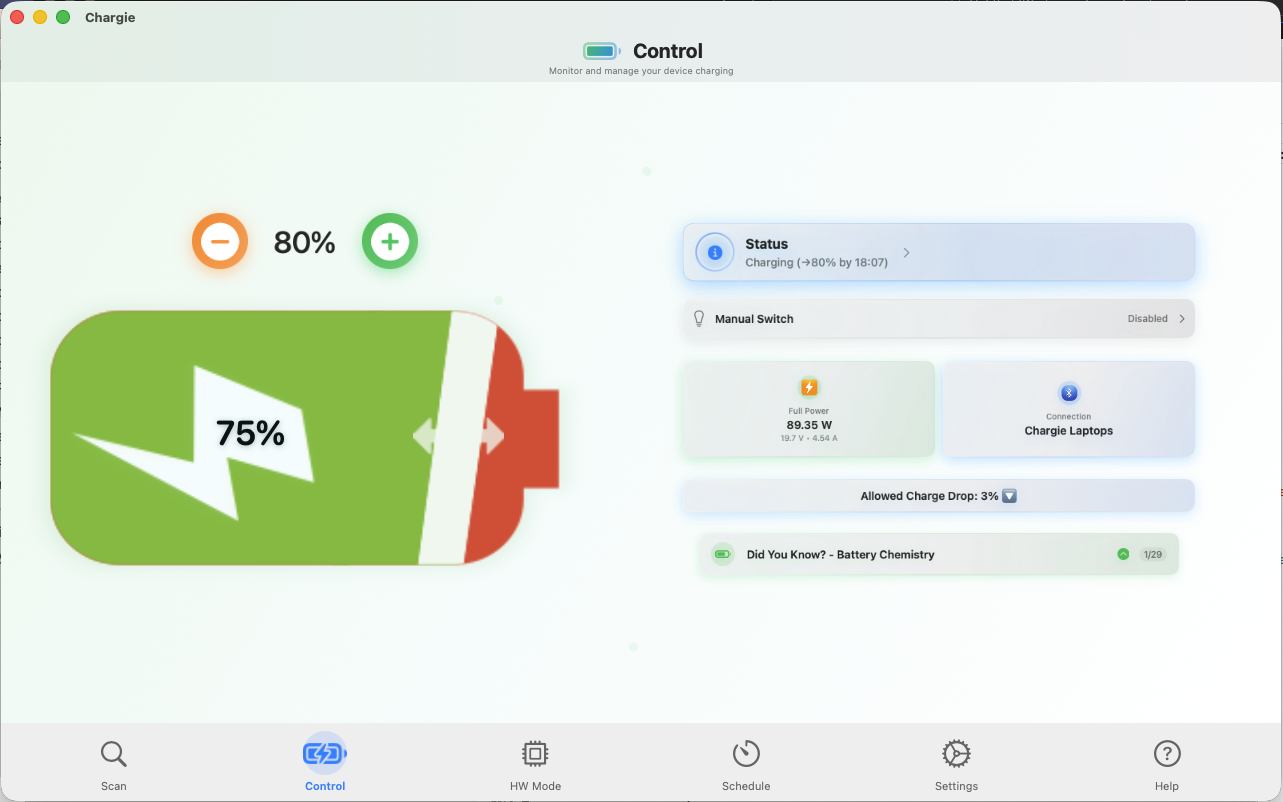
The central hub for managing your Chargie device on Mac. View real-time power statistics, adjust charge limits, and monitor your MacBook's battery status.
- Intuitive charge limit slider (0-100%)
- Real-time power monitoring: Watts, Volts, Amps
- Current battery percentage with ETA
- Quick access to all features via tab bar
Charge Limit
Adjust limit with +/- buttons or drag slider
Battery Visual
Shows current charge level with lightning indicator
Power Stats
Real-time watts (89.35W) and connection status
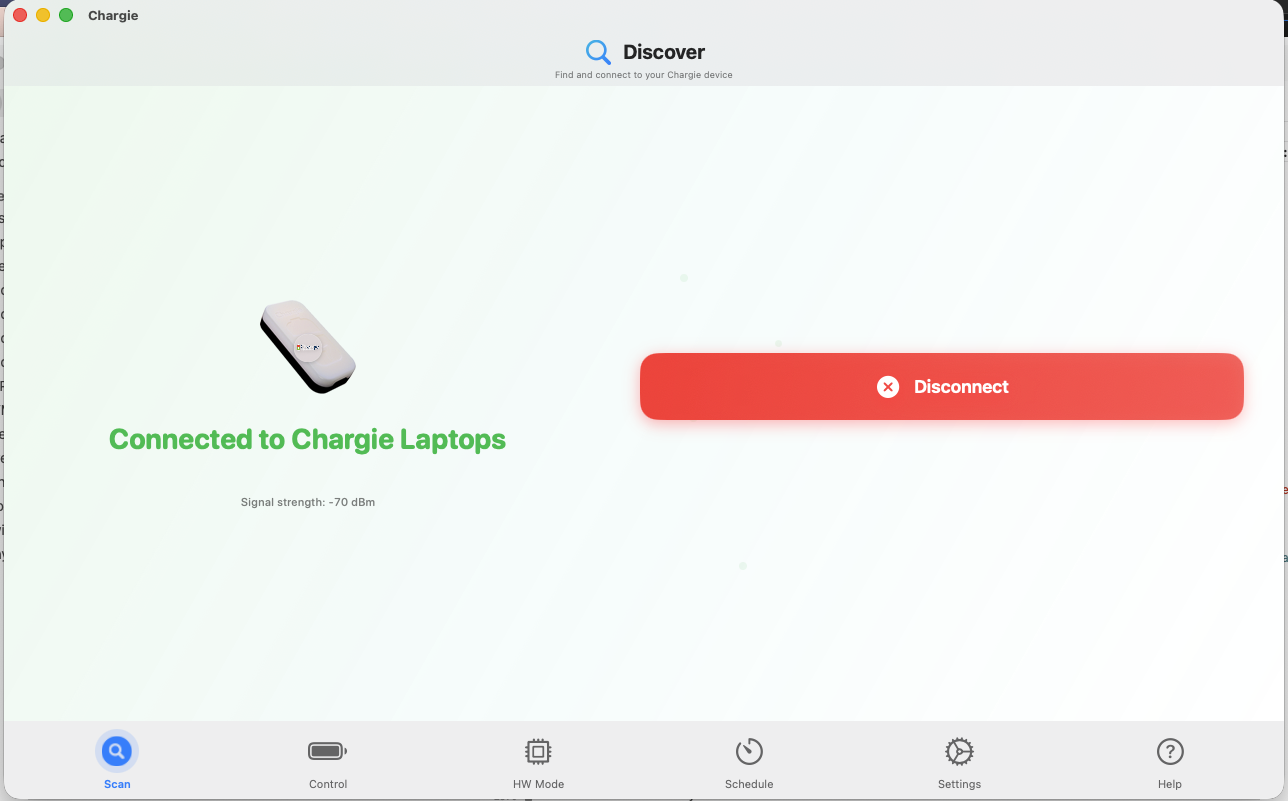
Connected Device
Shows Chargie C for Laptops with signal strength
Disconnect
Easily disconnect and switch devices
🔍 Device Discovery
Automatically discover and connect to your Chargie C for Laptops device via Bluetooth Low Energy. View signal strength and manage connections.
- Automatic device scanning on plug-in
- Signal strength indicator (dBm)
- One-tap connect/disconnect
- Remembers last connected device
� Smart Scheduler
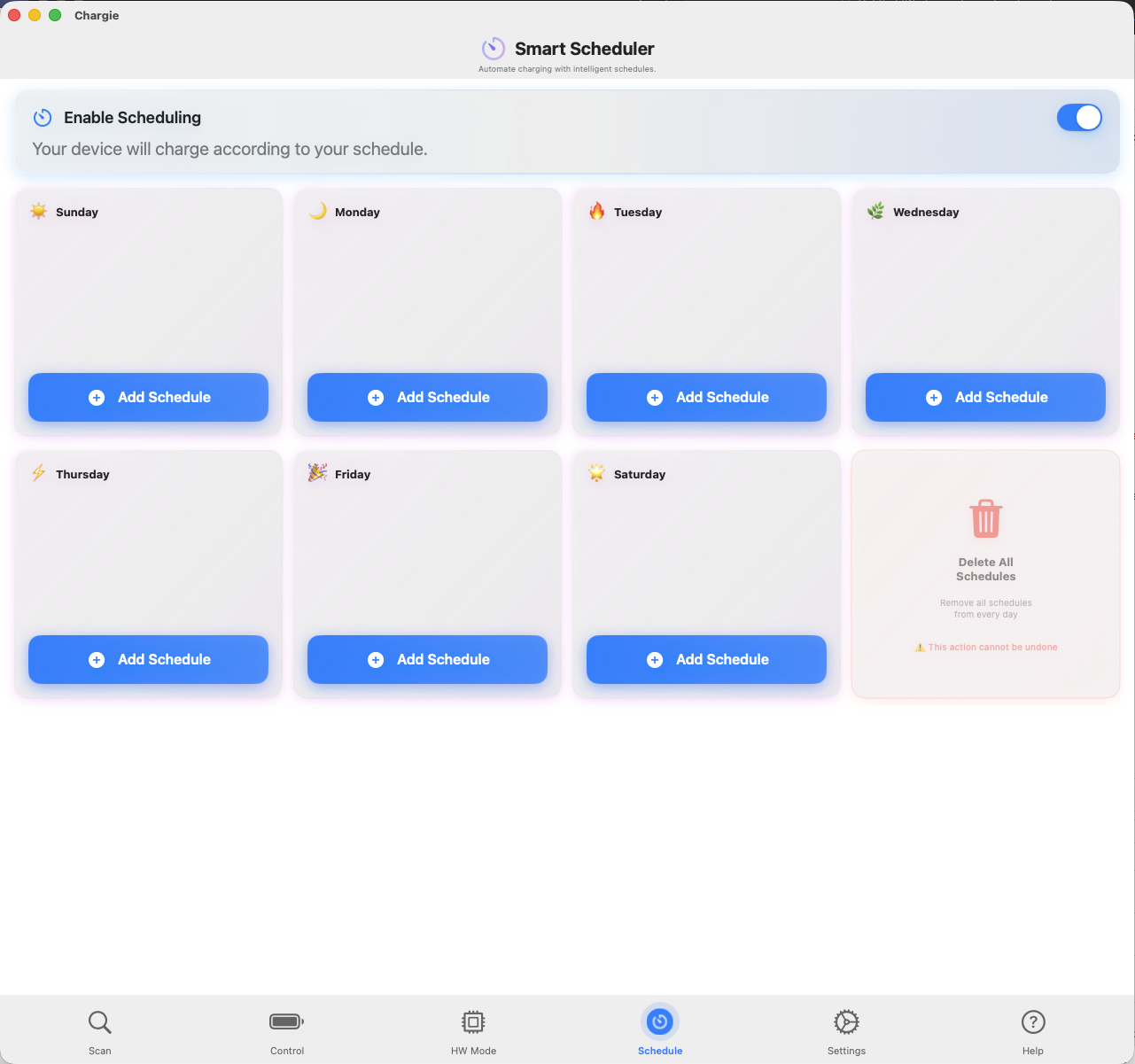
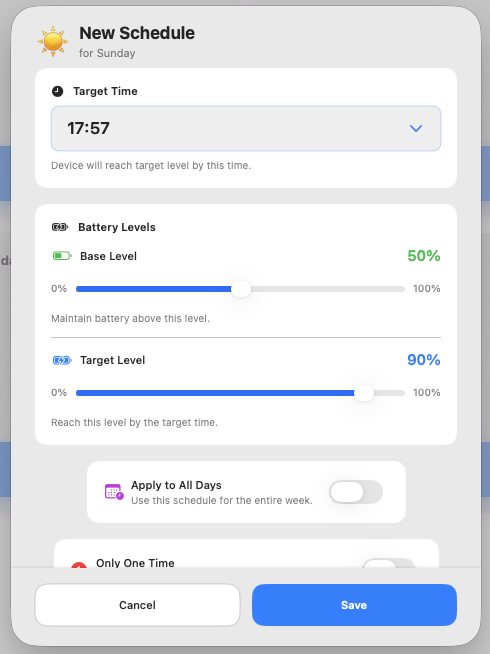
Schedule your charging for each day of the week. Set target times and battery levels, and Chargie will automatically start charging to meet your schedule.
- Weekly schedule with per-day settings
- Base level and target level configuration
- Estimation buffer for accurate timing
- Grace period for flexibility
Enable Scheduling
Toggle to activate automatic charging schedules
Day Cards
Add schedules for each day of the week
Power Modes
Basic 5V, Full Power (88W), Half Power (46W)
Live Stats
Real-time voltage, current, and wattage
⚡ Power Delivery Modes
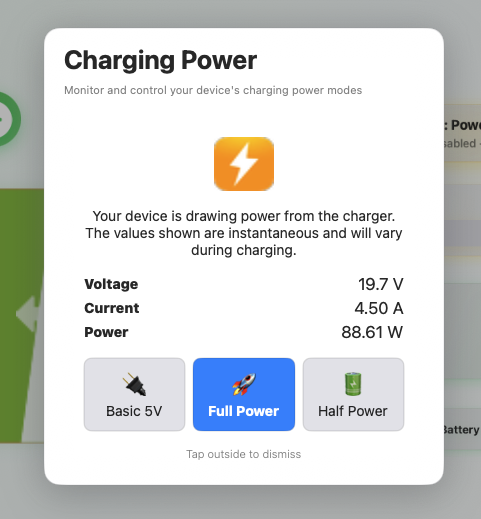
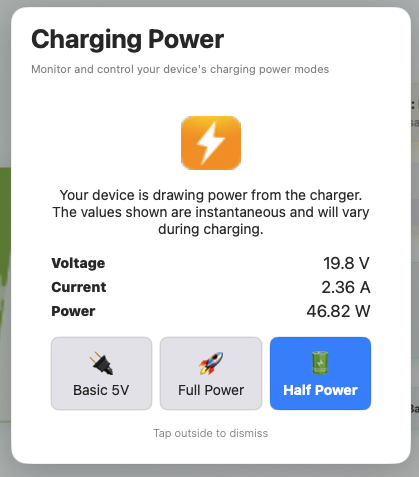
Chargie C for Laptops supports USB Power Delivery up to 100W. Choose between Full Power mode for maximum charging speed or Half Power mode for gentler charging.
- Full Power: Up to 100W for fast charging (88W shown)
- Half Power: ~50% wattage for battery longevity (46W)
- Basic 5V: Standard USB charging mode
- Real-time monitoring: 19.7V × 4.50A = 88.61W
🔋 Half Power Mode
Half Power mode reduces charging wattage to approximately 50%. Important: Chargie C for Laptops advertises 100W to your power adapter regardless of your laptop's actual charging capability. Power detection is not automatic.
- 65W laptop + 100W adapter: Enable "Half Power mode only" in Settings to reduce power to ~50W, making your setup compatible
- Reduced heat: Lower wattage means cooler, gentler charging
- Battery-friendly: Slower charging extends battery lifespan
- Settings toggle: "Half Power mode only" forces this mode permanently for power-limited devices
Half Power Selected
Blue highlight shows active mode
46.82W
~50% of Full Power's 88.61W
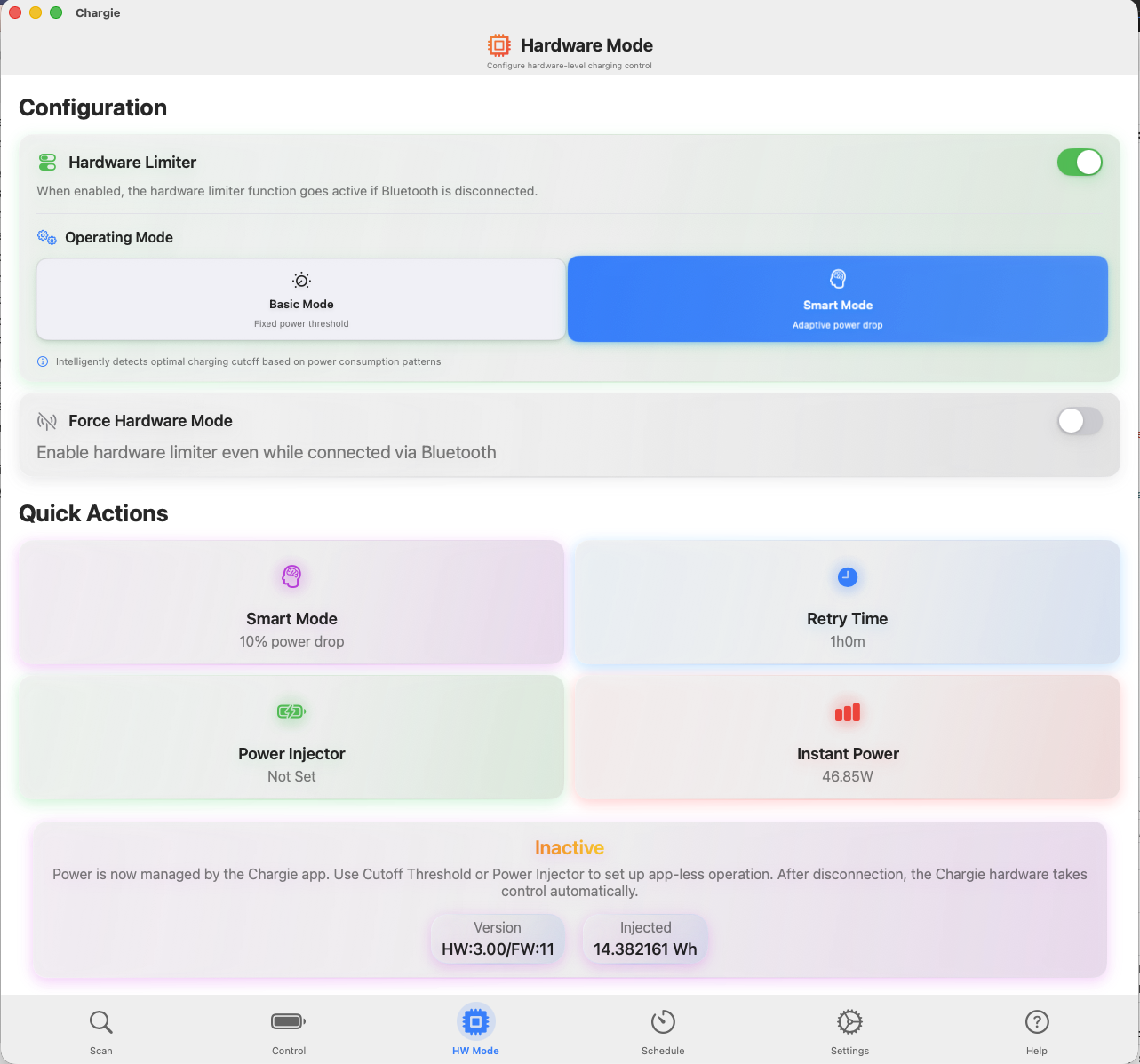
🔧 Hardware Limiter Mode
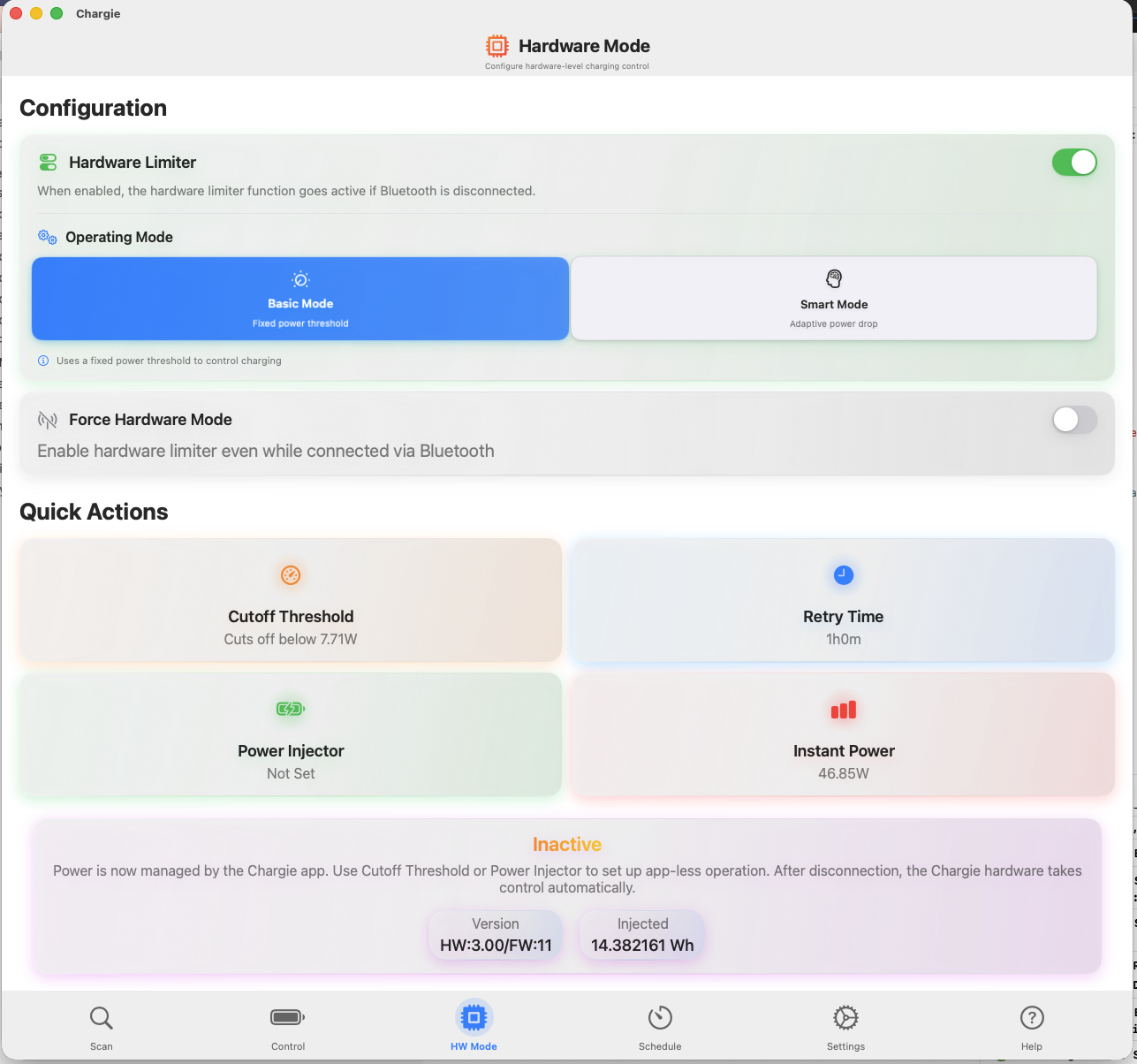
Configure the hardware limiter to protect your battery even when the app is disconnected. Choose between Basic Mode with fixed power threshold or Smart Mode with adaptive cutoff.
- Basic Mode: Fixed power threshold (e.g., 7.71W cutoff)
- Smart Mode: Adaptive power drop detection (10%)
- Retry interval configuration
- Power injector support for accessories
Hardware Limiter
Toggle to enable app-less protection
Operating Mode
Choose Basic or Smart detection
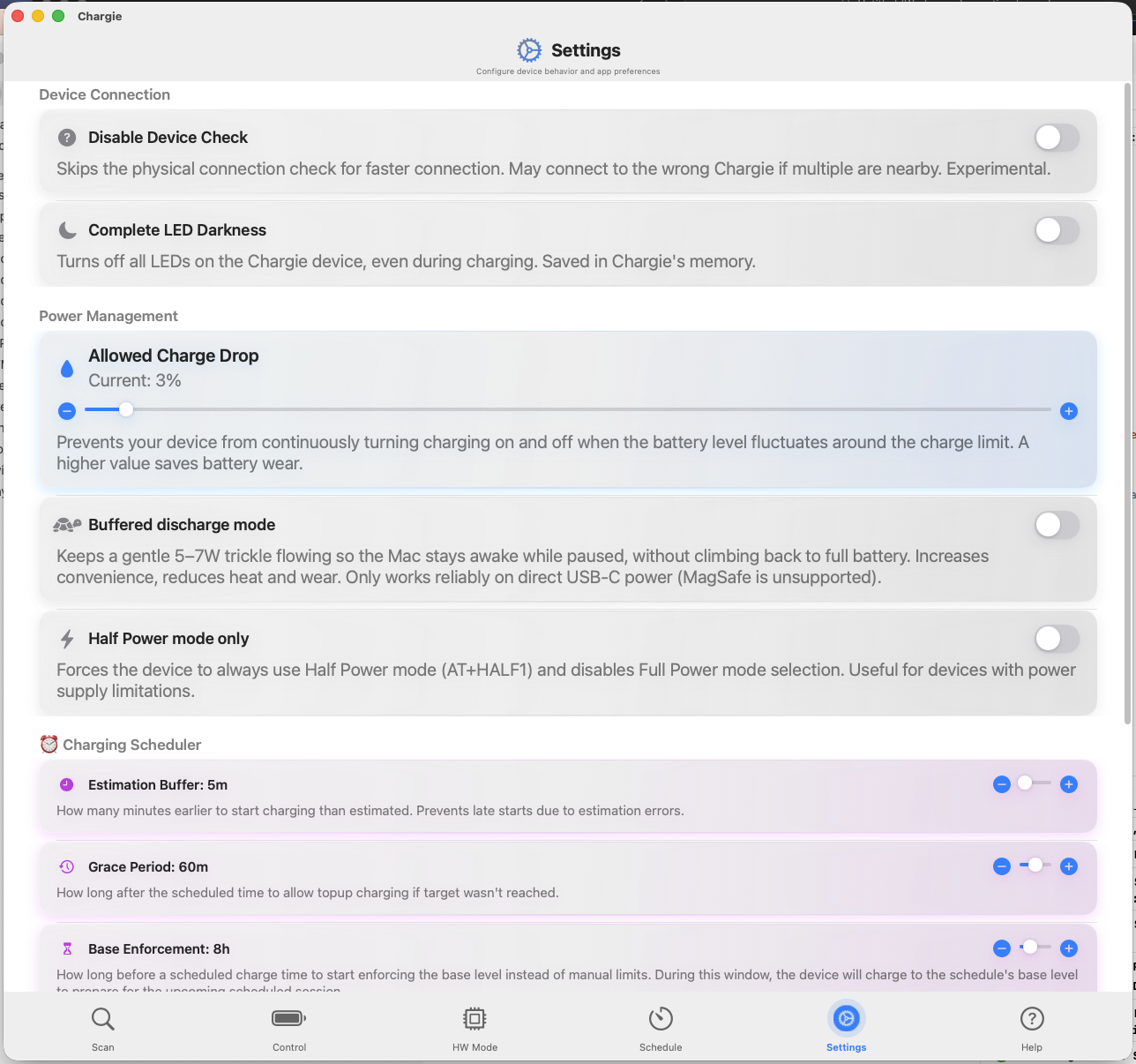
Allowed Charge Drop
Hysteresis to prevent on/off cycling
Buffered Discharge
Trickle flow keeps Mac awake while paused
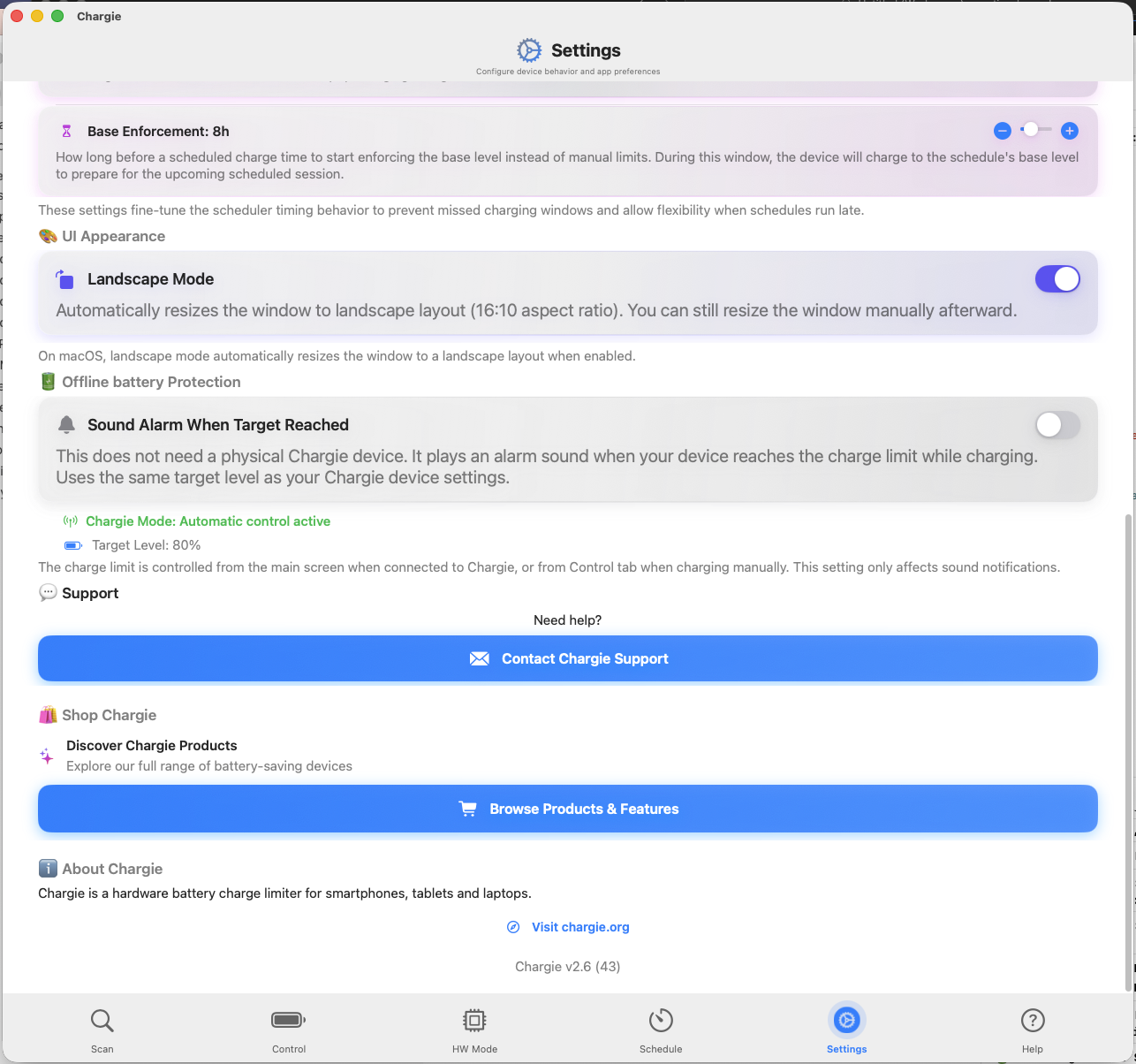
⚙️ Advanced Settings
Fine-tune Chargie's behavior with advanced settings for power management, scheduler timing, and UI preferences.
- Allowed Charge Drop: Buffer (3%) to prevent on/off cycling
- Buffered Discharge: Gentle trickle for USB-C power
- Half Power Only: Force reduced power mode
- Landscape Mode: 16:10 window layout
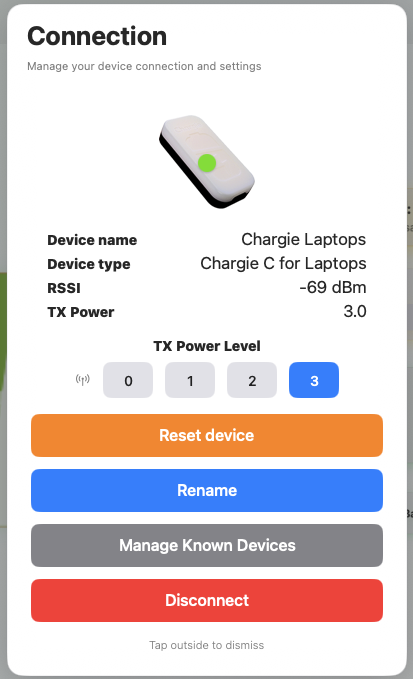
📡 Connection Management
View detailed information about your connected Chargie device and manage connection settings, TX power levels, and device naming.
- Device name and type display
- Signal strength (RSSI) monitoring
- TX Power level adjustment (0-3)
- Reset, rename, and disconnect options
Device Info
Chargie C for Laptops at -69 dBm
TX Power
Adjust Bluetooth transmit power (0-3)
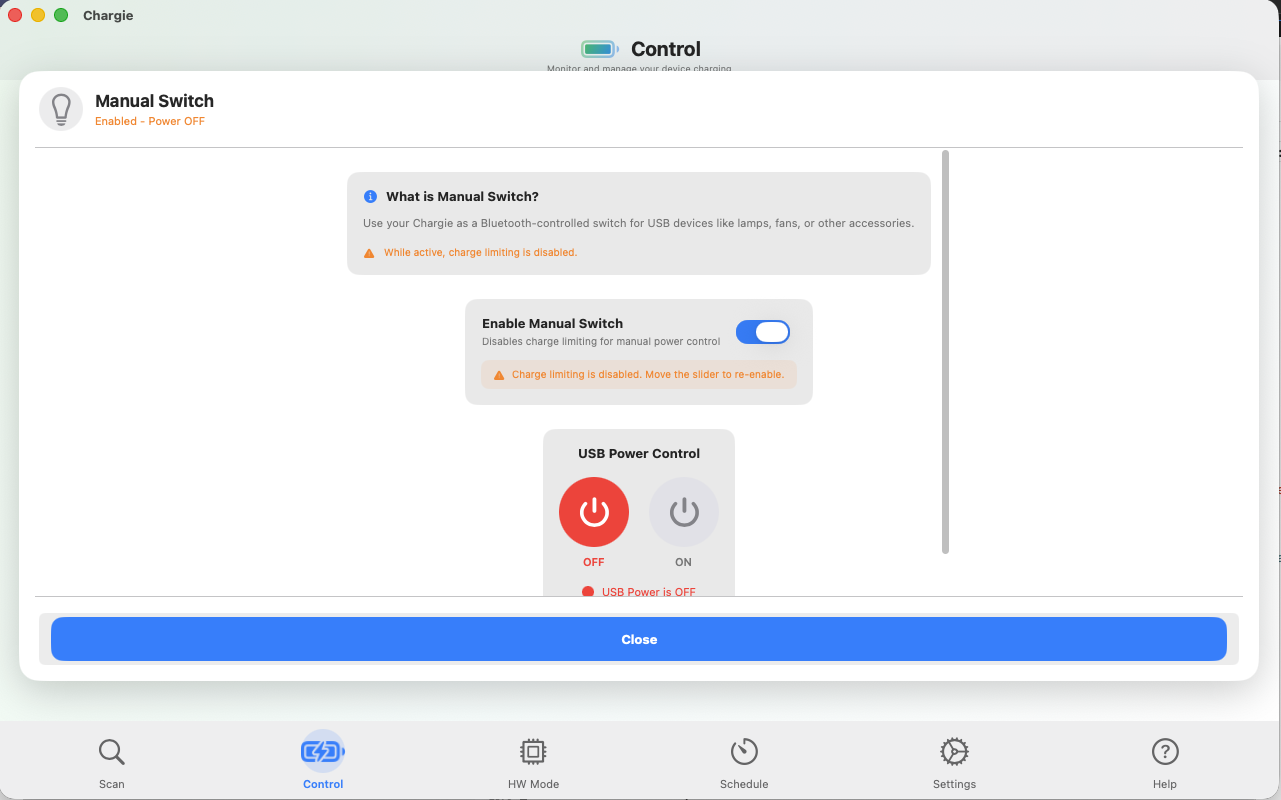
Enable Switch
Toggle to enable manual USB control
Power Control
ON/OFF buttons for direct USB power
💡 Manual Switch Mode
Use your Chargie as a Bluetooth-controlled USB power switch for lamps, fans, or other accessories. Disables charge limiting for direct power control.
- Direct ON/OFF USB power control
- Perfect for USB lamps and accessories
- Disables charge limiting while active
- Quick power toggle from the app
App Features
Quick Setup
Hardware Connection
Grant Permissions
Allow Bluetooth access when prompted. Chargie uses Bluetooth Low Energy to communicate with the hardware device. No location permission required on macOS.
Set Charge Limit
Adjust the charge limit slider to your desired level. 80% recommended for maximum battery longevity on laptops that stay plugged in often.
Hardware Setup
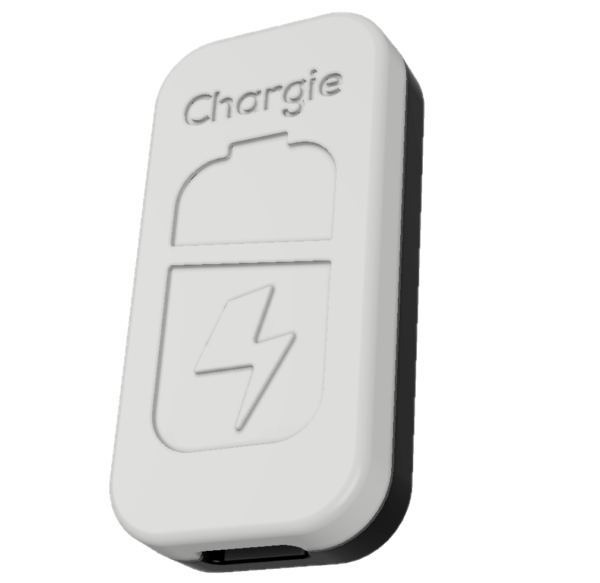
Chargie C for Laptops
INPUT → USB-C Power Adapter | OUTPUT → MacBook
Power Requirements
- USB-C Power Adapter: 60W minimum (96W+ recommended for Pro models)
- Supports USB Power Delivery (PD) up to 100W
- Works with Apple and third-party USB-C adapters
- LED indicator shows power state (green = active)
macOS-Specific Notes
Battery Reading
Chargie uses native macOS system APIs to read your battery state accurately. The app includes smart filtering to handle occasional glitches during sleep/wake transitions automatically.
Temperature Monitoring
Real-time battery temperature monitoring is only available on iOS devices. On macOS, temperature-based charging pause is not available due to system limitations.
Privacy & Security
- No data collection - Your data stays on device
- Local Bluetooth only - No cloud, no internet required
- No tracking - Zero analytics or telemetry
- No account needed - Just install and use
Troubleshooting
1. Ensure Bluetooth is enabled in System Settings
2. Check Chargie is plugged into power (LED should be lit)
3. Try unplugging and re-plugging the Chargie device
4. Quit and reopen the Chargie app
5. Check System Settings → Privacy & Security → Bluetooth - ensure Chargie has access
1. The menu bar icon appears after connecting to a device
2. Check if you have too many menu bar items (some may be hidden)
3. Try quitting and reopening the app
4. Check System Settings → Control Center → Menu Bar Only for icon visibility
1. Ensure app is running (check Dock or menu bar)
2. Check Bluetooth connection is active in the Scan tab
3. Enable Hardware Limiter for protection even when app is closed
4. Verify Chargie firmware is current
5. Try reconnecting to the device
1. macOS IOKit can occasionally return garbage data during system transitions
2. Chargie filters these automatically but some may slip through
3. Wait a few seconds - the value should correct itself
4. If persistent, try restarting the app
5. SMC reset may help in extreme cases
1. This is normal - Bluetooth connections are suspended during sleep
2. Chargie automatically reconnects when Mac wakes
3. Check System Settings → Battery → Options → "Prevent automatic sleeping when the display is off"
4. Hardware Limiter continues protecting even during sleep
1. Ensure you're using a USB-C PD (Power Delivery) adapter
2. Check Full Power mode is selected in Power settings
3. Some low-wattage adapters may not negotiate PD properly
4. Try a different USB-C cable (must support PD)
5. Minimum 60W adapter recommended for MacBooks
Need Help?
Last Updated: February 1, 2026