

To extend battery life, first separate two goals: getting more hours from today’s charge and preserving battery capacity over time. This guide focuses on long-term battery care across phones, tablets and laptops. For everyday settings, see our guide to extending phone battery life between charges.
Start with heat and your device’s charging features. Apple explains that temperature history and charging patterns contribute to battery ageing, and that Optimized Battery Charging reduces time spent fully charged. Use the equivalent features supported by your device rather than assuming every model offers the same controls.
Your Quick Guide to a Longer-Lasting Battery
Plug in, set your limit in the app, and forget about it.
Which Chargie is right for me? →Needing a charge earlier than expected does not, by itself, establish battery ageing. Review usage and battery-health information before deciding whether the problem is daily demand or reduced capacity.
The good news is you have more control over this than you might think. By making a few small changes to your daily routine, you can seriously improve how long your battery lasts each day and how healthy it stays over time. This isn't about digging into confusing settings; it's about building smarter habits for your devices.
Small Habits, Big Impact
You don't need to be a tech expert to see a real difference. The best tips are usually the simplest ones because they fix the main causes of battery wear and tear. Think of it like taking care of your car—a little care now prevents big problems later on.
Here are the main ideas to keep in mind:
- Don't always charge to 100%. Constantly charging your battery to full or letting it die completely puts a lot of stress on it.
- Keep your device cool. Heat is the number one enemy of a healthy battery. Leaving your phone in a hot car or in direct sunlight can cause lasting damage.
- Use the smart features you already have. Modern phones and laptops come with built-in tools like Optimized Charging and Low Power Mode. They’re made to protect your battery for you, so use them!
The goal isn't to worry about your battery percentage all day. It's about creating good conditions for your battery, reducing wear so it works better for longer.
To make this even easier, here's a quick list of the best changes you can make today.
Top 5 Quick Wins for Battery Health
| Habit | Why It Works | Impact Level |
|---|---|---|
| Charge to 80%, not 100% | Avoids the stress that makes batteries age faster. | High |
| Don't let it drop below 20% | Prevents strain on the battery when it has very little power left. | High |
| Keep it cool | Heat causes chemical changes that permanently damage the battery. | High |
| Use slow, overnight charging | Creates less heat and stress than fast charging, especially when managed. | Medium |
| Turn on Optimized Charging | Your device learns your routine and holds the charge at 80% until you need it. | Medium |
These simple changes, when you do them regularly, lead to a much healthier battery over the life of your device.
Learning from Bigger Batteries
It turns out the same rules that protect the little battery in your phone also work for much bigger ones—like those in electric cars. In fact, we can learn a lot from how electric cars manage their batteries.
Studies on electric car batteries show they only lose about 2.3% of their health per year. That's mainly because smart systems stop them from charging to 100% for daily driving. Thankfully, the technology is getting better—EV batteries now lose about 1.8% of their health per year on average, an improvement from just a few years ago. At this pace, most EV batteries are expected to last a solid 15 to 20 years. This lines up perfectly with what we know about our own devices: keeping your phone's charge between 20% and 80% can make it last much longer. For those who use electric bikes, you can find similar strategies for maximizing e-bike battery range that follow these same basic ideas.
How Long Does a Phone Battery Actually Last?
Before diving into the details of battery care, it helps to understand what you're working with. When people ask “how long does a phone battery last,” they're really asking two different questions: how long a single charge lasts through the day, and how many years the battery will hold a good charge before it needs to be replaced.
Your Phone's Two Battery Clocks
Think of it like a car. The first “clock” is like its gas tank—how far can you drive on a full tank right now? This is your daily battery life, which might give you anywhere from 10 to 20 hours depending on what you're doing. The second “clock” is the car's engine health—how many years will it run well before it starts having problems? This is your battery's total lifespan, measured in charge cycles.
| Battery Metric | Typical Duration | What It Means |
|---|---|---|
| Daily Charge | 10 – 20 hours | The time your phone runs on a single full charge before needing to be plugged in. |
| Total Lifespan | 300 – 500 cycles | The total number of full recharges the battery can handle before it starts to wear out. |
It's also worth understanding the difference between battery health and daily battery life. Battery health measures the battery's maximum possible capacity compared to when it was new (for example, 95% of its original size). Daily battery life is simply how long a single charge lasts right now. So while daily life is what you manage hour-to-hour, health is the long-term game you want to win.
How Long Should a Phone Realistically Last?
The unfortunate trend is that the average lifespan of a smartphone is getting shorter. Globally, a phone's useful life is now estimated at just 2.53 years, and the battery is a huge reason for that. Brands matter too: Apple devices tend to last longer, often staying usable for 4 to 10 years, while Samsung phones average between 3 to 6 years before performance and battery problems become too frustrating to ignore.
As we look toward 2025 and beyond, smartphone batteries are getting bigger. Top models often land between 5,000mAh and 7,300mAh. But even a massive battery will weaken with poor charging habits. Understanding both your daily runtime and your battery's total lifespan is the first step toward making your device last.
Why Your Battery Fades and What You Can Do About It
Ever notice how a brand-new phone feels like it can last forever, but a year later, you're nervously watching the battery percentage by 3 PM? That’s a real thing. It's called battery aging, and it happens to every phone, tablet, and laptop out there.
The batteries in our devices are amazing, but they don't last forever. Think of them like a new water bottle. At first, you can fill it to the very top. But with every use, tiny, invisible cracks start to form inside. Over time, that bottle just can't hold as much as it used to. Your battery is going through the same process, losing a little bit of its total capacity every time you charge it.
What's a “Charge Cycle,” Anyway?
You might hear the term “charge cycle,” but what does it actually mean? It’s simpler than it sounds. One complete charge cycle is counted every time you use up a total of 100% of your battery's power.
This doesn't have to happen all at once. Maybe you use 75% of your battery during the day, charge it overnight, and then use another 25% the next morning. Just like that, you’ve finished one full cycle. Most phone batteries are made to last for around 500 full cycles before their health really starts to drop—usually down to about 80% of what it was when it was new.
But not all cycles are created equal. They depend on the depth of discharge, time of charge, and temperature. Partial charges are much, much gentler on the battery. Charging from 40% to 80% uses only a small fraction of a cycle compared to a full 0% to 100% charge. In fact, if you only charge a phone to 90% and then unplug, its lifespan can be extended to more than 5,000 cycles before it shows any signs of degradation. A living example is the batteries in 2nd-generation Toyota Prius hybrids, which still run strong after 15 years because they're only used in the 50% to 75% range.
The Key Factors That Influence Phone Battery Life
While a little aging is normal, some things can make your battery wear out much faster. If you want to keep your device running well for years, you need to know what you're up against.
In real-life scenarios, batteries are exposed to a range of stressors including temperature, humidity, mechanical shocks, electrical stress from sudden charge and discharge, depth of discharge, and trickle charging from being kept constantly plugged in. Here are the main ones that put the most stress on your battery:
- Extreme Heat: This is the worst enemy for your battery. A battery is happiest between 68°F and 77°F (20°C to 25°C). Once you regularly expose it to temperatures above 95°F (35°C), you're causing damage that can't be fixed. Heat speeds up the chemical changes inside your battery that cause it to break down. Leaving your phone on a hot car dashboard or playing heavy games while it’s fast-charging under a pillow are sure ways to cause permanent damage.
- Extreme Cold: While heat causes permanent damage, extreme cold acts more like a temporary power thief. When a battery gets really cold, the chemical reactions inside slow way down, which is why your phone might suddenly die at 15% on a freezing winter day. The good news is this effect is mostly temporary—performance returns once the battery warms up. But trying to charge a frozen battery is a huge no-no and can cause permanent damage. That's why most modern phones have safety features that won't allow charging if the internal temperature is too low.
- Staying at 100%: Leaving your phone plugged in all night, every night, forces it to stay at 100% for hours. This keeps the battery under constant stress. It’s like stretching a rubber band as far as it can go and just holding it there for hours—eventually, it’s going to get weaker. That’s what’s happening inside your battery.
- Dropping to 0%: On the other hand, letting your battery completely die is also a bad idea. Draining it to 0% can mess with its internal parts, making it harder for it to hold a good charge in the future. When a battery is left completely dead for too long, it can fall into a “deep discharge” state where it can be difficult or even impossible to bring back to life.
- Fast Charging: It’s convenient, no doubt. But that speed generates extra heat and shoves a lot of power into the battery at once, causing more wear and tear than a slow, steady charge.
The big takeaway here? Batteries are happiest in the middle. They don't like being too hot, too full, or too empty. Just avoiding those extremes is the single most powerful thing you can do for your battery's long-term health.
How Your Daily Habits Make All the Difference
It really comes down to this: your habits have a direct effect on how fast your battery ages. Someone who charges their phone to 100% overnight and always lets it drop to 1% will see their battery health drop way faster than someone who tries to keep it between 20% and 80%.
The difference is big, too. By consistently avoiding those stressful highs and lows, a battery can stay healthy for hundreds of extra charge cycles. That means your device doesn't just last longer through the day—it stays useful and keeps its value for years to come. These small changes aren't just about getting a little more screen time; they're about protecting the heart of your digital life.
Build Better Charging Habits for Lasting Battery Health
Forget all the small software settings for a minute. The single biggest thing you can do for your battery’s long-term health is to change how you charge it. By building a few simple, smarter charging habits, you can seriously slow down the aging process and keep your device feeling new for much longer.
It starts with throwing out some old, outdated advice. You might remember being told to let your battery drain completely before plugging it in. That was good advice for old types of batteries, but for the modern batteries in every phone, tablet, and laptop today, it’s one of the worst things you can do.
The Modern Sweet Spot: The 20-80 Rule
The new golden rule for battery health is the 20-80 rule. Simply put, your battery is happiest and under the least amount of stress when its charge level stays between 20% and 80%.
Think of it like this: filling a battery all the way to 100% is like over-inflating a tire. It puts everything under intense pressure. On the flip side, letting it drop to 0% is like letting all the air out, which can damage the tire's structure. That middle zone is the key.
This diagram shows the main things that make a battery age faster. As you can see, heat and charging from empty to full are the biggest problems.
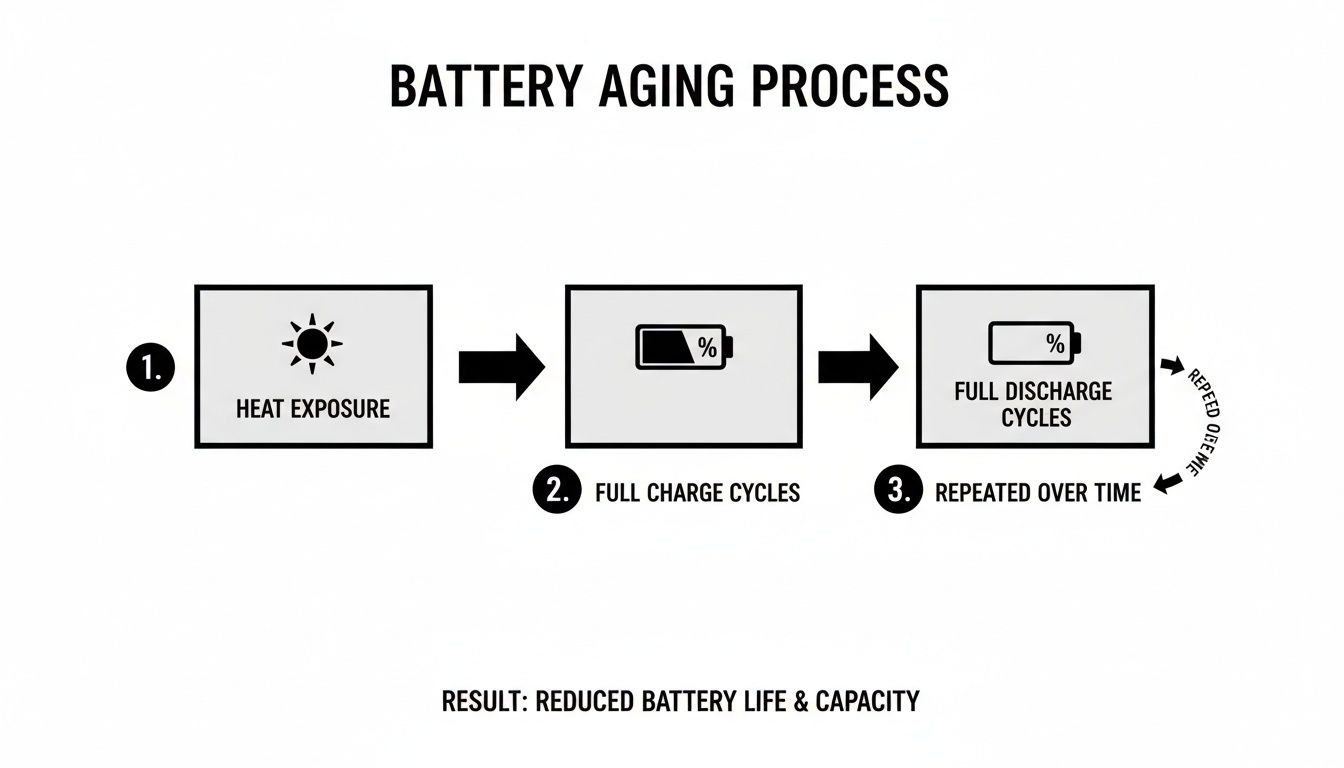
Avoiding these extremes is the best way to protect your battery’s ability to hold a charge over time.
Now, don't get obsessed about hitting these numbers perfectly every day. The goal is to make partial charging your normal habit. Instead of one long overnight charge, try shorter, more frequent top-ups during the day when it’s easy.
This isn't just a theory for small gadgets. A similar thing happens with electric cars. A study on electric car batteries found that real-world driving habits—not constant, extreme charging or draining—actually made the batteries last nearly a third longer than lab tests predicted. It’s solid proof that moderate use is much healthier than a constant cycle of full-to-empty. You can read the full study about EV battery findings to see how this is changing things.
The Truth About Overnight Charging
This brings us to the big one: is leaving your phone plugged in overnight actually bad for it? The short answer is yes, but it's a little more complicated.
Leaving your device plugged in all night keeps it at 100% for hours. As we've learned, this creates stress and extra heat—two of the main things that ruin batteries. What actually happens is a process called “trickle charging”: once your phone hits 100%, the battery naturally loses a tiny bit of power, and then the charger kicks back on to top it off. This creates tiny, stressful micro-cycles all night long, forcing the battery to sit at a high-stress state for hours.
Thankfully, device makers know this is a common habit. They’ve built some clever software features to protect your battery from your own routine.
Your device's built-in charging software is a powerful helper. By learning your daily schedule, it automatically stops the battery from sitting at 100% for long periods, which greatly reduces stress and wear overnight.
These features work by learning your sleep schedule. They'll quickly charge your phone to 80% and then pause, holding it there for most of the night. Then, just before your alarm goes off, the software starts again to add the final 20%, so you wake up to a full battery without the hours of unnecessary stress.
Here’s what these features are called on different devices:
- For iPhones and iPads: It's called Optimized Battery Charging. Find it under Settings > Battery > Battery Health & Charging.
- For Google Pixel Phones: Look for Adaptive Charging. It’s located in Settings > Battery > Adaptive Charging.
- For Samsung Galaxy Devices: It’s known as Protect Battery. Turn it on in Settings > Battery and device care > Battery > More battery settings.
While these tools are a huge help, they aren't a perfect fix. They reduce the damage but don't get rid of it completely, since the device still eventually reaches that stressful 100% state. They can also be thrown off by schedule changes—a late night out or an early morning flight, and the phone's software can't keep up. For the best long-term results, the ideal habit is still to unplug it before it gets full. But if you’re going to charge overnight, turning these features on is a must.
The Hidden Cost of Fast Charging
Fast charging feels like a modern miracle, especially when you're in a hurry. Getting a 50% boost in just 30 minutes is incredibly convenient, but that speed comes at a price. Pushing that much power into a battery so quickly creates a lot of heat and puts immense stress on it.
Think of it like filling a water balloon. You can fill it slowly and gently with no problem. But if you turn on a fire hose and blast it, the balloon's material stretches violently and is far more likely to weaken or burst. Fast charging has a similar effect on your battery over time.
So does this mean fast charging is always bad? Not at all. It’s a tool, and the key is knowing when to use it:
- For quick boosts: Go ahead and use your fast charger when you're short on time and need power now.
- For regular charging: When speed isn't a priority, like when you're at your desk or plugging in for the night, use a standard, lower-power charger. You can learn more about why slow charging is essential for your smartphone's battery health in our detailed guide.
Keep It Cool While Charging
Temperature has a massive impact on your battery, especially while it's charging. A battery already generates some internal heat during the process; adding outside heat into the mix is a recipe for faster aging. Here are a few practical tips:
- Remove the Case During Charging: Phone cases are great for protection, but they're also great at trapping heat. Taking the case off before you plug in lets the heat escape much more easily, keeping the battery in its happy zone.
- Avoid Direct Sunlight: Never leave your phone, tablet, or laptop charging on a sunny windowsill or, worse, in a hot car. The combination of charging heat and outside heat is a recipe for faster battery aging.
- Pause Heavy Tasks: Try to avoid playing demanding games or streaming high-quality video while your device is plugged in. These activities make the processor work hard, which creates its own heat and adds to the warmth from charging. Charge it or use it, but try not to do both heavily at the same time.
Adjust These Simple Settings to Save Battery Life
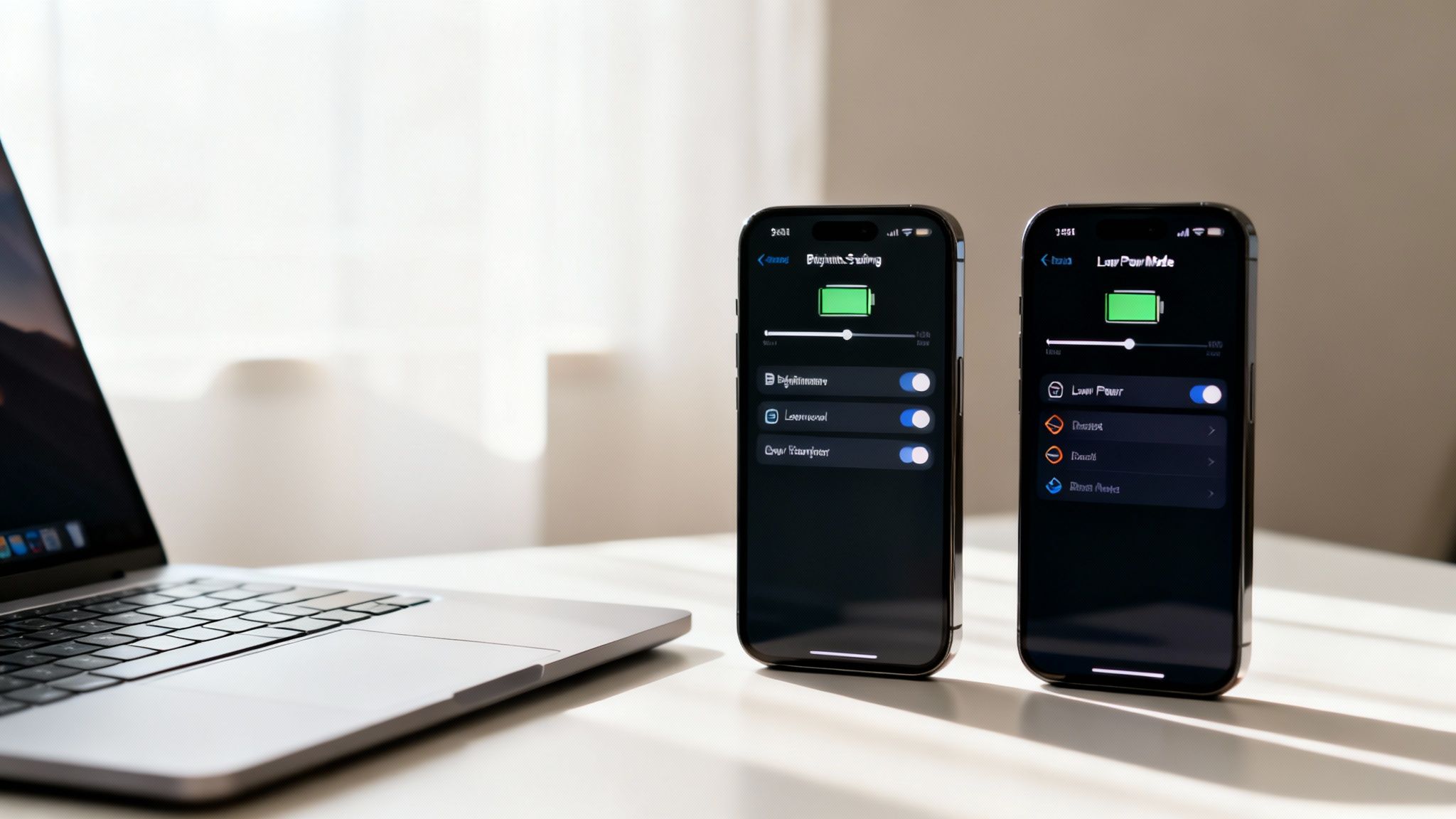
While smart charging habits are your best tool for long-term battery health, your device's settings are your best friend for getting through a long day. Your phone, tablet, and laptop are already packed with simple but powerful tools made to save power when you need it most.
It can feel a little confusing trying to figure out which settings to change, but just a few key adjustments can make a huge difference. These changes are all about telling your device to stop wasting precious energy on things you aren't using.
Master Your Screen and Display
Your device’s screen is almost always the biggest power user. It’s a beautiful, bright window into your digital life, but it also uses a lot of battery. Taming it is the quickest and easiest win you can get.
Start by lowering your screen brightness. You really don't need it turned all the way up unless you're in direct sunlight. For most situations, keeping it around 30-50% is perfectly fine and saves a surprising amount of battery. Better yet, just turn on Auto-Brightness and let your device handle it for you.
Next, you'll want to use Dark Mode. If you have a device with an OLED or AMOLED screen (which includes most modern phones), Dark Mode is a game-changer. Unlike older screens that light up the whole display, an OLED screen turns off individual parts to create true black. That means a black background uses almost no power—a fantastic way to save battery life.
Don't overlook your screen timeout setting, either. Setting your phone to turn off after 30 seconds of inactivity is a simple change that stops the screen from staying lit every single time you put it down.
Tame Background App Activity
Ever close an app, only to get a notification from it minutes later? That's Background App Refresh at work. This feature lets apps check for new content and updates even when they're not on your screen.
It's useful for important apps like messaging or email, but it constantly drains a little battery for dozens of other apps that don't need to be running in the background.
- On iOS/iPadOS: Go to Settings > General > Background App Refresh. You can turn it off completely or, the smarter move, turn it off for individual apps that don't need to be always on.
- On Android: This is usually called “Background usage limits.” Find it under Settings > Battery > Background usage limits and put any apps you don't need into “Deep sleeping” mode.
Taking just a few minutes to check your background app permissions can save a good amount of your daily battery life. If an app doesn't need to be on 24/7, put it to sleep.
The same idea applies to location services. Many apps ask for your location but don't actually need it to work. Go into your privacy settings and switch apps to “While Using the App” instead of “Always.” For apps that have no reason to know where you are—like a simple game or photo editor—turn off location access completely.
Also, be aware that even when you turn off Wi-Fi and Bluetooth from the quick settings, your phone may still have “Wi-Fi Scanning” and “Bluetooth Scanning” enabled. These features let apps scan for networks and devices even when the main toggles are off. Dive into your location settings and disable these to cut out another hidden drain.
Watch Out for Poor Cell Signal
Ever notice your phone gets warm and the battery drains like crazy when you're in a basement or out in the middle of nowhere? That's not a coincidence. When the cell signal is weak, your phone has to boost its power, constantly searching for the nearest tower. It’s like trying to have a conversation in a loud concert—it takes a lot of energy.
If you know you're in an area with bad or no service, just turn on Airplane Mode. This tells your phone to stop searching, instantly cutting off this major power drain.
Tame Your Push Notifications
Every single buzz, ding, and on-screen alert forces your phone to wake up from its power-saving sleep, light up the screen, and use a little burst of power. One notification is nothing, but hundreds of them throughout the day really add up. Be ruthless with your notifications: turn them off for any non-essential app.
Keep Software Updated and Storage Clear
Always keep your operating system and apps updated. Developers are constantly rolling out behind-the-scenes fixes to improve power efficiency. If you skip those updates, you're likely missing out on simple fixes that help your device run cooler and sip, not gulp, power.
Here's a connection that flies under most people's radar: a nearly-full phone can drain your battery faster. When your device is crammed with data, the operating system has to work overtime just to manage files, write temporary data, and perform basic functions. All that extra work requires more processing power, which directly translates to more battery use. As a rule of thumb, try to keep at least 10-15% of your storage free.
The Power of Low Power Mode
When your battery percentage starts getting low, your device’s built-in power-saving mode is your emergency helper. It's a one-tap solution that automatically makes several smart changes to stretch whatever charge you have left.
These modes are very effective because they temporarily slow down features that use the most power.
- Low Power Mode (iOS/iPadOS): This reduces background activity, automatic downloads, and some visual effects. It also dims the screen and can slow the device down slightly.
- Battery Saver (Android): This limits background apps, turns on Dark Mode, and stops some network connections. You can find a detailed breakdown in this guide to Android's power-saving mode.
- Battery Saver (Windows): Dims the screen brightness and limits background notifications and activity.
- Low Power Mode (macOS): Reduces system speed and screen brightness, choosing battery life over top performance.
The best time to flip this switch is when your battery hits 20%. Don’t wait until you're at 5%—turning it on early gives you a much longer runway. Just don't get in the habit of keeping it on all the time, as it limits your device’s performance and background functions, meaning you'll miss out on the full experience you paid for.
Battery Saver Settings Across Different Operating Systems
Finding the settings menus on different devices can be confusing. This quick table shows you where to find these important battery-saving features on major devices.
| Feature | iOS/iPadOS | Android | Windows | macOS |
|---|---|---|---|---|
| Power Saver Mode | Settings > Battery > Low Power Mode | Settings > Battery > Battery Saver | Settings > System > Power & battery > Battery saver | System Settings > Battery > Low Power Mode |
| Screen Brightness | Control Center or Settings > Display & Brightness | Quick Settings or Settings > Display | Action Center or Settings > System > Display | Control Center or System Settings > Displays |
| Background Refresh | Settings > General > Background App Refresh | Settings > Apps > [Select App] > Battery | Settings > System > Power & battery | Not directly user-controlled in the same way |
| Location Services | Settings > Privacy & Security > Location Services | Settings > Location | Settings > Privacy & security > Location | System Settings > Privacy & Security > Location Services |
Ultimately, taking control of your device’s settings is all about making the software work for you. By adjusting how your screen behaves and which apps get to run in the background, you can easily squeeze more life out of every charge.
Automate Your Charging and Forget About It
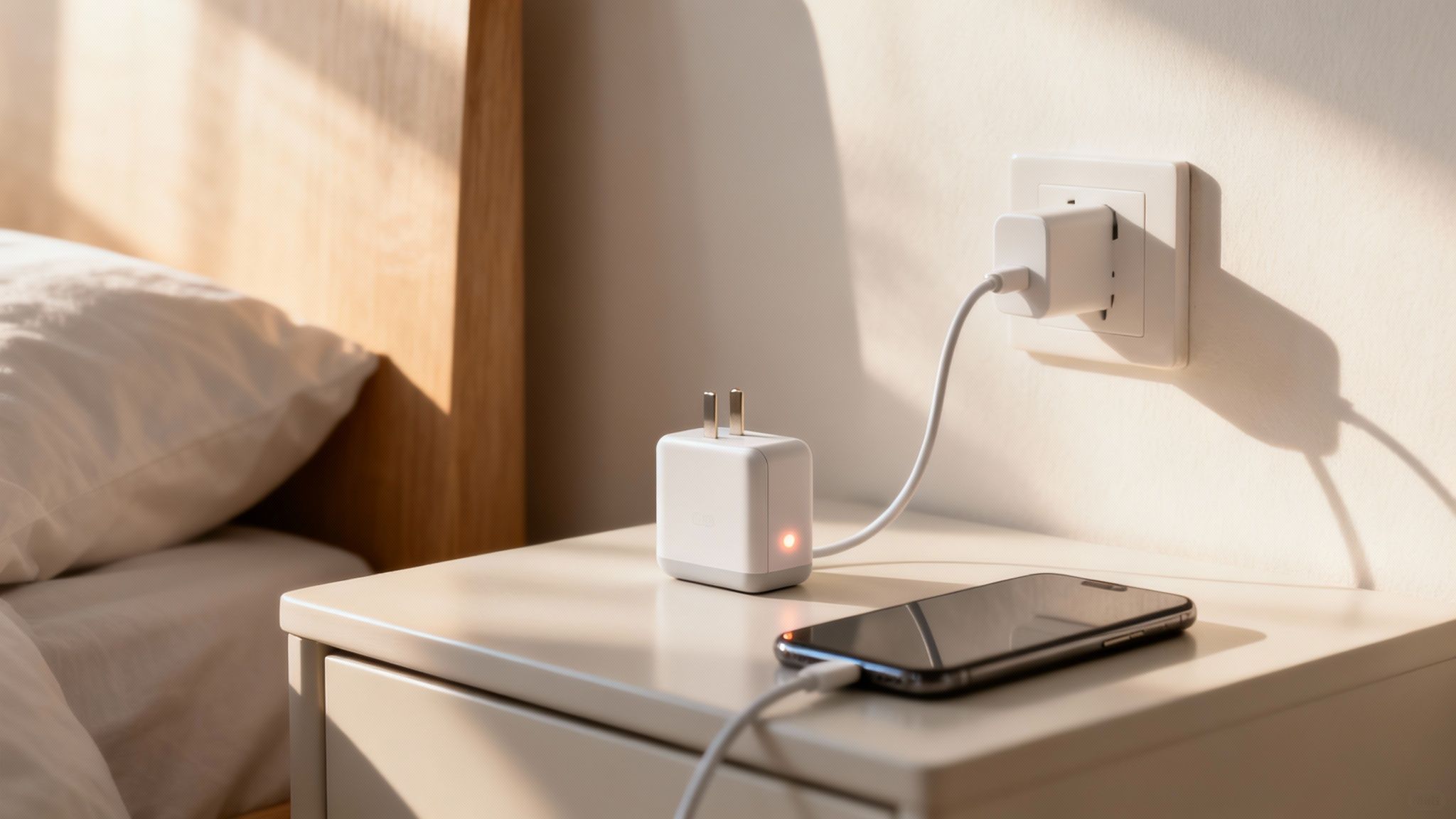
Look, building better habits is great, but let's be real—remembering to grab your phone off the charger the second it hits 80% is a huge pain. Life is busy. It’s way too easy to plug in your phone overnight and not think about it again until your morning alarm goes off.
This is where automation becomes your best friend. It takes the stress out of smart charging. Instead of relying on willpower or setting annoying alarms, you can use a tool that does all the work for you.
Why Hardware Is the Real Deal
The most reliable way to automate this process is with a physical gadget that sits between your charger and your phone. This is a huge step up from software-only solutions. While built-in features like Optimized Charging on an iPhone are a good start, they still end up charging the battery to a full 100%, which is exactly the stress we want to avoid. Plus, since they are only software, they do nothing if your phone is powered off.
A hardware tool gives you direct, foolproof control. It doesn’t just manage the charge—it physically cuts the power.
Think of it like a smart light switch for your charger. It watches your battery level, and once it hits the limit you’ve set, it completely shuts off the flow of electricity. This is important because it prevents any extra charging and totally removes the stress that wrecks your battery over time.
This means your device never has to sit at that stressful 100% state for hours, which is one of the biggest causes of early battery aging.
Putting It Into Practice with Chargie
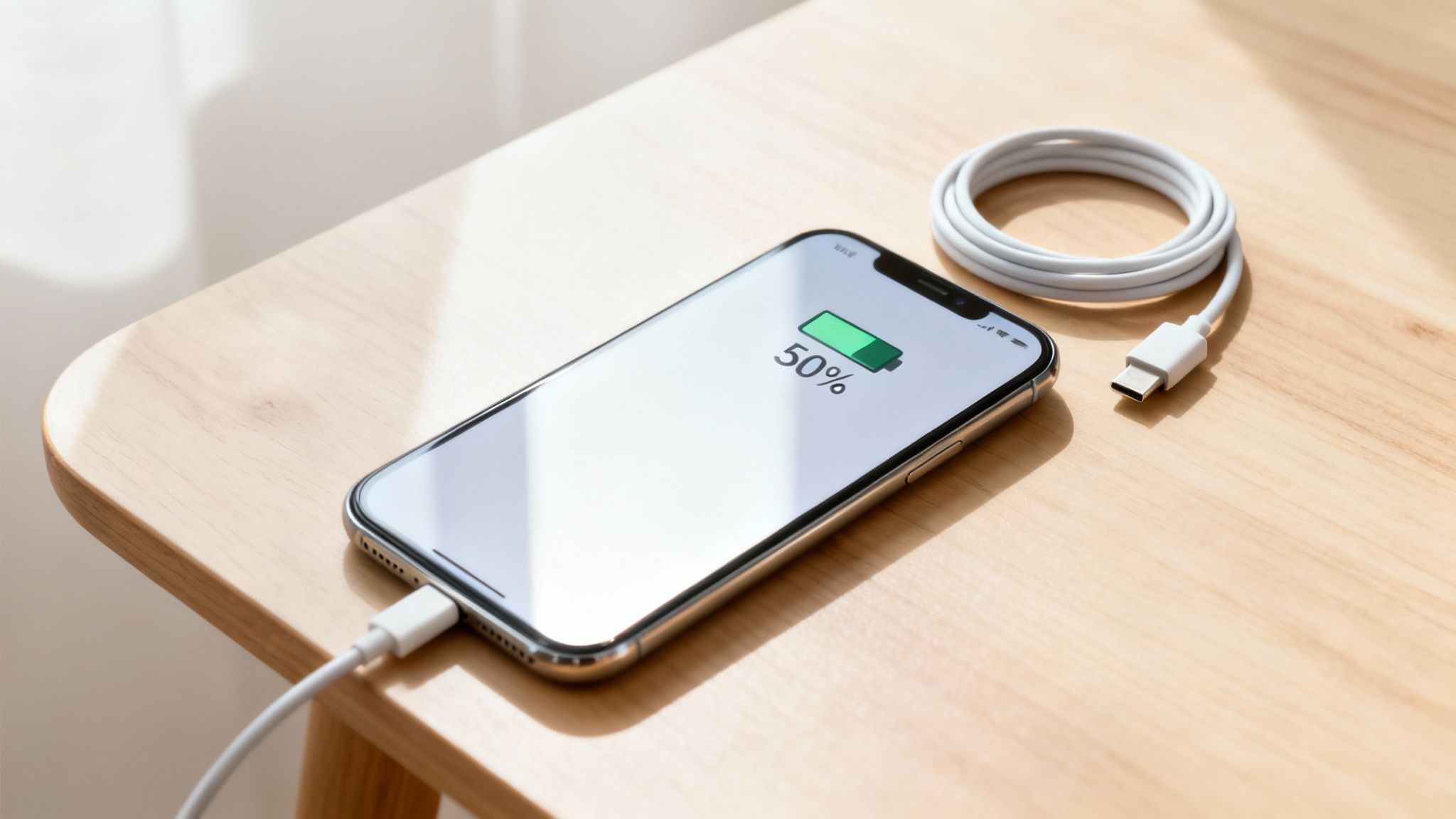
One of the best-known tools for this is a tiny device called Chargie. It’s a simple, set-it-and-forget-it solution that makes perfect charging totally easy. You just plug the Chargie into your USB charger, then plug your normal cable into the Chargie.
From there, its app lets you set your ideal charging limit. For example, you can tell it to stop charging your phone once it reaches 80%. The moment that level is hit, Chargie physically cuts the connection from the wall adapter. Your battery is safe.
The app gives you precise control, basically automating all the best practices we've been talking about.
For anyone who charges their phone overnight, this is a total game-changer. Here’s how it works in the real world:
- You set your limit. You decide 80% is your magic number and set it in the Chargie app.
- You plug in at night. Just like you always do. Chargie allows power to flow until your phone’s battery hits 80%.
- The power cuts off. The instant it reaches that limit, the hardware inside Chargie disconnects the power. No more electricity reaches your phone for the rest of the night.
- You wake up ready to go. Your phone is at a healthy, stress-free charge level. It never spent hours straining at 100%.
Smart Scheduling for Your Routine
Beyond a simple charge limit, Chargie offers a powerful Top Up Scheduler. Picture this: you plug your phone in when you go to bed. Instead of immediately charging it full, Chargie only brings it up to a safe, low-stress level—say, 60%. For the next several hours, your battery just rests in this comfortable state, completely avoiding the high power and heat that cause so much long-term damage. Then, about an hour before your alarm is set to go off, Chargie wakes up and finishes the job, topping the battery up to 90% or 100%.
It's truly the best of both worlds: maximum protection overnight and full power for your day.
Essential Safeguards for Real-World Scenarios
True battery protection goes beyond just smart scheduling. Chargie also includes heat protection: if your phone starts getting too hot while charging—maybe it’s slipped under a pillow or is sitting in direct sunlight—Chargie automatically cuts the power. Charging only starts again once the device cools down to a safe temperature.
These features become invaluable in real-world situations:
- Business Kiosks: A tablet running a display 24/7 can be kept at a stable 50% charge, which prevents the battery from swelling—a common and dangerous problem for always-on devices.
- Navigation in a Car: A driver's phone, constantly plugged in for GPS, is protected from overheating and overcharging on long trips.
This simple, one-time setup automates the single most effective habit for long-term battery health. If you want to learn more about the tech, you can check out this guide on what a battery charge limiter is and how it all works.
By investing in a small piece of hardware, you take all the guesswork and discipline out of the equation. You no longer have to think about when to unplug—it’s handled for you, perfectly, every single time.
Thinking Long-Term: Battery Care and Maintenance
So, you’ve got your daily charging habits figured out. Great. But what about the bigger picture? To really get years, not just months, out of your battery, you need a long-term game plan. A little bit of smart maintenance can protect your device from the kind of slow damage you don’t see until it’s too late.
One of the most common mistakes is how people store their old devices. If you're putting a phone, tablet, or laptop away for a few weeks or months, never leave it at 100% or let it die completely. Storing a battery at either extreme is a sure way to kill its ability to hold a charge for good.
The best level for storage is right around 50% charge. Just get it there, power it down, and put it in a cool, dry place. It's a simple step that makes a world of difference.
The Right Tools for the Job
This brings me to another key point: your accessories matter. A lot. It’s incredibly tempting to grab that cheap, generic charging cable from a gas station when you’re in a hurry, but trust me, it’s a huge risk.
Those low-quality chargers and cables often lack the important safety features that prevent overheating and power surges. Specifically, they can deliver jumpy, unstable current that stresses the battery, overheat themselves and your device (creating a fire hazard), and physically damage your charging port with flimsy connectors. Do yourself a favor and stick with the charger that came with your device or one from a trusted, certified brand. Look for certifications like MFi (Made for iPhone), UL (Underwriters Laboratories), or CE on the packaging. It’s a small investment to make sure your battery gets a stable, safe charge every time.
How to Check Your Battery Health
You don't have to guess about your battery's condition—most modern devices let you check directly. Getting in the habit of checking this number every few months turns the invisible process of battery aging into a tangible score you can track.
On an iPhone, go to Settings > Battery > Battery Health & Charging. The “Maximum Capacity” percentage tells you exactly how much power your battery can hold compared to when it was brand new. Apple generally considers a battery worn out once this drops below 80%.
On Android, it varies by manufacturer. Samsung phones often show battery health under Settings > Battery or Device Care. For other Android phones that don't have a built-in percentage, an app like AccuBattery can monitor your charging patterns over time to provide a detailed health estimate.
Telltale Signs of a Worn-Out Battery
Beyond the numbers, pay attention to these warning signs:
- Sudden Shutdowns: Your phone dies out of nowhere, even when the battery meter says you have 20% or more left.
- Constant Overheating: Your phone feels unusually warm during simple tasks like scrolling social media—not just intense gaming.
- Painfully Slow Charging: An old battery can have trouble accepting a charge, leading to much longer charging times than when it was new.
- Noticeably Shorter Life: You used to get through the day with power to spare, but now you're looking for an outlet by mid-afternoon.
If your Maximum Capacity has dropped to around 80% or less, or you're experiencing these symptoms, you can be sure a new battery will make your device feel brand new again.
Taking proper care of batteries has a positive effect far beyond our own devices. The same ideas that extend your phone's life are being used to give massive electric vehicle batteries a second life as power storage for the energy grid.
It's pretty amazing, actually. Research shows that with the right care, old electric car batteries can be reused for over 16 more years as power storage after they’re no longer fit for a car. It just goes to show you the incredible potential inside batteries when we treat them right. You can read more about these innovative battery reuse strategies.
Ultimately, all these little habits are about more than just saving a few hundred bucks on a new phone. When you make your battery last longer, you’re also doing the planet a favor.
Keeping our electronics running for as long as possible is one of the best ways to cut down on e-waste. By understanding the environmental impact of electronic waste, it's clear how these small, thoughtful choices can add up to a big, positive impact. And if you want to see the results of your efforts, you can learn how to check battery health and watch the numbers stay high.
Frequently Asked Questions
Got a few more questions in your head? Good. Let's clear up some of the most common myths and concerns people have about their batteries.
Does Fast Charging Damage My Battery?
In a way, yes. It's a trade-off between convenience and a long battery life. Fast charging forces a lot of power into your battery very quickly, which creates a lot of heat. And as we've already covered, heat is the absolute worst enemy of a healthy battery.
While it won't kill your battery overnight, making a habit of fast charging every single time will definitely make it age faster compared to slower, cooler charging methods.
Think of it this way: fast charging is great when you're in a hurry and need a quick power boost. But for your regular, nightly charge? Slower is always, always better in the long run.
Should I Let My Battery Die Completely Before Charging?
Nope, absolutely not. That's advice from the old days of different batteries (which had a “memory effect”), and it's terrible for the modern lithium-ion batteries in our devices.
Draining your battery all the way to 0% puts a huge amount of stress on its internal parts. Doing this repeatedly can cause permanent damage and reduce the total amount of charge it can hold. A much better habit is to plug in your device before it drops below 20%. It's such a simple change, but it makes a huge difference.
How Do I Know When It’s Time for a New Battery?
Your phone or laptop will start giving you some pretty clear hints. The most obvious sign is that you just can't get through the day anymore on a single charge. You'll find yourself looking for a charger by mid-afternoon.
You might also notice it shutting down suddenly, even when the battery meter says you still have 20% or 30% left. That's a classic sign of an old battery that can't provide steady power anymore.
Most phones have a built-in health checker in the settings menu. Look for “Maximum Capacity.” If that number has dropped to around 80% or less, you can be sure a new battery will make your device feel brand new again. A typical phone battery is built to hold onto about 80% of its original capacity after 500 full charge cycles, which for most people works out to about two to three years.
Will an 80% Charge Be Enough for My Day?
For most people, the answer is a resounding yes. An 80% charge on a modern smartphone will comfortably get you from morning to bedtime. You might end the day with 15% left instead of 35%, but look at what you're gaining: in exchange for that slightly smaller buffer, you could literally double your battery's effective lifespan.
Is It Bad to Use My Phone While It’s Charging?
For light stuff like sending a text or scrolling through a webpage, it’s generally not a big deal. The trouble starts when you do something demanding, like playing a graphics-heavy game or streaming a movie while plugged in. This creates a perfect storm of heat: you’ve got heat from the charging process itself, plus extra heat from the phone working overtime. If you need to use your phone while it’s on the charger, try to keep it light.
Can You “Recalibrate” a Battery to Restore Its Health?
No. You can't just “reset” a battery's physical health. The wear and tear on a phone battery is a one-way street—it's a permanent chemical change. Those “recalibration” tricks you see online don't restore any lost capacity; they just help your phone get a more accurate reading of its current, worn-out state.
Ready to stop worrying about your charge levels and let technology do the hard work? Chargie automates all the best practices we've talked about. It physically cuts power at whatever limit you set, making sure your battery stays in top shape for years to come. Chargie battery health protection.
More Ways to Extend Your Battery Life
- Cold Weather Battery Drain by City: 2026 Winter Guide (US + Europe)
- 4th of July Phone Battery: 6 Tips to Make Your Phone Last Through the Fireworks (and Beyond)
- Battery Anxiety: The Real Fix Behind the Panic (2026 Data)
- Your iPad Battery Replacement Cost Guide for 2026
- Does Dark Mode Save Battery? The 2026 Answer
- Never Run Out of Battery Again: A Practical Guide
- What Drains iPhone Battery and How to Fix It Fast
- Why Your Battery Drains Fast & How to Boost Its Life
- How to Automatically and Immediately Start the Chargie app on iOS devices
- Chargie v.1.1.0 for iOS Brings New Functionality
- How Chargie’s new resin cases are made
- Chargie A SE Batch 1 Production Roadmap
- We’re shipping more than just a product
- Happy New Year!
- How to Use the Chargie App
- My iPhone 13 Pro’s Battery Capacity After 8½ Months of Regular Usage
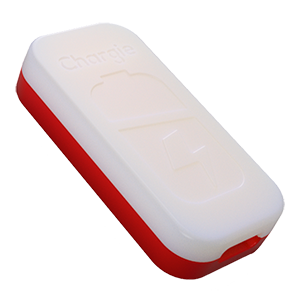
USB-C charge limiter that stops at your set battery level, so your battery never sits at 100% overnight. Extends battery lifespan by years. Works with any USB-C charger.
Limit your laptop charge to 80% via USB-C. Works with MacBooks, Dell, HP, Lenovo and most USB-C laptops up to 100W.
Protect Your Battery with Chargie
The world's first hardware charge limiter. Set a charge limit on any phone, tablet, or laptop — extend battery life by up to 4x.