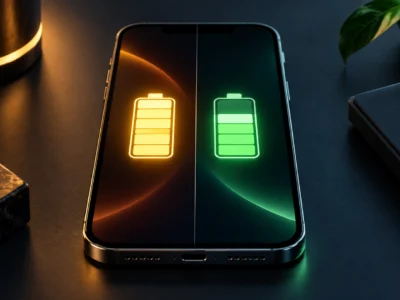

Android’s power saving mode throttles the exact things that drain your battery fastest: background app sync, mobile data speed, screen refresh rate, location polling, and system animations. Everything else — calls, texts, and whatever app you have open — keeps working normally.
Turn it on, and your phone trades a bit of speed and background convenience for real extra hours off the charger. Here’s exactly what that trade costs, how to switch it on across the three most common phones, and where it stops helping.
What Power Saving Mode Actually Turns Off
The setting itself is one toggle, but it changes five things at once:
Chargie limits charging to 80% (or any level), so your battery stays healthy for years.
Protect your Android battery →- Background sync delay. Apps like Gmail, Slack, and Instagram stop checking for updates on their own schedule and only refresh when you open them. Push email can lag by anywhere from a few minutes to an hour; a message sent to WhatsApp or Messenger may not show up as a notification until you unlock the app yourself.
- Refresh rate drop. On a 90Hz or 120Hz screen, power saving mode locks the display back to 60Hz. Scrolling and animations feel a step less fluid, but nothing stops working — it’s the single biggest power saving mode change you’ll actually notice.
- Location polling. Apps that track your position in the background — fitness trackers, delivery apps, “find my” widgets — check GPS less often. Navigation still works fine while the app is open and on screen; it’s the background checks that get stretched out.
- Mobile data throttling. Some phones cap background data entirely or drop from 5G to a slower connection when the screen is off, since radio power is one of the biggest background drains.
- CPU and animation cuts. The processor runs at a lower ceiling and system animations are trimmed or skipped, which is where most of the actual battery saving comes from.
How to Turn Power Saving Mode On and Off
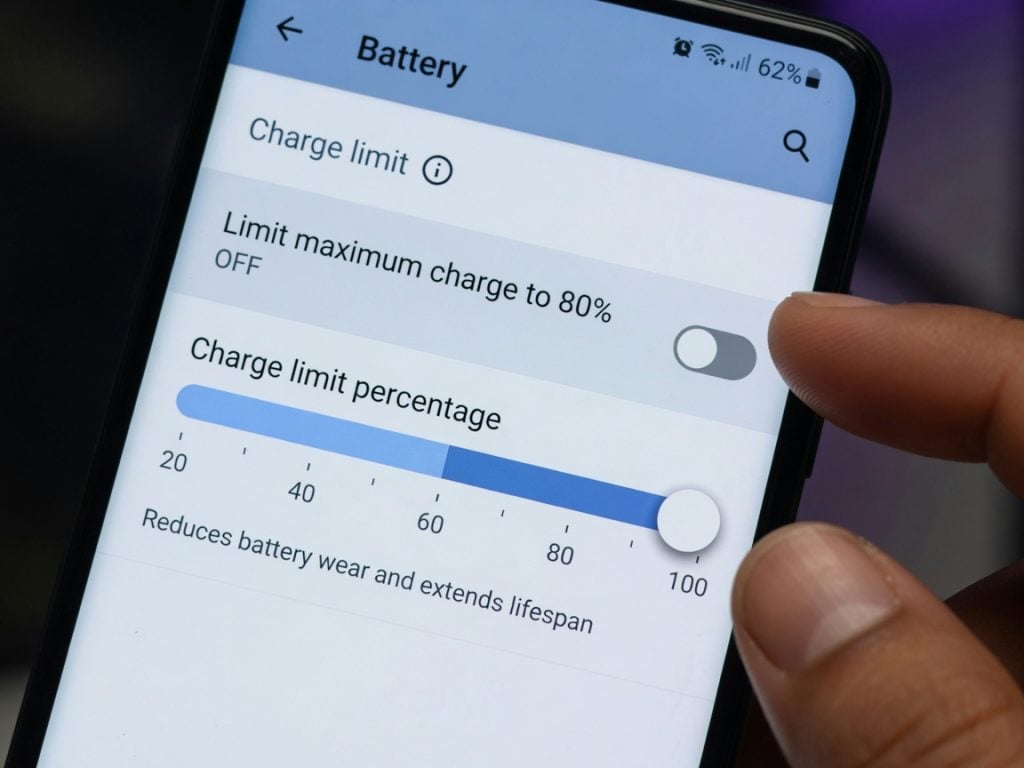
Samsung (One UI)
Settings > Battery and device care > Battery > Power saving mode — toggle it on or off directly. To have it switch on automatically, tap More battery settings > Turn on automatically and set a charge percentage (20% is the default).
Pixel and Stock Android
Settings > Battery > Battery Saver — toggle on or off, or tap Set a schedule to trigger it automatically either by battery percentage or on a fixed daily schedule.
Xiaomi (HyperOS / MIUI)
Settings > Battery > Battery saver — toggle Battery saver on or off, or switch to Ultra battery saver for the aggressive, essentials-only mode. Auto-enable-by-percentage is more limited here than on Samsung or Pixel and varies by MIUI/HyperOS version — check the same Battery menu for a “Schedule” or “Auto” option if your model has one.
On every brand, the fastest path is the Quick Settings shortcut: swipe down from the top of the screen and tap the battery-saver tile.
Does Power Saving Mode Hurt Your Phone or Battery?
No. Power saving mode is a software throttle on performance and background activity — it doesn’t touch your battery’s charging voltage or chemistry, so it can’t damage the battery. If anything, it slightly reduces heat and workload during use, which is mildly easier on the cell than running flat-out. The only real cost is a temporarily slower, less responsive phone while it’s on.
What Power Saving Mode Does NOT Do
It doesn’t stop your phone from charging to 100%, and it doesn’t lower the voltage your battery charges to. Power saving mode only manages how your phone uses power once it’s off the charger — it has zero control over how your phone charges. Plug in overnight and power saving mode won’t stop your battery from sitting at 100% for hours, and that full-charge stress is a bigger long-term battery-health factor than anything power saving mode touches. That’s a job for charge limiting instead — see the data behind it on our battery science page, and the Chargie Android app if you want to set a charge limit on your phone directly.
Standard vs. Extreme Power Saving Mode
| Feature | Standard Power Saving Mode | Extreme/Ultra Power Saving Mode |
|---|---|---|
| App Access | All apps available but may run slower. | Only essential apps like Phone and Messages (plus a few you add) are allowed. |
| Notifications | Often delayed for non-essential apps. | Paused for most apps to save as much battery as possible. |
| Connectivity | Wi-Fi and mobile data stay on, background use limited. | May turn off Wi-Fi, Bluetooth, and location when the screen is off. |
| Visuals | Screen brightness reduced. | May switch to a simplified, dark, or black-and-white theme. |
Standard mode is for getting through the last few hours of your day. Extreme mode is the lifeline for when you’re far from a charger and down to your last 5%.
Managing Background Apps Beyond the Toggle
Power saving mode’s automatic app throttling doesn’t always catch everything, especially on phones with fewer built-in optimizations. Check Settings > Apps > [app name] > Battery and restrict background activity for the handful of apps you rarely open but that still run in the background — old games, one-off utilities, apps you installed once and forgot. That closes most of the gap that automatic standby buckets don’t fully cover, and it stacks with power saving mode rather than duplicating it.
Frequently Asked Questions
Should I leave power saving mode on all the time?
You can, but you don’t have to. Modern phones throttle intelligently enough that leaving it on full-time costs little day-to-day performance — the main trade-off is slightly delayed notifications from apps that rely on background data. If that bothers you, switch it on only when you’re below 30–40% and away from a charger.
Does power saving mode slow down my phone?
Yes, slightly — it caps CPU performance, may lower screen refresh rate, and delays background app activity. Apps open a touch slower and scrolling feels less smooth. Calls, texts, and whatever app is open in the foreground aren’t affected.
Does it help battery health long-term?
Indirectly. Power saving mode reduces heat and workload during use, which is mildly easier on the battery, but it has no effect on charging voltage — the single biggest factor in long-term degradation. For real long-term battery health, pair it with keeping your charge between 20–80% rather than routinely hitting 100% — see our full guide on how to extend battery life.
Ready to take battery health to the next level? Chargie is a smart device that goes beyond software tweaks, protecting your battery from the physical stress of overcharging. It helps extend your device’s lifespan by up to 4x, saving you money and reducing e-waste. Learn more at https://chargie.org.
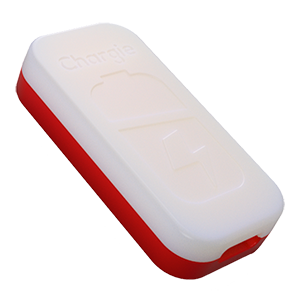
USB-C charge limiter that stops at your set battery level, so your battery never sits at 100% overnight. Extends battery lifespan by years. Works with any USB-C charger.
Protect Your Battery with Chargie
The world's first hardware charge limiter. Set a charge limit on any phone, tablet, or laptop — extend battery life by up to 4x.