
Chargie Fleet
See and change the charge limit of every device you look after — from any browser, without getting up.
What Chargie Fleet is
The Chargie app already limits charging on the device it runs on. Chargie Fleet adds one thing: a web page at chargie.org/fleet that lists those devices and lets you change them from somewhere else.
It is worth having when the device is awkward to reach — a tablet mounted on a wall, a phone in a drawer charging overnight, a kiosk in another room — or when there is more than one of them and walking round to each is the annoying part.
See
Battery level, whether it is charging, the charge limit in force, temperature and the next scheduled top-up.
Change
Set a charge limit, stop charging outright, ask a device to report in, or rename it — one device or several at once.
What you need
| What you need | Why it matters |
|---|---|
| A Chargie | Fleet reports a device's battery and sets its limit through a Chargie. A device that has never had one connected has nothing to show. |
| A chargie.org account | The same one you use for orders. You can create one for free if you bought your Chargie from a reseller. |
| The Chargie app, installed and not force-quit | It's the app that carries out what the dashboard asks for. |
| An internet connection on both ends | The device needs it to receive commands; you need it to send them. |
Setting up, step by step
Use your Chargie once
On each device you want on the dashboard, connect a Chargie in the app at least once and let it take control of charging.
Fleet only offers to pair a device that has done this. Without it there is nothing to report.
Open the dashboard
Go to chargie.org/fleet in any browser and sign in.
No account? Create one on the same page — email and password, or your Google account. It is free, and you do not need to have ordered from us directly.
Start pairing
The dashboard shows a QR code and a short pairing code.
Reading this on the same phone you want to pair? There is no QR to point a camera at, so the page offers a Pair this device button instead, which opens the app directly.
Scan it in the app
In the Chargie app, open Settings → Chargie Fleet → Pair and point the camera at the QR code. You can type the code instead if you prefer.
Confirm
The app asks you to confirm before it attaches the device to your account. Tap Pair, and it appears on the dashboard within a few seconds.
Repeat per device
Each phone or tablet pairs separately. They all land on the same dashboard.
Where to find it in the app
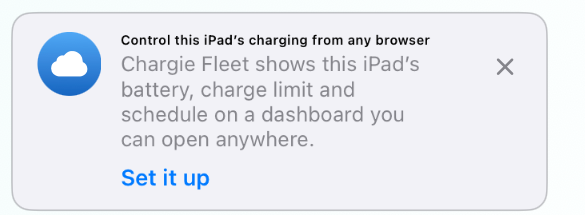
Control screen
The Chargie Fleet card sits with the other cards below the charge dial. Tap Set it up to pair.
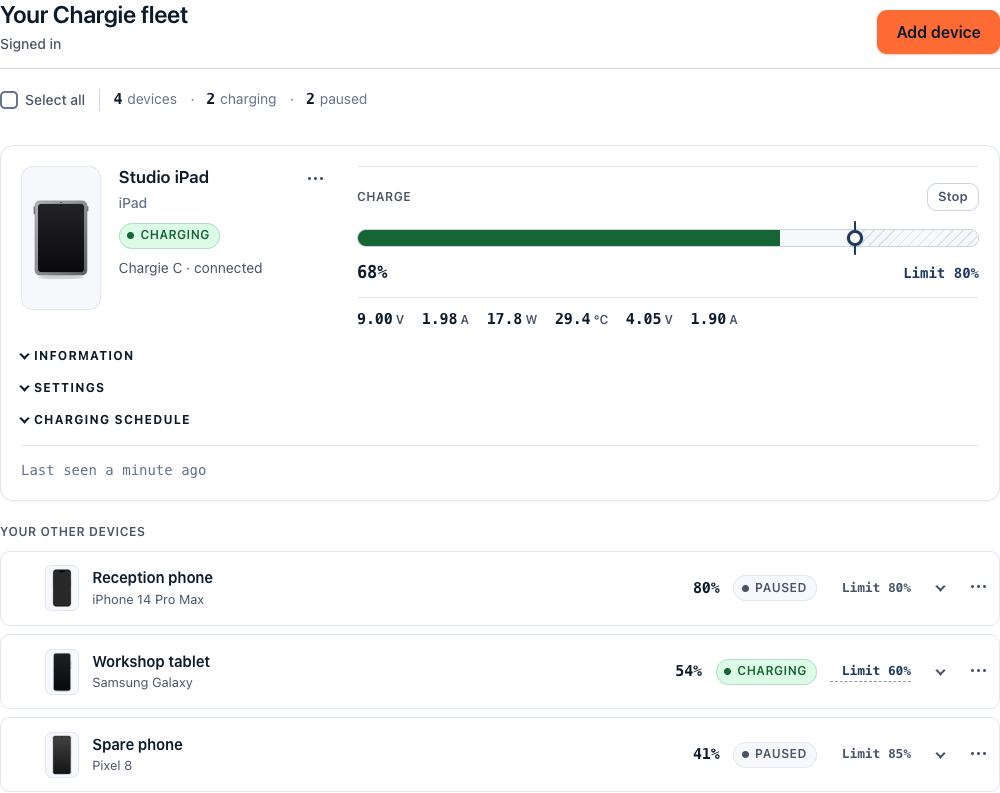
chargie.org/fleet
Every paired device on one page. The same view opens inside the app, already signed in.
Once a device is paired the card changes to say so, and you can collapse it. You can also reach the dashboard from Settings → Chargie Fleet at any time — opened that way it signs you in automatically, with no password to type.
Using the dashboard
Each paired device gets a card. The card shows what the device last reported and gives you the controls that act on it.
Set a charge limit
Drag the slider on the card, between 50% and 100%. The device applies it the next time it hears from us — usually within seconds.
Stop charging
Cuts power at the Chargie now. Charging stays off until you set a limit again.
Ask it to report in
Nudges a device to send fresh numbers instead of waiting for its next check-in.
Rename
"Warehouse tablet 3" beats "iPad". The name is yours and only shows on your dashboard.
Several at once
Tick the devices you want and apply the same limit — or stop them all — in one go.
Send feedback
The button under the dashboard opens a message to [email protected]. Bugs, questions and ideas all welcome.
Reading a device card
Plugged in and taking power, working towards the limit shown.
Normal, and usually the point: the device has reached its limit, so the Chargie has cut power. It will top up again when the battery drifts below the limit by the allowed charge drop.
Not on a charger. A charge limit set now will apply the next time it is plugged in.
The battery is above the cutoff temperature, so charging is paused to protect it. It resumes on its own once the battery cools.
Your change has been sent but the device has not confirmed it yet. It stays pending until the device reports the new limit back, so a command is never quietly lost — if the device is asleep, it is held and applied when it wakes.
The device has not checked in for a while. Usually it is off, offline, or the app was force-quit. The numbers shown are the last ones it sent, not current ones.
What leaves your device
Chargie Fleet is the one part of Chargie that talks to a server, and only for devices you have paired yourself. Until you pair one, nothing about it is sent anywhere.
A paired device reports
- Battery percentage, and whether it is charging
- The charge limit in force and the allowed charge drop
- Battery temperature, so the dashboard can show a thermal hold
- The name you gave it, its model, and which Chargie it is using
- When it last checked in
It does not send
- Your location
- Anything about other apps, files or accounts on the device
- Contacts, photos, messages or browsing
- Any advertising or tracking identifier
The dashboard page itself is masked against the site's session-recording tool, so your device names, battery levels and charge limits are not captured by it. Inside the app, the dashboard runs with everything except chargie.org blocked outright — no share widgets, no analytics, no third-party scripts of any kind.
Unpairing a device
From the app: Settings → Chargie Fleet → Unpair. From the dashboard: remove the device from its card.
The device stops appearing on the dashboard and stops reporting. Charging carries on exactly as before — the limit you set stays set, and the app keeps enforcing it over Bluetooth. You can pair it again whenever you like.
Troubleshooting
1. Check it is paired: Settings → Chargie Fleet in the app
2. Confirm you are signed in to the same account you paired it to
3. A device only pairs after a Chargie has been connected to it at least once
4. Open the app once to let it check in
Almost always two different accounts. Sign out on the dashboard and back in with the account you used when pairing. If you paired from a link somebody sent you, the device is on their dashboard, not yours.
The device has not confirmed it yet. This is expected while it is asleep, offline or unplugged — the command is held, not lost, and is applied when it next wakes. If it stays pending for a long time: check the device is on and online, and that the Chargie app has not been force-quit.
1. The Chargie app must be installed and not force-quit — swiping it away stops the phone from acting on anything
2. The device needs an internet connection
3. The Chargie itself must be plugged in and connected over Bluetooth
4. Notifications should be allowed for the Chargie app; that is how a command reaches a sleeping device
5. Try "Ask it to report in" to see whether the device is reachable at all
The dashboard shows the last figure the device sent, and a sleeping phone reports less often to save power. "Ask it to report in" fetches a fresh one. On iOS 17 and later the operating system reports battery level in 5% steps, so small changes may not show — charge control itself is unaffected.
Working as intended. The battery is above the cutoff temperature and charging is paused to protect it. Move the device somewhere cooler or take a case off; it resumes on its own.
You do not need one. Create a free account on the dashboard with an email address or your Google account. Fleet works the same whether you bought your Chargie from us or from a reseller.
Only from the account it is paired to. Pairing always requires a confirmation tap on the device itself, so a link alone cannot attach your phone to anyone's dashboard. To move a device to a different account, pair it again from that account — the app will tell you it is moving.
Charge limiting does, because that happens on the device over Bluetooth. Only the dashboard stops updating. When the device comes back online it reports in, and any command you left waiting is applied then.
Still stuck?
Write to lab@chargie.org and tell us what you were doing and what happened instead. The Send feedback button under the dashboard opens the same message with the subject already filled in.