
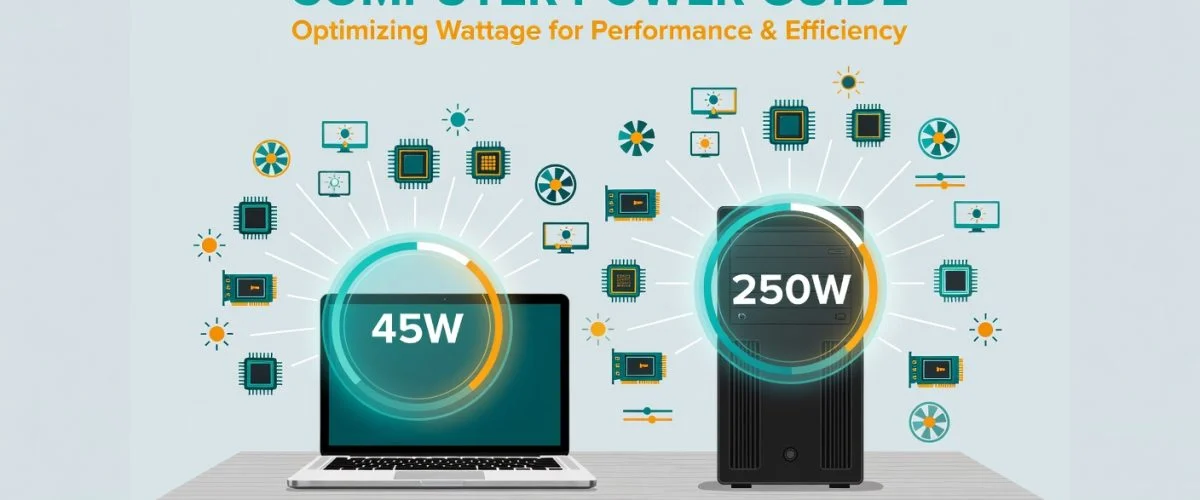

Ever glanced at your electricity bill and wondered just how much of that total is because of your computer? That machine on your desk or in your lap uses more energy than you might think. This computer power consumption is a bigger deal than you might realize—not just for your wallet, but for the health and lifespan of your device.
Why Computer Power Consumption Matters for Device Lifespan

Think of your computer’s power use like its appetite. Its needs change depending on what it’s doing. Tapping out a quick email is like a small snack. But firing up an intense game or editing a video? That’s a full-blown feast.
This constant need for electricity has real-world consequences that go beyond a higher monthly bill. Getting a handle on your computer’s power usage is the first step toward becoming a smarter, more responsible device owner.
The Impact on Your Wallet and Device Health
The most obvious hit is to your bank account. A powerful gaming PC left running 24/7 can quietly add a large amount to your energy costs over time. But there’s another cost at play: heat.
All that electrical energy has to go somewhere, and a lot of it turns directly into heat. This stress from heat is one of the biggest enemies of your computer’s delicate electronic parts.
When computer parts run hot, their lifespan gets cut short. Your PC’s fans have to spin faster and louder just to keep things from getting too hot, which, ironically, uses even more power.
It’s a cycle. High power use creates heat, which puts the whole system under stress. This can lead to an early end for your main processor, graphics card, or—especially in a laptop—the battery.
Making Your Laptop Last Longer
If you’re a laptop user, managing power is directly connected to its overall lifespan. For instance, constantly keeping it plugged in and charged to 100% generates a lot of excess heat and puts massive stress on the battery cells.
A smart charging gadget like Chargie offers a simple fix. It lets you set a charging limit at a healthier level, like 80%. This one small change dramatically cuts down on heat and chemical wear, helping your entire laptop last longer.
Learning the Language of Electricity: Watts and kWh
If you want to get a real handle on how much power your computer is using, you need to learn two simple words: Watts (W) and Kilowatt-hours (kWh). Understanding these is the key to finally making sense of your electricity bill.
Think of it like driving a car. Watts are like the speedometer—they tell you how much power your computer is using at any single moment. A beefy gaming computer might be “speeding” along at 300 Watts. Meanwhile, a laptop just used for browsing the web could be “cruising” at a gentle 30 Watts.
Kilowatt-hours (kWh), on the other hand, are like your car’s odometer. They track the total amount of energy you’ve used over time. This is the number your utility company cares about, and it’s what they use to figure out your bill.
From Watts to Real-World Cost
So, how do we connect the power used right now to the total on the bill? That’s where the kilowatt-hour comes in.
A kilowatt-hour is just what it sounds like: using 1,000 watts of power for one full hour. The math to figure this out is simple:
(Device Wattage × Hours of Use) / 1000 = Kilowatt-hours (kWh)
Let’s make this real. Imagine your whole desktop setup—the PC, monitor, and speakers—pulls an average of 200 Watts. If you use it for five hours a day:
(200 Watts × 5 hours) / 1000 = 1 kWh per day
Now for the fun part. If your electricity costs, say, $0.15 per kWh, that one day of computer use costs you $0.15. Over a month, that adds up to around $4.50 just for your PC. It might not sound like a lot, but it adds up quickly, especially if you have more powerful hardware or leave it running for longer. These units are fundamental, and you can dive even deeper by checking out our guide on converting Amp-hours to Watt-hours.
By learning to translate the Watts listed on your computer parts into the kilowatt-hours on your bill, you can demystify your computer’s power consumption. This simple calculation turns confusing tech specs into a real dollar amount, showing you exactly where your money is going.
Suddenly, you can see the financial impact of leaving your PC on all night versus the savings from simply putting it to sleep. This knowledge helps you understand exactly how much power your computer uses—and what it’s costing you.
Ever wonder why your computer’s fans suddenly roar to life during a game, but stay silent when you’re just typing an email? It all comes down to which parts are doing the heavy lifting. A couple of key players are responsible for most of your computer’s power draw.
At the top of the list, you’ll find the two workhorses of any modern machine: the Central Processing Unit (CPU) and the Graphics Processing Unit (GPU). Think of the CPU as the general manager, handling everyday instructions. The GPU is a specialized powerhouse built for tasks like creating the stunning visuals in video games, editing high-resolution video, or even training complex AI. High-performance GPUs are often the single biggest contributor to a PC’s power bill.
When your computer is just sitting idle or handling a light task like web browsing, these parts are barely breaking a sweat. They sip power. But the second you fire up a demanding game or application, their hunger for energy skyrockets. This is why a gaming PC that uses a modest 60-120 Watts when idle can suddenly spike to 300-500 Watts—or even more—during an intense game.
A Closer Look at Component Power Needs
While the CPU and GPU are the main event, other parts add to the total power consumption, though usually to a much lesser extent.
The table below breaks down the typical power draw for common PC components, showing the difference between sitting idle and being under a heavy workload. It gives you a good idea of where all that electricity is really going.
Estimated Power Consumption of Common PC Components
| Component | Idle Power (Watts) | Load Power (Watts) |
|---|---|---|
| CPU | 10-30 W | 65-250+ W |
| GPU | 10-25 W | 100-450+ W |
| Motherboard | 20-40 W | 20-40 W |
| RAM (per stick) | ~1-2 W | ~3-5 W |
| SSD (Solid-State Drive) | <1 W | 2-5 W |
| HDD (Hard Disk Drive) | 3-5 W | 5-10 W |
| Cooling Fans (each) | 1-2 W | 3-6 W |
As you can see, the CPU and GPU are in a league of their own when it comes to power spikes. Other components, like storage drives, also play a role. Old-school Hard Disk Drives (HDDs) with their spinning parts use more power (5-10 Watts) than modern Solid-State Drives (SSDs), which have no moving parts and use around 2-5 Watts.
Even your memory and cooling system contribute. While a stick of RAM only uses a few watts, the system fans will ramp up their speed—and their power draw—to get rid of the extra heat generated by the CPU and GPU under heavy use.
The key takeaway here is that your computer’s power usage isn’t a fixed number. It’s a constantly changing figure that directly mirrors what you’re doing, driven almost entirely by the demands you place on your CPU and GPU.
This is a great way to visualize the difference between Watts (the power your computer is using right now) and kilowatt-hours (the total energy you’ve used over time, which is what shows up on your electricity bill).

It’s an important difference. It’s not just about how much power a component uses, but how long it stays in that high-power state that really determines its impact on your energy costs.
How to Measure Your Computer’s Power Consumption

It’s one thing to talk about your PC’s energy appetite, but it’s another to see the real numbers. Moving from guesswork to hard data is the only way to know what’s really going on. Thankfully, measuring your computer power consumption is surprisingly easy.
You can do it in two main ways: using software that’s already on your machine, or with a simple hardware device. Let’s walk through both.
Using Built-In Software Tools
Your computer’s operating system has tools that can give you a quick idea of which programs are the biggest power hogs. They won’t give you a precise wattage reading for the entire system, but they are perfect for a quick check.
- For Windows: Open the Task Manager (Ctrl+Shift+Esc). Look for the “Power usage” column. It will categorize apps as “Very low,” “Moderate,” or “High.” It’s an instant clue to what’s using the most power.
- For macOS: Open Activity Monitor (in Applications > Utilities). Click the “Energy” tab. This shows the “Energy Impact” for every app, plus an average over the last 12 hours.
These tools are your first line of defense. If you spot a background program that’s consistently showing “High” impact, you’ve just found an easy way to save power by closing it.
Getting Precise Readings with a Hardware Meter
For the most accurate measurement, you need a hardware solution. The best tool for this is an electricity usage monitor, often called a wattage meter.
A wattage meter is a small gadget that sits between your wall outlet and your computer’s plug. It measures and shows you exactly how much electricity is flowing to your entire setup—the PC, monitor, speakers, everything.
Using one is incredibly simple. Here’s what to do:
- Plug it in: Connect the wattage meter directly to the wall socket.
- Connect your gear: Now, plug your computer’s power strip into the wattage meter.
- Power on and observe: Turn on your computer and watch the meter’s display. It will show you the real-time power draw in Watts.
By keeping an eye on this number, you’ll see exactly how your usage changes. You’ll notice the low draw when your computer is idle and the sudden spike when you launch a demanding game.
Most meters also track total kilowatt-hours (kWh). This means you can leave it plugged in for a day or a week to see the total energy used over time. Once you know your wattage, you can dig deeper into our guide on how many watts it takes to charge a laptop to get a better handle on charging.
Actionable Strategies to Reduce Your PC’s Energy Use
Okay, so now you know what’s using all the power in your PC. The next step is doing something about it. Taking control of your computer power consumption doesn’t mean you need to be a tech wizard. It just comes down to a few smart adjustments that add up to real savings on your energy bill.
We can break these strategies down into two camps: simple software tweaks you can do right now, and smarter hardware choices you can make later.
Fine-Tuning Your Software and Settings
Your computer’s operating system already comes with tools to help you manage energy. The biggest impact you can have is by tweaking your power plan.
Optimize Your Power Plan: Forget about “High Performance.” Unless you’re doing something that truly maxes out your machine 24/7, that setting is just burning money. Switch to the “Balanced” or “Power saver” plan. This lets your PC intelligently slow down parts when they’re not in use, cutting your power draw without you even noticing.
Adjust Screen Brightness: Your monitor is a silent energy user. Simply turning down the brightness to a comfortable level is one of the easiest wins you can get. This is especially true for laptops, where the screen is one of the biggest power users.
Set Aggressive Sleep Timers: Don’t let your computer just sit there, wide awake and wasting power. Set your screen and the computer itself to go to sleep after just 5-10 minutes of inactivity. A sleeping PC uses a tiny fraction of the power it does when idle.
Remember that sleep mode is not the same as shutting down. While sleep is great for short breaks, shutting your computer down completely overnight eliminates all power draw.
Smart Hardware Choices and Charging Habits
When you’re ready to upgrade or build a new PC, think about energy efficiency. The right parts can lock in lower power consumption for the entire life of your machine. Just as important, how you use your devices directly impacts both wasted energy and their long-term health.
This isn’t just a small issue. The growth in computer power consumption is staggering. Data centers alone saw their electricity use jump by an average of 9% every year between 2015 and 2020. Our personal devices—PCs and phones—make up a significant portion of total digital energy use. You can dig into more of this eye-opening data in these data center electricity consumption statistics on Gitnux.org.
For laptop users, one of the most impactful habits you can adopt is smarter charging. Keeping your device plugged in at 100% all the time is terrible for it. The constant heat and chemical stress wear it out.
This is exactly where a tool like Chargie comes in. By plugging it in between your charger and your laptop, you can set a custom charge limit, like 80%.
This simple act prevents the internal components from sitting in that high-stress, fully-powered state. You can even use Chargie’s scheduler to keep things at a healthy level overnight and then have it ready right before you need it. It’s a small change that makes your system more efficient and can dramatically extend the usable life of your laptop.
The Hidden Energy Cost of the Cloud and Data Centers
It’s easy to think of our computer’s power use in isolation, but it’s just one tiny piece of a massive, planet-spanning web. Every time you stream a movie, jump on a video call, or even search online, you’re plugging into an enormous, power-hungry network. This whole digital universe runs on sprawling data centers, and their need for energy is truly mind-boggling.
These server farms are the invisible engines powering our online lives. But they have a very real, and very significant, energy bill. Many businesses now use cloud hosting for everything they do, often without realizing the colossal amount of electricity needed to run all those servers and keep them from overheating.
The Colossal Footprint of Data Centers
The numbers are startling. In 2022 alone, data centers used somewhere between 240 and 340 terawatt-hours (TWh) of electricity worldwide. That’s about 1-1.3% of the entire planet’s electricity demand. You can dig deeper into these figures on how much energy data centers use on DavidMytton.blog.
This demand isn’t slowing down. Our insatiable need for data, driven by everything from Netflix binges and social media to the growth of AI, keeps pushing that number higher. For you and me, it’s a stark reminder of the hidden energy cost of our digital habits.
Understanding this bigger picture reinforces why individual efficiency matters. The choices we make with our own devices are not just isolated actions; they are a meaningful contribution to a more sustainable digital world.
This is where making smarter choices with our own gadgets—like managing power settings and, crucially, making them last longer—becomes a powerful way to help. Every phone or laptop that serves you for an extra year or two is one less that needs to be made, cutting down on resource-heavy production and slowing the tide of e-waste. If you want to learn more, check out our article on the environmental impact of electronic waste.
By making our own devices more efficient and durable, we can a
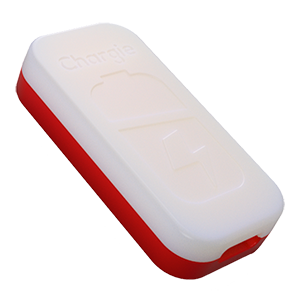
USB-C charge limiter that stops at your set battery level, so your battery never sits at 100% overnight. Extends battery lifespan by years. Works with any USB-C charger.
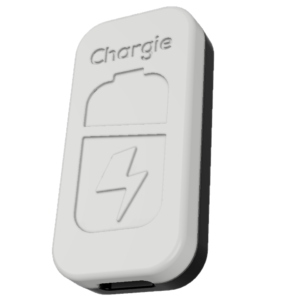
Limit your laptop charge to 80% via USB-C. Works with MacBooks, Dell, HP, Lenovo and most USB-C laptops up to 100W.
Protect Your Battery with Chargie
The world's first hardware charge limiter. Set a charge limit on any phone, tablet, or laptop — extend battery life by up to 4x.