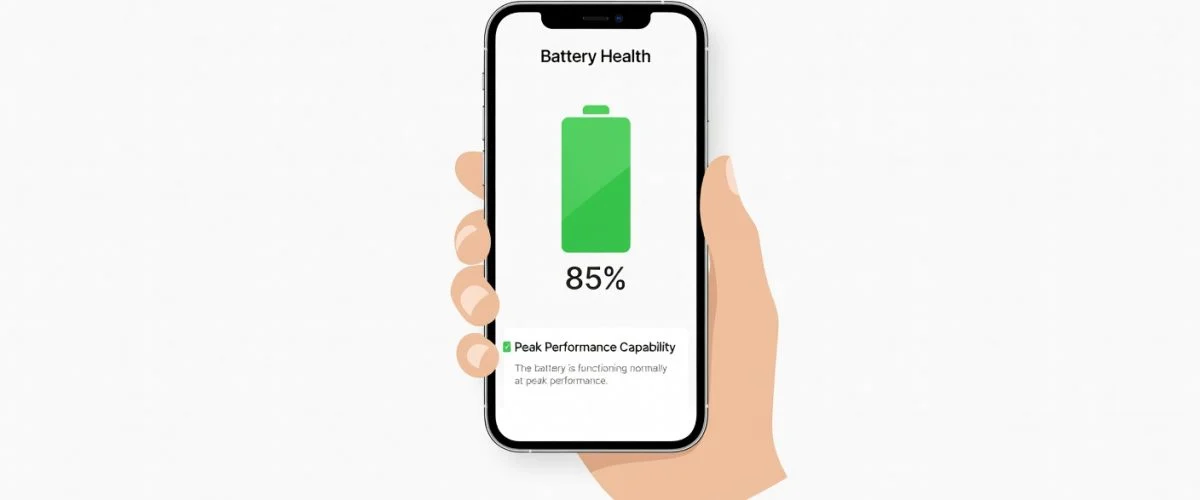

Ever get that feeling your iPhone's battery just isn't what it used to be? You're not just imagining it. All batteries lose their power over time, but the real question is: how much life does yours have left?
Thankfully, Apple gives you a straightforward way to get a real answer. It's built right into your phone's settings—no extra apps or technical skills needed. This is always the first place I look when a phone starts acting up.
Finding Your iPhone’s Battery Report Card
Getting to this screen is simple. Just grab your iPhone and follow along:
- Open up the Settings app.
- Scroll down a bit and tap on Battery.
- From there, select Battery Health & Charging.
You're now looking at the official health report for your iPhone's battery.
What These Numbers and Messages Actually Mean
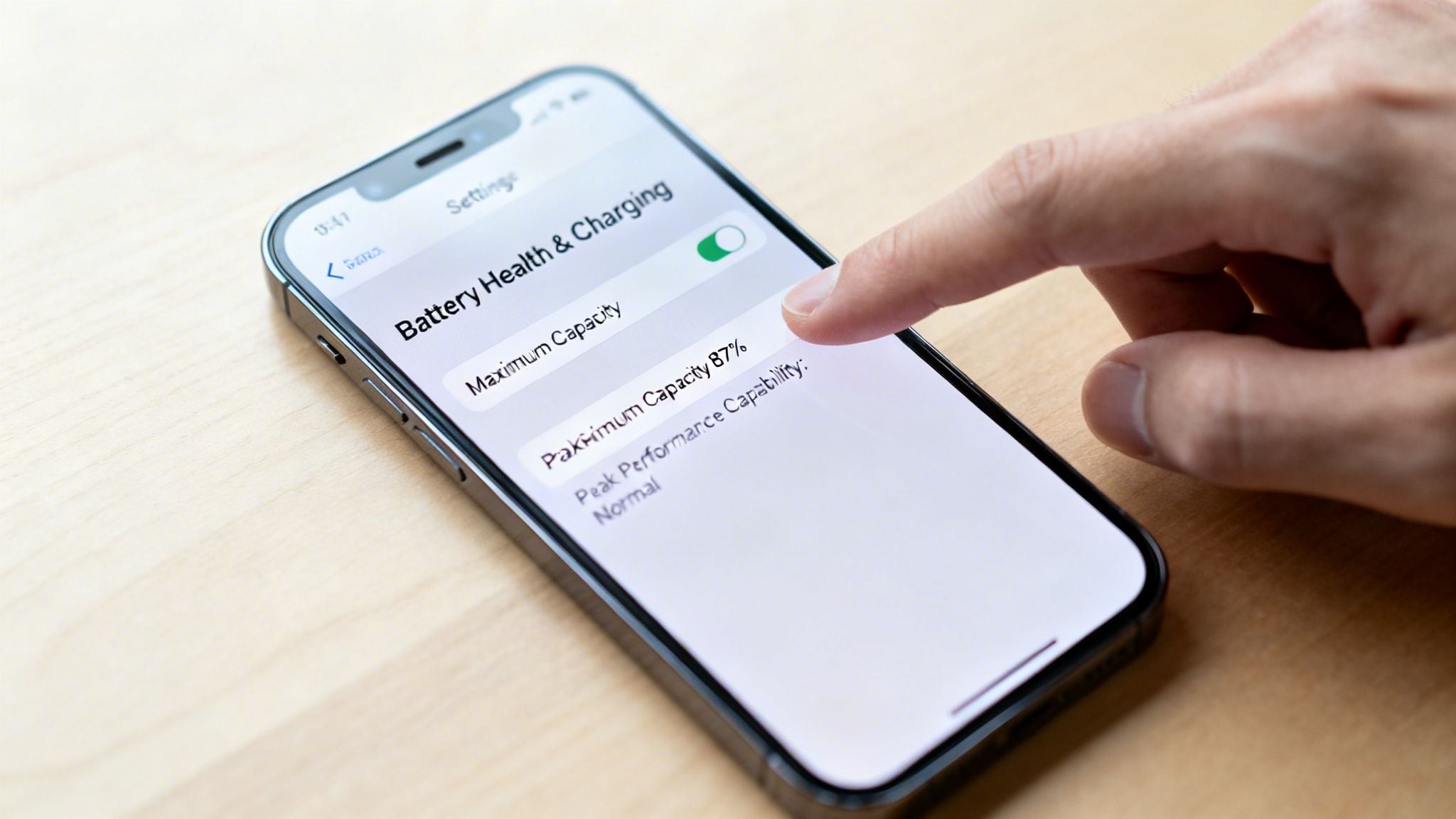
On this screen, two key things tell the whole story: Maximum Capacity and Peak Performance Capability.
Maximum Capacity is the big one. It's a percentage that shows your battery's current charge capacity compared to when it was brand new. A new iPhone will show 100%, but this number will slowly drop as the battery ages with every charge.
Underneath that, the Peak Performance Capability message tells you if the battery can still supply enough power for tough tasks, like gaming or shooting 4K video, without causing your phone to unexpectedly shut down.
To make sense of what you're seeing, here’s a quick breakdown of what those percentages and messages mean for your daily use.
Understanding Your iPhone's Battery Health Status
| Maximum Capacity % | What It Means for You | Peak Performance Status |
|---|---|---|
| 95-100% | Your battery is in great shape. You'll get the longest possible time between charges. | "Your battery is currently supporting normal peak performance." |
| 85-94% | You're starting to see some normal aging. You might notice you're reaching for the charger a little earlier in the day than you used to. | Still supporting normal peak performance. |
| 80-84% | The battery has noticeable wear. You'll definitely feel the need to charge more often, and it might not last a full day with heavy use. | Usually still supporting peak performance, but you're getting close to the limit. |
| Below 80% | Apple considers the battery "consumed." Performance may be slowed down to prevent shutdowns, and it's time to think about a replacement. | A new message may appear, indicating performance management has been applied. |
This table gives you a solid reference point for what to expect as your battery gets older.
It’s a simple fact of chemistry: phone batteries don't last forever. Apple's own data shows that iPhone 14 models (and earlier) are designed to keep about 80% of their capacity after 500 full charges. With the iPhone 15 series, they improved this, aiming for that same 80% mark after 1,000 charges.
Once that capacity dips below 80%, you’re in the zone where your iPhone might start slowing itself down to prevent crashing. That’s your cue that a battery replacement is on the horizon. If you're looking for an even deeper dive, our complete guide on how to check battery health has you covered.
Why Your iPhone's Battery Health Number Can Be Misleading
Ever get that sinking feeling when your iPhone’s battery life just doesn't seem to line up with the number you see in Settings? You check your battery health, see a perfectly good number like 95%, but your phone is dying by 3 PM.
You’re not imagining it. That percentage is more of an estimate than a hard fact, and it often paints a better picture than reality. It’s pretty common for the reported health to be 3-5% higher than the battery's actual physical capacity. That’s exactly why a phone showing 92% might perform more like one in the high 80s.
The Sudden Drop After an iOS Update
One of the most jarring experiences for any iPhone owner is seeing that battery health percentage take a nosedive right after a major iOS update. You could have sworn it was 89% when you went to bed, but you wake up to a scary 84% after installing the new software.
Don't panic—the update didn't fry your battery overnight. What's really happening is that the new iOS is forcing a system-wide re-check. It’s taking a fresh, hard look at your battery's true condition and adjusting the "Maximum Capacity" percentage to match. Think of it as getting a more honest report card after a few months of inflated grades.
Understanding why your battery acts up often means digging deeper, much like the principles behind Mastering Root Cause Analysis Engineering in Complex Systems. The system is simply catching up and correcting for a gradual decline that was happening all along.
Getting a More Realistic View
For most people, the number in Settings is a good enough guideline. But if you’re a power user or just someone who wants the real story, you’ll need to look beyond the basics.
If you want a more accurate check of battery health on an iPhone, here are a few ways the pros do it:
Look into iOS Analytics Logs: Buried deep in your iPhone’s privacy settings are raw system reports. If you're a bit tech-savvy, you can send these files to a computer to find the battery's true cycle count and real maximum capacity.
Use Third-Party Mac/PC Apps: Tools like CoconutBattery for macOS can pull diagnostic data directly from your iPhone when you plug it in. They often give you a much more realistic capacity percentage and cycle count than what your iPhone tells you.
Try an iOS Shortcut: There's a whole community of clever developers who build custom shortcuts. These can pull and read battery data straight from your iPhone’s logs, giving you a clean look at its cycle count and real-time health.
These other methods pull back the curtain on the data Apple tries to simplify. They're especially handy if you're buying a used iPhone or trying to decide if a battery replacement is truly worth the money.
Why Your Battery Drains Faster After an iOS Update
We've all been there. You excitedly tap "Install" on the latest iOS update, dreaming of the slick new features. But the next morning, your iPhone's battery life has seemingly fallen off a cliff. It might even feel a little warm to the touch, and a charge that used to get you through the day now barely makes it past lunch.
You're not imagining it. This is a very real—and very common—side effect of a major software update. Behind the scenes, your iPhone is working overtime, running a bunch of intensive, one-time tasks that hit the processor hard and, as a result, the battery.
Why Your Battery Tanks After an Update
Think of it this way: after an update, your iPhone has to completely reorganize its internal library. It needs to re-index every single piece of data—your photos, files, app info, and system files—so that things like Spotlight search can find everything instantly. This frantic background activity can go on for hours, sometimes even a couple of days, quietly using power the entire time.
On top of that, new software often comes with fancier visual effects or more demanding features. These can permanently increase how much power your phone uses day-to-day, even long after all that initial re-indexing work is done. It’s a cycle that can catch you off guard if you're not expecting it.
Take the infamous iOS 26 update, for instance. It was a real battery hog for a lot of people. In fact, tests on an iPhone 16 Pro Max showed it used up 13% of the battery just from simple tasks like pulling down the notification center and scrolling through the Photos app. As you can see in a detailed performance comparison, this was a staggering 13 times more than the 1% drain seen on iOS 18 for the exact same actions. It even pushed the phone's temperature up to a blistering 44°C.
The Fix and Optimization Cycle
The good news? This post-update battery drain usually isn't permanent. Apple is always gathering anonymous diagnostic data and listening to user feedback. When a major battery issue like this pops up, they typically release a follow-up "point release" update (like an iOS 27.1) to patch things up.
These smaller updates are packed with important software tweaks that fine-tune the new software, dial back unneeded background processes, and get your battery performance back to where it should be. While you're waiting for that fix, it helps to know how your phone already tries to protect itself. You can read more about what Optimized Battery Charging does and see how Apple works to manage your battery's long-term health.
At the end of the day, the single best thing you can do is avoid letting your battery sit at a stressful 100% charge for hours on end, especially overnight. A smart gadget like Chargie physically cuts off the power at a healthier level (say, 80%) and then intelligently tops it off right before you wake up. This simple change dramatically slows down the chemical aging that makes your battery so susceptible to these performance swings in the first place.
Deciding When to Replace Your iPhone Battery
So, you know your iPhone's battery health percentage. What now? Apple's official line is to consider a replacement once the capacity dips below 80%, but let’s be real—the numbers don’t always tell the whole story. Your daily experience is what truly matters.
If you feel like you're constantly attached to a wall outlet or your phone unexpectedly dies even with 30% charge left, that’s your battery waving a giant red flag. An even bigger sign is the dreaded "Service" warning popping up in your battery settings. That message is Apple’s way of saying your battery has worn down so much it can’t keep up with your iPhone's peak performance demands anymore.
It's a familiar story for many of us: you install the latest iOS update, and suddenly your battery life tanks. This flowchart pretty much nails the cycle, showing how software changes can really expose an already-aging battery and push you toward a decision.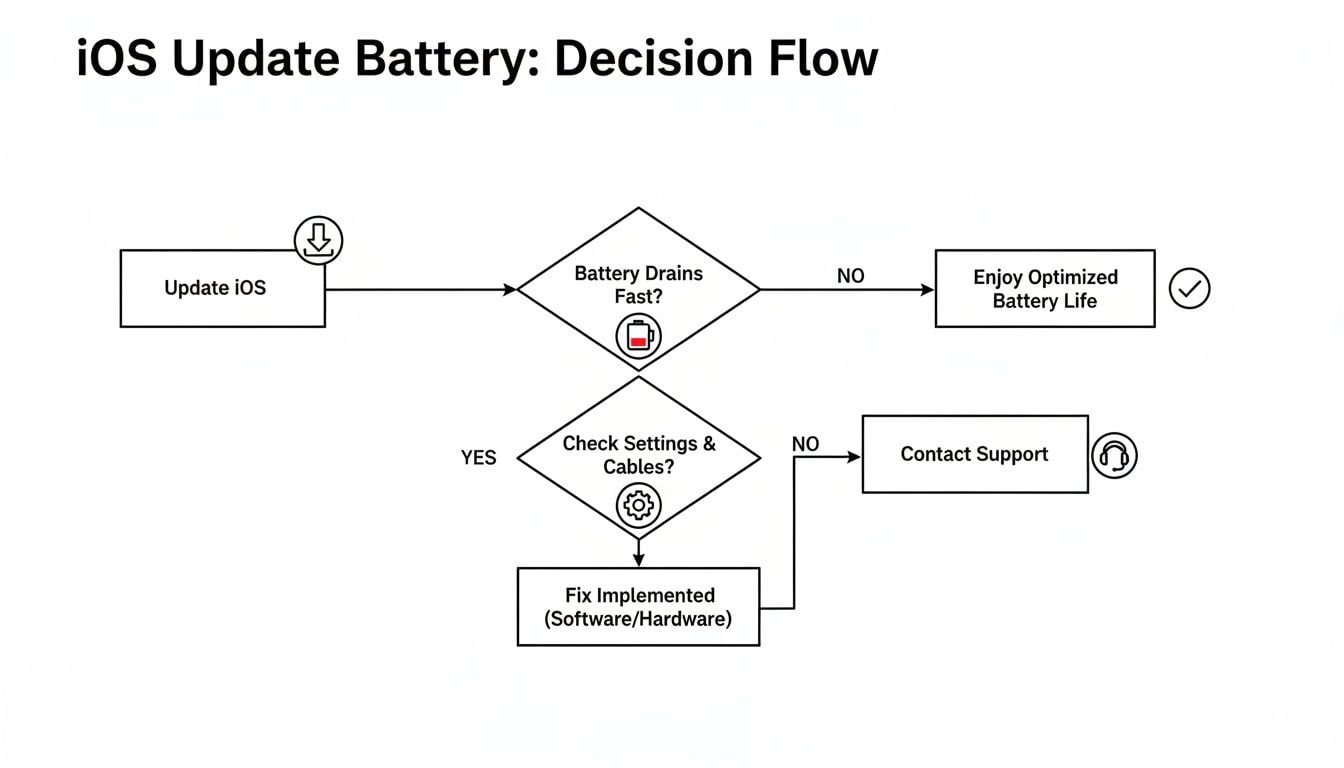
As you can see, what feels like a software problem is often just the final straw for a worn-out battery, making that replacement feel a lot more urgent.
Apple Replacement vs. Third-Party Options
When it's finally time for that new battery, you've got two main roads you can go down: getting it done by Apple (or an Authorized Service Provider) or trying a third-party repair shop.
- Going with Apple is the safest, most reliable bet. You get a genuine battery installed by a pro, and your warranty stays intact. The only real downside is that it'll cost you more.
- Third-party shops are usually cheaper and can get the job done faster. The catch? The quality of the battery is a gamble, and you might get stuck with that annoying "Unable to verify this iPhone has a genuine Apple battery" message in your settings.
Honestly, it all boils down to your budget versus your peace of mind. If you’ve got a newer iPhone that's still under warranty, sticking with Apple is a no-brainer. But for an older phone where you're just trying to squeeze out another year of use, a reputable third-party shop can be a smart, cost-effective move.
This isn't a small problem, either. With the iPhone holding a massive 60% market share in the US, analytics show that over 50 million batteries were replaced between 2020 and 2025. That's a huge number, and it’s a costly one for consumers.
Your battery's health is directly tied to its charge cycles. If you really want to get ahead of the curve, understanding what a cycle count means can help you predict when a replacement is on the horizon. You can learn more about what a battery cycle count is in our detailed guide.
And once you’ve swapped out that battery or upgraded your device, don't just toss the old one in the trash. Phone batteries need to be disposed of properly. For a good breakdown of the right way to do it, check out this excellent guide on cell phone and battery disposal. It'll walk you through how to handle it safely and responsibly.
Protecting Your New Battery from Day One
So you've got a fresh battery. Maybe it's in a brand-new iPhone, or maybe you just swapped out an old, tired one. Either way, your mission is clear: make this one last as long as humanly possible. Most people worry about drops and scratches, but the real silent killer of your battery's lifespan is how you charge it.
The biggest mistake we all make? Plugging our phones in overnight. For hours on end, your battery sits at 100% charge, which puts a lot of stress on it. Think of it like holding a muscle in a tensed position all night long—it causes strain and permanent damage over time. This constant stress is what prematurely ages your battery, permanently chipping away at its capacity.
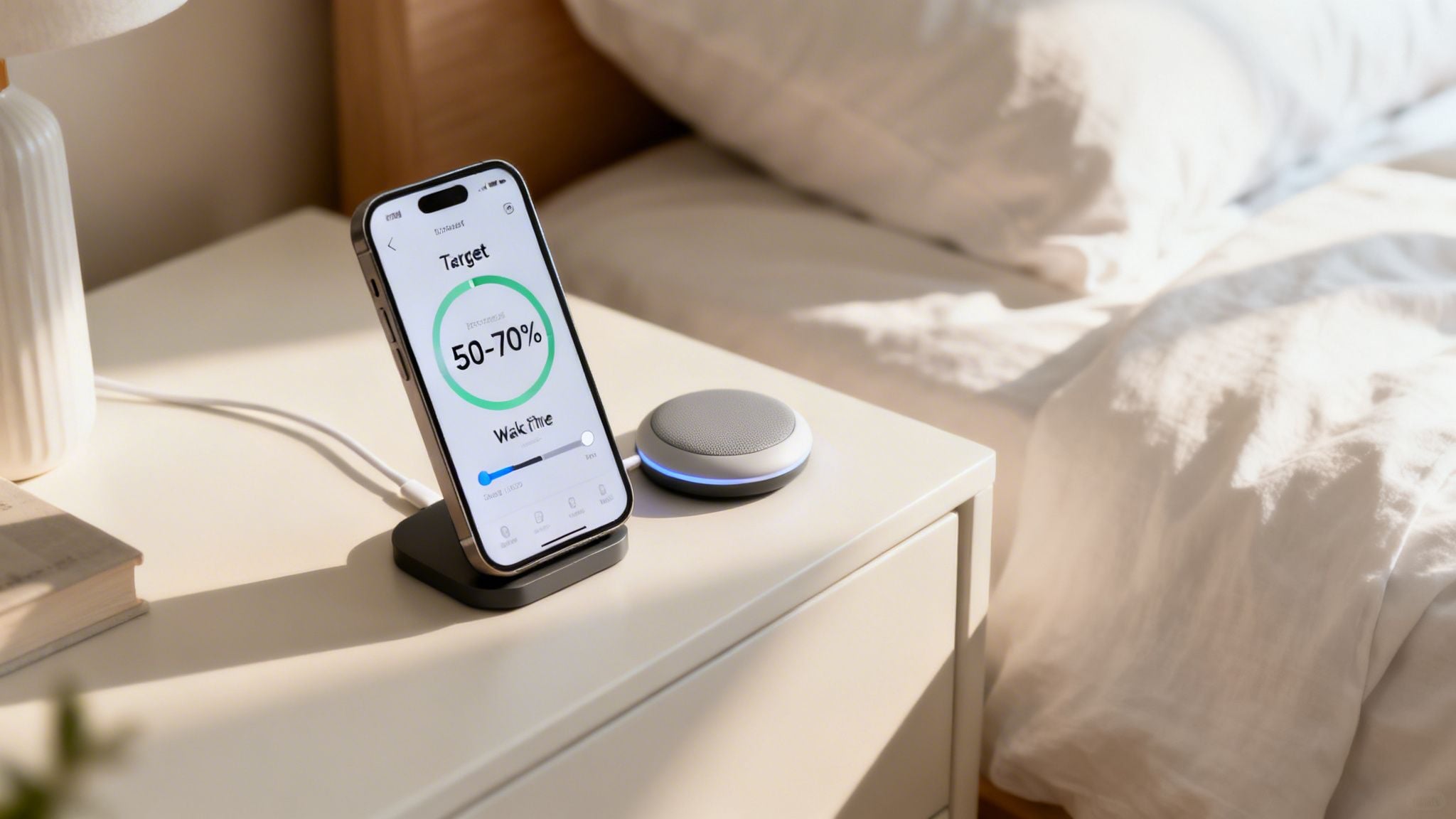
A Smarter Way to Charge Overnight
This is precisely the problem a little gadget like Chargie was built to solve. It's a small device that plugs into your charger and works with an app to take control of your charging, saving your battery from itself. Instead of letting your iPhone sit at a stressful 100% all night, Chargie completely changes the game.
You just set a charging limit in the app—let's say 80%. When you plug in for the night, Chargie lets your phone charge up to that target and then physically cuts the power. Your iPhone then gets to rest at a much healthier, low-stress charge level for most of the night.
But I know what you’re thinking: “What about waking up to a full battery?” Don't worry, Chargie's got you covered there, too.
The "Top Up Scheduler" is the real magic. It learns your morning routine and smartly resumes charging just in time for your alarm, so you wake up to 100%. This cuts down that high-stress time from eight hours to maybe just one.
How Chargie Actually Extends Your Battery’s Lifespan
By preventing your phone from sitting at a full charge night after night, Chargie slows the aging process to a crawl. And we’re not talking about a tiny improvement here—the impact on your battery's long-term health is massive.
Here's how it makes such a big difference:
- Avoids High-Level Stress: By keeping the battery in that happy 50-80% zone for most of the night, you sidestep the main cause of wear.
- Cuts Down on Heat: Charging generates heat, another major enemy of batteries. Chargie's method means the battery stays cooler for much longer.
- Boosts Your Cycle Life: A "charge cycle" isn't just about plugging in; it’s a measure of the wear and tear your battery endures. By drastically reducing this stress, Chargie can deliver up to a 4x increase in your battery's total lifespan.
In real-world terms, this means you could easily push a battery to last four years or more, instead of needing a replacement after just two. You’re not just saving yourself the cost and hassle of a repair—you’re also cutting down on e-waste, which is a win for your wallet and the planet.
Once you’ve learned how to check the battery health on your iPhone, adopting a smarter charging strategy is the single most powerful thing you can do next.
Common Questions About Your iPhone's Battery Health
When it comes to your iPhone's battery, a lot of myths and questions float around. Let's clear the air and get you some straight answers based on what we see every day.
Why Did My iPhone’s Battery Health Drop So Fast?
Seeing your "Maximum Capacity" percentage suddenly nosedive can be a real shock, especially right after an iOS update. It’s not that the update harmed your battery; it just forced your iPhone to take a fresh, more accurate look at its health. That drop you're seeing was likely happening slowly all along, and the update just revealed it.
Other common causes are heavy gaming, leaving it in a hot car, and the habit of charging it to 100% every single night. Remember, iPhones older than the 15 series are really only built to last about 500 charge cycles before they hit that 80% capacity mark. For many of us, that happens in less than two years.
Is Charging My iPhone Overnight Really That Bad?
In a word, yes. Leaving your phone plugged in all night is one of the fastest ways to wear down its battery. Even with Apple's "Optimized Battery Charging" feature, the phone still sits at a stressful 100% charge for hours. That prolonged high-stress state is what speeds up aging and permanently kills its capacity.
A smart gadget like Chargie sidesteps this issue entirely. It physically cuts the power at a healthier level you choose (say, 80%) and then tops it off just before your alarm goes off. You're effectively wiping out hours of battery-damaging stress every single night.
Does "Peak Performance Capability" Mean My Battery Is Healthy?
Not exactly. All that message really means is your battery can still deliver enough power for tough tasks without your iPhone suddenly shutting down. It’s the standard message you'll see on any battery that's still above the 80-85% health mark.
Even while you see this message, your actual "Maximum Capacity" can be silently ticking down. Once it gets low enough, iOS might start to slow things down just to keep the phone stable. When that happens, you’ll see the message change.
Are Third-Party Battery Health Apps Accurate?
You have to be careful here. Some clever iOS Shortcuts can dig into your iPhone's system logs and pull out real data like charge cycle counts, which is great. But most of the battery apps you find on the App Store are just making educated guesses. Their accuracy can be all over the place.
For the most reliable and official way to check battery health on an iPhone, the built-in tool is your best bet, hands down. Just go to Settings > Battery > Battery Health & Charging.
By steering clear of these common battery wear pitfalls, you can get a lot more life out of your device. Chargie is designed for exactly that—protecting your battery from the damage of overnight charging so it can last for years. You can learn more about how to protect your battery at https://chargie.org.
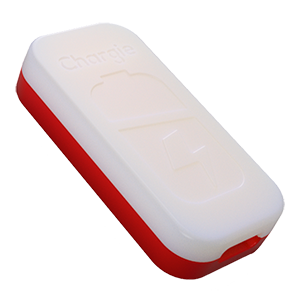
USB-C charge limiter that stops at your set battery level, so your battery never sits at 100% overnight. Extends battery lifespan by years. Works with any USB-C charger.
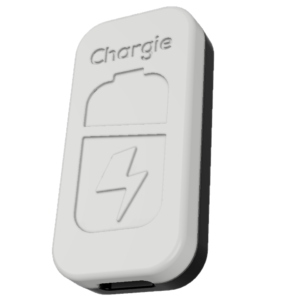
Limit your laptop charge to 80% via USB-C. Works with MacBooks, Dell, HP, Lenovo and most USB-C laptops up to 100W.
Protect Your Battery with Chargie
The world's first hardware charge limiter. Set a charge limit on any phone, tablet, or laptop — extend battery life by up to 4x.