Chargie, explained
Remote battery management with Chargie Fleet.
See battery status, set charge limits and stop charging from a browser. Chargie Fleet is included for paired iOS, iPadOS and Android devices, from a wall-mounted tablet to a group of kiosks.
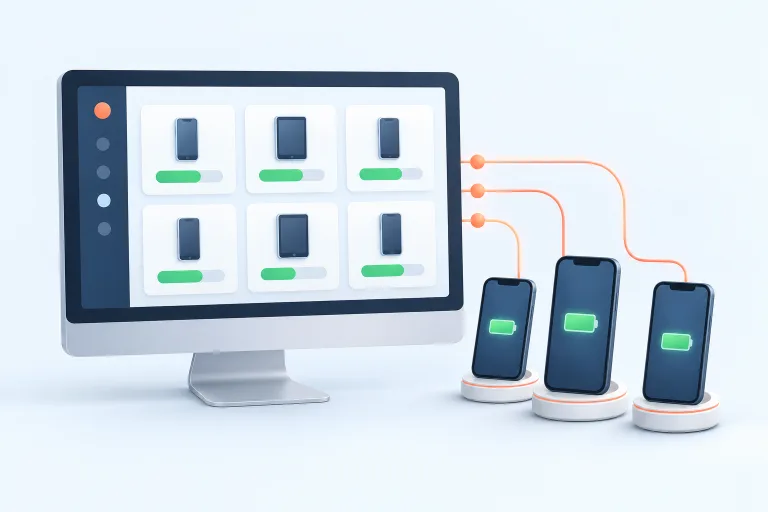
The idea at a glance.
Individual charging paths
Each managed device needs its own compatible charging setup.
Local connection and reporting
The app and required connectivity provide the data available to the fleet tools.
A shared operational view
Review the available states and investigate exceptions using the fleet guide.
Conceptual data flow. Available remote controls and reported fields depend on the supported fleet configuration.
See the state. Change the routine.
A device card shows its last reported battery level, charging state and charge limit, with temperature and scheduling information where available. From the browser you can change the limit, stop charging, request a fresh report or rename the device. Select several devices to apply a limit or stop command together.
This is useful for a tablet mounted on a wall, a phone charging in another room, or a row of displays. You do not need to walk to each device just to change a setting. It is a charging dashboard, not a replacement for a complete mobile-device-management system.
Pair each device with your account
First connect a Chargie to the phone or tablet and verify normal charge control in its app. Sign in to the Fleet dashboard with a chargie.org account. Use its QR code or pairing code in the app, then confirm the pairing on that device. When the dashboard is open on the same phone, use its Pair this device option.
Repeat for each device you want to manage. Give each entry a recognizable name and check that the displayed information matches the physical device. Remote commands require internet connectivity and an app that has not been force-quit, as well as the local Chargie connection. Test a single setup before expanding.
Treat exceptions as a workflow
A device with an unexpected state might have a disconnected cable, changed permissions, a stopped app, or a network issue. The dashboard can be a starting point for investigation, but displayed information is only as current as its reporting connection. Consult the fleet guide for the meaning of each field.
Assign responsibility for reviewing the setup and responding to changes. Inspect physical condition and cable routing as well as software state. Charging management does not replace hardware maintenance, battery checks, or the device manufacturer’s guidance for continuous operation.

Inside the app
Know what you can see and change.
This existing Fleet guide image shows one expanded device and three compact device cards. The battery state and limit are separate: the slider changes the target, while the status tells you what the device last reported. Read the guide for pairing, batch controls and pending commands.
Open the Fleet setup guide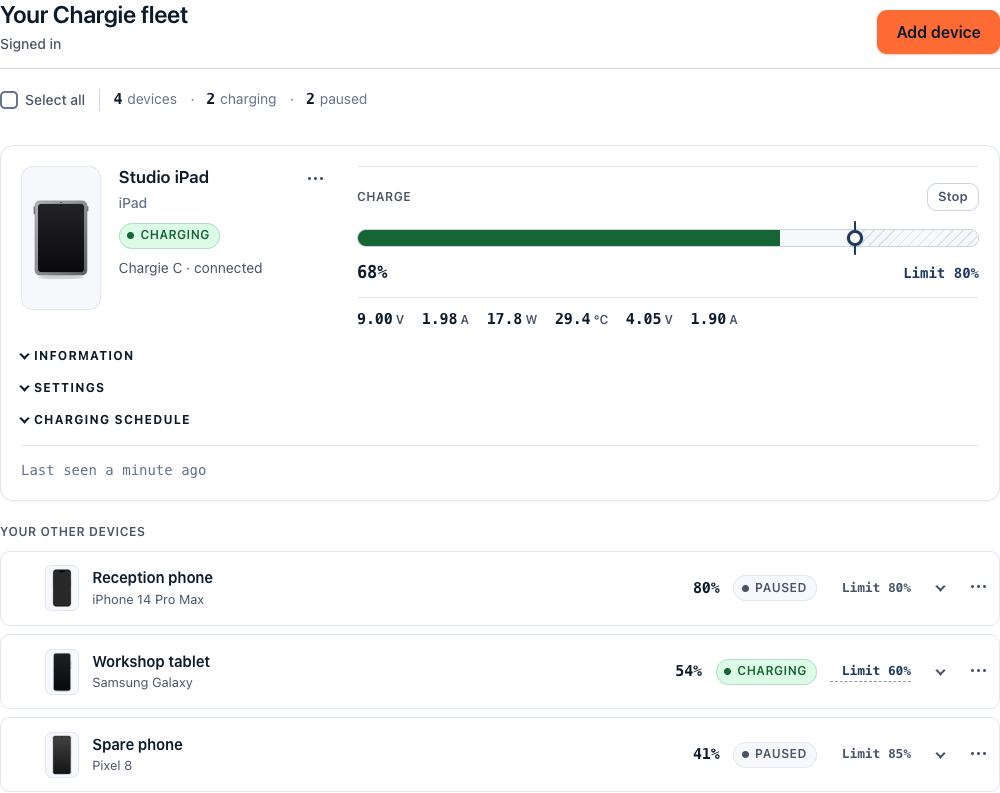
Before you make it your routine.
Fleet is optional. Local app-controlled charging uses Bluetooth and does not require a Fleet account. Remote reporting and commands require pairing and internet; a device that is offline can leave the dashboard showing older information.
Is this the same as full device management?
No. Do not assume charging-focused tools can install software, enforce all security settings, or replace a dedicated device-management system.
Can the dashboard work without local hardware?
Charging still needs a suitable physical power-control setup and the required app connection. A dashboard alone cannot interrupt an unrelated charger.
What happens when a device stops reporting?
Treat the status as potentially stale. Check the app, power, and network connection; use the fleet documentation to interpret the reported state.
How should we start a larger deployment?
Run a pilot with representative devices and actual working conditions. Confirm reporting, restart behavior, and staff procedures before expanding.