
Chargie, explained
Charge limiting for laptops, cars and kiosks.
Use a charging limiter around your routine: a USB-C laptop on a desk, a phone running navigation, or an always-on kiosk. Start with when you need battery power and when the device stays plugged in.
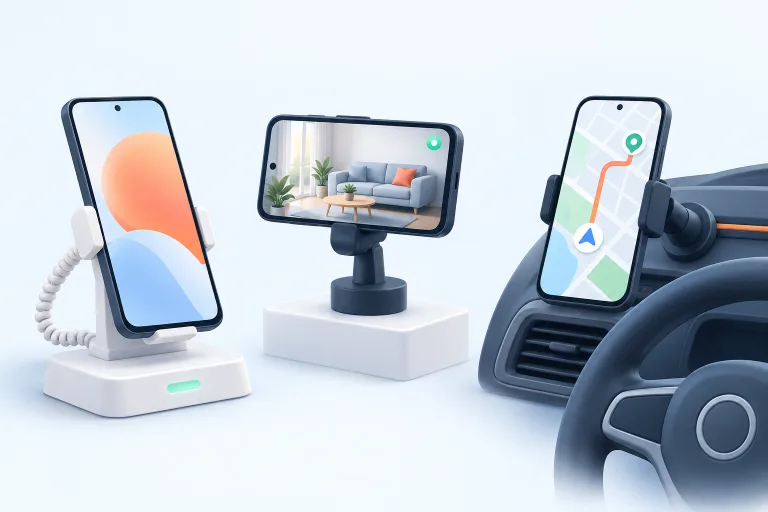
The idea at a glance.
Need energy for the day?
Choose a practical target and consider a top-up near departure.
Connected most of the time?
Consider a steady charge range rather than a daily rush to full.
Challenging conditions?
Review heat, cables, app support, and the correct Chargie model first.
A decision guide, not universal settings. Confirm compatibility and test the actual device and power equipment.
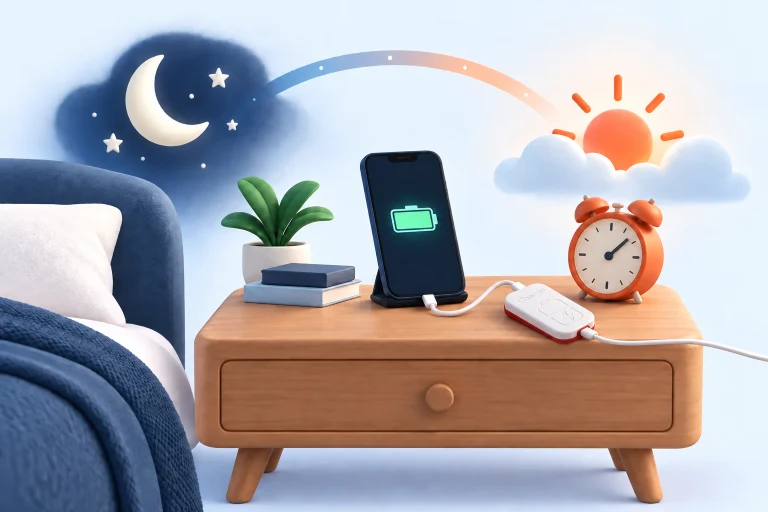
At the bedside: plan for departure
An overnight phone is plugged in for convenience, but the most useful charging deadline is often the time you leave home. A lower overnight level followed by a scheduled top-up can make those two moments work together.
Choose the final target based on your normal day, not a number you feel obliged to use. Try the routine while you can observe it and allow for background-app permissions, Bluetooth, charging speed, and changes to your wake-up time. Keep a simple way to change the plan for travel.
At the desk: control laptop charging and power
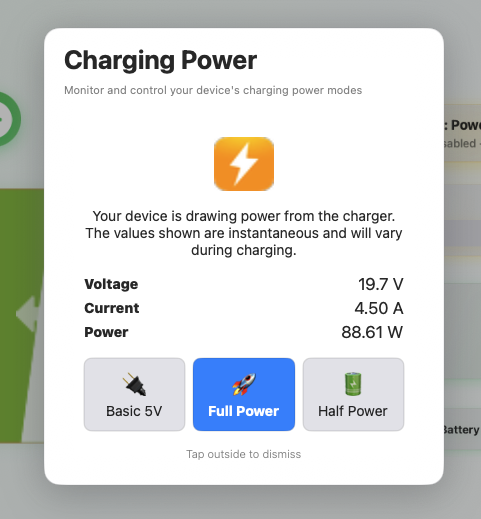
Chargie C for Laptops supports USB-C Power Delivery up to 100W with the right charger, cable and laptop. The Mac and Windows apps provide adjustable charge limits, restart gaps and weekly schedules. Live voltage, current and wattage readings help you see what the connection is doing. Start by comparing these controls with the ones already built into your laptop.
Full Power and Half Power modes let you choose the negotiated power mode. Half Power is not a universal fixed wattage: check the guide for your adapter and laptop combination. A separate hardware limiter can use a fixed power threshold or power-drop detection when the app is unavailable; that is not the same as reading the exact battery percentage while a laptop sleeps.
For desk use, choose a working charge range that fits your needs. Before travel, raise the target or schedule a top-up. On Windows, the app also exposes battery-health information such as design and current capacity. Available readings depend on what the device reports, and charge control cannot undo existing wear.
Check the whole power path and app requirements before buying. A phone-oriented USB-C model is not automatically suitable for a laptop. Keep the app and Bluetooth connection available for percentage-based control, test sleep and wake behavior, and follow the Mac or Windows guide for power settings. Temperature-triggered charging pause is not available in the macOS app.
In the car: keep the connection practical
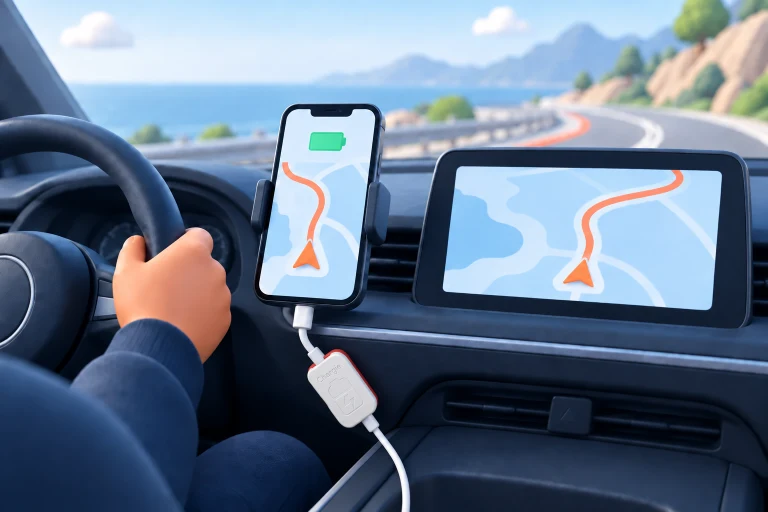
Navigation combines screen use, location services, and sometimes a warm environment. A charging limit may help you avoid keeping an already-full phone continuously topped up. Temperature-based control is an additional option only where the platform provides the necessary data.
Before relying on the setup, verify cable routing, power, and any USB data connection you need. Android Auto, CarPlay, and other data-dependent arrangements should be tested with the exact hardware combination. Do not leave a device in direct sun and expect charge control to solve the heat problem.
Always-on devices: make a repeatable procedure
Booking kiosks, displays, and monitoring phones can spend long periods plugged in. A working charge range is often more relevant than maximizing runtime at a particular morning deadline. Document the settings and who will check the device so the routine survives staff or location changes.
Trial one representative installation before deploying several. Observe reconnects and restarts, verify app operation, and inspect physical battery condition regularly. For a group of supported devices, fleet tools can help with visibility, but they do not replace maintenance or manufacturer guidance for continuous use.
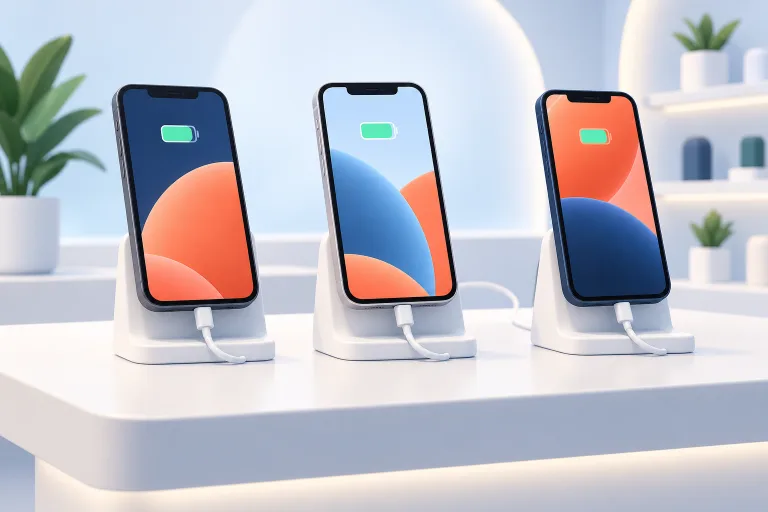
Before you make it your routine.
Choose the use case first, then confirm the model, app, power requirements, and data connection. A connector that fits is not a complete compatibility check.
Can I use one setup for both a phone and laptop?
Possibly, depending on the model and equipment. Compare power support and platform requirements rather than assuming all Chargies are interchangeable.
What if my device already has a charging limit?
Try the built-in feature first if it meets your needs. External controls are most useful when they provide a capability or routine your existing setup lacks.
Can I use it with wireless charging?
Chargie must be in a suitable power path feeding the charging setup. Check the model, charger, cable, and wireless pad together; verify operation before leaving it unattended.
What should I do before buying several units?
Use the selector and hardware guide, then pilot the complete setup. For business deployments, ask support about your specific devices and requirements.