
Chargie, explained
Charge control at home, work and in the car.
Keep a Chargie where you charge: at the bedside, on your desk, or in the car. Set up each connection so moving locations does not mean starting from scratch.
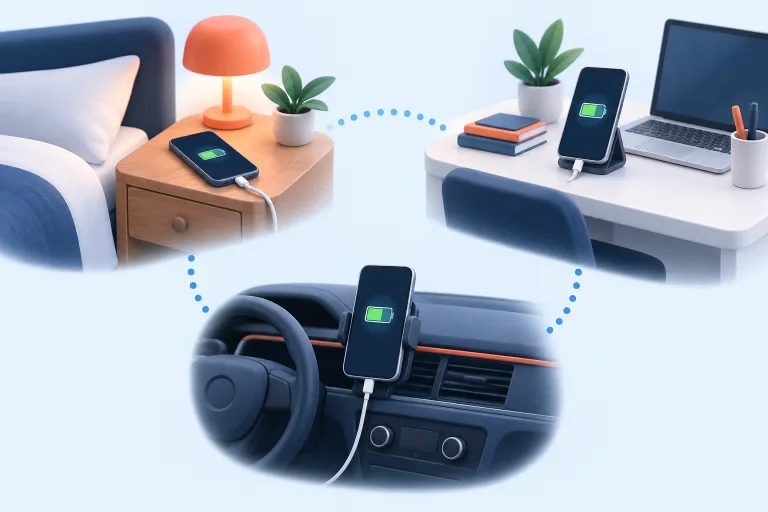
The idea at a glance.
A familiar bedside setup
Pair and test the Chargie you leave by the bed.
A separate desk connection
Give the desk unit a recognizable name and check the selected settings.
Check the active device
Before relying on automation, confirm which nearby Chargie the app is controlling.
Example locations, not a claim that a single Chargie can physically manage several charging connections at once.
A device at each charging location
A Chargie controls the power path it is physically connected to. If you want the same convenience in several places, you can keep separate units with those chargers. The app’s connection features help you work with those units without treating every visit as a brand-new installation.
Think of the locations as separate setups that share your preferred approach to charging. Each still needs suitable hardware, cables, power, and a supported app connection. A nearby unit is not automatically the one attached to the device you want to charge, especially if several are in the same room.
Name, pair, and verify each unit
Set up one Chargie at a time using the pairing or device-selection process available in your app. Use recognizable names where supported so you can distinguish a desk unit from a bedside unit. Confirm that the app can stop and resume charging through that specific connection.
Then move to the next location and repeat the check. If your app provides automatic reconnection or QR-assisted selection, use the platform guide to configure it. Those features reduce repeated selection work, but Bluetooth permissions, range, and background behavior still matter.
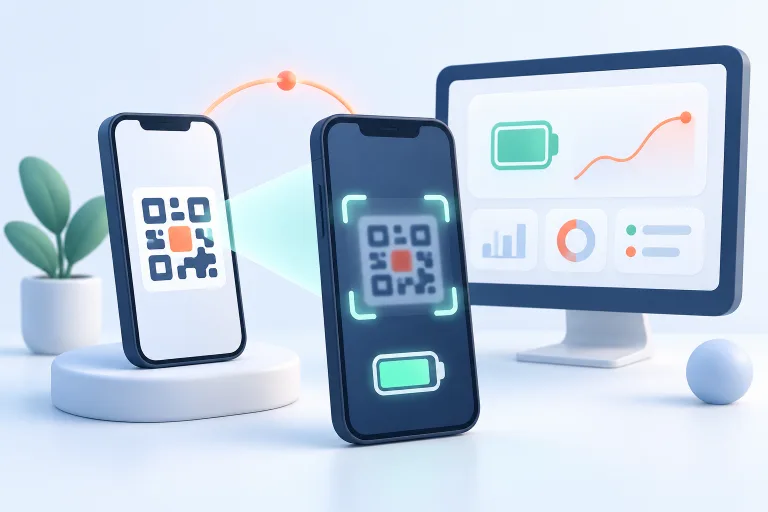
Keep the routine appropriate to the location
An overnight setup may benefit from scheduling, while an always-plugged-in desk device may need a simple working range. A car setup also has environmental and cable considerations. Review the active settings when switching rather than assuming that every location should use one identical profile.
When several people or devices share a space, make ownership clear. A single power connection should have an unambiguous controller. If you need central oversight of a larger deployment, look at the fleet tools instead of stretching a personal multi-location arrangement into an unmanaged fleet.
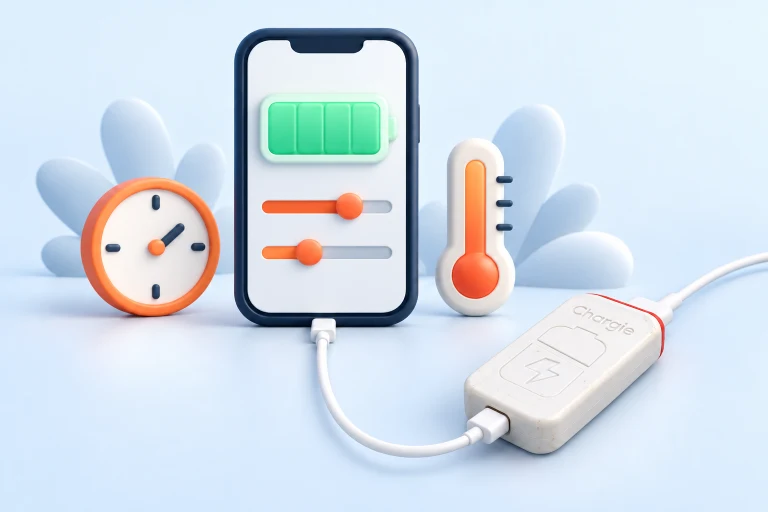
Before you make it your routine.
Auto-connection is not a substitute for confirming the right unit, correct settings, and a stable connection in each location.
Do I need a Chargie at every location?
You can carry one with you, or leave separate units in different places. Every power path you want controlled needs a connected Chargie while it is in use.
What if multiple units are nearby?
Check the device name or identifier and use your app’s selection controls. Test which connection responds before leaving the setup unattended.
Can two phones independently control one charging connection?
Do not assume simultaneous controllers will produce predictable behavior. Use a clear controller arrangement and consult the platform instructions for multi-device setups.
Are settings shared automatically?
Available naming, profile, and reconnection behavior varies by app and version. Verify the active settings on the actual connected unit.