
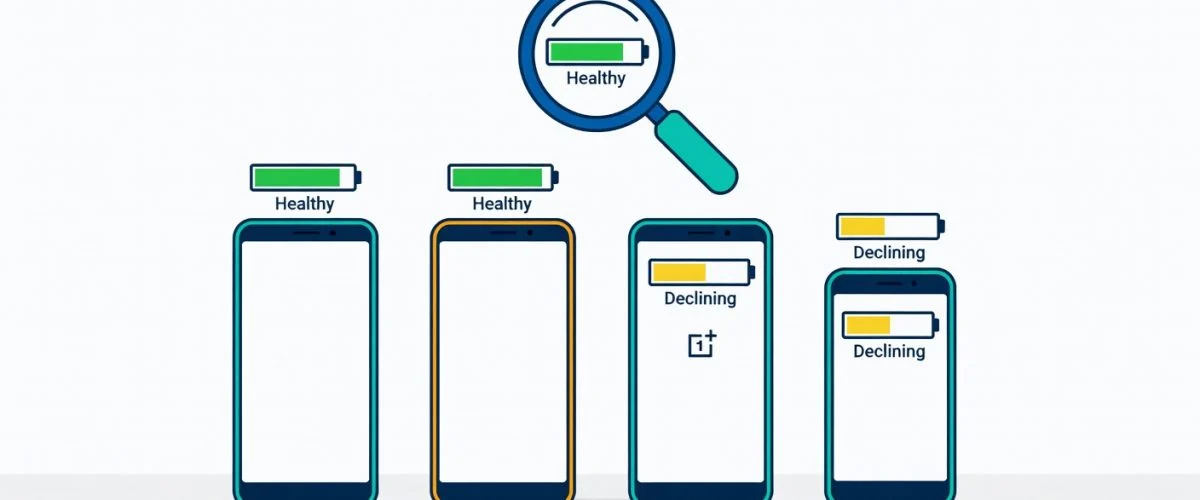

If you’ve ever opened your iPhone’s Settings and seen that soothing, unambiguous “Battery Health” percentage, you’ve probably felt a pang of envy. Android users don’t get that. At least, not in one clean, system-level screen. Instead, checking android battery health is a brand-by-brand scavenger hunt—hidden menus, dialer codes, and third-party apps. In this guide, we’ll walk you through exactly how to find your battery health data on Samsung, Google Pixel, OnePlus, Xiaomi, and other brands, what those numbers actually mean, and how to stop your battery from degrading faster than it should.
Why Android Battery Health Is Harder to Track Than iPhone
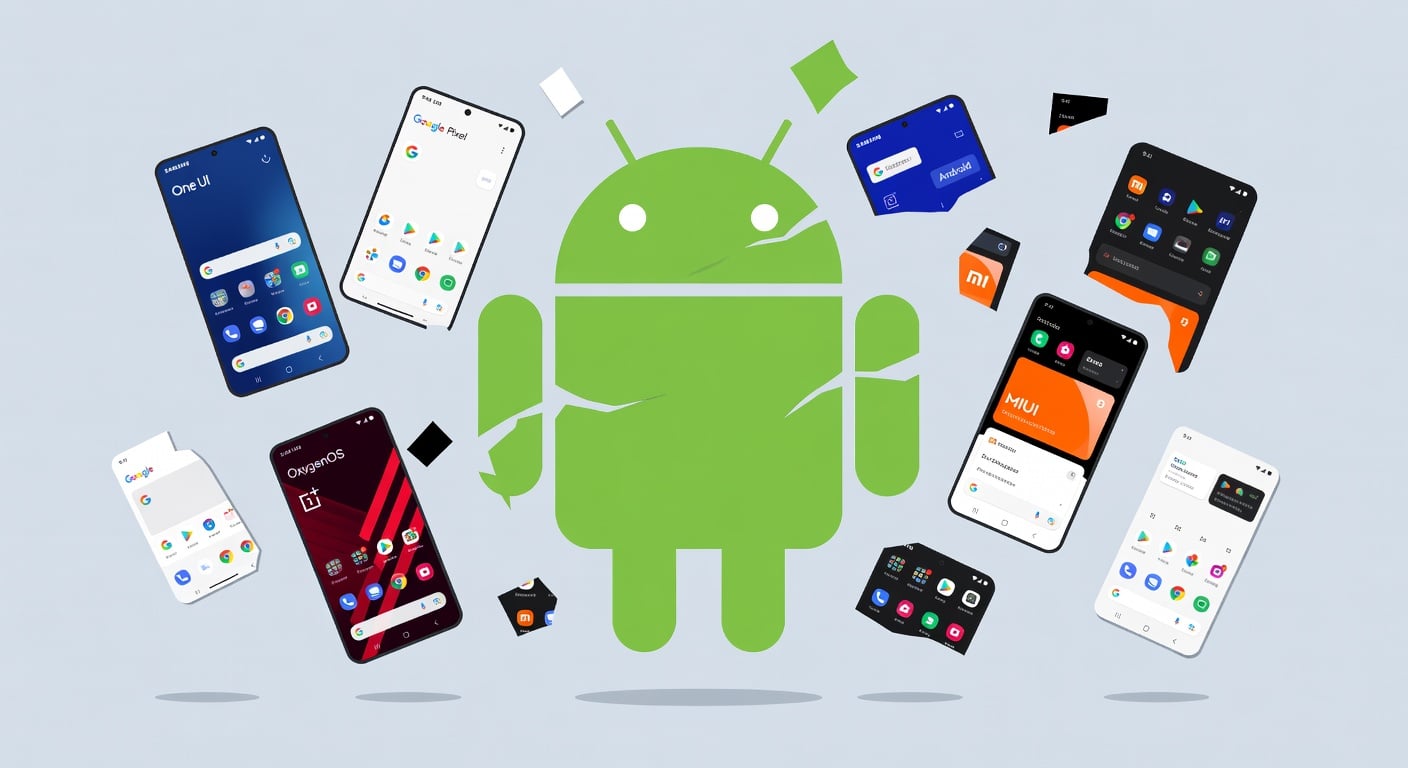
Android’s openness is its greatest strength and its most frustrating weakness. Google provides the operating system; manufacturers like Samsung, OnePlus, and Xiaomi heavily customize it. There is no single, reliable system-level API that surfaces battery degradation data the way Apple’s iOS does. Some OEMs bury diagnostics in hidden menus. Others strip them out entirely. Fragmentation means that a method that works on your friend’s Samsung might be useless on your Pixel. This article exists because the information is scattered—and we gathered it in one place.
How to Check Battery Health by Manufacturer
Samsung
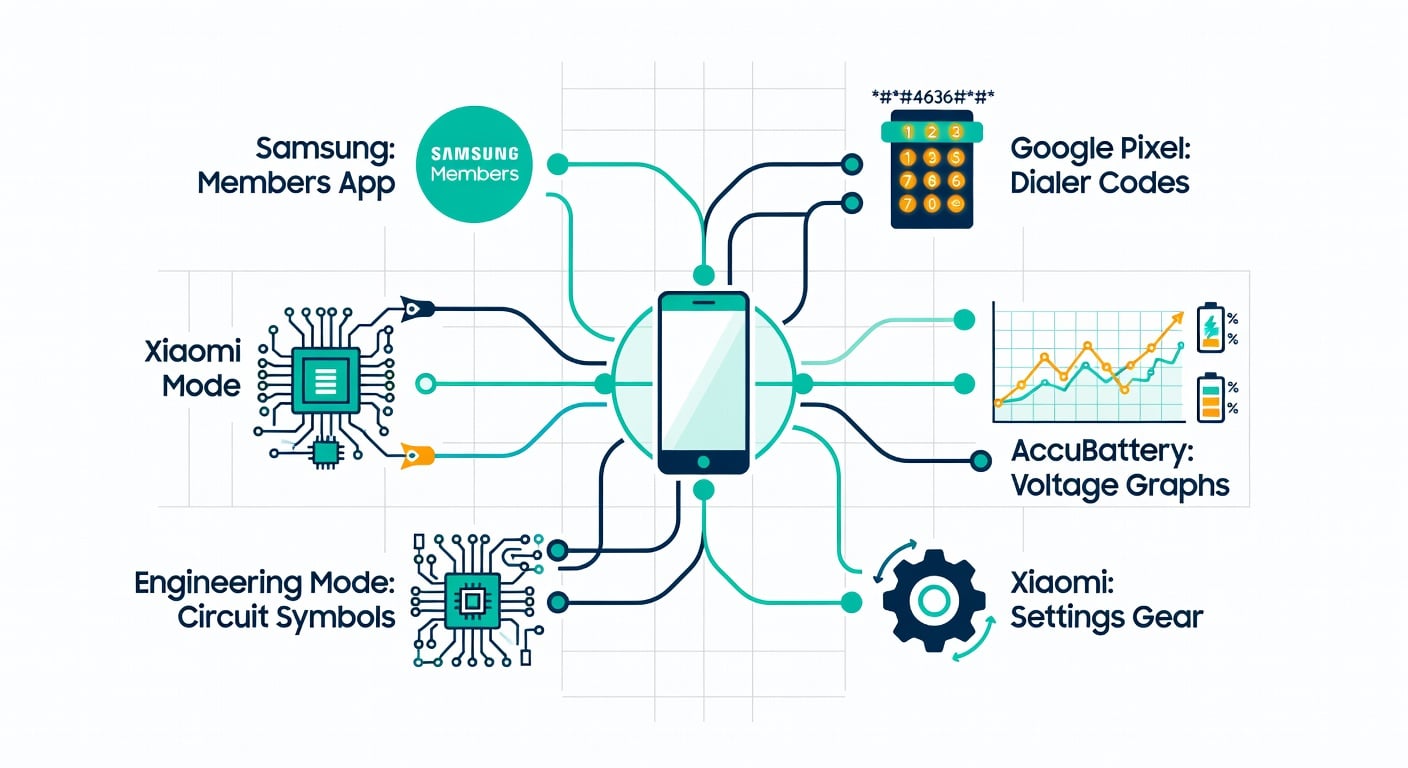
- Open the Samsung Members app (pre-installed on most devices).
- Navigate to Support → Phone diagnostics.
- Select Battery status.
- Look for “Battery health” or estimated remaining capacity versus design capacity.
Alternatively, some Galaxy models show basic battery data under Device Care → Battery, though this is usage-based, not degradation data.
Google Pixel
- Open the dialer and enter
*#*#4636#*#*(does not work on all Android versions due to security restrictions). - If that fails, install AccuBattery (free, no root needed) from the Play Store.
- For advanced users: enable USB debugging and run
adb shell dumpsys batterystats | grep "health"from a PC.
Pixel devices, ironically, are among the least transparent about battery health despite being “Google’s” phone.
OnePlus
- Open the dialer and enter
*#808#or*#36446337#(engineering mode codes may vary by model). - Look for Battery information under device diagnostics.
- Note: newer OxygenOS versions have restricted access to engineering mode.
Xiaomi / Redmi (MIUI / HyperOS)
- Open Settings → Battery → Battery usage for app-level drain data.
- For hardware health, some models support
*#*#6485#*#*in the dialer, which opens a hardware test menu. - Install AccuBattery or Battery Guru if the dialer code is blocked.
Other Brands (Motorola, Sony, Nokia, etc.)
- Download AccuBattery from the Play Store.
- Charge to 80% and discharge to 20% a few times; the app estimates wear based on measured versus design capacity.
- Check CPU-Z → Battery tab for voltage and temperature readings.
What Android Battery Health Numbers Actually Mean
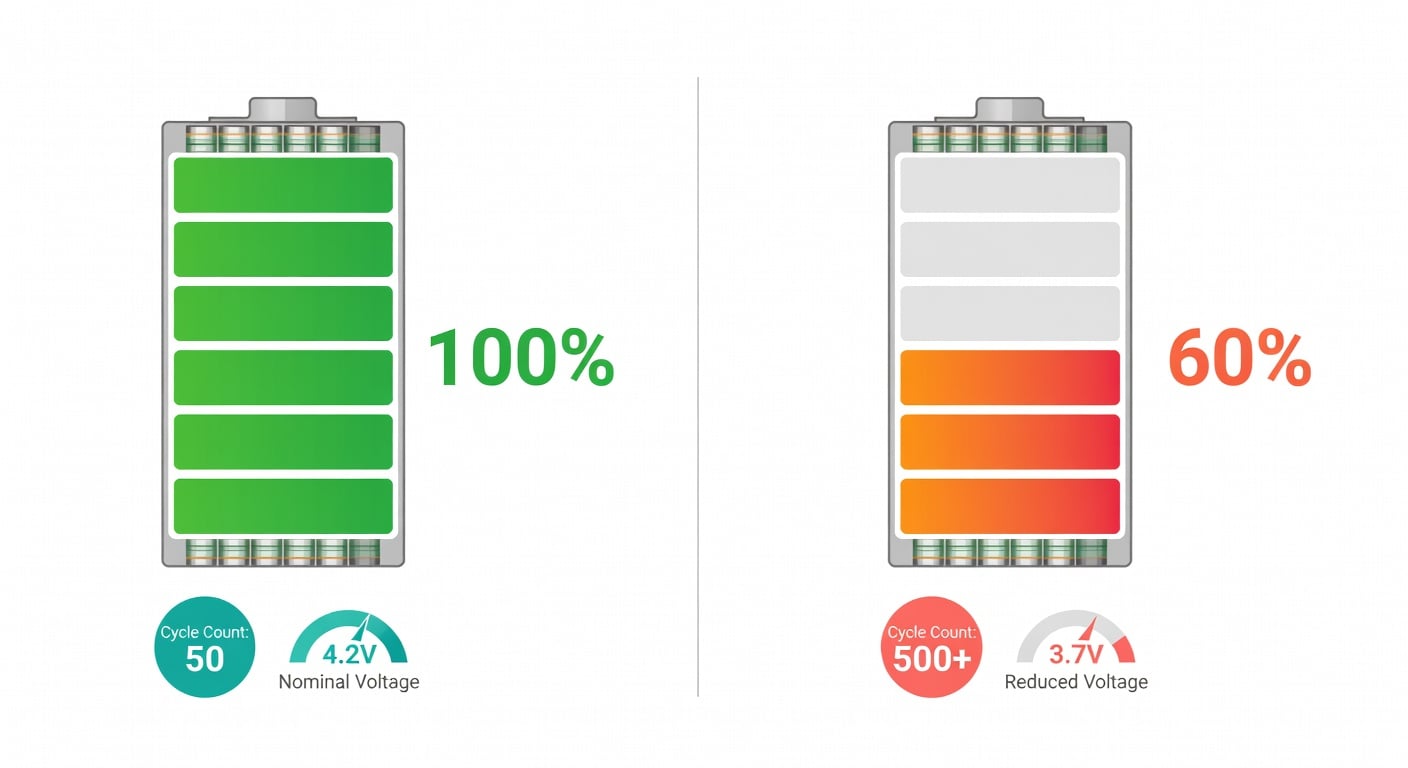
When you do finally find your battery data, here is how to interpret it:
- Design Capacity vs. Estimated Capacity: Your battery was built to hold, say, 4,500 mAh. AccuBattery might estimate it now holds 3,800 mAh. The difference is degradation.
- Cycle Count: One full discharge from 100% to 0% counts as roughly one cycle. Partial discharges add up fractionally. Most lithium-ion cells are rated for 300–500 cycles before falling below 80% capacity.
- Voltage Under Load: A healthy battery should maintain steady voltage under normal load. Sudden voltage drops during moderate use can signal internal resistance buildup.
When to worry: If your estimated capacity is below 80% of design capacity, or if your phone shuts down unexpectedly above 20% charge, the battery is functionally degraded. Replacement is usually the best fix.
Four Android-Specific Habits That Drain Batteries Faster

Software aside, user habits matter. These four are particularly damaging on Android:
- Background sync frequency: Android apps sync aggressively by default. Go to Settings → Accounts and set sync to manual or extend intervals for non-essential apps.
- Adaptive Battery pitfalls: Android’s Adaptive Battery “learns” your habits—but it often learns wrong, forcing apps to relaunch repeatedly and draining power. If an app you use daily is being throttled, whitelist it or disable Adaptive Battery entirely.
- Widgets and live wallpapers: Every animated widget or live wallpaper wakes the CPU and GPU. Static wallpapers and minimal home screens reduce unnecessary wake cycles.
- Google Play Services wake locks: Play Services is notorious for holding partial wake locks, especially after updates. Clear its cache occasionally and revoke location permissions from apps that do not need constant background access.
Can You Limit Charging on Android?
Yes, but your options are fragmented—just like everything else on Android.
- Manufacturer software limits: Some devices, like select Samsung models, offer “Protect battery” mode that caps charging at 85%. Asus and Sony have historically included similar options in their gaming and flagship lines.
- Third-party apps: Apps like Battery Charge Limit exist, but they usually require root access and are not reliable across all devices.
- Tasker + plugins: Advanced users can build automation rules to trigger alarms at 80% charge, but this is fragile and does not actually stop charging—it only notifies you.
If your phone does not have a built-in limiter and you do not want to root, the most reliable solution is a universal hardware charge limiter. Devices like Chargie act as a smart intermediary between your charger and phone: they physically pause charging at a threshold you set (typically 80%), then top up just before you wake. It works on any Android phone—Samsung, Pixel, OnePlus, Xiaomi, or otherwise—without rooting, without brand restrictions, and without relying on buggy automation scripts.
When to Replace Your Android Battery
Batteries are consumable parts, not sacred relics. Here is how to think about replacement:
- Samsung official service: Typically $79–$99 depending on model; includes warranty on the repair.
- Google Pixel official service: Usually $99+; official repair network covers most regions but may require mailing in the device.
- Third-party repair shops: Often $40–$60. Quality varies—verify they use genuine or OEM-grade cells. Avoid shops that cannot source Li-ion cells with the correct BMS (Battery Management System).
- DIY kits: Available for popular models. Only attempt if you are comfortable with heating tools, adhesive removal, and fragile ribbon cables.
Warning signs: Sudden shutdown above 20%, physical swelling, overheating during charging, or a “Service battery” notification after a major update. If you notice swelling, stop using immediately and take it to a professional—lithium-ion swelling can precede thermal runaway.
Have a Galaxy Tab or Pixel Tablet too? Tablets spend more time plugged in and age differently, so see Android tablet battery health.
Bottom Line: Treat Your Android Battery as a Maintenance Item
Most Android users treat their phone battery as a black box. It works until it doesn’t. But it is a consumable part with a predictable lifespan—just like brake pads on a car. Checking health periodically, charging to 80% when possible, and keeping temperatures low can double the useful life. If you want to do this without thinking about it, see which Chargie fits your device.
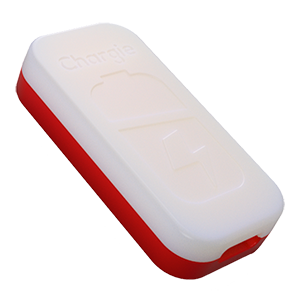
USB-C charge limiter that stops at your set battery level, so your battery never sits at 100% overnight. Extends battery lifespan by years. Works with any USB-C charger.
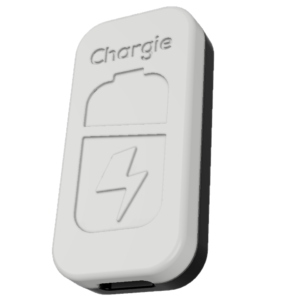
Limit your laptop charge to 80% via USB-C. Works with MacBooks, Dell, HP, Lenovo and most USB-C laptops up to 100W.
Protect Your Battery with Chargie
The world's first hardware charge limiter. Set a charge limit on any phone, tablet, or laptop — extend battery life by up to 4x.