
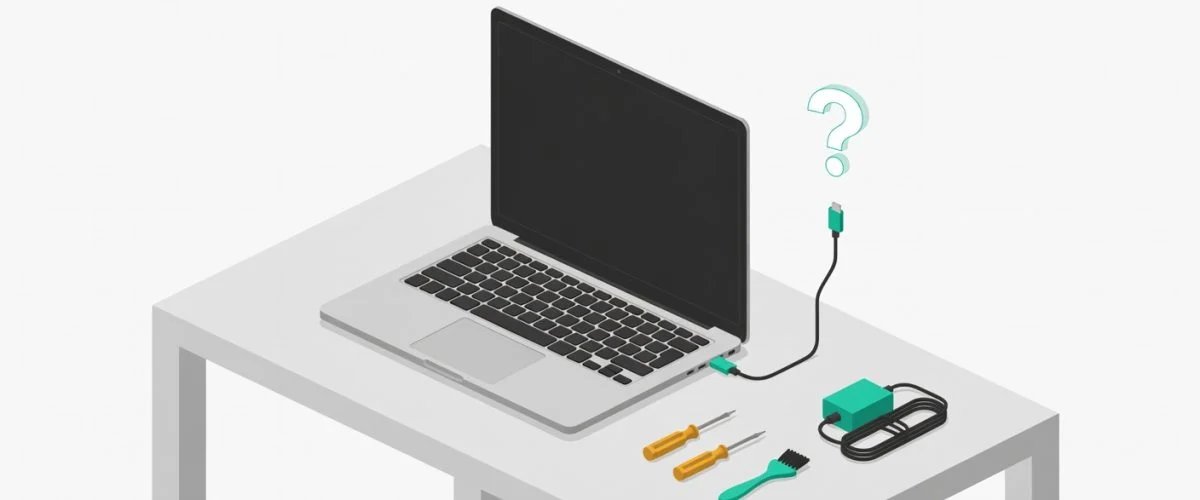

That sinking feeling when your laptop is plugged in but the battery icon stays stubbornly empty… it's a common frustration. Before you start pricing out a new battery or a trip to the repair shop, take a deep breath. The reason for the problem is often something surprisingly simple and easy to fix.
Battery Not Charging Laptop: Why Is It Plugged In But Not Charging?
Seeing that "plugged in, not charging" message is probably one of the most common headaches for any laptop owner. The good news is that the problem often isn't with the laptop itself but with the collection of cables, chargers, and ports that bring the power to it.
I've put together this quick flowchart to walk you through the very first things you should check. Think of it as a roadmap, starting with the easiest potential fixes.
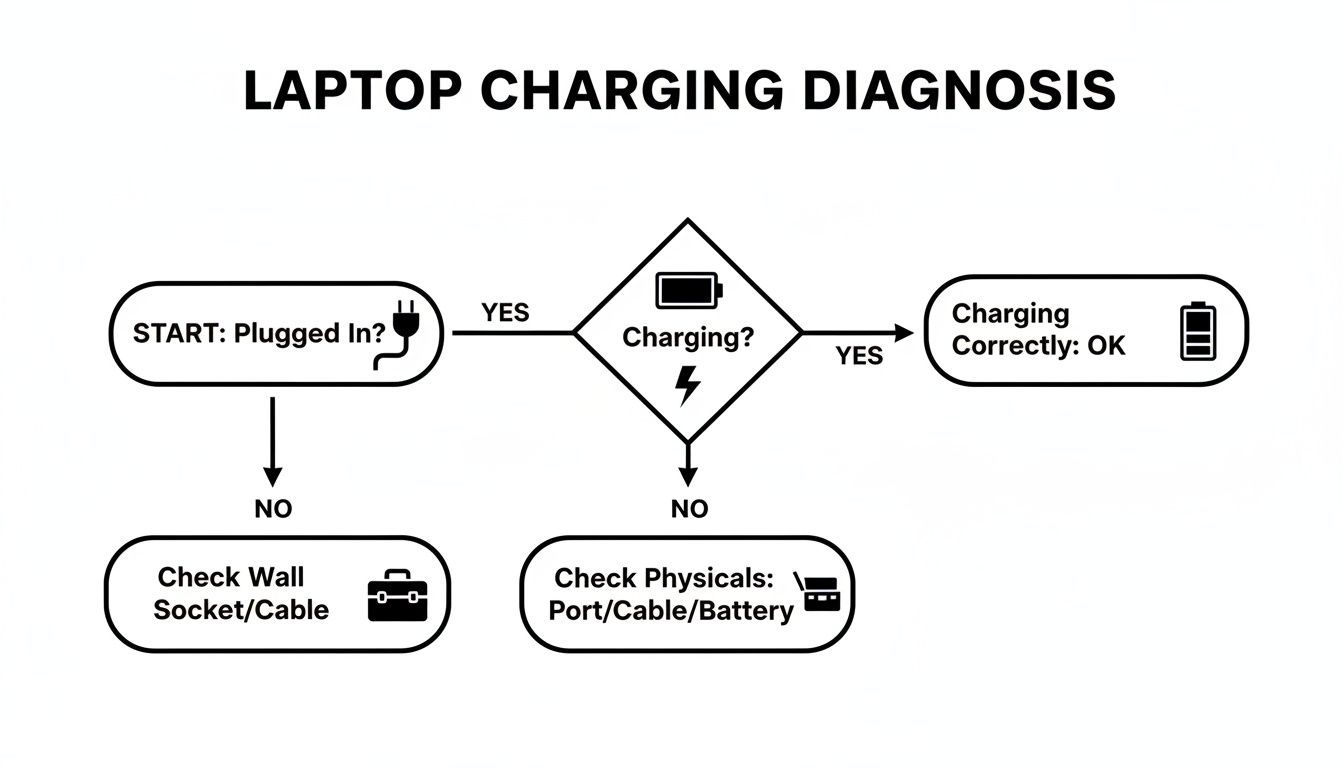
As you can see, before you even think about software settings or special drivers, the best place to start is with the physical connections. Running through these basic checks solves more charging problems than you'd believe.
Here's a quick checklist to guide you through those first crucial steps. It's the exact process to follow whenever a device is giving you charging trouble.
Quick Fix Checklist For a Laptop Not Charging
| Check | What to Look For | Action |
|---|---|---|
| Power Outlet | Is the outlet working? | Plug another device (like a lamp) into the same outlet to confirm it has power. |
| Cable Connections | Loose plugs or connections. | Unplug and firmly re-seat the power cord into the outlet, the power brick, and your laptop. |
| Cable Condition | Fraying, kinks, or breaks. | Carefully inspect the entire length of the cable and the power brick for any visible damage. |
| Charger Wattage | Mismatched power adapter. | Confirm you're using the original charger or one with the correct power rating for your laptop model. |
| Charging Port | Dust, lint, or debris inside the port. | Visually inspect the port for any blockages that could prevent a solid connection. |
These simple checks are your first line of defense and can often get you back up and running in minutes.
The Problem With Mismatched Chargers
One of the most common mistakes is using the wrong charger. You might grab your partner's adapter or a spare one from the office, thinking they're all the same. They aren't.
Tech repair shops consistently report that a leading cause is using an underpowered adapter—say, a 45W charger for a laptop that really needs 65W to run and charge at the same time. When this happens, your laptop will often draw power from the battery to make up the difference, even while plugged in. It’s a fast track to a dead battery. In fact, some studies show that in major markets like the US and Europe, up to 30% of users run into this issue every year, thanks to a sea of mismatched third-party chargers. You can read more about how unsafe charging habits can impact your devices.
Laptops will prioritize keeping themselves running over charging the battery. If the charger can't supply enough power for both, charging is the first thing to go.
Digging a Little Deeper Into Hardware
If your cables and charger check out, it's time to look at the hardware itself, starting with the charging port. It's a magnet for dust, pocket lint, and all sorts of gunk that can build up and block the electrical connection.
Cleaning it out is simple, but be careful.
- First, shut down your laptop completely. You never want to poke around in ports while the machine is on.
- Grab a can of compressed air and give the port a few short bursts to clear out loose debris.
- For anything more stubborn, a wooden or plastic toothpick works well to gently scrape it out. Never use metal objects like paperclips or pins—you could easily cause damage and create a much bigger problem.
One last trick, if your laptop has a battery you can take out, is to perform a power reset. Just turn off the laptop, unplug it, and remove the battery. Then, press and hold the power button for about 30 seconds. This drains any static electricity from the laptop's internal parts. After that, pop the battery back in, plug the charger in, and power it on. This simple reset can often work wonders.
Looking Beyond the Hardware: Software and Setting Glitches
So you’ve checked the cable, the charger, and the port. Everything seems solid, but your laptop still stubbornly refuses to charge. Before you start panicking about expensive hardware repairs, let's take a look under the hood—the software hood. Sometimes, the problem isn't a physical failure at all, but a simple miscommunication inside the operating system.
Think of it this way: your battery is ready and waiting for power, but the software that manages it has gotten confused. This usually comes down to a tiny but critical piece of software called a driver. This driver's only job is to let your operating system (like Windows or macOS) talk to your battery. If that driver gets messed up, which can happen after an update or just randomly, the conversation breaks down.
When this happens, you often get that classic "plugged in, not charging" message. Your laptop knows a charger is connected, but it can't figure out what to do next. The good news? This is one of the easiest software-related charging problems to fix.
Giving Your Battery Drivers a Fresh Start
If you're on a Windows machine, you're in luck, because this is a surprisingly common fix. We're going to essentially force Windows to forget it ever knew your battery, and then re-introduce them. It sounds dramatic, but Windows does all the work for you.
Here’s how you can do it:
- Open Device Manager: Just right-click your Start button and pick "Device Manager" from the list.
- Find Your Batteries: In the new window, look for a "Batteries" category and click the little arrow to open it up.
- Uninstall the Driver: You should see something called "Microsoft ACPI-Compliant Control Method Battery." Right-click it and select "Uninstall device."
- Confirm and Restart: A box will pop up asking if you're sure. Click "Uninstall," then shut down your laptop completely.
Now, just turn your laptop back on. As it starts up, Windows will notice the battery driver is missing and automatically install a fresh copy. Once you're logged in, plug in your charger. More often than not, you'll see that glorious charging icon light up. This simple driver refresh is often all it takes to fix the battery not charging laptop issue.
Is Your Laptop Choosing Not to Charge?
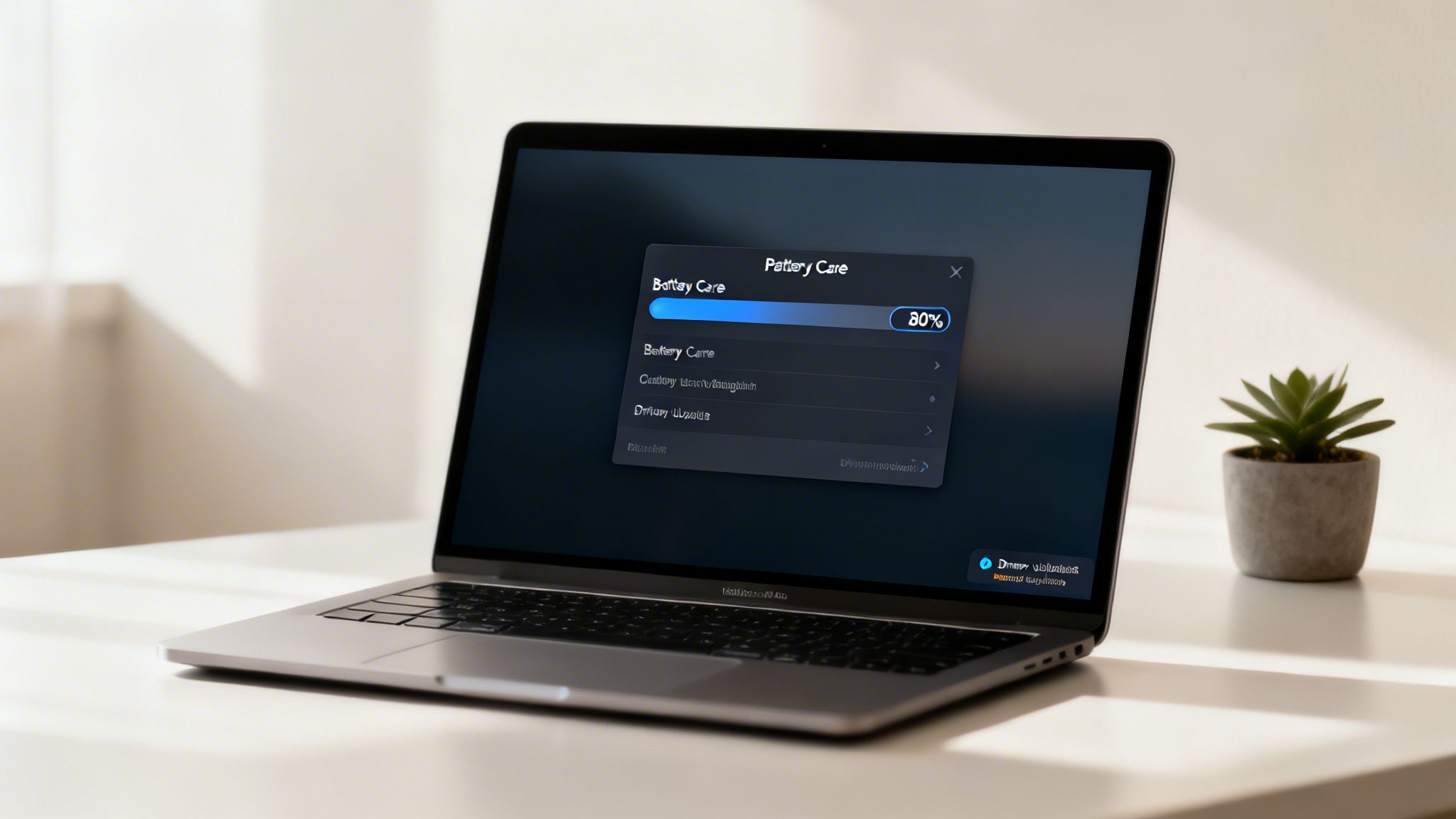
Here's another software-related twist: what if your laptop is stopping the charge on purpose? Many modern laptops from brands like Dell, HP, and Lenovo include "battery care" or "longevity mode" features. These tools are designed to stop charging when the battery hits around 80% or 90%.
Why would they do that? Keeping a lithium-ion battery topped off at 100% constantly is one of the fastest ways to wear it out. The high electrical pressure puts a ton of stress on the battery's internal parts, causing it to lose its ability to hold a charge over time. By stopping the charge early, manufacturers help you make your battery last much longer.
Some people are certain their new laptop is broken because it would never charge past 80%. It turned out to be a battery protection feature they had turned on without realizing it. A quick trip to the settings and they understood what was happening.
Check for an app that came with your computer, usually named something like "Dell Power Manager," "HP Battery Health Manager," or "Lenovo Vantage." Dig into the settings, and you'll likely find the option to control this. You can disable it if you absolutely need a full 100% charge for a long flight, but for daily desk use, leaving it on is a smart move for your battery.
If you want that same protection but with more control, or if your laptop doesn't have this feature, a tool like Chargie is the perfect answer. It's a small hardware device that works with an app to let you set your own charging limit. It physically cuts the power when your battery hits the level you choose, giving you an easy way to prevent damage from overcharging.
If you’ve already checked the cable, charger, and port with no luck, it’s time to look at the battery itself. A laptop battery isn't meant to last forever. Think of it like the tires on your car—it has a limited lifespan and simply wears out from use. Every time you charge and discharge it, its ability to hold energy decreases, and eventually, it just can't take a charge anymore.
When a battery hits the end of its road, it can't physically store power, which is often the real reason behind the dreaded "plugged in, not charging" message. The good news is you don't have to guess. Both Windows and macOS have built-in tools that can generate a detailed battery health report, giving you a clear window into its current condition.

Don't worry, you don't need to be a tech expert to do this. These reports are surprisingly easy to read and give you the facts you need. For a full walkthrough on getting this report, check out our guide on how to get your battery report in Windows.
Interpreting Your Battery Health Report
Once you have your report, a lot of numbers will jump out at you, but there are really only two you need to focus on: Design Capacity and Full Charge Capacity.
This table breaks down exactly what those metrics mean for your battery's health.
| Metric | What It Means | Good vs. Bad Sign |
|---|---|---|
| Design Capacity | The total energy the battery could hold when it was brand new. This is its "factory fresh" state. | This number is a fixed baseline and doesn't change. |
| Full Charge Capacity | The actual maximum energy the battery can hold right now. This number shrinks over time. | A number close to the Design Capacity is great. A number below 50% is a clear sign it's time for a replacement. |
| Cycle Count | The number of full charge-discharge cycles the battery has been through in its lifetime. | Lower is better. Most batteries are designed for 300-500 cycles before significant wear. |
A healthy battery will have a Full Charge Capacity that's very close to its original Design Capacity. As the battery gets older and more worn, that gap widens. When your Full Charge Capacity plummets to less than 50% of what it used to be, the battery is on its last legs and will struggle to hold a charge for any meaningful amount of time.
A huge difference between these two values is your smoking gun. If your battery can only hold a tiny fraction of its original capacity, no amount of software tricks will bring it back to life.
This wear-and-tear is normal, but some habits can speed up the process. A typical battery can last for 300-500 full charge cycles before its health dips to around 80%. But here’s the problem: people who leave their laptops plugged in at 100% all the time can burn through 20% of their battery's capacity in just one year.
This is a massive, expensive problem. In major markets like North America and the EU, where over 1.5 billion laptops have been sold since 2015, early battery replacements cost consumers over $10 billion every year.
That's where a tool like Chargie for Laptops comes in. It’s a simple but powerful app that lets you stop the charge at a healthier level, like 80%. By automatically cutting off the power, it prevents the high electrical pressure that silently kills batteries, helping you get years more out of your original battery before you even have to think about a replacement.
The Critical Danger of a Swollen Battery
Finally, there’s a serious safety warning you need to be aware of: a swollen battery. If you see your laptop case bulging, the trackpad getting pushed upwards, or the keyboard deck warping, you need to act fast.
STOP using the laptop immediately.
- Unplug the charger from the wall outlet.
- Shut the laptop down completely.
- Do not, under any circumstances, try to charge it or turn it on again.
A swollen battery is a sign of a dangerous internal failure. Gases have built up inside the battery's casing, creating a significant fire hazard. This isn't a DIY fix—it requires immediate professional attention for safe removal and replacement.
Advanced Hardware Troubleshooting You Can Do at Home
So, you’ve tried the easy stuff—jiggling the cable, swapping outlets, and poking around in your settings—but your laptop still refuses to charge. Don't throw in the towel just yet. Before you book a repair, there are a couple of more advanced hardware checks you can do right at home. These are the kinds of tricks technicians use to quickly narrow down the problem, and they're surprisingly simple.
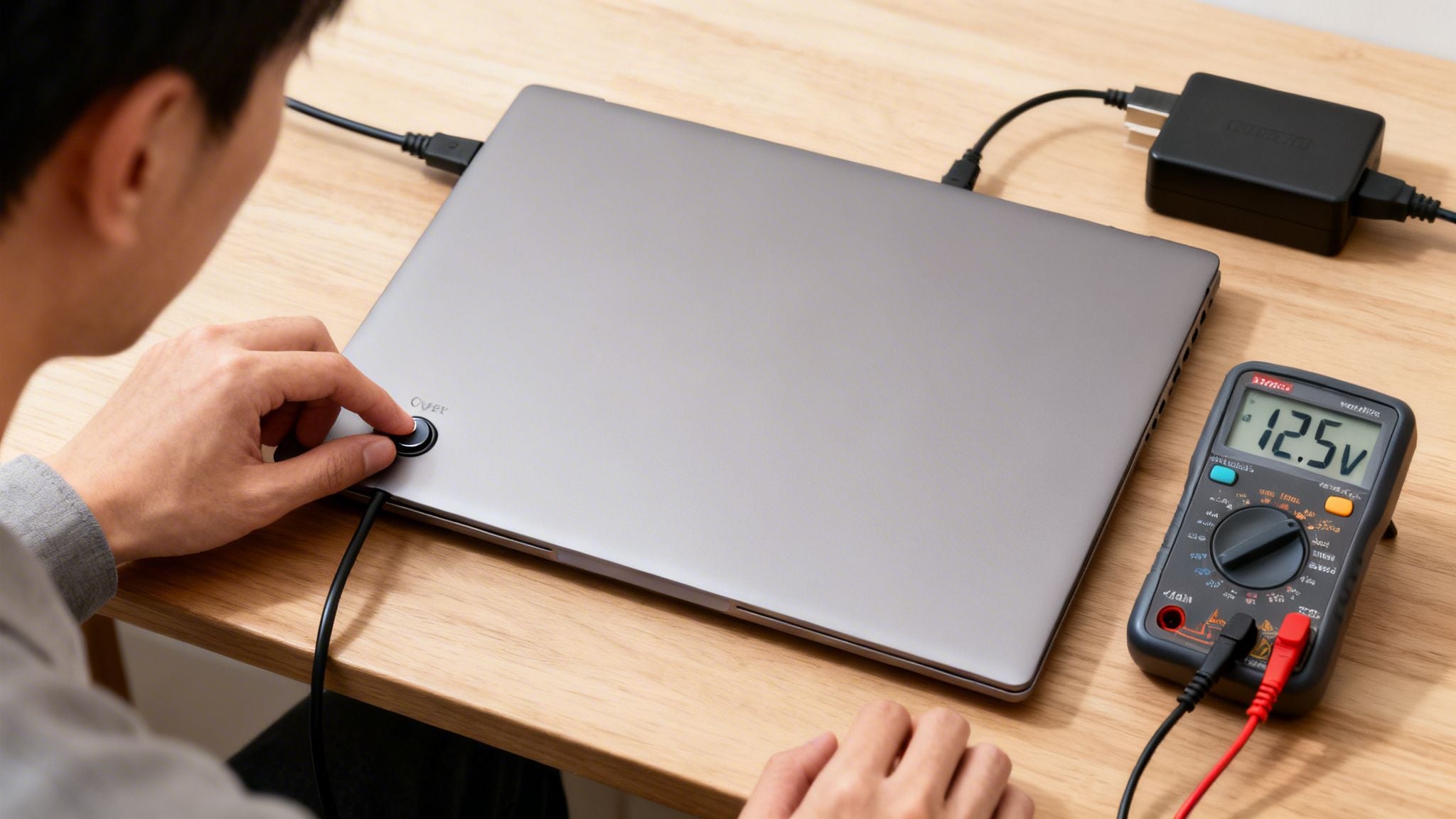
We're going to see if the issue is a simple hardware glitch or a genuinely dead component. This will help you figure out if you're dealing with a five-minute fix or a real problem with the charger or battery itself.
Try a Power Reset (Static Discharge)
This is one of the best first steps when a battery not charging laptop issue comes up. Think of it as a hard reboot for your laptop's internal parts. Sometimes, a leftover electrical charge on the main circuit board can confuse the hardware, causing it to stop recognizing the battery or charger. A power reset clears that out.
The method changes slightly depending on your laptop's design.
If Your Laptop Has a Removable Battery:
- First, shut down your laptop completely and unplug the power cord.
- Flip it over, unlatch the battery, and take it out.
- Now, with no power source connected, press and hold the power button for a solid 30 seconds. This drains any leftover static electricity from the internal parts.
- Pop the battery back in, plug the charger in, and try turning it on.
If Your Laptop Has an Internal (Non-Removable) Battery:
- Shut down the laptop and unplug the AC adapter.
- Look on the bottom or side of your laptop for a tiny pinhole. This is the battery reset button.
- Grab a paperclip, unfold it, and gently press the button inside the pinhole. Hold it down for 30 seconds.
- Let go, plug the power cord back in, and fire up your laptop.
You'd be surprised how often this simple trick brings a "dead" laptop back to life. If it worked, you just saved yourself a headache and a repair bill.
Test Your AC Adapter with a Multimeter
If the power reset didn't do the trick, the next logical suspect is the AC adapter itself. Is it actually sending power to your laptop? The only way to know for sure is to test it.
A multimeter gives you a clear yes or no answer: is the charger working? Guessing can lead you to buy a new battery when all you needed was a new power brick.
You can grab a multimeter for cheap online or at any hardware store. It's a fantastic tool for any tech enthusiast. Here’s how to safely check your charger's output:
- Find the DC voltage setting on your multimeter—it's usually marked with a V and a straight line (V⎓). Set the dial to a number just above your charger's rated voltage. For a 19V charger, you’d set it to 20V. (You can learn more about this in our guide on how many watts to charge a laptop).
- Insert the red probe into the hole at the very tip of your charger’s barrel connector.
- Touch the black probe to the outside metal ring of the barrel.
- Read the number on the multimeter display. It should be very close to the rated voltage on the power brick label.
- If the reading is zero, extremely low, or wildly off from the label, the adapter is dead.
If the multimeter shows the correct voltage but your battery still won't charge, the problem is likely inside the laptop itself—either the charging circuit on the motherboard or the battery.
When It’s Time to Replace the Battery
Let's say you've tried everything on this list. Cables are good, charger works, ports are clean, drivers are refreshed, and the power reset did nothing. At this point, the battery itself is the most likely culprit.
Batteries have a finite lifespan. A typical lithium-ion battery is rated for 300-500 full charge cycles before its capacity drops to about 80% of its original value. If your battery is older than a couple of years and you use your laptop daily, it's very likely just worn out.
Here's how to tell if it's time to replace it:
- The battery drains from 100% to 50% in under an hour with light use.
- The laptop shuts down unexpectedly, even when the battery meter says it has charge left.
- The battery is visibly swollen or the case is bulging.
- You've checked everything else and the laptop works fine when plugged in, but dies instantly when unplugged.
If any of those sound familiar, it's time for a new battery. Order a genuine replacement from the manufacturer or a trusted retailer. Avoid cheap third-party batteries—they often have poor quality control and can be a fire hazard.
Looking for a way to extend the life of your new battery? A smart charging limiter is a great investment. It helps prevent the overcharging habits that wear out laptop batteries in the first place, ensuring your replacement lasts much longer than the original.
Conclusion: Don't Panic, It's Usually Fixable
A laptop that won't charge is frustrating, but in most cases, it's not a death sentence for your computer. By methodically working through the checks above—starting with the simplest and cheapest fixes first—you'll diagnose the problem quickly and avoid wasting money on unnecessary repairs.
Remember: start with the cable and charger, move to the port and drivers, and only then consider replacing the battery. Most people never get past step two before finding the culprit.
To keep your future batteries healthy and avoid this problem altogether, consider a hardware charging limiter like Chargie. It's a small investment that can save you hundreds in replacement batteries over the life of your laptop.

USB-C charge limiter that stops at your set battery level, so your battery never sits at 100% overnight. Extends battery lifespan by years. Works with any USB-C charger.
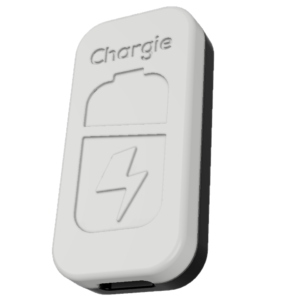
Limit your laptop charge to 80% via USB-C. Works with MacBooks, Dell, HP, Lenovo and most USB-C laptops up to 100W.
Protect Your Battery with Chargie
The world's first hardware charge limiter. Set a charge limit on any phone, tablet, or laptop — extend battery life by up to 4x.