
Chargie, explained
Customer stories: how people really use Chargie.
From booking kiosks that never get unplugged to the phone on your nightstand, here is how customers put Chargie to work, starting with Robert’s story in his own words.
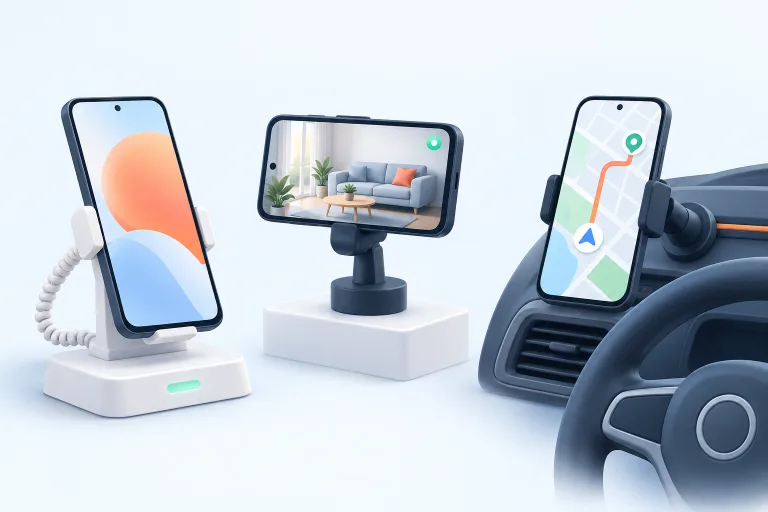
Customer story · Booking kiosks
Phones that work 24/7.
“We have kiosk booking devices, which are basically mobile phones, that we deploy to customers. These phones are on 24/7. Some phones would fail after a number of months with battery issues, due to being constantly on charge. We now use Chargies on all devices to better manage the charging cycle. This has substantially extended the life of our booking devices.”
Robert · Chargie customer
Robert’s kiosks are ordinary phones doing a fixed job: plugged in all day, every day. Sitting at 100% around the clock is about the hardest life a lithium-ion battery can have, which is why his devices kept failing after a few months. Keeping them at a lower charge level solved it.
This is Robert’s own experience, not a lab test. But it lines up with what battery research says about high charge levels and heat.

Six more ways customers use Chargie.
Most people buy a Chargie for one phone. Many end up using it for something else as well. These are the setups we hear about most.
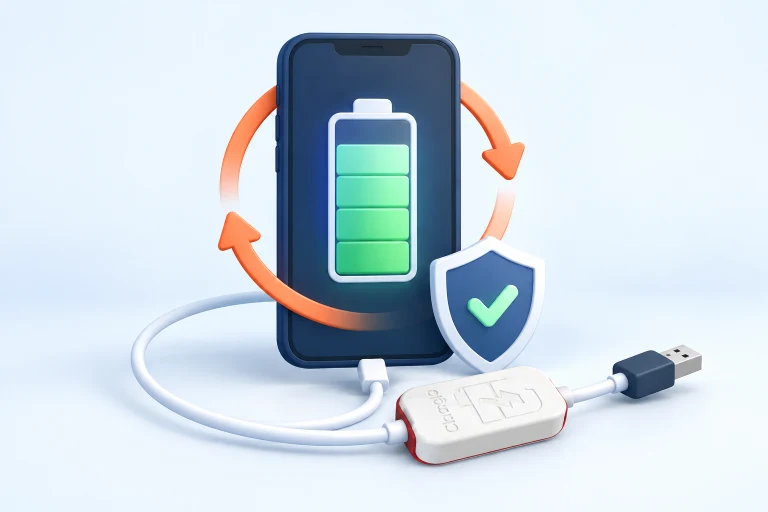
Most popular
Make your phone’s battery last
Charge through Chargie, stop at the level you choose, and the battery ages more slowly. It is the simplest way to keep a phone you like for longer.
- A healthier battery helps resale value
- Hand down a phone that still holds a charge
- The same Chargie works with your next phone
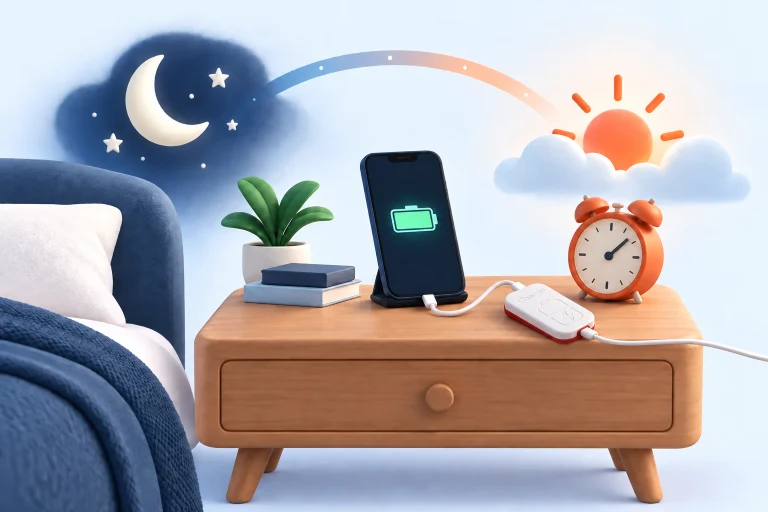
Peace of mind
Safer overnight charging
About 45% of parents and 30% of children sleep with a device within reach (National Sleep Foundation, 2014). A phone held at 50% runs cooler and under less stress than one kept full all night.
- Hold a low level while you sleep
- Top up to full just before you wake
- Less heat next to your pillow
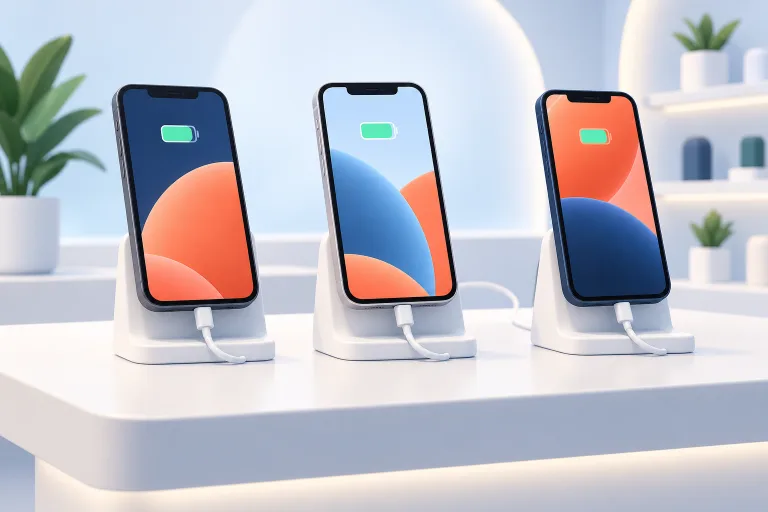
Business
Demo phones in shops
Display phones stay on mains power 24/7, and that is what ruins their batteries. After a few months many start to swell.
- Partial charging means far less battery wear
- Lower risk of swollen batteries on the shop floor
- Demo units are worth more when sold on

Remote & IoT
Remote cameras and sensors
Phones and tablets used as surveillance or monitoring equipment, often on solar power, sit at 100% in the heat for months on end.
- Hold the battery around 50% instead
- Used for forest protection and security systems
- Fewer site visits to replace swollen devices
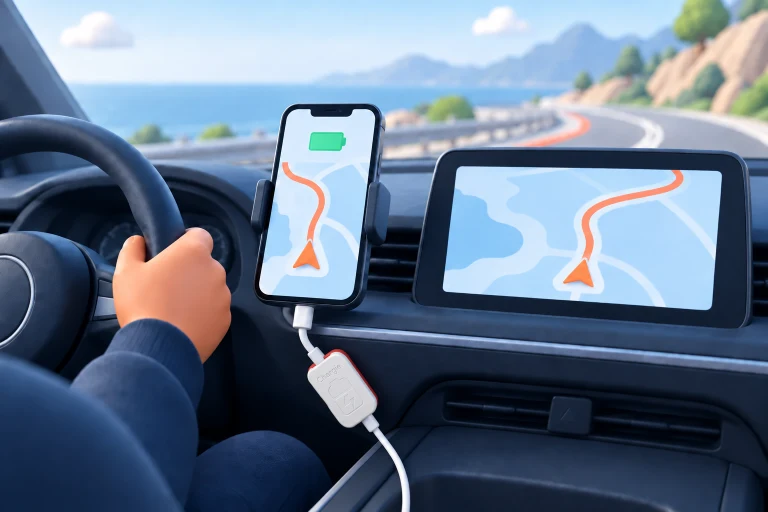
Drivers
Taxi and delivery navigation
Professional drivers keep a phone on the dashboard all day, charging in direct sunlight. Hot and fully charged is the worst combination for a battery.
- Limit the charge and cut the heat
- Much less wear over thousands of hours
- CarPlay without constant charging: keep the data, limit the power
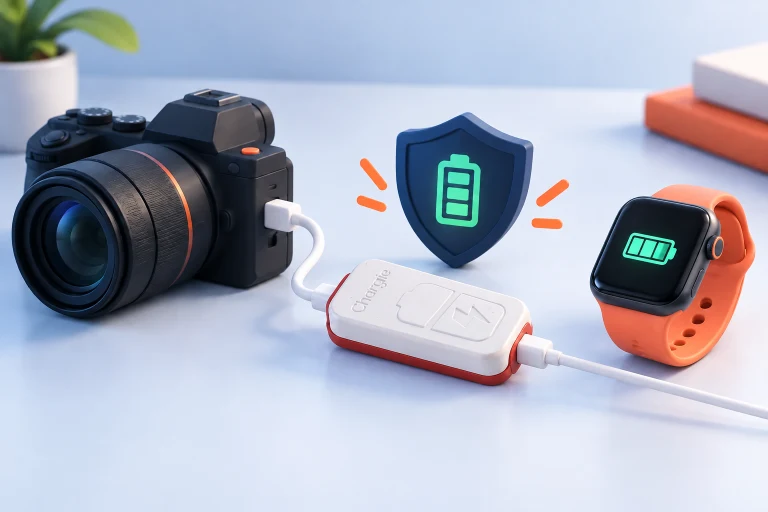
No app needed
Anything with a lithium-ion battery
Chargie’s hardware limiter works without an app. It measures the power draw, detects when charging tapers off, and cuts the power.
- Cameras, drones, watches, power banks
- Pure hardware protection
- Stops devices from sitting on charge for days
Running devices that never get unplugged?
A kiosk, a display phone or a dashboard tablet does not need a full battery, because it never leaves the charger. What it needs is enough reserve to ride out a power cut. That is why a lower, steady charge level suits these devices so well.
Decide on the reserve
How long should the device keep running if the power goes out? That sets your minimum charge level.
Set the charge range
Pick a limit in the Chargie app and let it hold the battery there.
Check in now and then
Look at the charge level, the connection and the physical condition of the device.
Charging is only one part of keeping a device reliable. Cables, ventilation, app permissions and the age of the battery matter too. If a device stops charging or reporting, find out why before simply raising the limit.
Start with one device.
Before you order for a whole fleet, set up one device exactly as it will be used: same charger, same cable, same app, same location. Set a charge limit and let it run for a week or two.
Try the things that happen in real life. Unplug the cable and plug it back in. Restart the app. Make a note of what your staff should check, and how they can tell which Chargie belongs to which device.
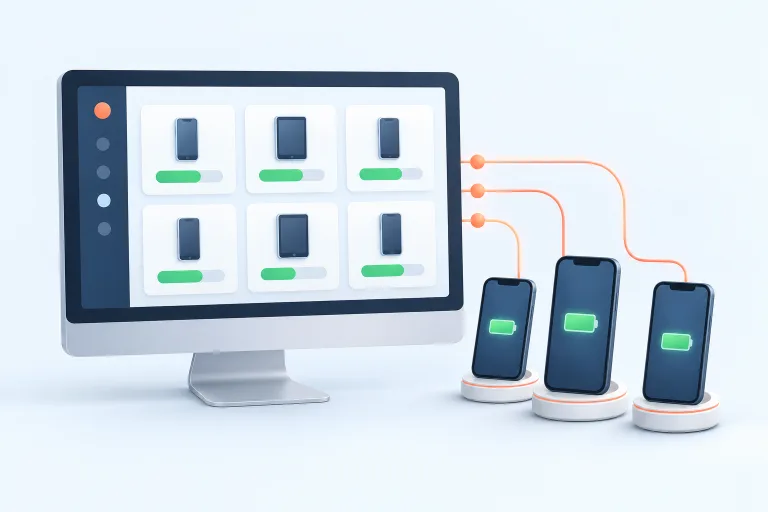
If you manage many devices, have a look at the fleet dashboard, and decide who keeps an eye on it.
Planning a larger rollout? Tell us your device models, operating systems and power setup, and we will help you pick the right Chargie.
Where to go next.
Robert’s story shows what a different charging routine did for his kiosks. The guides below explain the controls, so you can work out what fits your own devices.