

It’s a feeling we all know and dread: you glance at your iPad, and the battery icon is glowing an angry red. But your charging brick is nowhere to be found.
Don't panic. You can absolutely get power back into your iPad without its original charger. You just need to know which common devices you already own can step in to help—and what to expect when you use them. Speeds will definitely vary, but a dead iPad is not your only option.
Your iPad Is Dying and Your Charger Is Gone. Now What?
First, take a breath. You have more ways to juice up your iPad than you probably realize. While the official wall adapter is your fastest route back to 100%, plenty of other power sources will work just fine when you're in a bind.
This flowchart is a great way to figure out your best move based on what’s around you right now.
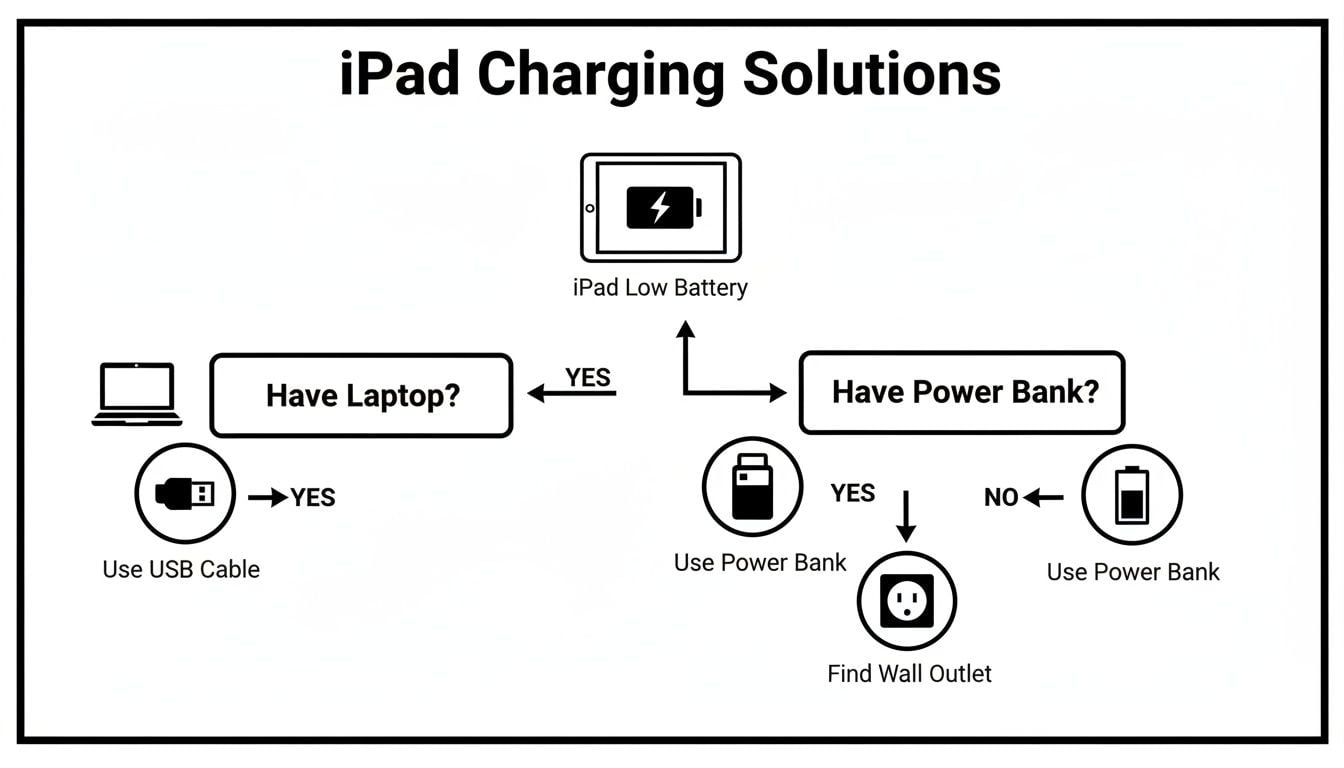
As you can see, a laptop or a power bank are your most common fallbacks. They're reliable ways to revive your iPad when the main charger has vanished.
A Quick Look at Your Options
When you can't find your charger, it’s not just about finding any old power source. It's about knowing the trade-offs, especially when it comes to charging speed and what’s convenient in the moment.
To make things easier, here's a quick summary of the most common methods.
Quick Guide to Alternative iPad Charging Methods
| Charging Method | What You Need | Typical Charging Speed | Best For |
|---|---|---|---|
| Laptop/Computer | USB-A/USB-C to Lightning/USB-C Cable | Very Slow (~5W) | Topping up slowly while you work or overnight. |
| Power Bank | Power Bank, USB Cable | Slow to Fast (5W to 30W+ with PD) | On-the-go charging, travel, or when outlets are scarce. |
| Car USB Port | Car with a USB Port, USB Cable | Very Slow (~5W) | Maintaining your charge during a commute; not for a fast boost. |
| Other Device Charger | A phone or other device's power brick | Slow to Fast | A good substitute if the brick has a high enough wattage. |
Each of these methods has a place, but they aren't all created equal. A USB port on your laptop, for example, is almost always available but will charge your iPad at a crawl—think 5W compared to the 20W or 30W from a proper iPad charger.
Power banks are a great choice for on-the-go power. A good one with Power Delivery (PD) can charge your iPad almost as fast as its wall adapter. The USB port in your car is another option, but it's really only good for keeping the battery from dying on a drive, not for adding significant charge quickly.
The real goal here isn't just to find a charge—it's to do it safely. Using slow or unstable power sources isn't a major risk, but consistently charging to 100% and leaving it there for hours is what truly ages your iPad's battery.
A tool like Chargie can be a lifesaver here. It automatically stops the power at a healthy level you set. This protects your iPad's battery from the stress of sitting at 100% for too long, no matter what you're using to charge it.
Using Your Computer as a Backup Power Source
When your iPad charger is missing, one of the most dependable backups is probably right in front of you: your laptop or desktop computer. Just about every computer has a USB port, making it a nearly universal power source you can use in a pinch.
All you need is the charging cable that came with your iPad. Just connect the USB end to an open port on your computer, plug the other end into your iPad, and you’re back in business. It’s a true lifesaver, whether you’re stuck at the office, a coffee shop, or just working from your couch.
Charging Speed and What to Expect
Now, before you get too excited, it's important to set your expectations straight. Charging from a computer is always going to be slower—much slower—than using the dedicated wall adapter. That’s because the standard USB-A ports on most computers deliver a very small trickle of power.
Imagine you're on a business trip and realize you left your iPad's power brick at home, but you have your laptop. Plugging your iPad into a computer's USB port is a solid backup that typically charges at around 5W. A proper iPad charger provides 20W or more. Still, this is often enough to get you 20-30% more battery in a few hours, perfect for getting through your emails or checking a map.
The type of USB port you're using makes a real difference, too.
- USB-A Ports: These are the classic rectangular ports you see on most computers. They’re the slowest and provide the least power.
- USB-C Ports: Newer laptops, especially modern MacBooks, have these smaller, oval-shaped ports. They can push more power and will charge your iPad faster than USB-A, though they still won't match a proper wall charger.
If you’re curious, you can learn more about the differences between these connectors in this simple guide to the types of USB cables. Knowing your ports helps you pick the best one available when you need juice fast.
Practical Tips for Better Charging
While charging from a computer is slow, you can do a few things to make it a bit more effective. First, make sure your computer is awake and not in sleep mode. Many computers cut power to the USB ports when they go to sleep, which will stop your iPad from charging.
Another little trick is to switch your iPad into Airplane Mode. This turns off power-hungry features like Wi-Fi and Bluetooth that are always running in the background. With fewer things draining the battery, more of the incoming trickle charge can go directly to filling it up.
Even with these tips, leaving your iPad tethered to a computer all night is a bad habit. The slow, constant charge all the way to 100% is not ideal for the battery.
This is exactly where a smart device like Chargie comes to the rescue. By placing it between your computer and your iPad, you can automatically tell it to stop charging at a healthier level, like 80%. This simple step prevents the battery from sitting at a stressful high charge all night, helping maintain its long-term health even when you’re forced to use a less-than-ideal charging method.
Power Banks: Your iPad's Best Friend on the Road
If you truly want to cut the cord from the wall outlet, a portable power bank is a must-have. They’re compact, getting more powerful every year, and are the perfect answer when you’re out and about and realize you forgot your charger.
Think about it. You could be a student on campus for a long day of classes, using your iPad for everything from notes to research. Or maybe you're on a cross-country flight, counting on your iPad to keep you entertained. In those moments, a power bank is what stands between you and a dead screen.
The Power Delivery (PD) Difference Is Huge
Here's something important: not all power banks are the same, especially for power-hungry devices like an iPad. The key feature to look for is Power Delivery (PD). This is a smart charging technology that lets the power bank deliver way more power, which slashes your charging time.
An old, standard power bank might only give you 5W of power. That’s the same slow trickle you get from an old computer's USB-A port. It’s better than nothing, but you'll be waiting for hours to see a meaningful jump in your battery percentage.
A power bank with PD, on the other hand, is a different beast entirely. These modern packs can juice up an iPad at 18W, 30W, or even higher. We’re talking about going from nearly empty to 50% battery in under an hour. That’s a lifesaver for a professional on the move who left their main charger at the office.
To make sense of the specs, here's a quick breakdown of what to look for when choosing a power bank for your iPad.
Power Bank Features for iPad Charging
| Feature | Standard Power Bank | PD Power Bank | Why It Matters for iPad |
|---|---|---|---|
| Output | Typically 5W-12W | 18W-100W+ | Higher power means drastically faster charging for the iPad's large battery. |
| Connector | Usually USB-A | USB-C (and often USB-A) | USB-C is required for Power Delivery and matches modern iPad cables. |
| Capacity | 5,000-10,000mAh | 10,000-27,000mAh+ | You need at least 10,000mAh to get one full iPad charge. More is better. |
| Charging Time | Many hours for a full charge | Often 50% charge in under an hour | Crucial when you need a quick boost before a meeting or flight. |
Ultimately, a PD power bank is the clear winner. The speed difference isn't just a small convenience; it fundamentally changes how useful the power bank is in a real-world pinch.
Turning an Emergency Fix Into a Safe Habit
While fast charging is incredibly convenient, it does come with a catch. Pushing that much power into your battery can generate heat, especially as it gets close to 100%. If you leave your iPad plugged into a powerful PD bank for too long, you're not doing your battery any favors.
This is where a little device like Chargie can make a huge difference. By connecting it between your power bank and your iPad, you take back control. You can use the Chargie app to set a charging limit—say, 85%—which stops the battery from sitting in that high-stress, fully charged state.
Chargie also keeps an eye on the temperature and will automatically cut the power if your iPad gets too warm during a charge. This simple step transforms your power bank from just an emergency tool into a smart, sustainable charging solution. If you want to go deeper, check out this guide on how to properly use a power bank charger.
Finding Other Practical Charging Options Around You
We've all been there. Your iPad is gasping for life, the battery icon is a menacing red, and the official charger is nowhere in sight. Before you panic, take a look around. You probably have several ways to get some juice into your iPad hiding in plain sight.
When you’re scrambling for power, it pays to know your options. These aren't always the fastest methods, but they can give you that crucial bit of charge to get you through until you find your proper adapter.
Your Car and Other Gadgets
One of the most common lifelines is right there in your vehicle. Most cars built in the last decade have at least one USB-A port, and many newer models from 2026 and on are including more powerful USB-C ports.
Think of your car's USB port as a way to stop the bleeding—it keeps your iPad's battery from draining further while you’re using it for navigation or streaming music. It's not going to take you from 10% to 80% on a short trip. If your car only has that old-school 12V "cigarette lighter" socket, a simple adapter will give you a USB port, but you're still looking at a slow, trickle charge.
But what about the other gadgets you have with you? This is where things get interesting.
- Reverse Charging (Power Sharing): Some of the latest devices, like the newest iPad Pro models or certain high-end Android phones, can actually share their power. By connecting your dying iPad to one of these with a USB-C to USB-C cable, you can use the other device as a mini power bank. It’s a true last-resort option that will drain the source device quickly, but it’s an incredible lifesaver in a pinch.
- Battery Cases: While they're much more common for iPhones, a few companies do make battery cases for specific iPad models. These cases have a built-in battery that can recharge your iPad on the go. They definitely add bulk and weight, but you get a seamless, all-in-one power solution.
- Solar Chargers: For the truly adventurous or anyone planning to be off-grid, a portable solar charger is a legitimate option. These are foldable panels you lay out in the sun to generate power. Charging is extremely slow and depends on direct, bright sunlight, so it's not practical for most of us day-to-day. But during a camping trip or a long power outage? It could be a game-changer.
The big temptation with these slow, alternative charging methods is to just leave the iPad plugged in for hours on end. This often means the battery sits at 100% for a long time, which is not ideal.
This is exactly where a tool like Chargie shines. It doesn't matter what the power source is—a car, another tablet, or even a solar panel. You can plug a Chargie hardware limiter in between, and it will automatically cut off the power at a healthier level you set, like 80% or 85%. This ensures that even your emergency charging tactics don't end up hurting your iPad's battery in the long run.
Protecting Your iPad Battery No Matter How You Charge
Knowing you can juice up your iPad from a laptop, power bank, or even your car's USB port is a lifesaver. But just getting power is only half the story. The way you charge, especially with these other methods, affects your iPad's battery health.
The single biggest enemy to your iPad’s battery isn't the charger you use; it’s leaving it pegged at 100% for hours on end. When a battery is completely full, it's under a lot of stress. Leaving it plugged in all night keeps it in this high-stress state for hours, which is what makes it age so much faster.
The Problem With Overnight Charging
Think of your iPad's battery like a muscle. Holding a heavy weight for a few seconds is no big deal. But holding it overhead for eight hours straight? That's going to cause some serious strain. Keeping your iPad at 100% charge is the battery equivalent of holding that heavy weight all night long.
You might think using a slower power source, like your computer’s USB port, helps. But it can actually make things worse. A slow trickle charge just means your iPad spends even more time connected, often sitting at that damaging 100% level for longer than necessary.
The real issue isn’t what you use to charge your iPad—it’s how long the battery stays at its most stressful, fully-charged state. Every hour spent at 100% contributes to a slow decline in its capacity. That's why you notice older devices just don't last like they used to.
The Smart Solution for Any Charging Method
This is the exact problem Chargie was designed to solve. It’s a simple little device that sits between your charging cable and any power source. Through a simple app on your phone, you tell Chargie to cut the power once your iPad reaches a healthier, less stressful level, like 80% or 85%.
Suddenly, it doesn't matter what you're plugging into. You can connect your iPad to your laptop before bed, and Chargie will make sure it stops charging at your limit, preventing it from sitting at 100% all night. The same goes for a beefy PD power bank or that USB port in your car.
Being smart about charging goes hand-in-hand with general battery safety. If you're handling many batteries, for instance, checking out an essential guide to battery safety bags is a great way to round out your knowledge. These habits make a real difference.
Even better, Chargie's Top Up Scheduler gives you the perfect mix of protection and convenience.
- You can set it to charge to a safe level, like 50%, for most of the night.
- Then, schedule it to automatically top up to 100% an hour before you wake up.
- You get the best of both worlds: good battery practices while you sleep and a fully charged iPad ready for your day the moment you need it.
By taking control of when your device gets power, you turn any charger into a smart tool. If you want to get into the details of how this all works, our article on what optimized battery charging is breaks down the science.
Your iPad Charging Questions, Answered
When you're away from your trusty charger and your iPad's battery is flashing red, a lot of questions pop into your head. You want to get it powered up, but you also don't want to accidentally damage it.
Let's walk through some of the most common questions with straightforward, practical answers.
Can I Use a Non-Apple Cable?
The quick answer is yes, but you have to be careful. The most important thing to look for is MFi Certification.
MFi stands for "Made for iPhone/iPad/iPod," and it's Apple's stamp of approval. It tells you that a third-party accessory meets their quality and safety standards. An MFi-certified cable has a tiny chip inside that communicates with your iPad, letting it know the cable is safe. You’ll usually see the MFi logo right on the box.
Grabbing one of those super-cheap, uncertified cables from a gas station or dollar store is a real gamble. They can cause all sorts of problems:
- Spotty charging that constantly connects and disconnects.
- Overheating that can damage your iPad's charging port.
- That dreaded "This accessory may not be supported" error message.
To be safe, always stick with cables from brands you trust or ones that are clearly marked as MFi-certified. It's not worth risking your expensive iPad to save a few bucks on a cable.
Is an iPhone Charger Okay for My iPad?
In a pinch, yes, you can use that little 5W cube that came with an older iPhone. It's definitely better than having a completely dead battery.
Just be ready for a long, long wait. An iPad has a massive battery compared to an iPhone and is really designed for a more powerful charging brick—typically 20W or even higher. That tiny 5W charger just can't push enough power to fill up an iPad's battery efficiently.
Honestly, it could take the better part of a day to see a meaningful increase. Think of it as a last-resort, emergency-only option.
Why Is My iPad Charging So Slowly from a USB Port?
If you've ever plugged your iPad into a laptop and been frustrated by how slowly it charges, you're not alone. There's a good reason for this.
Most older USB-A ports—the classic rectangular ones you find on computers and hubs—only put out about 2.5W to 5W of power. That's barely enough juice to keep the screen on, let alone actually charge the battery.
Another common issue is your computer’s power-saving settings. Many laptops will cut power to their USB ports when they enter sleep mode, which stops the charging completely. To get any kind of consistent charge (even if it's slow), you'll need to make sure your computer stays awake.
No matter which backup method you choose, Chargie gives you the peace of mind that you're protecting your battery's long-term health. By automatically stopping the charge at a preset level, it prevents the damage caused by sitting at 100%, extending the life of your iPad. Learn more at https://chargie.org.
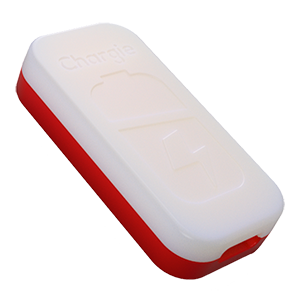
USB-C charge limiter that stops at your set battery level, so your battery never sits at 100% overnight. Extends battery lifespan by years. Works with any USB-C charger.
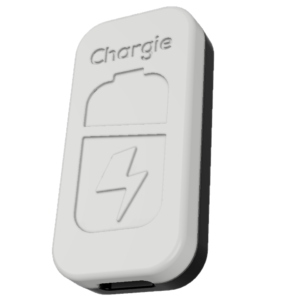
Limit your laptop charge to 80% via USB-C. Works with MacBooks, Dell, HP, Lenovo and most USB-C laptops up to 100W.
Protect Your Battery with Chargie
The world's first hardware charge limiter. Set a charge limit on any phone, tablet, or laptop — extend battery life by up to 4x.