

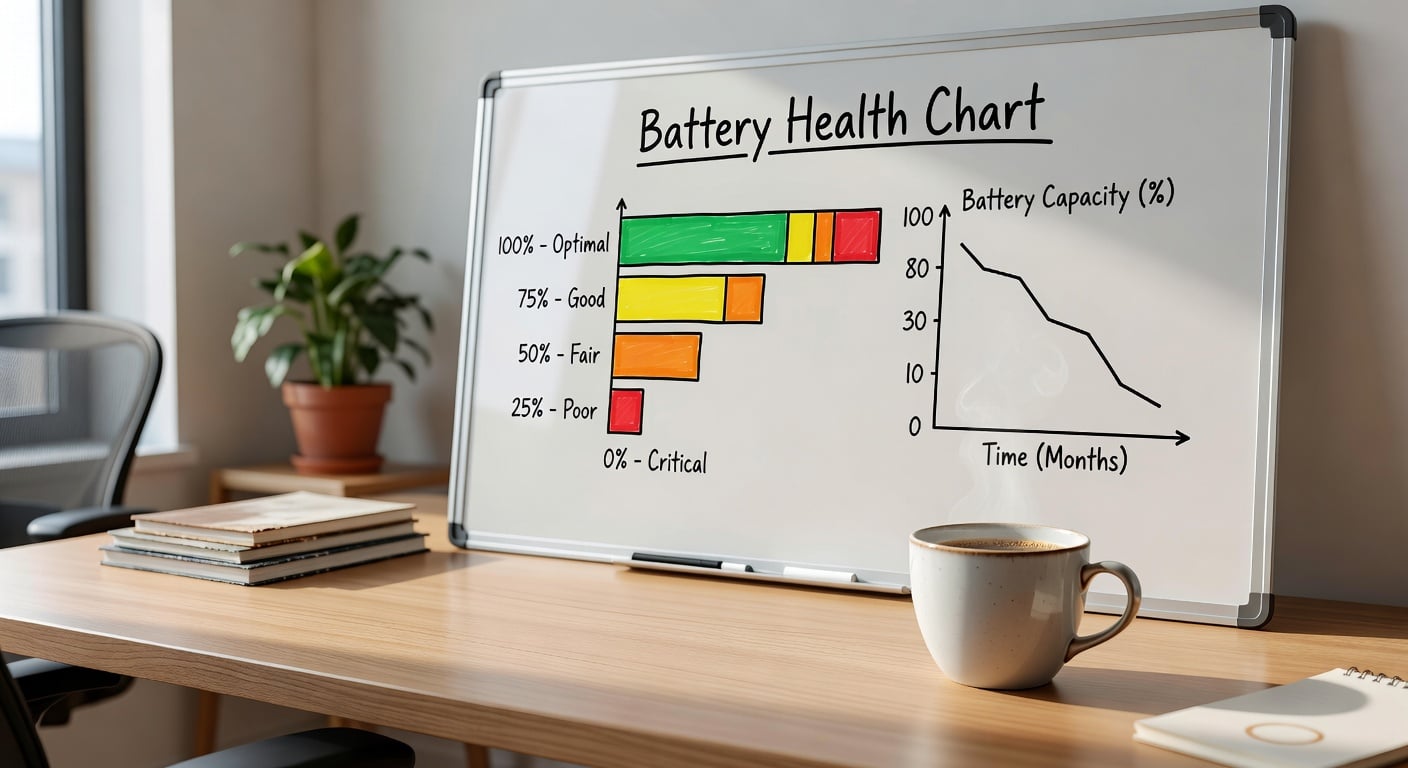
Every iPhone user has watched their Battery Health percentage drop. It starts at 100%. Six months later it is 97%. After a year, 89%. Apple tells you this is normal, but they do not explain what actually speeds it up or how to slow it down. These tips are grounded in lithium-ion battery chemistry, not forum folklore. They work on any iPhone with a removable or sealed battery.
1. Set a Hard Charge Limit at 80% (With Hardware)
The single most effective thing you can do is stop charging at 80%. Not because Apple says so, but because the data says so. Lithium-ion cells experience the highest voltage stress above 80% state of charge. Staying at 100% for hours every night accelerates the chemical degradation that reduces capacity.
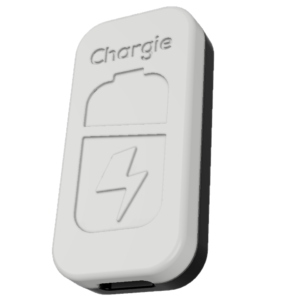
Apple added an 80% charge limit option in iOS 17 for newer iPhones. It is useful, but it is software-only. The phone still draws small currents to maintain the threshold, and the charger stays physically connected. A hardware charge limiter like Chargie cuts power entirely when 80% is reached. It works on any iPhone, including models that do not have Apple’s software option. It also works when the phone is off, in a car, or on a wireless pad.
If you charge overnight, this one change matters more than everything else on this list combined.
2. Avoid Heat Like a Battery Killer
Apple states that iPhones are designed to work at ambient temperatures up to 35°C. What they do not emphasize is that every degree above 25°C ages the battery faster. A study from the University of Michigan and research at Stanford both confirm that temperature is the second-largest degradation factor after high state of charge.
Practical habits:
- Do not leave your phone on the dashboard in direct sun.
- Do not charge inside a thick case. The case traps heat. Remove it or use a thin, ventilated cover.
- Stop charging if the phone feels warm to the touch. The battery is already above 35°C internally.
- Avoid wireless charging on soft surfaces. A pillow or blanket insulates heat.
3. Use Partial Cycles, Not Deep Discharges
There is a myth that you should drain the battery to 0% before charging. This was true for nickel-cadmium cells in the 1990s. It is destructive advice for lithium-ion. Modern batteries prefer shallow cycles. Going from 40% to 80% creates less wear than going from 10% to 100%.
Apple’s own documentation acknowledges this indirectly: “Charge your iPhone whenever it is convenient.” The chemistry supports it. If you have a charger nearby at 60%, plug it in. There is no memory effect to worry about.
4. Remove the Case While Charging
This sounds minor, but it matters. Cases, especially rubber or silicone, act as thermal insulators. During charging, the battery generates heat. The case traps it. A phone in a thick case can run 5–10°C hotter during charging than a bare phone.
If you charge overnight, the simplest free fix is to place the phone case-down on a hard surface with the screen facing up. The back, where the battery sits, gets better air circulation.
5. Use Certified Chargers, Not Cheap Replacements
Off-brand chargers without proper voltage regulation can deliver unstable current. This stresses the battery management system and, in extreme cases, the cell itself. Apple’s MFi certification and USB-IF compliance exist for a reason.
This does not mean you must buy only Apple chargers. Anker, Belkin, and other certified brands are fine. The key is compliance with USB Power Delivery standards and proper thermal design. A $5 gas-station charger is not worth the risk.
6. Do Not Charge Overnight Without a Limit
Leaving a phone at 100% for six to eight hours every night is the fastest way to accelerate calendar aging. The battery is under maximum voltage stress during those hours. If you must charge overnight, use a scheduler or a hardware limiter that stops at 80% and resumes only when you need the phone full.
Our battery science guide explains the voltage-capacity relationship in detail. The short version: 100% is the worst place for a lithium-ion cell to spend time.
7. Keep iOS Updated
Apple refines battery management algorithms with most iOS releases. iOS 17 brought the 80% limit option and improved heat-aware charging. iOS 18 added further optimizations for on-device AI processing that reduce unnecessary background CPU cycles.
Updates are not just for security. They often include battery-related fixes that users never read about in the release notes.
8. Turn Off Unnecessary Location and Background Refresh
These settings drain the battery faster, which means you charge more often. More charge cycles mean more wear. Go to Settings > General > Background App Refresh and disable it for apps that do not need real-time updates. Review location permissions under Settings > Privacy & Security > Location Services. Set most apps to “While Using” instead of “Always.”
The goal is not to micromanage every setting. It is to reduce the number of times you reach for the charger.
What Does Not Work (Ignore These Myths)

- Closing apps manually. iOS manages background apps efficiently. Force-quitting and reopening them uses more energy than letting the system suspend them.
- Draining to 0% monthly. This is holdover advice from older battery chemistries. It causes unnecessary deep cycling on lithium-ion.
- Only using original Apple cables. Certified third-party cables are fine. The danger is uncertified, poorly shielded cables that lack proper power negotiation.
- Storing at 100%. If you are putting an iPhone in storage, charge it to 50%, not full. High SoC during long-term storage accelerates degradation.
Bottom Line
Battery health decline is not inevitable. It is a function of how you charge, how hot the phone gets, and how often you force it to 100%. The habits above cost nothing except the hardware limiter, and they are supported by peer-reviewed research on lithium-ion degradation, not by speculation.
Want proof these habits work over months, not just in theory? See our teardown of an iPhone 13 Pro’s real battery capacity after 8½ months of regular use — a real-world look at how everyday charging shapes long-term battery health.
If you want to automate the most important tip—stopping at 80%—get a Chargie. It works with any iPhone, requires no jailbreak, and cuts power physically rather than relying on iOS settings. For setup instructions, see our iOS app guide.
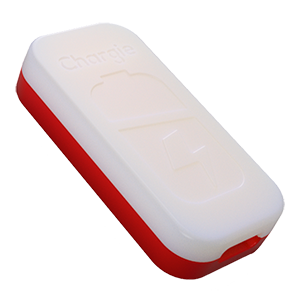
USB-C charge limiter that stops at your set battery level, so your battery never sits at 100% overnight. Extends battery lifespan by years. Works with any USB-C charger.
Limit your laptop charge to 80% via USB-C. Works with MacBooks, Dell, HP, Lenovo and most USB-C laptops up to 100W.
Protect Your Battery with Chargie
The world's first hardware charge limiter. Set a charge limit on any phone, tablet, or laptop — extend battery life by up to 4x.