
You check your iPhone at noon and you’re already at 40%. You haven’t done anything unusual — just the usual morning routine of messages, a few calls, some music. Yet the battery bar is dropping like it’s running a marathon.
If this sounds familiar, you’re not alone. “What’s draining my iPhone battery” is one of the most searched battery questions on the web — and for good reason. Modern iPhones are power-efficient on paper, but real-world battery life depends on a handful of hidden factors that most people never think about.
Here are the seven most common culprits, ranked by impact, and exactly what to do about each one.
1. Background App Refresh (The Silent Drain)
Your iPhone lets apps check for new content in the background — email, social feeds, news, weather. Each check uses a small amount of power. Multiply that by 30–50 apps and it adds up to a significant daily drain.
The fix: Go to Settings → General → Background App Refresh. Turn it off entirely, or disable it for every app except the ones that genuinely need it (messaging apps, navigation). Most apps don’t need background refresh — they’ll update when you open them.
Impact: Can save 5–10% battery per day.
2. Poor Cellular Signal (The Hidden Hog)
This is the one most people miss. When your iPhone has a weak cellular signal, it increases its transmit power to maintain the connection. In a low-signal area — basement office, concrete building, rural area — the phone can use 2–3x more power just staying connected to the network.
The fix: If you’re in a low-signal area, switch to Airplane Mode and use Wi-Fi calling instead. For regular use, check your signal bars: if you consistently see 1–2 bars, your phone is working harder than it should.
Impact: Can account for 15–30% of daily drain in poor coverage areas.
3. Screen Brightness and Always-On Display
The display is the single biggest power consumer on any smartphone. Modern OLED screens are efficient, but high brightness still draws significant power. The Always-On Display on iPhone 14 Pro and later models also uses power — less than you might think, but it adds up over a full day.
The fix: Enable Auto-Brightness (Settings → Accessibility → Display & Text Size → Auto-Brightness). Keep brightness at 50% or lower when indoors. Consider disabling Always-On Display if you don’t use it.
Impact: Reducing brightness from 100% to 50% can double your screen-on battery life.
4. Push Email and Frequent Fetch
Every time your iPhone checks for new email, it wakes the radio, connects to the server, and downloads headers. If you have multiple email accounts set to Push or Fetch Every 15 Minutes, that’s dozens of wake cycles per day.
The fix: Settings → Mail → Accounts → Fetch New Data. Set accounts you don’t need instantly to Manual or Hourly. Keep Push enabled only for your primary account.
Impact: Switching from Push to Manual on secondary accounts can save 3–5% daily.
5. Location Services (The GPS Tax)
Many apps request location access “Always” when they only need it “While Using.” Navigation apps need constant GPS, but weather apps, shopping apps, and social media apps do not. Each location check wakes the GPS radio, which is one of the most power-hungry components on the phone.
The fix: Settings → Privacy & Security → Location Services. Review each app. Set most to “While Using the App.” Set system services (like Location-Based Alerts) to off unless you actively use them.
Impact: Can save 5–8% per day depending on how many apps had Always access.
6. Charging Habits (The Long-Term Drain)
This is the one that doesn’t show up in your daily battery stats but quietly destroys your battery’s maximum capacity over months.
Charging your iPhone to 100% and leaving it plugged in overnight keeps the battery at high voltage for hours. Every night at 100% is a night of accelerated chemical wear. After a year of this, your battery’s maximum capacity drops noticeably faster than if you’d kept it at 80%.
The fix: Use your iPhone’s built-in 80% limit (iPhone 15 and later: Settings → Battery → Charging → 80% Limit). For older iPhones, turn on Optimized Battery Charging. For the best results — and for devices that don’t have a built-in limit — use a hardware charge limiter like Chargie that stops charging at your chosen percentage regardless of the device.
Impact: Proper charging habits can keep your battery above 90% maximum capacity for 2–3 years instead of dropping to 80% in 18 months.
7. Temperature Extremes
Lithium-ion batteries are sensitive to temperature. Heat accelerates the chemical reactions inside the cell, causing faster degradation. Cold temperatures temporarily reduce battery performance (the battery appears to drain faster, but recovers when warmed).
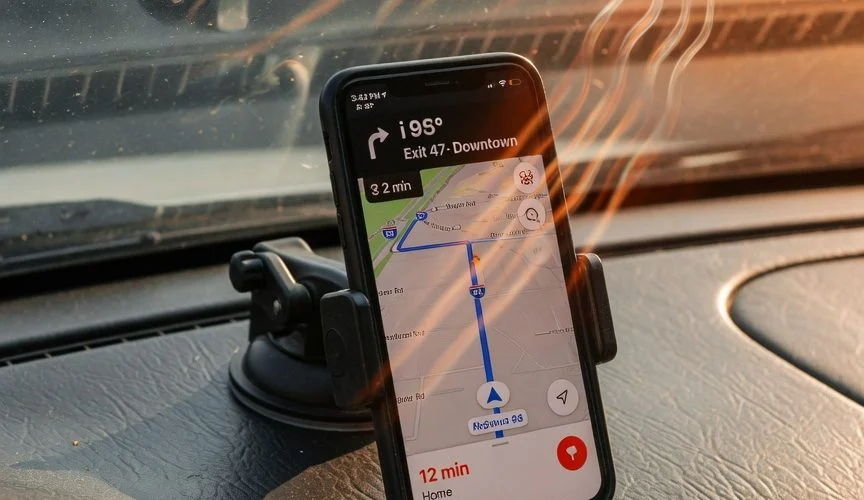
The worst case: leaving your iPhone in a hot car on a summer day. Internal battery temperature can exceed 45°C (113°F), which causes permanent capacity loss in a single afternoon.
The fix: Don’t leave your phone in direct sunlight or a hot car. Don’t charge it while it’s in a hot environment — charging generates heat, and heat + charging is the worst combination for battery health. If your phone feels hot to the touch, remove the case and let it cool before charging.
Impact: Avoiding heat exposure is the single most important thing you can do for long-term battery health.
Putting It All Together: A 5-Minute Battery Optimization Routine
Here’s a quick checklist you can run through right now:
- Background App Refresh → Off for all but essential apps
- Cellular signal → Use Wi-Fi calling in low-signal areas
- Screen brightness → Enable Auto-Brightness, keep below 50%
- Email fetch → Set secondary accounts to Manual
- Location Services → Set most apps to “While Using”
- Charging → Enable 80% limit or use a hardware limiter
- Temperature → Keep your phone out of heat
Doing all seven can extend your daily battery life by 30–50% and double the usable lifespan of your battery.
When to Replace Your Battery
Even with perfect habits, batteries eventually wear out. If your iPhone’s maximum capacity (Settings → Battery → Battery Health) is below 80%, you’ll notice significantly shorter battery life. At that point, a battery replacement is the right call.
Apple charges roughly $89–$129 for an iPhone battery replacement depending on the model. Third-party repair shops (like iFixit-certified technicians) are often cheaper. If your phone is out of warranty and you plan to keep it for another year or two, a new battery is the best value upgrade you can make.
The Bottom Line
Most iPhone battery drain isn’t caused by a single thing — it’s the cumulative effect of several small settings and habits. Background apps, weak signal, high brightness, and poor charging habits all add up.
The good news: most of these are easy to fix in under a minute. And the one with the biggest long-term impact — your charging habits — is also the easiest to change once you know what to do.
Want to protect your battery from the #1 long-term drain? Chargie is a hardware charge limiter that stops charging at 80% automatically — on any iPhone, iPad, or USB device. No software to configure, no settings to remember.
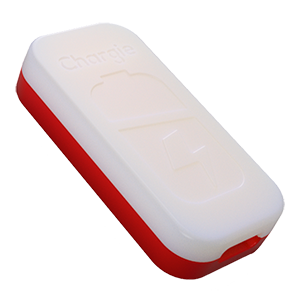
USB-C charge limiter that stops at your set battery level, so your battery never sits at 100% overnight. Extends battery lifespan by years. Works with any USB-C charger.
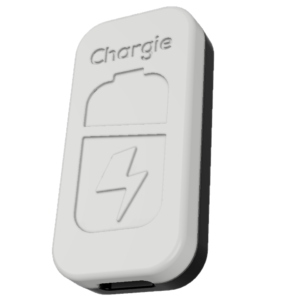
Limit your laptop charge to 80% via USB-C. Works with MacBooks, Dell, HP, Lenovo and most USB-C laptops up to 100W.
Protect Your Battery with Chargie
The world's first hardware charge limiter. Set a charge limit on any phone, tablet, or laptop — extend battery life by up to 4x.