


Your iPhone has had an 80% charge limit since iOS 13. Your MacBook got a usable one in macOS 26.4 (May 2026). That seven-year gap is not a coincidence. Apple knew how to do this; they just didn’t ship it where it mattered most — on a machine that runs hot, sits on a desk, and lives at 100% charge for nine hours a day.
If our guide to limiting battery charge to 80% on any device taught you that heat and high state-of-charge are the two enemies of lithium-ion, your MacBook is doing both, harder, for longer. Let’s fix that.
Why Laptops Are Physically Harsher on Batteries Than Phones
A phone spends most of its life at 40–80% charge, in a pocket, with brief thermal spikes. A MacBook spends most of its life plugged in at 100%, under sustained load, on a desk that doubles as a passive heatsink. The chemistry is identical. The duty cycle is not.
Four differences add up:
- Sustained heat. A MacBook’s chassis is thin by design. The battery sits millimeters from a CPU and a unified memory fabric that idle around 35–45°C and spike past 90°C under compile. A phone in your pocket rarely sees sustained thermals above body temperature.
- Always-plugged duty cycle. Laptops spend more wall-time than pocket-time. Docking stations, clamshell mode with an external display, “I just close the lid for an hour” — all of these are 100% SoC, all day. Lithium-ion degrades fastest at high voltage + high temperature, which is exactly that scenario.
- Higher sustained C-rates. Export a 4K timeline, run a local LLM, compile a Rust workspace — your MacBook pulls 40–60W for an hour. That is a brutal C-rate for a 70Wh cell.
- Bigger cells, bigger swelling risk. A swollen phone battery is a recall. A swollen laptop battery is a warranty claim and, occasionally, a fire. Holding a large pouch cell at 4.2V/cell for months accelerates the gas-generation reactions that cause swelling.
This is why “macbook battery draining fast” is a perennial top search — the hardware is being asked to do something it wasn’t designed to do continuously, and the OS didn’t help.
What macOS 26.4’s Built-In 80% Limit Actually Does (and Doesn't)
macOS 26.4 finally ships a system-level charge limit, and it is exactly what the spec sheet says: a hard cap at 80% (or “Optimized” ranges). It is not a thermal-aware, cycle-aware, workload-aware system. It is a voltmeter that says “stop at 80.” That is a real improvement, and it is also not enough on its own.
What it does:
- Stops charging at the chosen cap and runs on AC passthrough below it.
- Gives you three modes: Off, 80%, and Optimized (a 75–80% adaptive range on Apple Silicon).
- Surfaces cycle count and battery health in System Settings → Battery → Battery Health (since macOS 26.2 the UI is no longer buried in About This Mac).
What it doesn’t do:
- It ignores heat. If your MacBook is thermal-throttling on a render job and sitting at 95°C, the limit will still happily hold you at 80% and let the cell cook.
- It ignores duty cycle. “Plugged in for 8 hours at a desk” looks identical to “plugged in for 20 minutes to top up.” The OS cannot tell, and the cap doesn’t change behavior between them.
- It doesn’t always apply in clamshell mode. Depending on firmware, the limit can be relaxed when the lid is closed and an external display is the primary screen — a common “I’m docked all day” workflow.
- It is macOS-only. Boot Camp, an external Linux live boot, an Asahi install — all of those run the cell at full voltage with no cap.
If your only problem is “I leave my MacBook on the couch and forget to plug it in,” the built-in limit is fine. If your problem is “my MacBook is a desktop replacement and it lives on a dock,” the built-in limit is a band-aid on a structural issue.
What a Proper Laptop Charging Limiter Does
A hardware-level limiter sits between the wall and the battery and decides — independently of the OS — when to charge, when to stop, and what to discharge to. That sounds like overkill until you remember that the OS is also the thing that is wrong about your thermal state half the time.
The Chargie C is the form factor most people will use: a small inline device between the MagSafe/USB-C charger and the MacBook, with configurable floor and ceiling. Concretely, it changes the equation in four ways:
- Temperature-aware throttling. A thermistor on the battery or chassis lets the device back off the charge ceiling when the cell is hot — exactly the situation the macOS cap ignores.
- Custom floor and ceiling. You pick the band. 50–75% is the right band for an always-plugged MacBook or a Mac mini. 80–100% is the right band for a travel day. The OS gives you one number; a proper limiter gives you a range.
- Clamshell + dock friendly. It operates on the electrical side, so the OS never has to agree with you about whether the lid is open.
- Hardware-level, OS-agnostic. macOS, Windows, Linux, Asahi, Boot Camp — the cell sees the same controlled current. If you dual-boot, the limit follows you.
This is also where the laptop world catches up to the playbook the iPhone community has been running for half a decade — and that we’ve already compared head-to-head against macOS 26.4’s built-in limit: stop thinking in “charge to 100% or don’t,” start thinking in “pick a band that matches my duty cycle.” The same principle applies to tablets — see our iPad battery health guide for the tablet-specific numbers. If you’re new to the concept, our explainer on what a USB charge limiter actually does covers the hardware-vs-software difference in detail.
Practical Playbooks
The right cap is not one number; it is a function of how the machine is actually used. Three quick-reference profiles:
MacBook on the Road
- Target cap: 80% for daily use.
- Override to 100% only on travel days (set the night before, or via a one-tap profile).
- Floor: 20%. Let it discharge normally overnight; do not babysit.
- Why: the 80% band is the established sweet spot for lithium-ion longevity per the same 80% limit research that applies across phones and laptops, and the rare full charge handles the long-flight / no-outlet day without range anxiety.
MacBook Always Plugged at a Desk
- Target band: 50–75%. This is what Apple’s internal research recommends for always-plugged cells.
- Charge to 80% when you need to unplug — travel or meeting room without power.
- Never leave it at 100% overnight unless you need the range the next day.
- Why: at 50–75%, lithium-ion calendar aging slows dramatically. A cell at 4.1V degrades roughly half as fast as one at 4.2V.
MacBook for Students and Light Users
- Target cap: 80%. Simple, memorable, and covers 90% of use cases.
- Use the Chargie schedule. Set it to charge from 20% to 80% between midnight and 6 AM; wake up to a battery that isn’t degraded by overnight high-voltage sitting.
- Top up to 100% only on exam days or travel. The difference between 80% and 100% is one extra hour of battery life at most.
Reading MacBook Battery Health: What the Numbers Actually Mean
macOS 26.2 moved battery health out of About This Mac and into System Settings → Battery → Battery Health. Here’s what to look for:
- Maximum Capacity below 80% triggers a Service Battery warning — that’s a real threshold, not a suggestion.
- Cycle Count matters less than calendar age for always-plugged Macs. A MacBook with 200 cycles but four years of desk use may have more calendar aging than one with 400 cycles of active travel use.
- Significant Battery Events (Apple Silicon, macOS 26) logs anomalies. Repeated thermal events at full charge are what to look for.
The Bottom Line
MacBook batteries degrade faster than phone batteries because the machine is used differently — not because Apple made a worse battery. The fix is the same fix that has worked for EV batteries for a decade: keep the state-of-charge in the 40–80% band as much as possible, avoid sustained heat at high voltage, and do not leave the machine at 100% as a permanent resting state.
macOS 26.4’s built-in 80% limit is a meaningful improvement, but it is thermal-unaware, duty-cycle-unaware, and OS-locked. A hardware USB-C charge limiter — temperature-aware, custom-band, OS-agnostic — is the only tool that addresses all four structural problems at once.
Frequently Asked Questions
Why does my MacBook battery drain faster than my iPhone?
MacBooks run hotter, stay plugged in longer, and sustain higher C-rates than phones. A laptop sits at 100% charge on AC for hours while processing CPU-intensive tasks; the combination of high state-of-charge and sustained heat is the primary driver of lithium-ion degradation. A phone in your pocket rarely faces both at once.
Does macOS 26.4’s built-in 80% limit fully protect my MacBook battery?
It helps, but it is not enough on its own. The system charge cap stops charging at 80% — a real improvement. What it does not do is manage thermal conditions, adapt to your duty cycle, or cut power passthrough when the battery is already full and the MacBook is running hot on AC. A hardware-level limiter like Chargie complements the OS cap by controlling current at the adapter level, independent of software and OS state.
Can Chargie limit my MacBook’s charge to 80%?
Yes. Chargie works at the power-adapter level — it monitors charge via the app and cuts current once the battery hits your set limit, regardless of which OS you run. It works on any USB-C-charged MacBook and does not depend on macOS software settings, making it a reliable fallback for older macOS versions and a complement to the new built-in cap on macOS 26.4.
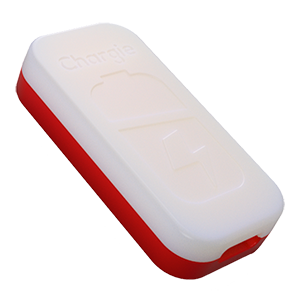
USB-C charge limiter that stops at your set battery level. Prevents overnight overcharging to extend battery lifespan by years. Works with any USB-C charger. (≈ $30 USD / €26 EUR)
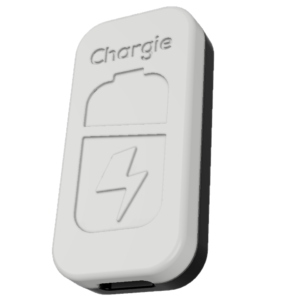
Limit your laptop charge to 80% via USB-C. Works with MacBooks, Dell, HP, Lenovo and most USB-C laptops up to 100W. (≈ $50 USD / €44 EUR)
Protect Your Battery with Chargie
The world's first hardware charge limiter. Set a charge limit on any phone, tablet, or laptop — extend battery life by up to 4x.