
You plug the charger in. The cable looks fine. The brick looks fine. The port looks fine. And nothing happens.
That “looks fine but doesn’t charge” moment is the usual reason people search why is my charger not working — not a dead phone. Work the chain in order: wall, cable, port, adapter, then the device. Each step takes about 30–60 seconds. Stop at the step that fails. Do not buy a new charger until you know which part actually failed.
No special tools. One known-good spare cable or adapter, if you have one, makes the swap tests faster. If you don’t, a computer USB port and a lamp still get you most of the way.
Charger issues often stem from battery stress caused by overnight 100% charging. Chargie stops charging at any level you set.
Find the right Chargie →The 5-Step Charger Diagnostic Flow
Treat charging as a chain, not a mystery. Power leaves the wall, travels through the adapter, the cable, the port, and only then into the battery and the software that reports the percentage. Change one variable at a time. If you swap the cable and the adapter together, you will not know which one was dead.
Work wall → cable → port → adapter → device. Thirty seconds per hardware step. A minute on the port and on the phone. If a step reveals the fault, stop. The rest of this page is for when that step is not obvious — intermittent charging, hidden cable breaks, and battery vs charger.
| Step | What you are testing | Pass | Fail → do this |
|---|---|---|---|
| 1. Power source | Wall outlet, power strip, GFCI | A lamp or radio turns on in the same socket | Reset the strip / GFCI, or move to another outlet |
| 2. Cable | The cord only (keep the brick the same) | A known-good cable charges on the same brick | Replace the cable. Inspect for hidden internal breaks |
| 3. Port | Phone/tablet socket: lint, fit, moisture | The plug seats fully and stays seated | Clean with wood/plastic only; if loose, repair — do not force |
| 4. Adapter | The wall brick (keep the good cable) | A known-good brick charges with that cable | Replace the brick if it is hot, noisy, or handshake-fails |
| 5. Device | Software, heat, battery health | Force-restart / update / cool-down restores charging | Battery or port hardware — see the comparison table below |
Step 1 — Check the Power Source (30 seconds)
Unplug the charger. Plug a lamp, radio, or any small appliance you already trust into the same socket. If that stays dark, the charger is not the problem. Check the room breaker. If you are on a power strip, confirm the master switch and press the reset button if it has popped. Kitchen and bathroom sockets are often GFCI — the TEST/RESET pair on the outlet itself can trip and kill power without killing the rest of the room.
While you are at the wall, push the adapter all the way in. A brick sitting half-out of a worn socket will look “plugged in” and deliver nothing. Unplug and reseat the USB cable in the brick as well; that joint loosens every time the cord gets tugged.
If the lamp works and the brick is seated, the wall is cleared. Move on. Do not keep testing outlets until you have tested the cable.
Step 2 — Inspect the Cable (30 seconds)
The cable is the part that bends, gets sat on, and lives in pockets. It is also the part that dies with no drama on the outside. Look along the full length, especially the last two centimetres at each connector: frays, sharp kinks, a connector that wiggles in its strain relief, green or yellow discoloration on the metal (corrosion). Bent pins on USB-A or a USB-C plug that no longer sits square are enough on their own.
Then do the swap. Leave the original adapter in the wall. Put a cable you know charges another device onto that same brick. If the phone charges, the original cable is finished — even if it “looks fine.” That internal-break case is covered in its own section below, because it is the second-most-clicked query on this page and the live article never named it.
No spare cable? Plug the original cable into a computer USB port. A laptop port is a weak charger, but it is a different power source. If the phone shows a charging icon on the computer and never on the wall brick, you have isolated the brick. If it fails on both, stay with the cable or the port — do not blame the adapter yet. Cable wear also shows up later as slow charging and heat; the longer version of that story is on our guide to charging cable wear and battery health.
Step 3 — Check the Charging Port (60 seconds)
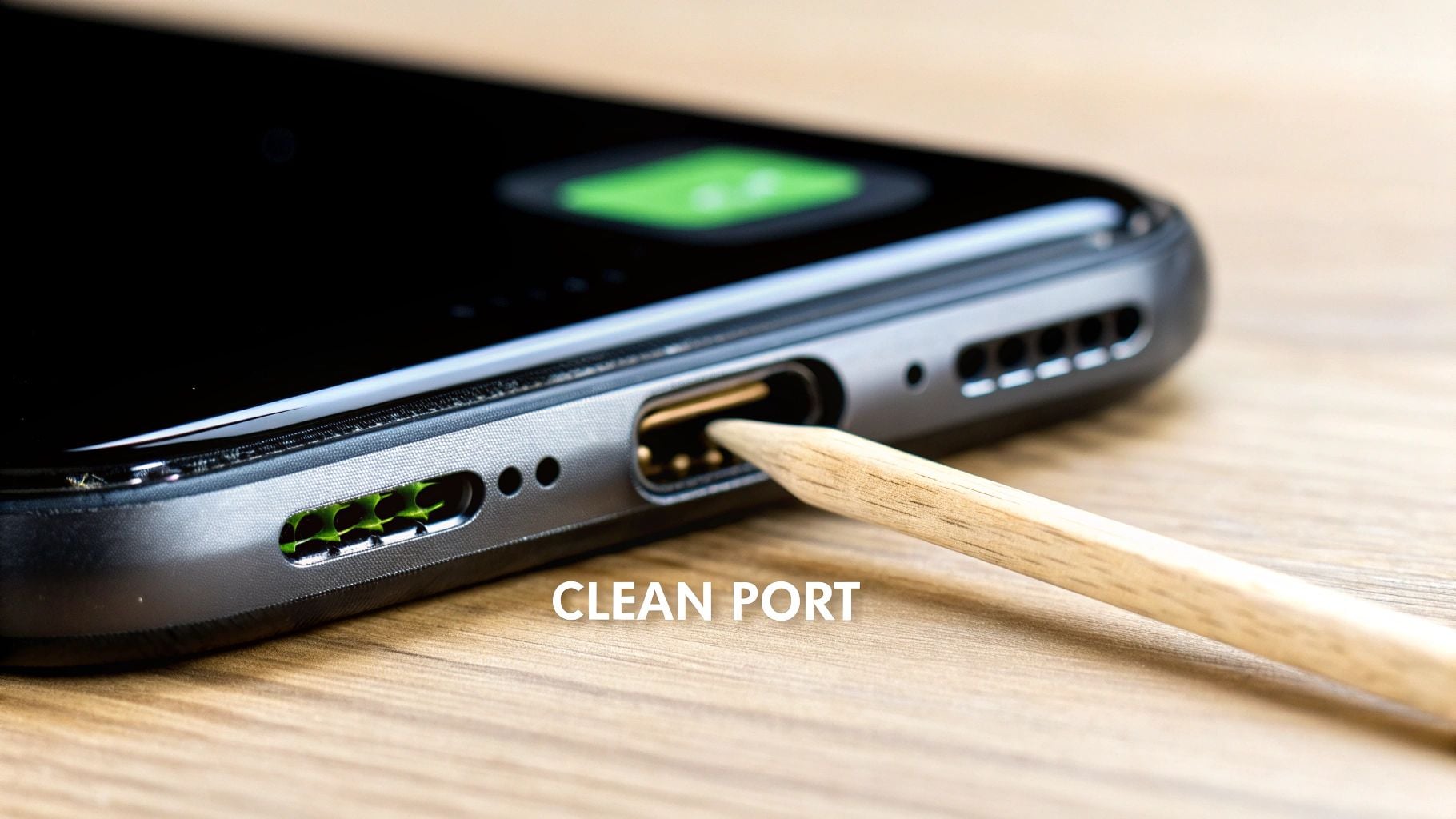
Pocket lint packs into a USB-C or Lightning port until the plug cannot reach the contacts. From the outside it still “goes in.” The cable sits a millimetre proud, the connection is intermittent, and you start holding the phone at a magic angle. Shine a light in. Grey felt is lint. Green or white crust is moisture damage — stop cleaning and read the corrosion note below.
Never put metal in the port. A paperclip or pin can short the contacts or peel the tiny springs that make USB-C work. Power the phone off. Use a wooden or plastic toothpick, a dry soft brush, or short bursts of compressed air. Scrape gently along the floor of the port to lift the packed lint, then tip the phone so debris falls out. Power on and plug in. You should feel the plug seat deeper than it did this morning.
If the plug still wobbles, does not go all the way in, or only charges when you hold it, the port itself may be loose or the board-side socket is damaged. That is a repair, not a new charger. Forcing a thicker cable into a damaged port makes it worse. The dedicated walkthrough is how to fix a broken charger port. If you see crust on the contacts, that is a different failure — how to fix battery corrosion.
Step 4 — Test the Power Adapter (30 seconds)
Keep the cable that just passed. Put it on a different wall adapter you trust. If the phone charges, the original brick is the fault. If it still does not, the brick was never the problem — go to the device.
Replace the adapter immediately if it is too hot to hold, smells like hot plastic, or buzzes / whines. Those are internal failures, not “it is working hard.” A silent, cool brick that charges a speaker but not your phone is usually a handshake miss, not a dead brick: USB Power Delivery and Quick Charge need the charger, cable, and phone to agree on a voltage. A 5 W cube will light a Bluetooth speaker and starve a modern phone. That is compatibility, not a broken charger — more on that under the handshake FAQ.
A brick that works on one phone and not another is the same story. Do not throw it out until you have tried a known-good cable on both devices. Charger quality and heat also feed battery wear over years; the hardware side of that is in why your GaN charger matters for battery health. Laptops are pickier about wattage than phones — see how many watts are needed to charge a laptop.
Step 5 — Check the Device: Battery and Software (60 seconds)
Hardware can be fine and the phone still refuse to charge. Work these in order before you assume a dead cell.
- Force-restart. A frozen charging process is more common than a broken charger. iPhone 8 and newer: Volume Up, Volume Down, then hold Side until the Apple logo. Most Androids: hold Power and Volume Down 10–15 seconds. Laptops: hold the power button 15–30 seconds, then power on. This does not wipe data. It resets the power-management path.
- Update. Android: Settings → System → System update (or Software update). iPhone: Settings → General → Software Update. Power-management bugs ship in OS updates; sitting on an old build is a real charging failure mode.
- Safe Mode (Android). If a restart and an update do nothing, boot Safe Mode so third-party apps are off. If it charges in Safe Mode, uninstall recent apps one at a time until the fault returns.
- Heat. Phones pause charging when they are hot. Case off, out of the sun, ten minutes. Then plug in again.
- Skip the laptop USB port as a daily charger. Those ports trickle. A phone that is on and in use can drain faster than the port supplies. Use a wall adapter for the test.
If the percentage is dropping while the lightning bolt is on, you are looking at a weak source, a worn cable that only half-connects, or a battery that can no longer take charge. Check battery health before you buy another brick: iPhone is Settings → Battery → Battery Health & Charging (Maximum Capacity under 80% is the usual “replace soon” line). Android varies — Samsung Members has the detailed readout; other skins put a basic health line under Settings → Battery. The full walkthrough is how to check your phone’s battery health.
This is the only step where Chargie belongs. If the cell is worn from sitting at 100% for hours, a new cable will not fix the curve. Chargie is a hardware USB charge limiter: it cuts power at the percentage you set so the battery is not held at full overnight. The Chargie app is where you set that limit and read cycle-count style data the phone already tracks. It does not diagnose a dead wall outlet or a linted port — finish steps 1–4 first.
Intermittent Charging — When It Works, Then Stops
The phone starts charging, then drops. Or it only charges if you hold the cable. Or the icon flickers. That is not “a bit flaky.” It is a different failure from a charger that does nothing at all, and it is the cluster this URL currently ranks for without ever explaining.
Work the list in this order. The first two are physical. The last three are electrical and thermal.
- Internal cable break at one angle. The conductor is cracked inside the jacket, usually at the strain relief. At 0° it connects; at 15° it opens. Swap the cable before you open the port. If a second cable is rock-solid at every angle, stop — the original cable is done.
- Lint that almost seats. Debris thick enough to interrupt, thin enough that the plug still “goes in.” You get charge, then a bump disconnects it. Clean as in Step 3. If the plug still rocks after a clean, the port is loose — that is the broken-port article, not a new charger.
- Thermal throttle. Fast charging dumps heat. The phone hits a temperature cap and pauses, then resumes when it cools, which looks like “charging and then stopping.” Take the case off. If the cycle follows heat, it is protection, not a broken brick.
- Failing adapter capacitor. A tired brick can deliver power in bursts. You see charge, drop, charge. Buzzing, extra heat, or a brick that only works after it “warms up” belongs here. Replace the adapter. Do not keep using a noisy one.
- Handshake renegotiation. Cable, brick, and phone cannot agree on a PD/QC profile, so they drop, retry, drop. Classic with a fast-charge brick on a charge-only cable, or a cable that does data on one phone and not another. Fix: certified cable rated for the wattage, then a matching adapter. One change at a time.
If it connects and disconnects in a loop, do not ignore it. Repeated connect storms wear the port and confuse the battery gauge. Isolate cable vs port with a known-good cable, then stop using the bad side.
“It Looks Fine But Doesn’t Work” — Hidden Causes
This is the second-biggest query family pointing at this URL: the charger looks undamaged, the phone looks undamaged, and there is still no charge. Visible damage is the easy diagnosis. These are the ones that waste an afternoon.
- Internal cable break with an intact jacket. The most common “looks fine” failure. The copper fatigues at the bend. There is no fray to photograph. The swap test in Step 2 is the diagnosis. There is no repair worth doing on a consumer USB cable — replace it.
- Micro-debris in the port. Not a felt plug of lint. A film of dust or a single fibre sitting on a data/power pin. Enough to break the handshake so the phone never leaves “connected” for “charging.” Clean, then reseat firmly. Do not blow into the port with your mouth; moisture is the next item.
- Adapter that died internally. No scorch marks. No smell yet. A capacitor or switching chip has opened. The brick looks new. Swap the brick with the good cable still attached. If a second brick works, the original is scrap even if it looks perfect.
- Moisture detection. Many phones silently refuse to charge when the port humidity sensor trips — sometimes with a Liquid Detected alert, sometimes with nothing but a dead icon. Unplug. Port down, tap against your palm. Air-dry for hours. No hairdryer. No rice as a plan (it does not pull water out of a USB-C cavity in a useful way, and starch gets in the port). Wait until the warning clears, then try a known-good cable.
- Software reporting the wrong state. The UI shows the bolt, the number does not move — or the UI shows nothing while a meter would show current. Force-restart first. Then a different cable. A gauge that lies after a restart is closer to battery health than to the charger.
Random dropouts with no pattern usually collapse into one of the five once you stop changing two things at once. Write down what you swapped. The chain only works if you can say which single change fixed it.
Is It the Charger or the Battery? How to Tell
A worn cell and a weak charger share symptoms: slow charge, surprise shutdowns, heat. The table is the same one already on this URL because it is the fastest way to pick a lane. Use it after the five steps, not instead of them.
| Symptom | Likely a charging issue if… | Likely a battery issue if… |
|---|---|---|
| Device won’t turn on | It shows a charging icon when plugged in but won’t power up. | The device is completely dead, even on a charger you already tested on another phone. |
| Shuts down unexpectedly | It only happens when the battery level is very low (1–2%). | It shuts down at 20% or 30% left. |
| Gets hot | It only warms while fast charging, then settles. | It runs hot during light use, or hot while idle. |
| Charging is slow | It charges normally with a different cable or adapter. | Every charger you try is slow. |
| Phone case / screen bulging | Never a charger symptom. | Any swelling. Stop. Do not charge. This is a safety warning, not a troubleshooting step. |
Swelling is the line you do not cross. Screen lifting, a case that no longer sits flush, a device that rocks on a table — power it down, do not plug it in, take it to a shop that handles swollen cells. Heat and high charge voltage are what age lithium-ion fastest; the chemistry write-up is temperature and charging rate vs battery degradation.
If every charger is slow and health is under 80%, you are not shopping for a brick. You are looking at a cell that cannot take current the way it did when it was new.
When to Replace Your Charger (and What to Buy Instead)
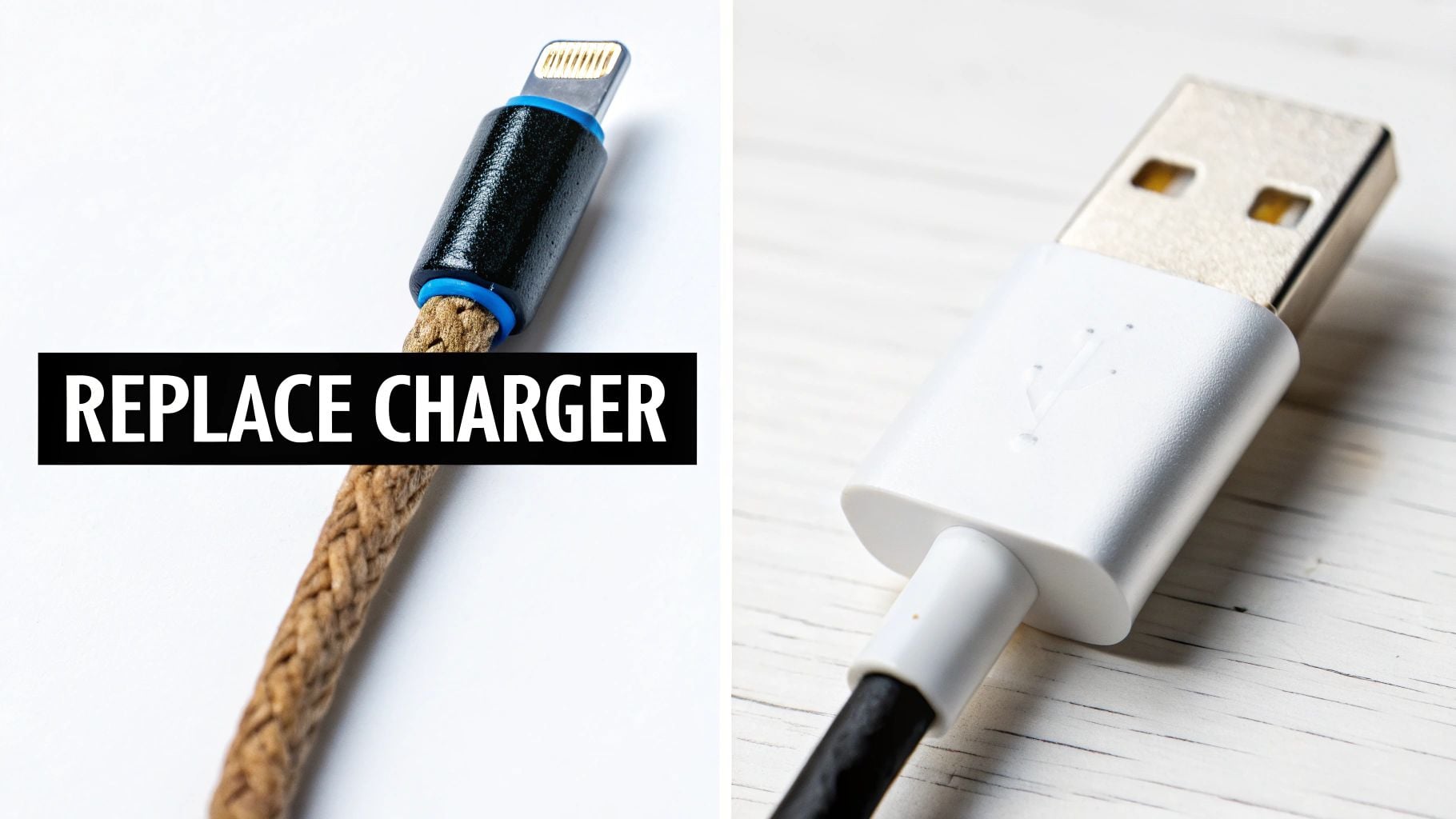
Lint is a clean. A software glitch is a restart. These are not:
- Frayed or exposed conductors. Once the jacket is open, the cable is a shock and fire hazard. Tape is not a repair.
- Burning-plastic smell or a brick too hot to hold. Internal parts are failing. Unplug. Bin it.
- Buzzing or whining from the adapter. It should be silent. Noise is a failing transformer or coil, not a personality.
- Bent, wobbly, or broken connector. That tip will wreck the port on the phone — a more expensive part than the cable.
When you replace, skip uncertified no-name cubes. They skip surge and temperature protection. The failure mode is not always “it dies.” Sometimes it overheats the phone’s charge path and you buy a battery a year early. Buy a certified cable rated for the wattage your phone actually uses, and an adapter from the phone maker or a brand that publishes PD profiles. Quality here is also less waste — how to reduce electronic waste.
Match the adapter to the device. A 5 W brick on a 45 W phone will “work” in the sense that a bolt appears. It will not fill the battery at a useful rate, and people call that “broken.” It is undersized. GaN adapters are smaller for the same wattage and run cooler in the same socket; cooler charging is easier on the cell over years — again, GaN chargers and battery health.
See what your charger is actually delivering. A 66W USB-A to USB-C smart cable with a built-in power display shows live wattage at the plug — the quickest way to tell a healthy charger from an undersized one. On a Lightning iPhone, use the 30W USB-C to Lightning version; for USB-C to USB-C, the 100W model.
Wait — Why Isn’t This Charger Working
A drawer full of cables is not a drawer full of equivalent parts. Fast charging needs the adapter, the cable, and the phone to complete a digital handshake on how much power to send. If any one of the three cannot speak the profile, the system falls back to the slowest safe rate — or to nothing. That is a safety behaviour, not a defect. It is why a cheap cable on a fast brick crawls, and why an old 5 W cube will run a speaker and starve a current phone.
USB-C is a shape, not a spec. Charge-only cables, cables with thin conductors, and cables with no e-marker chip will all physically fit and still bottleneck a 30 W+ adapter. Use a cable rated for the wattage, then blame the brick. One variable at a time — same rule as the diagnostic flow.
FAQ — Charger Not Working
Short answers for the queries this page already ranks on, plus the three long-tails the current FAQ never named.
Can a charger just die?
Yes. Adapters die from surges and from heat-aged parts inside the brick. Cables die when an internal wire snaps after enough bends. You will not always see damage. A charger that worked yesterday and does nothing today is usually that — confirm with the swap tests in Steps 2 and 4 before you replace both.
Why does my charger work on one device but not another?
Handshake and wattage. The charger and the device have to agree on a voltage and current. If they cannot, the safe outcome is no charge, or trickle charge. An old 5 W adapter will run a small speaker and fail to feed a modern phone. The adapter is not broken. It is out of spec for that device. Try a certified adapter that lists the phone’s fast-charge standard, on a cable that can carry it.
Why isn’t the percentage going up when my phone says it’s charging?
The source is supplying enough current to light the icon and not enough to outrun what the phone is using. Move off a laptop USB port and onto a wall adapter. Replace a frayed cable that only half-connects. Force-restart if the number is frozen. If every wall charger does this, read battery health — a worn cell will sit on the bolt and not climb. That also changes how long it takes for your phone to charge.
Why does my phone only charge when I wiggle the cable?
Physical damage. Either the cable is broken internally at that angle, or the port is loose. New certified cable first. If the wiggle remains, the port needs a technician — do not keep using the magic angle; it finishes the socket. Same family as Step 3.
Can I charge my phone if the charging port is wet?
No. You risk a short that kills the port or the board. If you get a moisture warning: unplug, port down, tap out droplets, air-dry for hours. Cool fan is fine. Hairdryer is not. Cotton swabs leave fibres. Do not charge until the warning is gone.
Can a cheap cable really damage my phone?
Yes. Uncertified cables often skip the parts that limit current and handle faults. The failure is heat in the port and stress on the battery, not a dramatic spark every time. Manufacturer or certified third-party is the cheaper path over a year.
Does fast charging damage my battery?
The damage path is heat, not the word “fast.” Modern fast charge is designed to taper. It still runs warmer than a slow overnight charge. For a session where you are not in a hurry, a standard charger is gentler. Sitting at 100% for hours is a bigger long-term factor than a single fast-charge session.
Is it bad to leave my charger plugged in 24/7?
The empty brick on the wall draws a little phantom power. That is a bill, not a charger-killer. The actual battery problem is the phone left at 100% overnight. Holding a lithium-ion cell at full charge is what ages it. If the phone has Optimized / Adaptive Charging, turn it on — it holds around 80% and finishes to 100% before you usually wake. That is software doing a weaker version of a hardware charge limit.
Why does my charger keep connecting and disconnecting?
Intermittent contact. Start with a different cable. If the loop follows the cable, replace it. If it follows the phone, clean the port; if the plug still rocks, the port is mechanically bad. Handshake mismatch (fast brick + charge-only cable) can also renegotiate in a loop — match cable rating to adapter wattage. See the Intermittent Charging section above rather than buying a third brick.
Why is my charger not working even though it looks fine?
Because the failure is usually inside the jacket, inside the brick, or under a film of debris you cannot see without a light. Swap the cable, then the brick, then clean the port. Moisture detection and a confused charge gauge are the other two “looks fine” causes. The dedicated section above is the full list — this FAQ exists so that query can land on a heading.
Why is my charger suddenly not working?
Yesterday’s cable can be today’s open circuit. A GFCI or strip can trip overnight. A software update can leave power management in a bad state until a force-restart. A brick can fail in one evening after months of heat. Run Step 1 on the outlet first so you do not replace a good charger because the kitchen socket tripped. Then cable, then port, then brick, then restart. Sudden is still the same chain — it just feels more personal.
If the five steps cleared the charger and the cell is the part that will not hold a day anymore, stop shopping for cables. Overnight 100% is the wear you can actually control. Chargie cuts USB power at the limit you set so the battery is not parked at full until morning, then you can top up when you need the last stretch. That is hardware, not another software toggle the OS can ignore. Start with the Chargie charging limiter, or see how to limit battery charge to 80% on the devices you already own.
USB-C charge limiter that stops at your set battery level, so your battery never sits at 100% overnight. Extends battery lifespan by years. Works with any USB-C charger.
Protect Your Battery with Chargie
The world's first hardware charge limiter. Set a charge limit on any phone, tablet, or laptop — extend battery life by up to 4x.