

Mobile Hotspot Battery Health: Should You Leave It Plugged In?
TL;DR: A portable hotspot used at a desk needs a different charging routine from one carried on a trip. Check your exact model’s instructions before leaving its battery connected continuously. NETGEAR’s Nighthawk M6 manual explicitly recommends removing the battery and using Plugged-In Mode for fixed use. That advice is model-specific, not permission to open a sealed hotspot. Start with the supported power setup, good ventilation and reliable reception—not a generic charging accessory.
Your mobile hotspot may have become your home internet connection almost by accident. It worked during a broadband outage, so you left it beside the laptop. Now it spends its days connected to a charger, streaming meetings and supplying Wi-Fi to everything nearby. The battery still makes it portable, but portability is no longer its main job.
This guide focuses on that mismatch: a travel device doing permanent router duty. The practical question is not simply whether charging is bad. It is whether your particular hotspot supports a better desktop configuration, and what you give up when you choose it.
Start with the difference between runtime and battery health
Runtime means how long the hotspot operates between charges. Battery health concerns the battery’s longer-term condition. A shorter afternoon of Wi-Fi does not, by itself, prove that the battery needs replacement. You may have changed the workload, reception, screen settings or number of connected devices.
The NETGEAR Nighthawk M6 and M6 Pro manual, page 81, lists screen brightness, standby time, data throughput, mobile broadband signal strength and Wi-Fi range as factors affecting battery life. It specifically notes that better mobile signal means longer battery life. Those variables matter when comparing today’s runtime with what you remember from another location.
For a useful comparison, repeat a familiar workload in the same place with similar settings. Record the starting charge, approximate duration and any temperature warnings. Treat that as an observation, not a laboratory capacity measurement. Our guide to checking battery health provides broader context, but do not assume a hotspot offers the same diagnostics as a phone.
Can you leave a mobile hotspot plugged in?
There is no responsible universal answer for every MiFi, mobile router and carrier-branded hotspot. Look up the exact model number, not just the brand. A removable battery, a USB-C socket and a desktop-looking case do not establish support for continuous battery-free operation.
For the M6 family covered by the cited manual, the answer is unusually clear. Page 14 advises unplugging once fully charged rather than leaving the device connected overnight or for long periods. For fixed use, it directs owners to remove the battery and use Plugged-In Mode. Pages 15–16 explain that configuration. Follow those instructions rather than replacing them with a generic internet rule about keeping every device at a particular percentage.
The manual uses the term “overcharging.” That wording is not evidence that every modern hotspot continuously forces charge into a full cell. The useful, actionable point is the manufacturer’s recommended operating arrangement. We do not need to speculate about its charging circuitry to follow it.
If your model’s documentation does not mention battery-free operation, ask its manufacturer or carrier. Do not force a sealed enclosure open, improvise battery contacts or assume that instructions for an M6 apply to a different Nighthawk generation.
Choose the setup that matches the job
| Your situation | Starting approach | Important trade-off |
|---|---|---|
| Travel with no dependable outlet | Follow the manufacturer’s travel charging instructions | Useful runtime takes priority over a desktop routine |
| Fixed desk use with documented battery-free support | Use the approved plugged-in configuration and power supply | A removed battery cannot provide backup during loss of external power |
| Fixed use without documented battery-free support | Ask the manufacturer about continuous operation | Do not infer compatibility from the USB connector |
| Charging pauses with a heat warning | Reduce load and improve placement; follow the warning | Forcing a full charge is not the troubleshooting goal |
| Shorter runtime without warnings | Compare reception, workload and settings before blaming capacity | A single runtime observation is inconclusive |
Think about outages before choosing the desktop option. Removing the battery also removes that battery as an energy source. If uninterrupted internet matters for your work, plan an appropriate supported backup arrangement separately. Do not discover the trade-off during an important call.
Likewise, avoid turning a travel charger into an experimental power system. NETGEAR recommends the included USB cable and adapter for fixed use, warning that alternatives can cause improper operation or error messages. A connector that fits is not enough to establish that the entire power path is suitable.
What M6 Plugged-In Mode actually involves
The manual describes removing the rear cover and battery, connecting the hotspot to its USB power adapter and using wall power. Its thermal-management guidance on page 80 also recommends leaving the rear cover off in this configuration for cooling. That last detail is specific to the documented device: it is not general advice to remove covers from other electronics.
Before changing your setup, read the instructions for your own model and arrange a moment when an interruption is acceptable. Keep the removed battery protected and follow its storage and handling guidance. Do not leave loose contacts against keys or other conductive objects. If the enclosure or battery appears damaged, stop and seek manufacturer guidance instead of treating removal as routine maintenance.

Plugged-In Mode is also an operating mode, not merely an empty battery compartment. The manual describes changes to coverage and, on M6 Pro models, Ethernet capabilities. Exact features depend on model and region. For battery care, the important distinction is that the battery is no longer sitting inside the operating hotspot.
Do not translate that into “the router cannot overheat anymore.” The same manual still describes thermal performance reductions and protective shutdowns in battery-free mode. Removing the battery changes the configuration; it does not remove the need for sensible placement.
Fix heat before chasing a perfect charge percentage
Pages 79–80 of the M6 manual explain that rising temperature can reduce performance and eventually shut the device down. In battery-powered mode, thermal responses can include slower charging, stopped charging and restricted cellular operation. A hot device that will not reach full charge may therefore be protecting itself rather than displaying a broken battery gauge.
For the devices covered by that manual, NETGEAR specifies an ambient operating range of 0–35°C. Ambient air temperature is not the same as an internal battery sensor reading. Do not use that range as a universal limit for other hotspots, or assume that being inside it guarantees ideal conditions under every workload.
Place the hotspot on an open, hard surface. The manual advises against beds and couches because they can trap heat and obstruct airflow. Keep it out of direct sunlight and avoid running it inside a closed bag. A convenient windowsill may be a poor compromise if sunlight heats the device while you work.

Reduce simultaneous connections and heavy transfers when heat becomes a problem. NETGEAR also recommends current firmware because updates can include thermal-management improvements. Our summer battery heat guide offers related habits for phones, but the hotspot’s own warnings and instructions remain the authority for this device.
Reception is part of your battery routine
A hotspot’s location affects more than convenience. Since the M6 manual identifies mobile signal strength as a runtime factor, moving the device can be worth testing before buying a replacement battery. Try a few safe, shaded positions while comparing reception and the stability of your normal connection.
Change one thing at a time. If you move the hotspot, lower screen brightness and stop several downloads together, you will not know which adjustment helped. A simple note about location, activity and warnings is more useful than repeatedly watching the percentage fall without context.
Do not buy an antenna solely because another owner recommends one. The manual includes model-specific antenna guidance and warns that an external antenna can sometimes reduce reception through interference. Check compatibility and the manufacturer’s conditions first. Battery care should not become an excuse for accumulating accessories that solve a different problem.
Where charge limiters fit—and where they do not
Chargie readers naturally ask whether a USB charge limiter is the answer. For a hotspot, start one step earlier: does the manufacturer support the intended charging path, and how would the accessory know when to interrupt power? A USB socket alone does not establish charge-percentage reporting, app compatibility or reliable unattended control.
This article does not claim that Chargie can read or control the battery percentage of these hotspots. Nor does it recommend putting a switching accessory in the power path of a battery-free router. In that configuration, interrupting external power can interrupt the connection itself.
For background, read what a USB charge limiter does and our discussion of battery charge limiters. Our guide to the reasoning behind charge limits addresses the broader topic. None of those pages replaces model-specific instructions for fixed hotspot operation.
The practical recommendation here is deliberately conservative: use a documented built-in desktop mode before considering an unverified accessory. Where that mode is unavailable, get a clear answer from the manufacturer rather than experimenting on the connection your household relies on.
A short routine before your next trip
If the hotspot usually lives on a desk, prepare it for travel before departure day. Refit a user-removable battery only according to the manual, check the enclosure and cable, and confirm that the device operates normally away from wall power. Allow enough time to investigate a warning instead of discovering it at the station.
The cited M6 manual recommends fully charging before travel. That is a useful reminder that battery-care advice must serve the actual task. A charge target that leaves you without internet halfway through a journey is not automatically the better decision.
Inspect rather than improvise if the battery or cover changes shape. Do not press a distorted cover flat or continue testing a visibly swollen pack. Follow manufacturer support and appropriate local disposal guidance; our overview of battery swelling explains why a physical change deserves attention. A replacement should match the manufacturer’s requirements, not merely fit inside the space.
FAQ
Leaving it connected and removing the battery
Can I leave my hotspot plugged in all day? Check the exact manual. For the M6 family cited here, NETGEAR recommends battery removal and Plugged-In Mode for fixed use rather than leaving the installed battery connected for long periods. Other models may have different instructions.
Can every hotspot run without its battery? Do not assume so. This guide establishes that configuration only for the documented M6 family. A removable pack is not proof that battery-free operation is supported, and a sealed pack should not be opened to imitate it.
Heat warnings and disappointing runtime
Why does charging stop before the battery is full? Temperature can be a reason. NETGEAR documents charging reductions and pauses as thermal responses. Check warnings, ventilation and workload rather than repeatedly reconnecting the charger to force charging.
Does shorter runtime mean the battery is worn out? Not necessarily. Reception, data traffic, display settings and Wi-Fi range can affect runtime. Compare similar conditions first, then ask support about diagnostics or replacement if the problem persists.
Charge limits and travel preparation
Should I use a USB limiter with my hotspot? Only consider accessories whose compatibility and operating method are established for your setup. This article does not verify Chargie compatibility with the named hotspots. Manufacturer-supported desktop operation comes first.
Should I avoid a full charge before travelling? Follow your device’s travel guidance and meet your runtime needs. The cited M6 manual recommends charging fully before taking the hotspot away from home. Desktop and travel use call for different decisions.
The takeaway: choose the right operating mode
Mobile hotspot battery health starts with understanding the job your device is doing. For a compatible M6 used permanently at a desk, follow the documented Plugged-In Mode instructions. For travel, prepare the battery as directed. In either case, protect airflow, pay attention to warnings and do not confuse a demanding day of networking with proven battery failure.
Primary source: NETGEAR Nighthawk M6/M6 Pro user manual, June 2024, especially pages 13–16 and 79–85. Guidance is scoped to the models listed in that manual; check current documentation for your exact device.
USB-C charge limiter that stops at your set battery level, so your battery never sits at 100% overnight. Extends battery lifespan by years. Works with any USB-C charger.
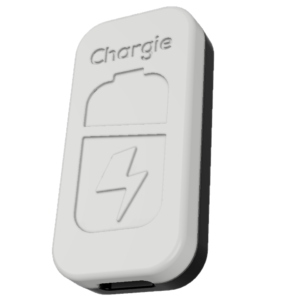
Limit your laptop charge to 80% via USB-C. Works with MacBooks, Dell, HP, Lenovo and most USB-C laptops up to 100W.
Protect Your Battery with Chargie
The world's first hardware charge limiter. Set a charge limit on any phone, tablet, or laptop — extend battery life by up to 4x.