
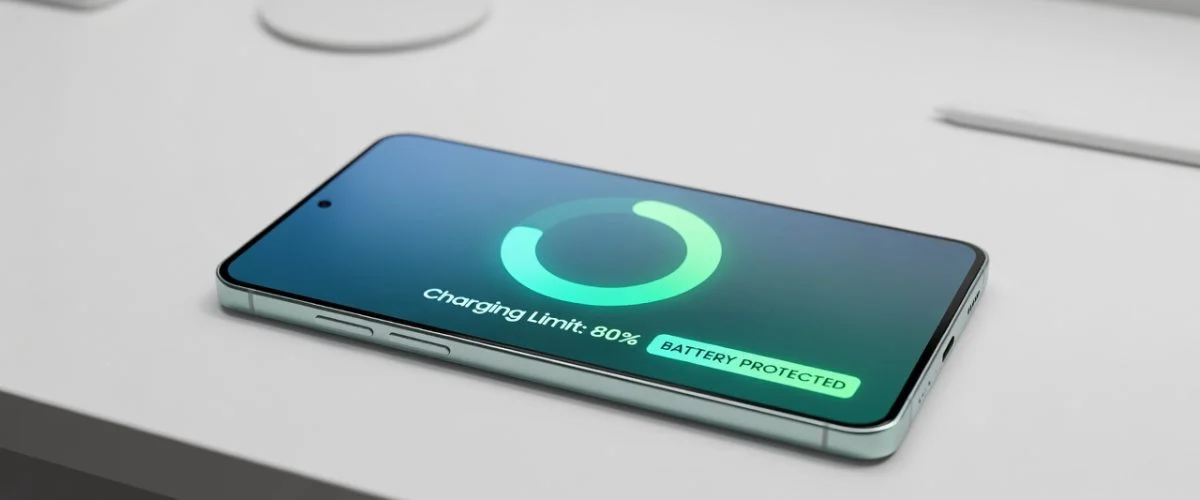

Samsung Galaxy battery health comes down to one habit: stop charging to 100% every night. Samsung’s built-in Protect Battery feature can cap charging at 80–95% (One UI 7) or a fixed 85% (older versions) using Basic, Adaptive, and Maximum modes. It helps — but it only exists on newer Galaxy phones and can be toggled off by accident. Here’s how it works, how to check your battery health, and how to make the 80% habit foolproof on any Galaxy.
Why Samsung Galaxy batteries degrade in the first place
Every Galaxy phone — from a budget Galaxy A-series to a Galaxy S24 Ultra or Z Fold — runs on a lithium-ion battery, and lithium-ion chemistry has one universal weakness: it hates sitting at a high state of charge. When your battery is pinned at 100%, the cell voltage sits at its maximum (around 4.4V on modern high-density cells). That high voltage accelerates the chemical side-reactions that permanently consume lithium and thicken the internal layers of the cell. The result is lost capacity — your 5,000mAh battery slowly starts behaving like a 4,500mAh one.
Two factors make it worse, and Galaxy phones are exposed to both:
- Time spent full. Charging overnight means your phone hits 100% within an hour or two, then bakes at full voltage for the remaining five or six hours until you wake up. That idle time at 100% does more cumulative damage than the charging itself.
- Heat. Fast charging (Samsung Super Fast Charging pushes 25W–45W) plus a warm room, a thick case, or wireless charging adds heat. Heat and high charge level together are the two biggest accelerators of calendar aging — the slow degradation that happens even when you’re not using the phone.
This is the same chemistry that drives degradation across every device, which is why the principles in our Android battery health guide apply to Galaxy phones too — but Samsung gives you some Samsung-specific tools, so let’s use them.
What Samsung “Protect Battery” actually is
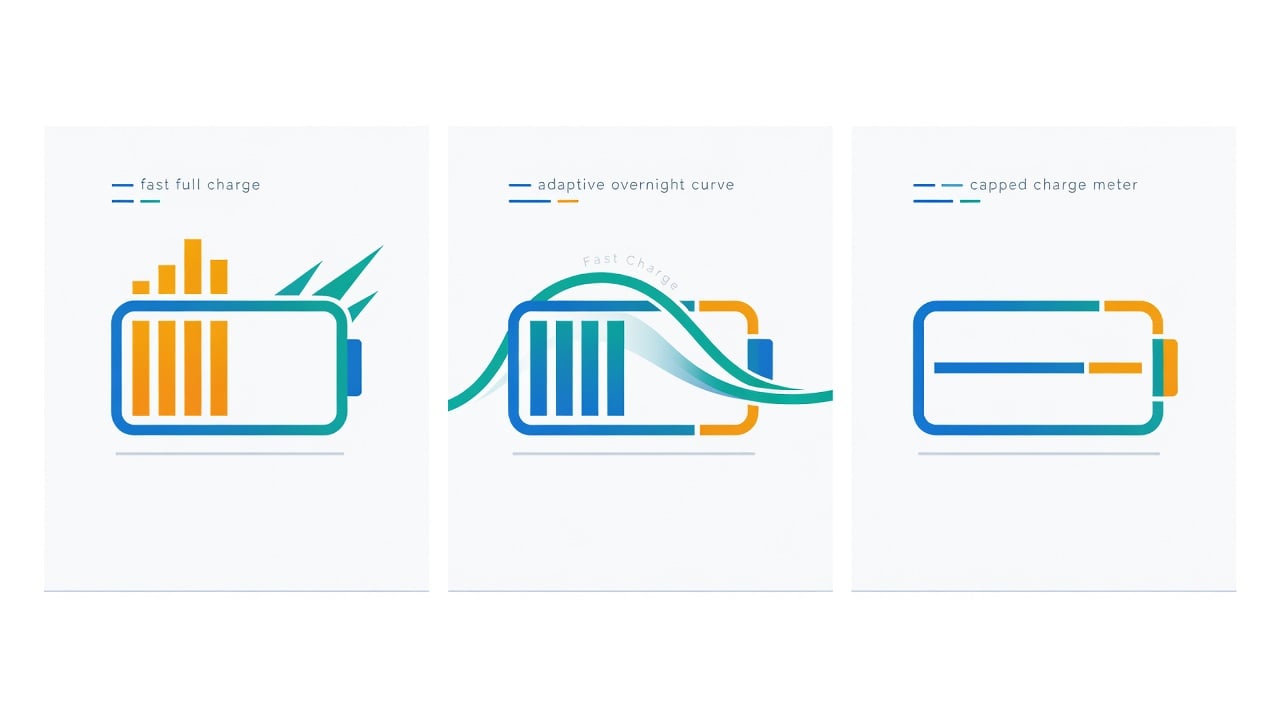
Samsung has shipped a battery-protection feature for years, but it changed shape in early 2025. On older One UI versions it was a single toggle called Protect Battery that simply capped your charge at a fixed 85%. Starting with the One UI 6.1 software update, Samsung split it into three named modes so you can match the behavior to how you actually use the phone:
| Mode | What it does | Best for |
|---|---|---|
| Basic | Standard charging with no restrictions — the fastest charge, with no regard for longevity. | Travel days when you need every percent. |
| Adaptive | Optimizes charging based on your usage habits — it learns your routine and times the charge so the battery isn’t held full any longer than needed. | Predictable overnight chargers who still want a full battery by morning. |
| Maximum | Hard cap. On older One UI it locks at 85%; on One UI 7 you choose 80%, 85%, 90%, or 95%. | Maximum longevity — the single best setting for battery health. |
Samsung’s own support documentation is blunt about the trade-off: Basic offers “the fastest charge without considering battery longevity,” while Maximum “maximizes battery protection by limiting the charge… which helps extend the overall lifespan of the battery.” In other words, Maximum is the longevity setting, and it’s the one most Galaxy owners should be using.
One UI 7 changed the game: custom charge limits
The biggest upgrade arrived with One UI 7. Where Maximum used to be a take-it-or-leave-it 85% cap, One UI 7 lets you pick your own ceiling — 80%, 85%, 90%, or 95%. That flexibility matters: 80% is the sweet spot for pure longevity, but if you found the old 85% cap left you short on screen time, you can now dial in 90% as a compromise.
Here’s how to turn it on:
- Open Settings and tap Battery.
- Tap Battery Protection. If the master toggle in the top right is off, turn it on.
- Select Maximum to enable the custom charging limit.
- Choose your cap: 80%, 85%, 90%, or 95%.
Once enabled, your Galaxy stops charging at the level you picked and shows “Charging stopped to protect your battery” on the lock screen. It won’t resume until the battery drops below that point, then it refills only back up to your cap. If you want longevity most days but a full battery occasionally, you can even script it with Bixby Modes and Routines — cap at 80% overnight, switch to Basic during the day.
Samsung is not alone here. Apple added custom charge limits in iOS 18, and Google Pixel, OnePlus, and Nothing all offer similar controls now. The 80% rule has gone mainstream — and there’s solid science behind why charging to 80% extends battery life.
How to check your Samsung Galaxy battery health
Unlike iPhones, Galaxy phones don’t put a single “battery health” percentage in the main Settings menu, which frustrates a lot of owners. Here’s where to actually find it:
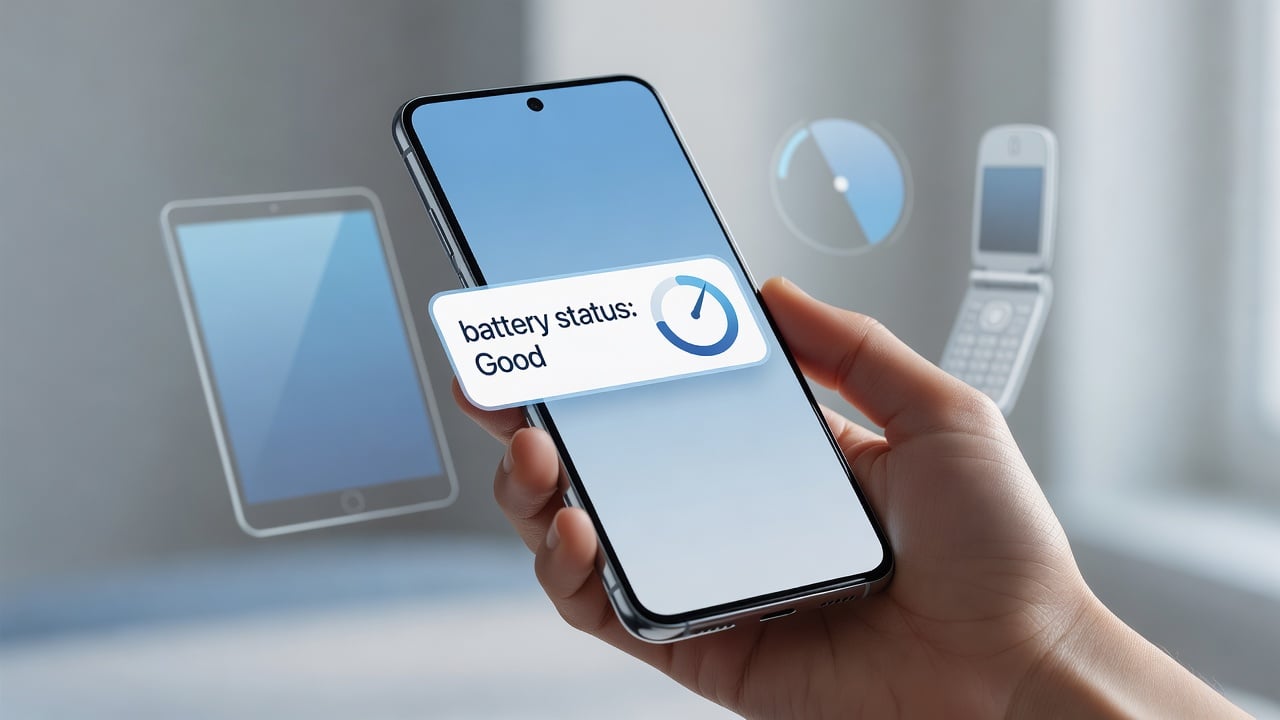
- Samsung Members app (pre-installed on most Galaxy phones): open it, go to Support → Phone diagnostics → Battery status. It reports your battery as Good / Normal / Weak rather than an exact percentage, but it’s the official channel.
- Device care: Settings → Battery and device care → Diagnostics → Battery, for a quick status read.
- Galaxy S25 and newer / latest One UI: Samsung has started exposing a true battery health percentage and manufacture/first-use date under Settings → Battery, similar to iPhone — check there first if your phone is recent.
A “Good” status means you’re above roughly 80% of original capacity. Once a Galaxy drifts into “Weak,” you’re looking at noticeably shorter screen time and, eventually, a replacement.
5 charging mistakes Galaxy owners make
- Charging to 100% every single night. This is the big one. Eight hours pinned at full voltage, every night, is the fastest route to a tired battery. Use Maximum mode or Adaptive instead.
- Leaving Protect Battery off “to be safe.” Many owners disable it because they don’t want to “lose” 15–20% of capacity day to day. But you’re trading a little daily runtime for years of extra battery lifespan — a good deal for most people.
- Fast-charging inside a thick case in a hot car. Heat plus high voltage is the worst combination. Take the case off for long fast-charge sessions and avoid charging on a hot dashboard.
- Treating wireless charging as free. Wireless pads are convenient but run hotter than a cable, especially overnight on a stand. If you charge overnight wirelessly, capping the charge matters even more.
- Ignoring swelling. A battery that pushes the back glass out or lifts the screen is a safety issue, not just a health one. Learn the warning signs in our guide to battery swelling causes and prevention and stop using the phone if you see them.
Where Samsung’s software falls short
Protect Battery is genuinely good — but it has real gaps, and this is where a lot of Galaxy owners get stuck:
- It doesn’t exist on older or budget phones. If your Galaxy can’t update to One UI 6.1 or later, you get the old fixed 85% cap at best — or nothing at all on much older models.
- It’s all-or-nothing and easy to forget. A software update, a factory reset, or a curious tap can flip it off, and you won’t notice until your battery’s been charging to 100% for weeks.
- Adaptive depends on a predictable routine. Shift workers, travelers, and anyone with irregular sleep get less benefit because the phone can’t learn when you’ll unplug.
- It only governs the phone it’s built into. Your tablet, your partner’s older Galaxy, a work phone, a Bluetooth speaker — none of them get the feature.
The 80% rule is right; the software is just an inconsistent way to enforce it. That’s the gap a hardware solution closes.
How a hardware charge limiter fills the gap
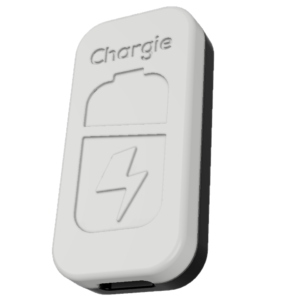
Chargie is a small adapter that sits between your charger and your cable and cuts power once your phone hits your chosen level — then tops it back up as needed. Because it works at the power level, it doesn’t care which Galaxy you own, which One UI version you’re on, or whether Samsung shipped Protect Battery on your model. It works on a brand-new Galaxy S25, a five-year-old A-series, an Android tablet, even an iPhone.
It’s also tamper-resistant in the way software isn’t: it can’t be flipped off by a system update or a stray tap, and the limit is set in the Chargie app once and then it just runs. If you want it to behave like Samsung’s Adaptive mode — hold at 80% overnight and top up before your alarm — Chargie does that with its scheduled top-up feature, on any phone. Not sure which model fits your charger and habits? Our which Chargie guide walks you through it. And if you want the deeper how-to on enforcing the cap, see how to limit battery charge to 80%.
The math: replacement vs. prevention
A Galaxy battery isn’t cheap to replace once it’s gone. Samsung’s official service typically runs $79–$99 depending on the model, and flagship and foldable repairs can run higher — plus the downtime of being without your phone. Compare that to the cost of preventing the wear in the first place. The full breakdown of brand-by-brand pricing is in our phone battery replacement cost guide, but the headline is simple: a one-time hardware limiter costs a fraction of one replacement, and it protects every device you plug into it for years.
Battery health isn’t about babying your phone — it’s about not throwing away capacity you paid for. Whether you do it with Samsung’s Protect Battery, with Chargie, or (ideally) both, the goal is the same: keep your Galaxy off 100% as much as you can.
Frequently asked questions
Does Samsung Protect Battery actually work?
Yes. By capping your charge below 100%, it keeps the cell out of the high-voltage zone where lithium-ion degradation accelerates. Real-world users report Galaxy batteries holding around 90% of original capacity after well over a year of using Maximum or Adaptive mode. It won’t reverse existing wear, but it meaningfully slows future degradation.
What percentage should I cap my Samsung battery at?
80% gives the best longevity and is the sweet spot for most owners. If you find 80% leaves you short on screen time, 85% or 90% (on One UI 7) is a reasonable compromise that still avoids the most damaging top 5–10%.
Why doesn’t my Galaxy show a battery health percentage?
Older Galaxy phones don’t expose an exact percentage in Settings — you check status (Good/Normal/Weak) via the Samsung Members app or Device care diagnostics. The newest Galaxy models and One UI versions have started showing a true battery health percentage under Settings → Battery.
Does Protect Battery slow down charging?
No. Basic and Maximum charge at full speed; they just stop at your chosen ceiling. Adaptive deliberately pauses around 80% and finishes before your usual unplug time, so it can feel slower overnight by design.
My older Galaxy doesn’t have Protect Battery. What can I do?
Use a hardware charge limiter like Chargie, which enforces an 80% cap at the power level regardless of your One UI version or model. It’s the only reliable option for Galaxy phones that never got the feature.
Is it bad to charge my Galaxy overnight?
Charging overnight to 100% is the single habit that wears Galaxy batteries fastest, because the phone sits at full voltage for hours. Overnight charging is fine if you cap it — use Adaptive mode, Maximum mode, or a hardware limiter so the phone holds at 80% instead of baking at 100%.
The bottom line
Samsung gave Galaxy owners real tools to protect battery health: Basic, Adaptive, and Maximum modes, plus One UI 7’s flexible 80/85/90/95% caps. Turn on Maximum at 80% and you’ve already done most of the work. But because the feature is missing on older models, easy to disable, and tied to one device, a hardware limiter is the foolproof way to make the 80% habit stick across every phone you own. Either way, the rule is the same — keep your Galaxy off 100%, and it’ll keep its capacity for years longer.
Protect your Galaxy battery with Chargie →
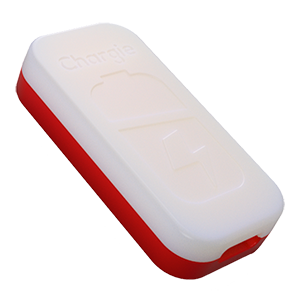
USB-C charge limiter that stops at your set battery level, so your battery never sits at 100% overnight. Extends battery lifespan by years. Works with any USB-C charger.
Limit your laptop charge to 80% via USB-C. Works with MacBooks, Dell, HP, Lenovo and most USB-C laptops up to 100W.
Protect Your Battery with Chargie
The world's first hardware charge limiter. Set a charge limit on any phone, tablet, or laptop — extend battery life by up to 4x.