
Your Windows laptop shipped with, say, 72 Wh of battery capacity. A year later, Windows shows the same number — but now you’re scrambling for a charger two hours earlier than you used to. The battery percentage is lying to you, and the real number is buried in a free report that most Windows users have never heard of.
This guide covers how to pull that report in 60 seconds, what the numbers actually mean, and the four things that will genuinely slow down the degradation — including one hardware fix that works on every Windows machine regardless of brand.
Why Windows Laptops Lose Battery Capacity Faster Than You’d Expect
Before the how-to, a quick chemistry note. The battery inside your Surface Pro, Dell XPS, Lenovo ThinkPad, or ASUS ZenBook is a lithium-ion (or lithium-polymer) cell. Every full charge-discharge cycle pushes lithium ions back and forth through the electrolyte, and each trip adds microscopic wear. That wear is unavoidable — but two things make it happen much faster:
- High voltage (high state of charge). Lithium-ion cells are most stressed at the top of their voltage range — roughly above 80% charge. Sitting at 100% for hours every day accelerates the wear roughly 2× compared to sitting at 80%.
- Heat. A warm battery degrades faster than a cool one. A Windows laptop running a heavy workload while plugged in combines maximum voltage and maximum heat — the worst combination possible for the cells.
Most Windows users plug in at the office, let the laptop charge to 100%, and leave it there all day. The battery sits at peak voltage and elevated temperature for eight hours straight, five days a week. That’s why a three-year-old laptop that “should” still hold a full charge often holds 60–70% of its original capacity.
The good news: you can measure where your battery stands right now, and you can slow the damage significantly with a few changes.
Step 1: Run the Windows Battery Report (Free, Built-In, 60 Seconds)
Windows has a hidden diagnostic tool called powercfg that generates a full HTML battery report — and it’s the first thing you should run if you suspect your Windows laptop battery health has declined. Here’s how to access it:
- Press Windows + X and select Terminal (Admin) or Command Prompt (Admin).
- Type:
powercfg /batteryreport /output C:\battery-report.html - Press Enter. Open
C:\battery-report.htmlin your browser.
The report shows four key sections:
| Section | What to look for |
|---|---|
| Installed batteries | Design Capacity vs. Full Charge Capacity |
| Recent usage | Active/suspend periods, battery drain rate |
| Battery capacity history | How capacity has changed over weeks/months |
| Battery life estimates | Actual runtime at current capacity |
The most important number is the gap between Design Capacity (what the battery held when new) and Full Charge Capacity (what it holds now). If your laptop shows Design Capacity: 72,000 mWh and Full Charge Capacity: 52,000 mWh, your battery is at 72% health — you’ve lost more than a quarter of the original runtime.
Rule of thumb: Anything above 80% health after two years is good. Below 70% after one year suggests a problem — either aggressive charging habits or a defective cell worth checking under warranty.
Windows 11 also shows a simplified battery health estimate in Settings → System → Power → Battery health (available on some OEM configurations). But the powercfg battery report gives you the raw data and the degradation timeline, which is far more useful for diagnosis.
Step 2: Understand What’s Normal — and What Isn’t
Battery degradation is normal. What varies is the rate. Here’s a realistic benchmark based on typical usage patterns:
| Usage pattern | Expected health after 1 year | After 2 years |
|---|---|---|
| Plugged in all day at 100% | 75–80% | 55–65% |
| Charged to 80%, unplugged | 88–93% | 80–85% |
| Mixed use, occasional overnight charge | 82–88% | 72–78% |
| Hardware charge limiter (e.g. Chargie) | 92–96% | 87–92% |
The “plugged in all day” scenario — the standard office laptop — is the fastest degradation path. The hardware limiter row represents what happens when you physically prevent the battery from ever exceeding ~80% state of charge, which also keeps voltage lower and heat reduced.
Step 3: Enable Windows 11 Energy Saver (or Battery Saver on Older Versions)
Windows 11 version 24H2 replaced the old Battery Saver with a more intelligent Energy Saver mode. According to Microsoft’s official documentation, Energy Saver can now run all the time — including when plugged in — and Windows actively recommends enabling it for maximum battery longevity.
To enable Energy Saver on Windows 11 24H2+:
- Click the battery icon in the system tray → toggle Energy Saver on.
- Or go to Settings → System → Power → Energy Saver and set it to run automatically.
When Energy Saver is active, Windows reduces display brightness by 30%, limits background app activity, pauses non-critical Windows Update downloads, and disables transparency effects. The combined effect reduces heat — which matters even when plugged in, because less heat means less degradation over time.
On Windows 10 and Windows 11 pre-24H2, use Battery Saver (Settings → System → Battery → Battery Saver). Per Microsoft’s Battery Saver documentation, this mode automatically activates at 20% battery but can be enabled manually at any time.
Step 4: Use Your OEM’s Built-In Charge Limit (If You Have One)
Several major Windows laptop brands ship software that can cap charging at 80% — one of the most effective things you can do for long-term Windows laptop battery health. Here’s what’s available in 2026:
| Brand | Tool / Setting | Charge limit available |
|---|---|---|
| Lenovo | Lenovo Vantage → Power → Battery Threshold | ✅ Yes — custom % (50–95%) |
| ASUS | MyASUS → Battery Care Mode | ✅ Yes — fixed 60% or 80% |
| Dell | Dell Power Manager | ✅ Yes — Standard (80%) or Custom |
| HP | HP Support Assistant / Battery Health Manager | ✅ Yes — on select ProBook/EliteBook |
| Microsoft Surface | Settings → System → Power → Battery Limit | ✅ Yes — fixed 50% (clamshell mode only) |
| Samsung (PC) | Samsung Settings → Battery | ✅ Yes — 85% cap |
| Acer / MSI / Razer | No built-in limit | ❌ Varies by model |
| Generic / budget laptops | None | ❌ No native option |
The catch: these tools are brand-specific, require their OEM software to stay installed, and some only work in specific modes. If you own a brand without a limit, or you’ve removed the OEM software, you’re back to charging to 100% by default.
That’s the gap our guide to USB-C charge limiters compared for 2026 covers in detail — including how hardware limiters handle brands with no native support. Our complete guide to limiting battery charge to 80% on any device also walks through the OEM app steps for each brand.
What If Your Laptop Has No Charge-Limit App — and No BIOS Option?
Look back at the table above. Acer, MSI, and Razer have no built-in charge limit. Most generic and budget Windows laptops have none either. And many consumer HP and Dell laptops — the Inspirons and Pavilions that aren’t ProBooks or EliteBooks — ship without a charge-limit tool too. Older laptops, regardless of brand, often predate the OEM apps entirely.
For these machines, the standard advice is “sorry, your laptop can’t limit charging.” So the battery sits at 100% voltage every time it’s plugged in — the exact condition that accelerates degradation the most. Heat from normal use compounds the damage. There’s no software fix, because there’s no software to install.
That’s where a hardware USB-C charge limiter changes the equation. A Chargie for laptops sits between your charger and your laptop’s USB-C port and physically stops charging at 80% — the same threshold OEM apps like Lenovo Vantage and MyASUS target. No OEM app required, no BIOS setting needed, and no Windows update can remove it. You set it once and forget it.
If your laptop is one of the brands the table marks as ❌ — or you’ve uninstalled the OEM software and don’t want it back — our complete guide to configuring standalone power-based charging limits walks through exactly how a hardware limiter works on any USB-C laptop, step by step.
Step 5: Manage Heat — the Other Battery Killer
Software limits address the voltage problem. But heat is equally damaging, and it requires a few physical habits:
- Use a laptop stand or deskpad. Elevating the laptop 2–3 cm dramatically improves airflow under the chassis. A $20 stand can meaningfully reduce sustained temps under load.
- Don’t use the laptop on a bed or sofa. Soft surfaces block the bottom vents and can raise internal temps by 10–15°C under load — that alone accelerates battery wear significantly.
- Keep ambient temperature in range. Lithium-ion cells age fastest above 35°C. A laptop left in a hot car or direct sunlight can do months of equivalent wear in an afternoon.
- Avoid 100% charge under heavy load. This is the double-whammy: maximum voltage and maximum heat at the same time. If you’re rendering video or gaming for hours, either unplug and work on battery, or use a charge limit so the battery isn’t sitting at full voltage while stressed.
For more on how heat interacts with battery chemistry, our summer heat and phone battery protection guide covers the science in depth — the same principles apply directly to laptop batteries.
Already using Chargie on a Windows laptop? The Chargie for Windows app guide covers installation and setting your charge limit.
Step 6: The Hardware Limiter — the Option Every Windows Brand Should Have
Apple added an 80% charge limit to every iPhone with iOS 13 and extended it to MacBooks with macOS 26.4. Android has had it since Android 12 on Pixel, and Samsung Galaxy since 2022. Windows has no platform-wide equivalent — it’s left to individual OEMs, and many don’t bother.
The practical consequence: most Windows laptop users have no native way to protect their battery, regardless of brand. Our MacBook battery health guide explains why Apple’s approach took so long — and the same gap is even wider on Windows.
A hardware USB-C charge limiter like Chargie is the brand-agnostic answer. It works like this:
- Plug your charger into Chargie.
- Plug Chargie into your laptop’s USB-C charging port.
- Set your limit (80% recommended) in the Chargie app.
- Leave it. Chargie monitors the charge level and physically disconnects power when the threshold is hit.
Unlike OEM software, it can’t be removed by a Windows update. It works on any USB-C charged laptop — Surface, ThinkPad, XPS, ZenBook, or anything else. And because it’s hardware, there’s no vendor app to maintain.
For laptops with no OEM charge-limit app at all — Acer, MSI, Razer, budget machines, older models — our dedicated guide to configuring standalone power-based charging limits covers the hardware approach in full detail.
This is especially useful for companies managing a fleet of Windows laptops — a charge limiter on every machine reduces battery replacement frequency measurably, cutting hardware refresh costs without requiring any policy changes in Windows itself.
Windows Laptop Battery Health: Quick Reference
| Action | Effort | Impact |
|---|---|---|
| Run powercfg battery report | 2 minutes | Baseline — know where you stand |
| Enable Energy Saver (Win 11 24H2+) | 30 seconds | Reduces heat, extends runtime |
| Use OEM charge limit app | 5 minutes | High — if your brand supports it |
| Hardware charge limiter (Chargie) | Plug-in once | High — works on any brand |
| Laptop stand + airflow | $15–30 | Medium — reduces sustained temps |
| Avoid plugged-in use under heavy load | Habit change | Medium — cuts voltage+heat overlap |
Frequently Asked Questions
How do I check battery health on Windows 11 without third-party software?
Open Terminal as Administrator and run powercfg /batteryreport /output C:\battery-report.html. Open the file in your browser. Look at the gap between Design Capacity and Full Charge Capacity — that ratio is your battery health percentage. No downloads or installations required.
What is a good battery health percentage for a Windows laptop?
Above 80% after 2 years is considered healthy. Below 70% after 1 year suggests either heavy charging habits (constant 100%) or a defective cell worth checking under warranty.
Does Windows 11 have a built-in battery charge limit?
Not universally. Some OEMs expose a limit through their software (Lenovo Vantage, MyASUS, Dell Power Manager). Microsoft Surface has a 50% limit in clamshell mode. There is no Windows-wide charge limit feature equivalent to what iOS offers — that’s why hardware limiters are useful for the brands that don’t provide one natively.
Will enabling Energy Saver damage my laptop?
No. Energy Saver reduces background activity and display brightness — it has no negative effect on hardware. In fact, by reducing heat, it modestly helps battery longevity over time.
How much does a battery replacement cost for a Windows laptop?
Typically $80–$250 depending on brand and model. Our full battery replacement cost guide for 2026 has brand-by-brand estimates. A Chargie hardware limiter costs less than one replacement and can prevent the need entirely if started early.
Can a charge limiter damage my Windows laptop?
No. Stopping charge at 80% is exactly what OEM apps like Lenovo Vantage and MyASUS do on supported brands. A hardware limiter does the same thing at the power level rather than the software level — it’s gentler on the battery, not harsher.
Does leaving a Windows laptop plugged in all day damage the battery?
Yes, over time. Modern laptops have trickle-charge circuits that reduce harm, but high state-of-charge combined with operating heat still accelerates degradation measurably. The powercfg battery report’s capacity history section will show this clearly if you run it on a laptop that has lived at 100% charge for months.
What if my laptop has no charge-limit app and I can’t access a BIOS setting?
That covers a large share of Windows laptops — Acer, MSI, Razer, most budget machines, older models, and many consumer HP and Dell lines. The answer is a hardware USB-C charge limiter. It does the same 80% cap that OEM apps like Lenovo Vantage perform in software, but at the power level — so it doesn’t depend on your brand, your BIOS, or any vendor app staying installed. See our guide to configuring standalone power-based charging limits for the full walkthrough.
The Bottom Line
Windows laptops have no universal charge-limit feature — you get whatever your OEM chooses to provide, or nothing. But the degradation problem is real and measurable: run the powercfg report today and see where your battery actually stands.
If your OEM has a charge limit app, use it. If they don’t, a hardware limiter like Chargie is the universal solution — it works on any USB-C laptop, at any charge level you choose, without depending on software that might be removed by the next Windows update.
Start with the battery report. Then limit the charge. Your Windows laptop battery health will be measurably better six months from now.
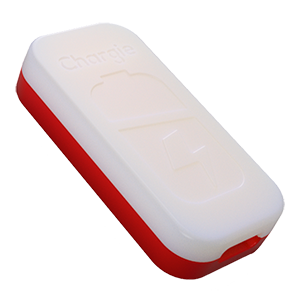
USB-C charge limiter that stops at your set battery level, so your battery never sits at 100% overnight. Extends battery lifespan by years. Works with any USB-C charger.
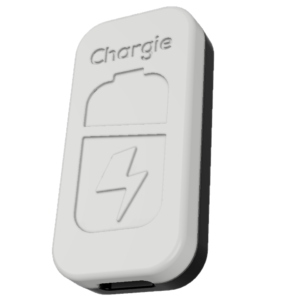
Limit your laptop charge to 80% via USB-C. Works with MacBooks, Dell, HP, Lenovo and most USB-C laptops up to 100W.
Protect Your Battery with Chargie
The world's first hardware charge limiter. Set a charge limit on any phone, tablet, or laptop — extend battery life by up to 4x.