
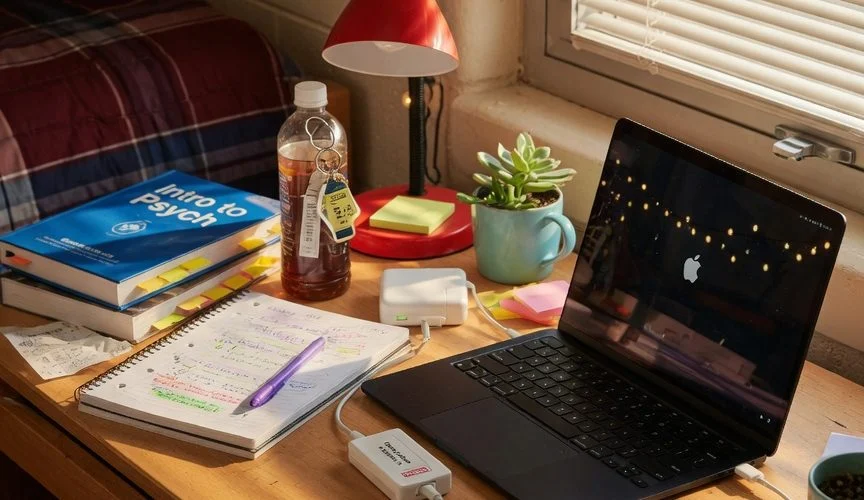

The Four-Year Battery Problem Every Student Faces
You’ve probably heard the advice: “Just keep your laptop plugged in.” Dorm desks have outlets everywhere, and when you’re writing a term paper or streaming lectures all day, it makes sense. But that advice is quietly destroying the one part you can’t cheaply swap out.
No other computer takes this much abuse. It’s your primary machine for four years. It bounces between dorms, libraries, and lecture halls every day, gets stuffed into backpacks that sit in 35°C sun or freezing February corridors, and spends more time plugged in than any device you own — often 16+ hours a day.
According to Apple’s battery guidance, MacBook batteries retain up to 80% capacity after 1000 charge cycles — but that’s under ideal lab conditions. The sweet spot is 16–22° C (62–72° F). Above 35° C (95° F), capacity loss accelerates dramatically. And that’s just temperature — we haven’t even touched what holding 100% charge does.
The Dorm-Room Plugged-In Trap
Here’s the single biggest battery killer for college students: keeping the laptop plugged in 24/7.
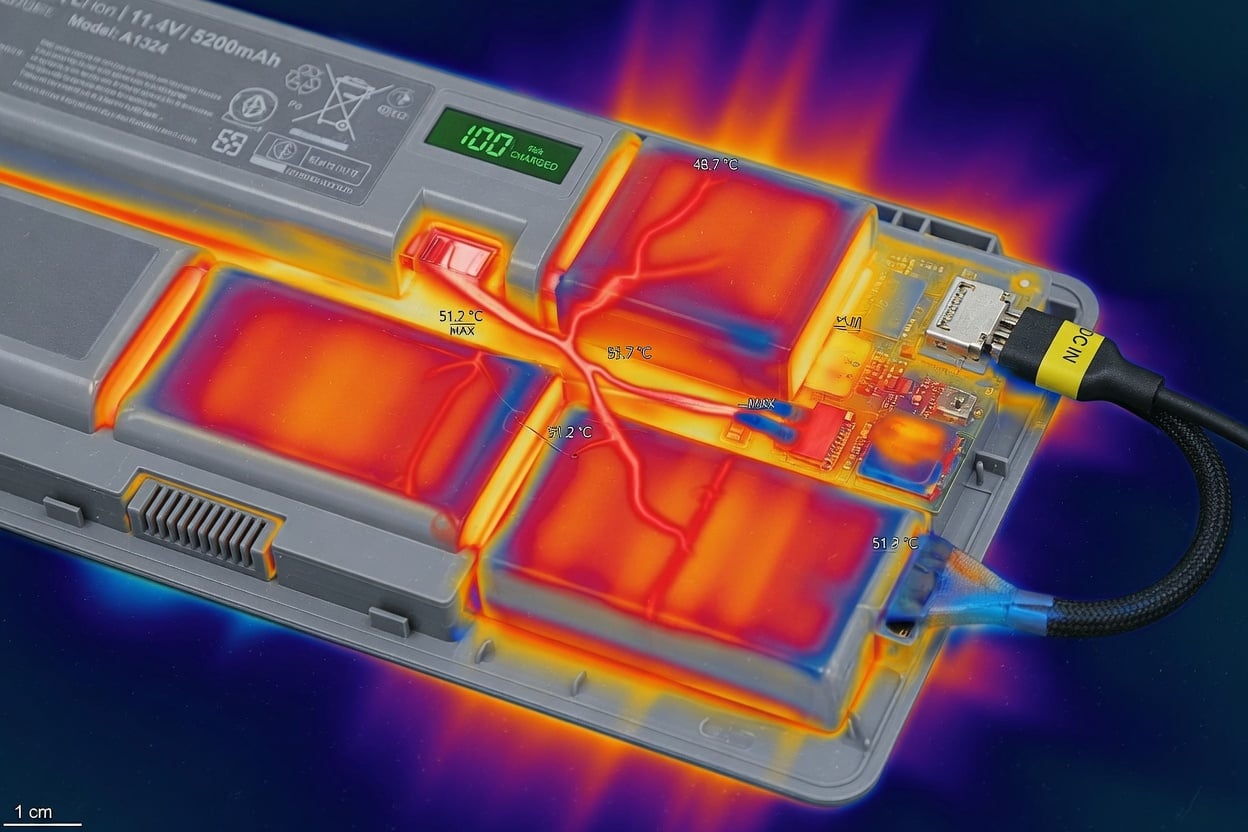
Lithium-ion batteries age fastest when held at full charge and high temperature. A battery sitting at 100% at room temperature loses about 20% of its capacity per year from calendar aging alone. At 40° C — which is entirely possible for a gaming laptop running on a desk in an un-air-conditioned dorm in August — that calendar loss jumps to 35% per year.
The fundamental chemistry of lithium-ion batteries works against you here: the electrolyte reacts with the electrodes more aggressively at higher voltages and temperatures. A laptop at 100% sits at 4.2V per cell — the highest stress voltage. At 80% charge (roughly 3.92V per cell), the stress drops by about half. At 60%, it drops by two-thirds.
Why Software Battery Limits Don’t Cut It on Most Student Laptops
Apple’s MacBooks have “Optimized Battery Charging” — the feature learns your daily routine and delays the final charge past 80% until just before you typically unplug. But it has limits: it only works if your schedule is consistent, and many students (especially freshmen) don’t have a predictable daily routine from day one.
Windows laptops are worse. Most consumer-grade laptops from Dell, HP, Lenovo, and ASUS either lack charge-limiting software entirely or bury it in UEFI/BIOS settings that most students never find. Even when present, these software solutions cap charge at the OS or firmware level — they don’t physically interrupt the charging circuit. A USB charge limiter works at the hardware level, stopping the charge at a set percentage regardless of what the laptop’s operating system or firmware does.
As we’ve covered in the comparison of built-in limits vs. hardware charge limiters, software-based limits depend on the manufacturer shipping and maintaining the feature. On a four-year timescale, that manufacturer may stop providing BIOS updates by year three. A hardware limiter keeps working.
The Other College Battery Killers
Plugged-in dorm use isn’t the only threat. Here’s what else a college laptop endures:
- Backpack heat and cold: A laptop bag left in direct sun or a hot car can hit 50–60° C internally. At these temperatures, lithium-ion batteries suffer permanent capacity loss in hours, not months. Freezing temperatures during winter walks between buildings also stress the chemistry, though reversible if the battery isn’t charged while cold.
- Gaming and creative workloads: Video editing, 3D modeling, or gaming pushes CPU and GPU temperatures high — and the battery, sitting right next to those components, absorbs that heat. Combine high discharge with high ambient temperature and you’ve tripled the stress.
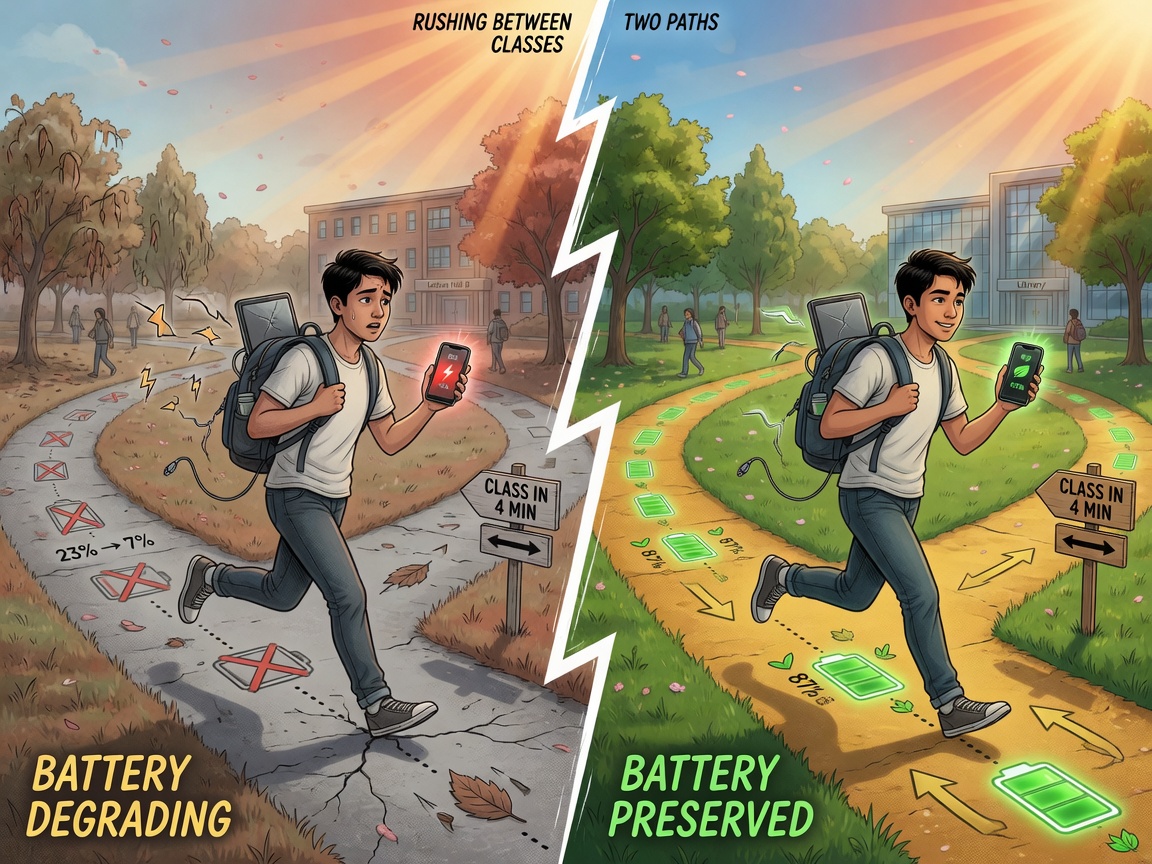
- Partial charge cycles: Between classes, you might unplug for 45 minutes, plug back in for 30, then unplug again. Each micro-cycle at high voltage adds cumulative stress. The battery doesn’t “remember” — but the calendar-aging clock is always ticking at 100%.
- Low-cost chargers: Lost chargers and tight budgets mean students often grab cheap third-party power adapters with poor voltage regulation — adding ripple current and extra heat to every charge.
What Actually Happens to a Battery Over Four Years
Let’s compare three scenarios for a typical student laptop over four academic years:
| Scenario | Average Battery Wear/Year | Capacity After 4 Years | Classroom Usable Life |
|---|---|---|---|
| Plugged in 24/7 at 100% (dorm desk) | ~20–25% | ~15–30% | Must stay plugged all the time by Year 3 |
| Mixed use, no charge limiter (typical student) | ~12–18% | ~40–55% | Noticeably shorter by Year 3, dims by Year 4 |
| Mixed use with charge limiter capped at 80% | ~6–9% | ~70–80% | Still usable unplugged through graduation |
The difference between “my laptop dies in an hour” by junior year and “still gets through three classes unplugged” at graduation is almost entirely about how you manage charge levels in the first 18 months.
Smart Charging Habits for Students
Here’s a practical routine that costs nothing but awareness:
- Cap your charge at 80% when you’re at your desk. Use a hardware charge limiter if your laptop doesn’t support software capping. If you have a Mac with Optimized Battery Charging, turn it on — but verify it’s actually learning your routine. It often takes 1–2 weeks to kick in.
- Unplug before gaming or heavy work. The worst combination is a hot CPU and a battery at 100%. Let the battery run down to 60–70% before plugging in for a gaming session, or use the limiter to hold it lower.
- Don’t leave your laptop in a hot car or direct sun. Even 30 minutes at 50° C degrades capacity. If your backpack sits in a sunny window, move it.
- Avoid cheap third-party chargers. The voltage ripple from uncertified PSUs adds microscopic stress to every charging cycle. Use the OEM brick or a reputable GaN alternative.
- Let the battery breathe. If you’re at your desk all day, unplug once the limiter engages and let it run on battery for a cycle once a week. The battery management system needs periodic cycling to maintain accurate state-of-charge calibration.
- Use trickle charging when available. A slower, cooler charge at the tail end of a top-up is gentler than a fast charge from 70→100%.
Is a USB Charge Limiter Worth It for a Student Budget?
A typical laptop battery replacement costs $100–$200 for parts alone — more for MacBooks with glued-in batteries that require special tools. A student on a tight budget can’t afford to replace a battery every two years.
A USB charge limiter like Chargie costs roughly the same as one replacement battery — but it prevents the damage before it happens, extending your original battery through all four years and often well beyond. If you buy a refurbished or older-model laptop to save money in college, the battery may already have some wear; a charge limiter slows further degradation from that point.
And unlike a battery replacement (which requires shipping, tools, and potentially damaging the laptop chassis), a charge limiter is plug-and-play. You set it once and forget it.
For students who also use their phone heavily between classes — and who doesn’t? — the same device works on your smartphone too. The summer heat protection guide covers keeping both devices safe in the same backpack.
FAQ: Student Laptop Battery Questions
Should I unplug my laptop when it hits 100%?
Yes — or better, use a charge limiter to stop it at 80% automatically. The worst thing you can do for a lithium-ion battery is hold it at 100% for hours or days at a time.
Does gaming on a plugged-in laptop damage the battery faster?
Yes. Gaming while plugged in generates significant heat that the battery absorbs. The combination of 100% charge (high voltage stress) and 50°+ C internal temperatures is the fastest way to lose capacity. Cap at 80% and let the battery partially discharge before heavy gaming sessions.
Is Apple’s Optimized Battery Charging good enough?
For students with predictable daily routines — yes, it helps. But it takes 1–2 weeks to learn your schedule, doesn’t work if your schedule varies, and only delays the final charge to 100% — it doesn’t keep the battery at 80% permanently. A hardware limiter gives you constant protection regardless of schedule consistency.
Will capping at 80% reduce my laptop’s performance?
No. A charge limiter only affects the charging circuit, not the power delivery circuit. Your laptop runs at full speed whether the battery is at 80% or 100% — it draws from the power adapter directly when plugged in. Some very old laptops (pre-2015) may run at reduced clock speeds on battery, but modern laptops run full-speed on battery until the last 5–10%.
Should I fully discharge my laptop battery once a month?
That was good advice for old nickel-cadmium batteries, but not for modern lithium-ion. You should let the battery discharge to around 30% occasionally (once every 1–3 months) to recalibrate the charge controller, but avoid going below 20% regularly. Deep discharges stress li-ion cells.
Does using my laptop while charging generate damaging heat?
Light use like browsing or writing (no fan spinning up) generates minimal extra heat and is fine. Heavy use like gaming, video rendering, or 3D modeling while charging at 100% is the dangerous combination. If you’re doing intensive work, let the battery run down to 60–70% first, or use a charge limiter to hold it at 80%.
How do I check my laptop’s battery health?
On Windows, open a Command Prompt as administrator and run powercfg /batteryreport — it generates an HTML report with cycle count, design capacity, and full charge capacity. On macOS, hold Option and click the battery icon in the menu bar, or open System Information > Power for cycle count. We have a full guide on checking battery health across devices.
My laptop gets hot in my backpack. Is that a real problem?
Yes. Above 35° C, lithium-ion batteries permanently degrade. In a backpack left in a warm lecture hall or direct sun, internal temperatures can reach 45–55° C. This causes measurable capacity loss in a single afternoon. Store your laptop in the shade, and consider a thermal-insulated laptop sleeve for summer months.
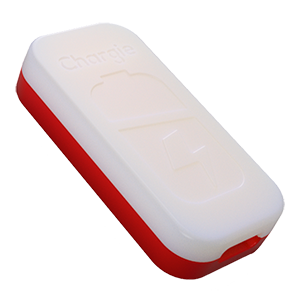
USB-C charge limiter that stops at your set battery level, so your battery never sits at 100% overnight. Extends battery lifespan by years. Works with any USB-C charger.
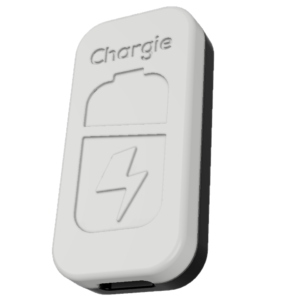
Limit your laptop charge to 80% via USB-C. Works with MacBooks, Dell, HP, Lenovo and most USB-C laptops up to 100W.
Protect Your Battery with Chargie
The world's first hardware charge limiter. Set a charge limit on any phone, tablet, or laptop — extend battery life by up to 4x.